
Use Zip custom question fields and a Path custom screen to make imported questions and answers easy to review in the loan file.
RequirementsAccess to Path business unit settings, Zip Admin, and Path custom settings. Access depends on user role permissions.
Review of the Zip Custom Questions- In Path, under the System Admin role, select Configuration > Business Units > List.
- Open the applicable business unit.
- Select Settings, then select the Zip tab.
- Select Launch Zip Admin.
- In Zip Admin, select Borrower Interview > Configuration.
- Select the applicable configuration.
- Select Edit next to Custom Question 1. Repeat for Custom Question 2, if applicable.
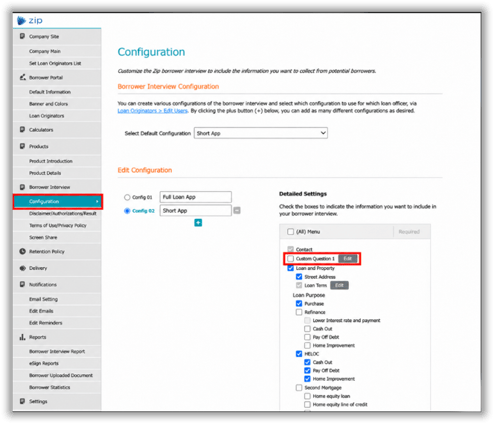
Zip Configuration and Custom Question 1
8. Review each question and its selected number. The example shows question numbers 23000 and 23002.
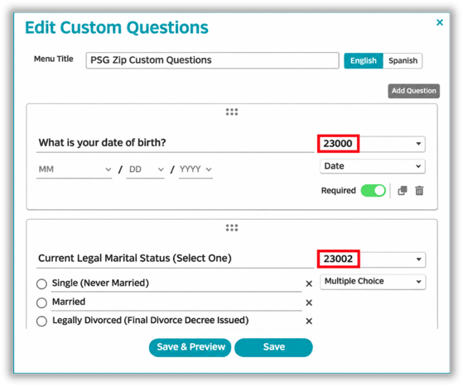
Zip Edit Custom Questions screen.
. 9. Copy the custom question text from Zip.
10. Select Save after making any changes.
Review the Zip Fields in Path
- In Path, select Settings > Custom > Custom Fields.
- Search for the applicable Zip Question and review its Field ID and ZIP interface. In the example, Zip Question 5 has Field ID ZipFieldID23008.
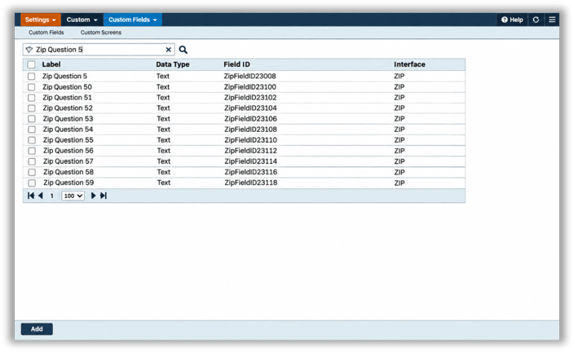
Path Custom Fields list
Note: Path provides Zip-allocated fields. Their labels can be edited, but system-allocated question fields cannot be deleted. The numeric portion of the Path Field ID matches the question number shown in Zip.
3. Select the applicable Zip Question in the Custom Fields list to open the User-Defined Field dialog.
4. Locate the Field ID. In this example, Zip Question 11 has the Field ID ZipFieldID23020.
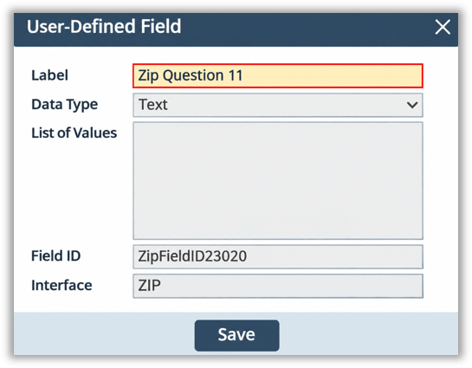
Path User-Defined Field dialog showing the Field ID
5. Paste the copied Zip custom question into the Label field.
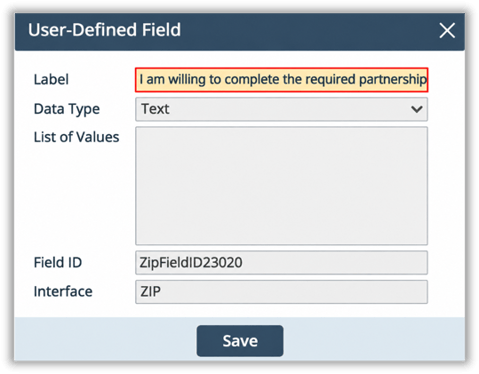
Custom question example into the Path Label field
6. Note the numeric portion of the Field ID. For ZipFieldID23020, the number to select in Zip is 23020.
7. Select Save to save the field label.
Map the Field ID to the Zip Question
- Return to the Edit Custom Questions dialog in Zip Admin and locate the question you want to map.
- Open the number dropdown to the right of the question. Search for or select numeric portions of the corresponding Path Field ID.
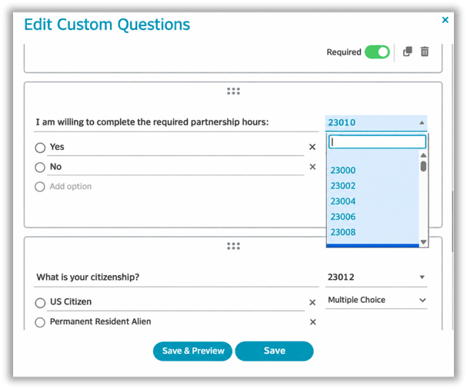
Example of Zip custom question number dropdown.
3. Select Save. Repeat for each custom question that needs a corresponding Path field.
Set Up the Custom Screen
1. Select Settings > Custom > Custom Screens.
2. Select the location from the Workflow dropdown and select the custom screen row to edit.
3. Enter a Screen Name.
4. Under User-Defined Fields, search for and select the applicable Zip Question fields.
5. Select the right arrow to move the fields to Selected Fields.
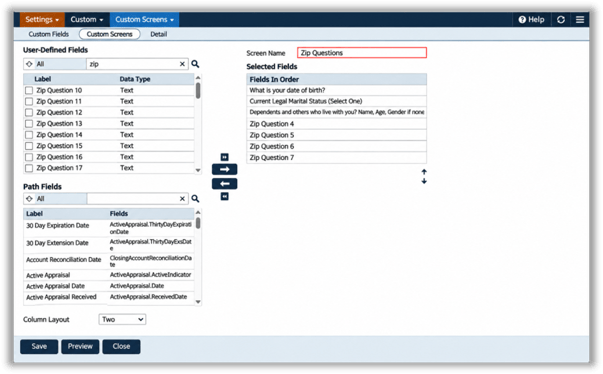
Custom screen with Zip fields selected
6. Select Save, then select Preview to review the screen.
Make the Screen Available to a Role
- Select Configuration > Roles > List and open the applicable role.
- Select Screens and expand the submenu containing the custom screen.
- Locate the screen and expand Reference and Tab. Select the icon next to Save to turn it on.
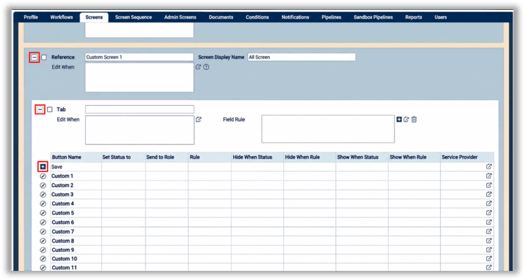
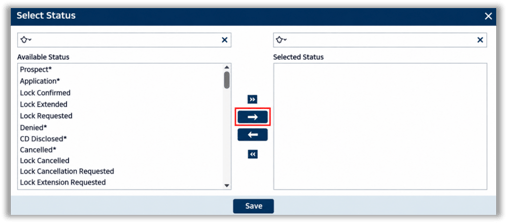
4. Select the paper icon, move the applicable statuses to Selected Status, and select Save
Adding the Zip question fields to a Path custom screen gives users a convenient place to review imported questions and answers.
