
To copy an existing report and generate a new one, you must be logged in with an Administrator role.
Log in as the administrator.
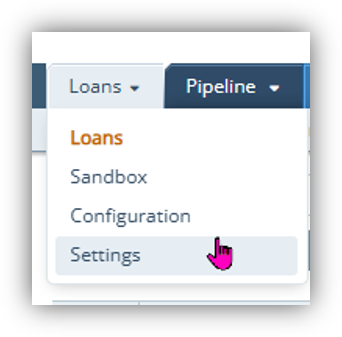
- Select the Loans tab and click on Settings.
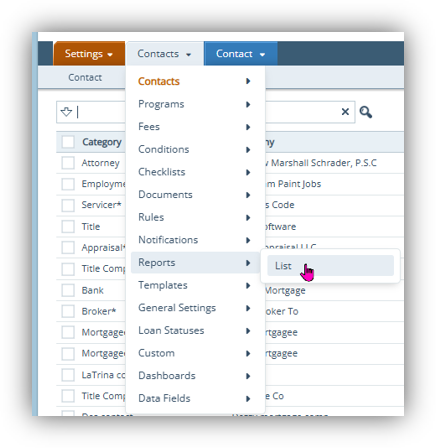
2. Select Contact and scroll down to Reports, then select List
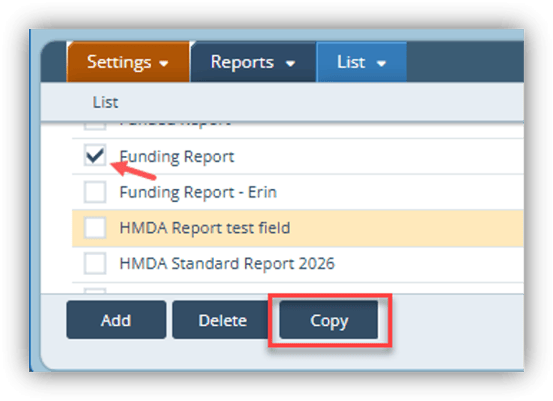
3. Select the box next to the report you wish to copy and click Copy at the bottom of the screen.
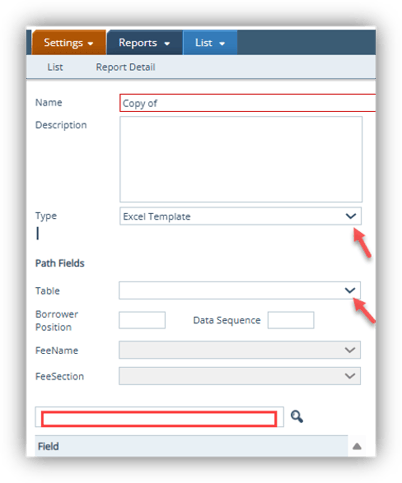
4. This screen will appear. Then rename the new report.
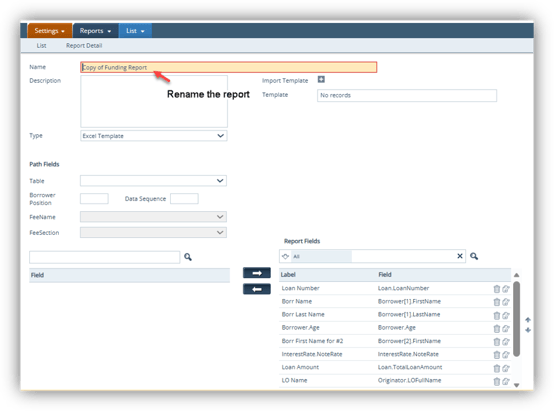
5. Select the report Type as Excel Template.
6. Select Table from the dropdown, or type the first word of the field ID.
7. Search for the field in the search bar.
8. Select the Field to add to the report, then click the right arrow to move it to the Report Fields.
9. To remove any Field from the report, highlight the field in the right column. Then click on the left arrow to remove it from the Report Fields
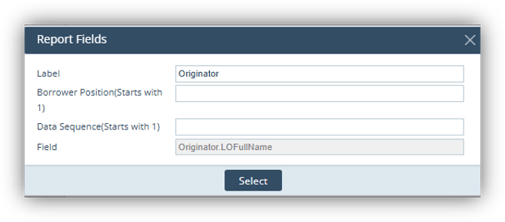
10. To change the label on Field ID. in the column to the right. Click the paper icon to the right of the Field ID.
11. Type in your required headers. Click Select. This will show as the column header in the report.
12. Update the Report Filter if needed.
13. Click Save. The report is not ready to run.
