
Path Basic Reports allow users to access and run standard report information in Path to review loan data, track activity, and support reporting needs. Reports can be built with selected loan fields, borrower data, filters, and report access based on user role permissions.
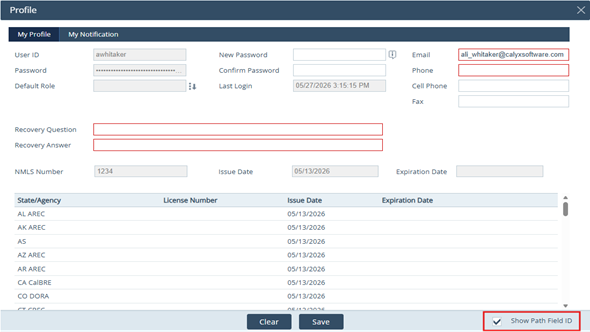
Show Field IDs
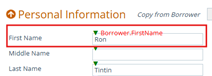
1. On the top right of the screen, click on the username.

2. Inside the User Profile screen, check the Show Path Field ID checkbox.
3. Select Save.
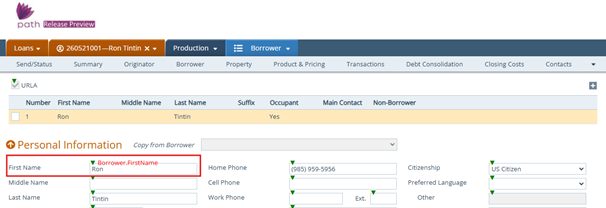
4. Inside loan files, fields will have a green arrow that shows their Field ID.
Create a Basic Report
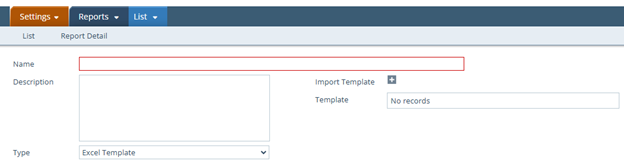
1. Navigate to Settings > Reports > List.
2. Select Add to create a new basic report.
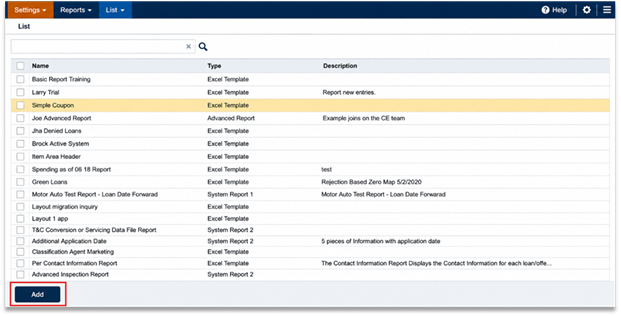
3. This opens the Report Detail screen.
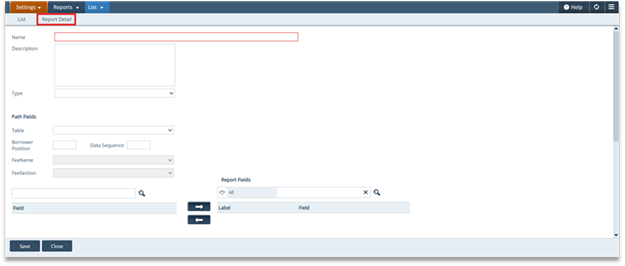
4. Enter the report name in the Name field.
5. Enter a report Description if needed.
6. Select the report Type as Excel Template.
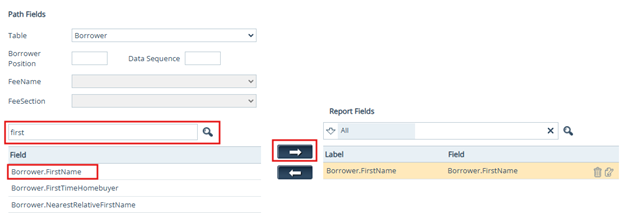
7. Select Table from the dropdown.
This is the first word of the field ID. For First Name the Table is Borrower.
8. Search for Field in search bar.
This is the second word of the field ID. For First Name the Field is FirstName.
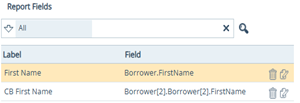
9. Select the Field and select right arrow to move it to the Report Fields.
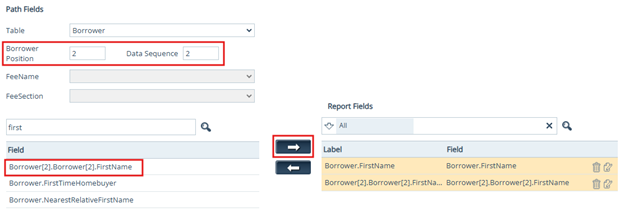
10. To add a Co-Borrower to the report, add in the corresponding Borrower Position and Data Sequence.
Primary Application Borrower (No need to fill in) 1
Primary Application Co-Borrower 2
Secondary Application Borrower 3
Secondary Application Co-Borrower 4
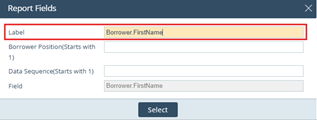
11. Update Label on Field IDs.
This will show as column header in report.
12. Click the paper icon to the right of the Field ID.
13. Update Label.
14. Click Select.
|
|
|
Add Filters
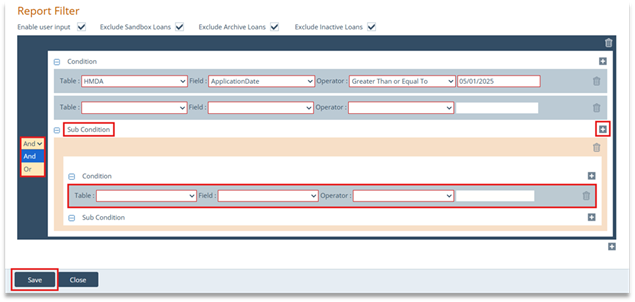
1. Enable User Input checkbox allows criteria to be entered at time of running report.
Ie: Selecting a month loans closed in.
2. Exclude Sandbox Loans, Exclude Archive Loans, or Exclude Inactive Loans will not include loans from these areas inside Path.
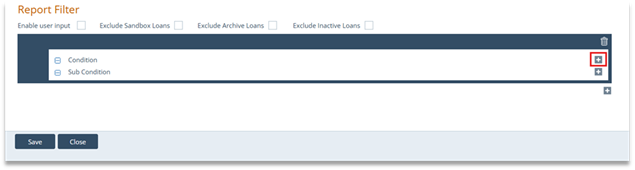
3. Click the Add icon to expand the Conditions Filter options.
4. Click the Add icon in the Condition row.
5. Select the Table for your Field ID.
6. Select the Field for your Field ID.
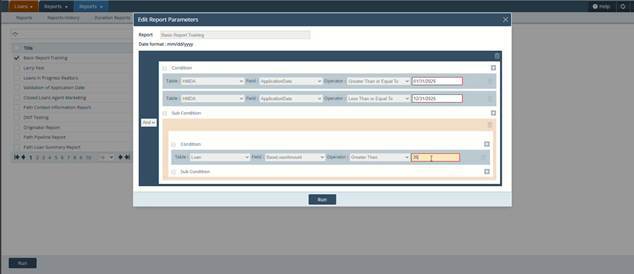
7. Select the Operator.
Ie: Equal to, Greater Than or Equal To, This Month.
8. Enter the Conditional Value.
This can be left blank to allow the user to fill in when running the report if Enable User Input checkbox is checked.
9. To add more filters, click the Add icon in the Condition row again.
10. Select AND or OR to control how multiple conditions apply.
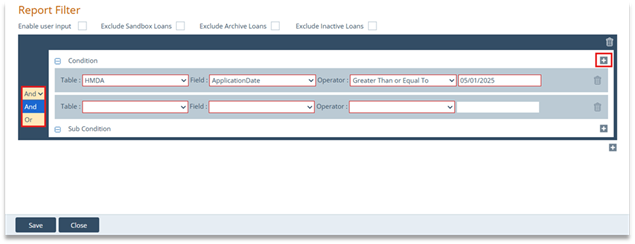
11. To create a multi-level condition, use Sub Condition and complete the additional Table, Field, Operator, and value fields.
12. Click Save to retain the report parameters.
Add the Report to a Role
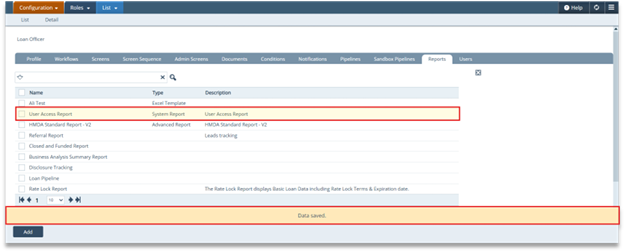
1. Navigate to Configuration > Roles.
2. Open the role that should be able to run the report.
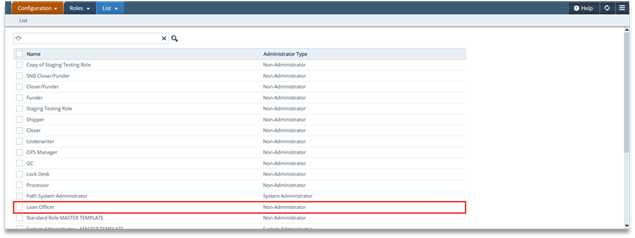
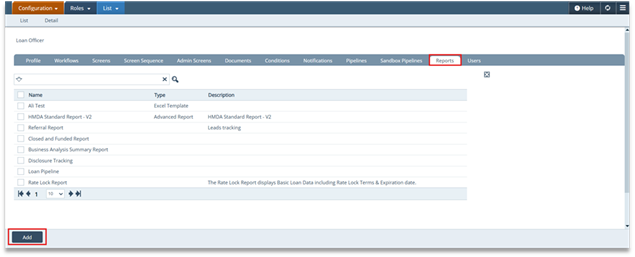
3. Select the Reports tab.
4. Click Add.
5. Select the report that was created.
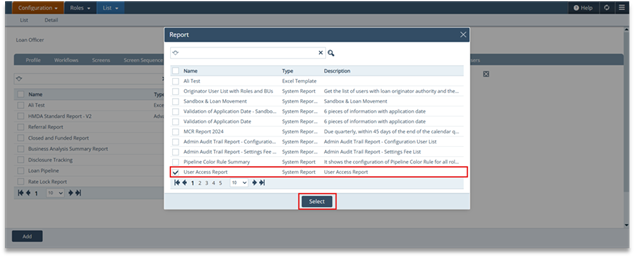
6. Save the role update.
Run or View a Basic Report
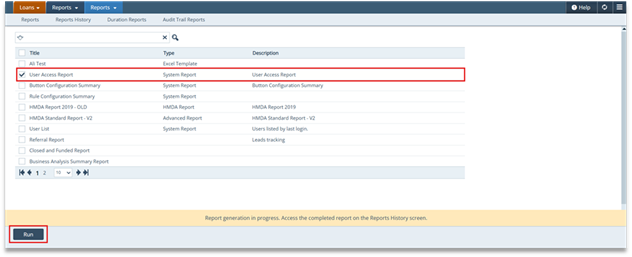
1. Navigate to Loans > Reports.
2. Select the checkbox next to the report.
3. Click Run.
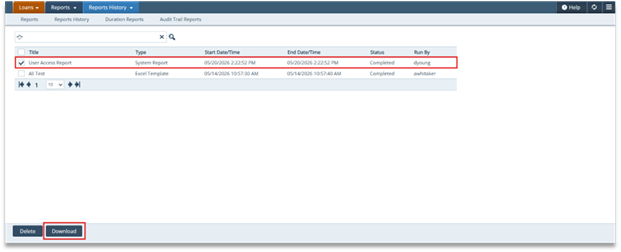
4. Go to Reports History.
5. Confirm the report status is Completed.
6. Select the checkbox next to the completed report.
7. Click Download.
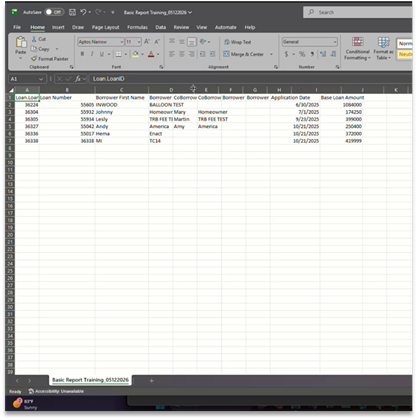
8. Open the downloaded report in Excel.
Create a Reusable Excel Report Template
1. Open the downloaded report in Excel.
2. Format the worksheet as needed.
3. Rename the worksheet tab to DATA in all caps.
4. Save the file as an Excel Workbook.
5. Return to Path and open the report from Reports > List.
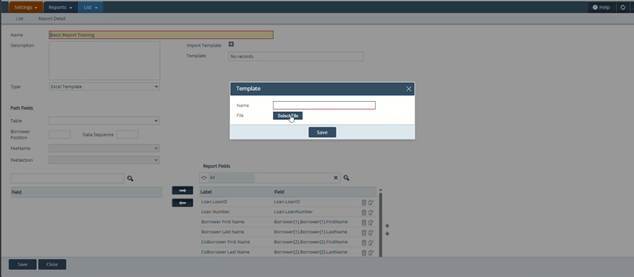
6. Click the plus sign to open Import Template.
7. Enter the template name.
8. Select the saved Excel Workbook file.
9. Click Save.
10. Confirm the template is attached to the report.
Key Details
Access - Access to reports is determined by user roles. Users can run reports only when the report is available to their assigned role.
Report availability - Existing reports display in the Reports list. Standard reports and custom reports may be available based on configuration.
Filters - The Report Filter section controls which loans are included in the report output. Filters can include conditions, multiple conditions, and sub-conditions.
Output - A report must show Completed in Reports History before it can be downloaded and opened.
Template requirements - Excel report templates must use a worksheet tab named DATA in all caps.
Using Path Basic Reports correctly helps users build reports with the right fields, control report results with filters, assign access through roles, and download clean report output for review. Proper setup also helps ensure report data displays in the expected format each time the report is run.
