
This article explains how to process a Closing Disclosure (CD) Change of Circumstance (COC) for DocMagic in Path so updated fees carry through accurately, status history stays clean, and revised disclosures are sent without extra manual cleanup. It also highlights the key setup requirement for showing the COC button on the Closing Disclosure.
Update Fees for the COC
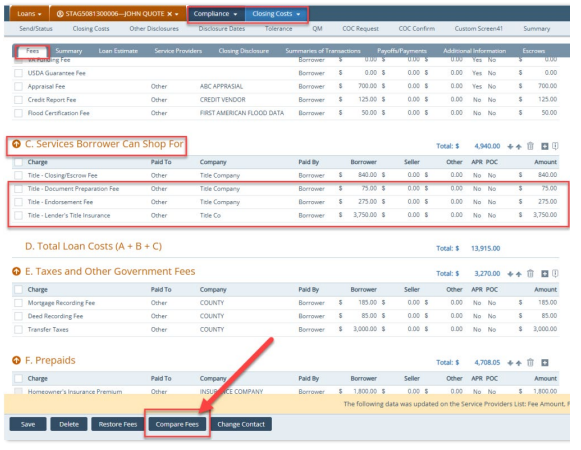
1. Go to Compliance > Closing Costs > Fees.
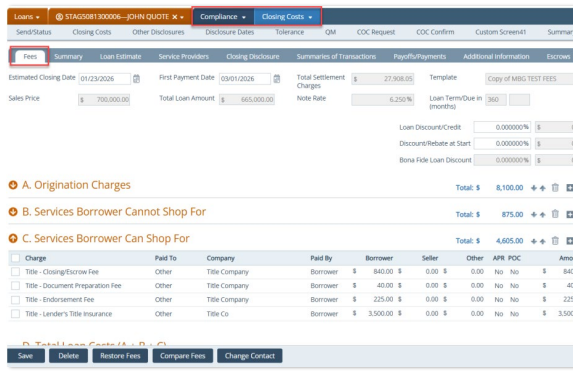
2. For each fee you need to add, update, or delete, complete the steps below (repeat for each fee):
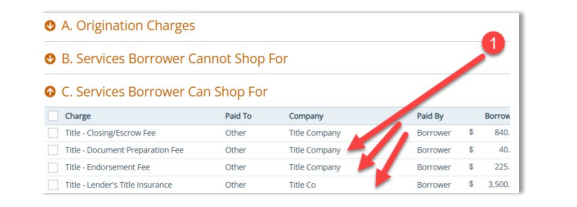
3. Update the fee as needed (example: Adjustment Amount).
Note: If you update multiple fees, you must repeat these steps for each fee.
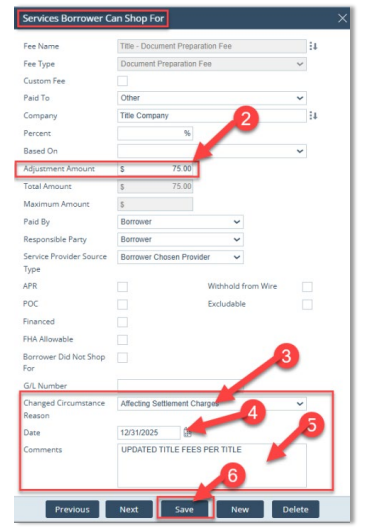
4. Select the reason of the Changed Circumstance.
5. Enter the Date.
6. Add Comments (recommended).
7. Click Save.
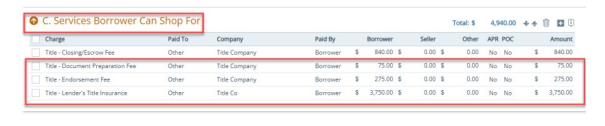
Example: Update the applicable fees under C. Services Borrower Can Shop For (for example: Title – Document
Preparation Fee, Title – Endorsement Fee, and Title – Lender’s Title Insurance).
Compare Current Fees to the Last Disclosed CD
1. From Compliance > Closing Costs > Fees, click Compare Fees.
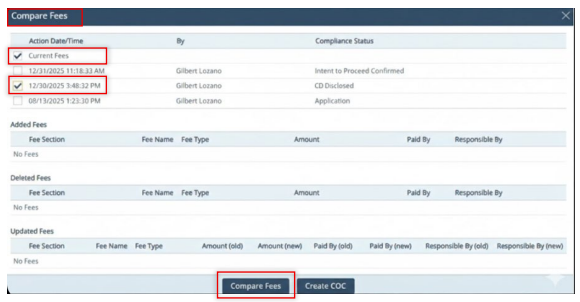
2. In the Compare Fees lightbox:
-
Check the Current Fees indicator.
-
Check last CD Disclosed.
-
Click Compare Fees.
3. The Updated Fees section is updated based on the indicators you selected.
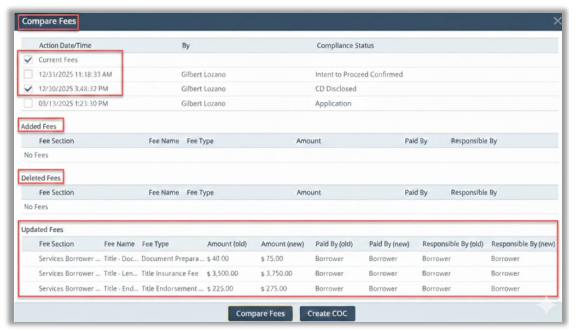
4. Verify whether fees were added, deleted, or updated.
5. If fees were updated, review these columns:
-
Fee Section
-
Fee Name
-
Fee Type
-
Amount (old) and Amount (new)
-
Paid By (old) and Paid By (new)
-
Responsible By (old) and Responsible By (new)
Create the Change of Circumstance Form Data (Critical)
To ensure updated fees populate the Change of Circumstance form:
1. Click Create COC.
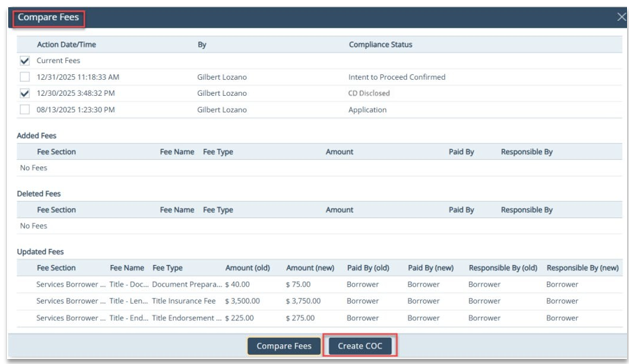
Critical Note: If you do not click the Create COC button, the Change of Circumstance form will be blank.
2. After clicking Create COC, the Create COC Information popup appears confirming the data will be added to the Change of Circumstance form.
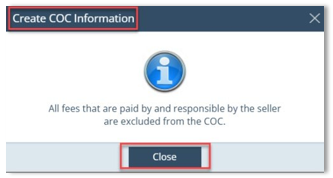
3. Click Close.
Request the COC on the Closing Disclosure
1. Go to Compliance > Closing Costs > Closing Disclosure > Change of Circumstance.
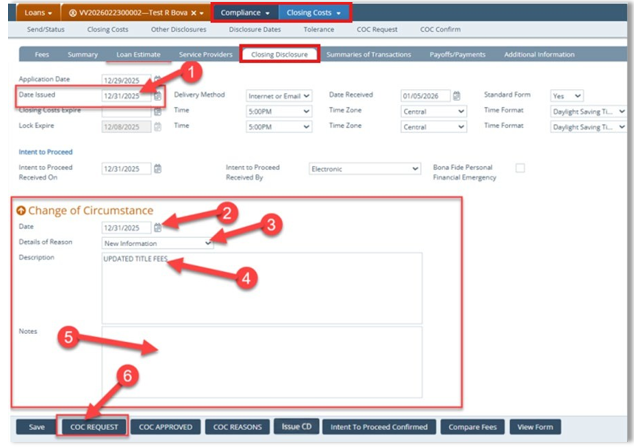
Note: Buttons like COC REQUEST, COC APPROVED and COC REASONS are not standard Path buttons, they are customs buttons configured by the system administrator or by Path Support.
2. Complete the following fields and actions:- Update Date Issued (should match COC date).
- Enter Change of Circumstance Date.
- Select Details of Reason.
- Enter Description.
- (Optional) Enter Notes (do not print on forms).
- Click COC Request.
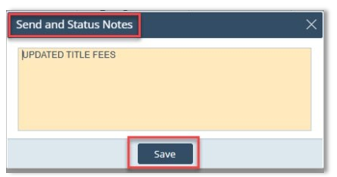
3. The Send and Status Notes pop-up
- Add Notes (recommended)
4. Click Save.
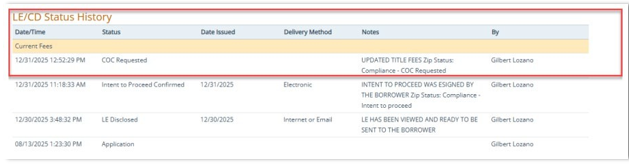
5. Confirm LE/CD Status History shows COC Requested.
View Revised Forms (Recommended)
It is recommended to view both the revised closing disclosure and the Change of Circumstance form.
1. After the form is in selected, click the View button.
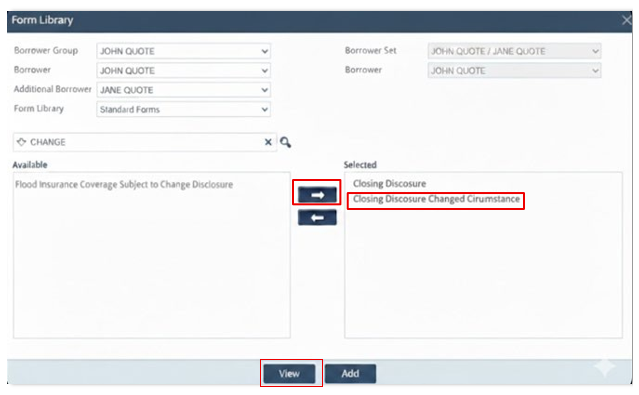
2. Review the Closing Disclosure Changed Circumstance form to confirm it’s not blank and reflects changes.
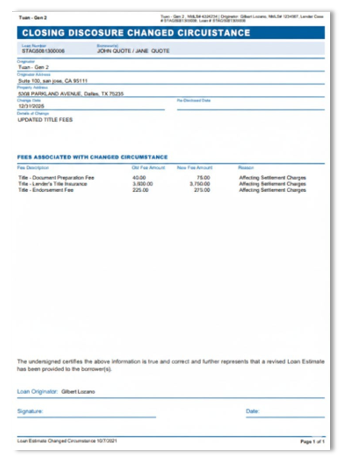
Note: If the Closing Disclosure Changed Circumstance form is blank, the user forgot to click the Create COC button.
Approving the Change of Circumstance
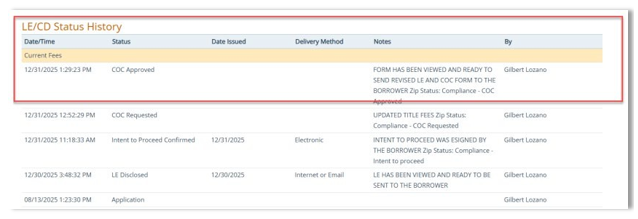
1. After viewing both forms, click the COC Approved button.
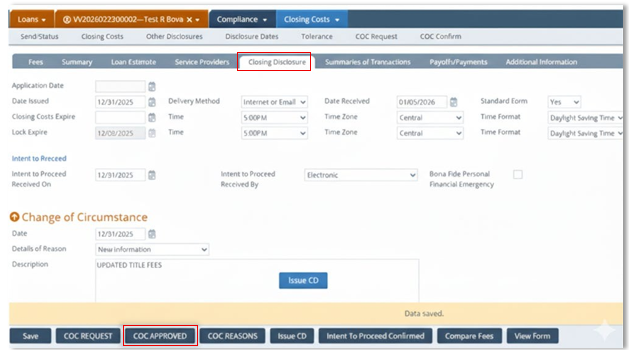
Note: Buttons like COC REQUEST, COC APPROVED and COC REASONS are not standard Path buttons, they are customs buttons configured by the system administrator or by Path Support.
2. Add notes in Send and Status Notes, click Save.
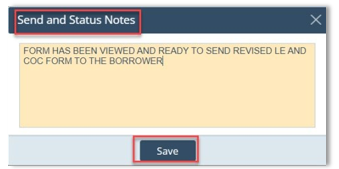
3. Confirm Status History shows COC Approved.
Issue the Revised Closing Disclosure (CD)
1. Click Issue CD.
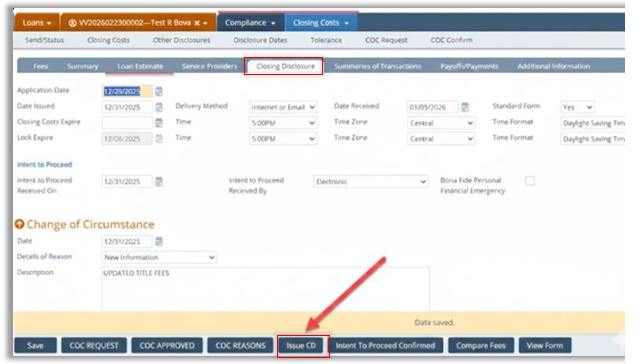
Critical: This overrides the old CD data to ensure the borrower/vendor gets the correct updated CD.
Note: Buttons like COC REQUEST, COC APPROVED and COC REASONS are not standard Path buttons, they are customs buttons configured by the system administrator or by Path Support.
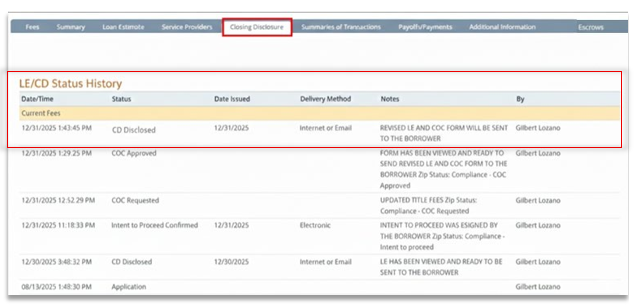
2. Confirm Status History shows CD Disclosed (revised).
Required Steps for DocMagic
1. Go to Interfaces > Initial/Closing Docs and select Document Provider = DocMagic Direct and Request Type = Closing Package.
2. Select Pre-Closing to export the CD COC to
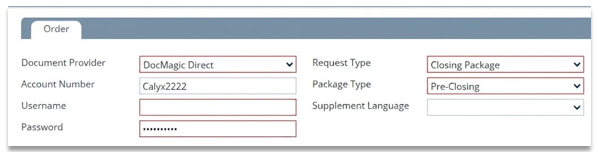
3. Click the Order Button
