
This article shows how to run a Change of Circumstance (COC) for a Closing Disclosure (CD) in Path, so fee updates flow cleanly into a revised CD, your status history stays audit-ready, and disclosures go out on time—without manual guesswork or rework. Important: The COC button is available by default on the Loan Estimate; to display it on the Closing Disclosure, it must be enabled by the Path Implementations team. 
Applies To
- Path users with access to Compliance > Closing Costs.
- Users responsible for disclosing a revised Closing Disclosure after a valid COC
- Update fees
- Compare fees to last disclosed LE
- Create COC (builds COC form data)
- Request COC (CD)
- View revised forms
- Approve COC
- Issue revised CD
- Add forms to Documents and send
Update Fees for the COC
- Go to Compliance > Closing Costs > Fees.
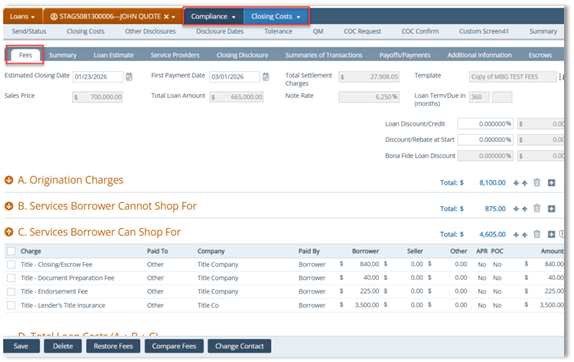
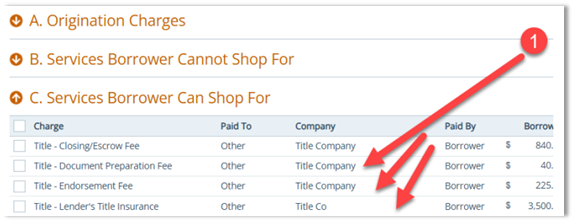
- For each fee you need to add, update, or delete, complete the steps below (repeat for each fee):
- Update the fee as needed (example: Adjustment Amount).
Note: If you update multiple fees, you must repeat these steps for each fee.
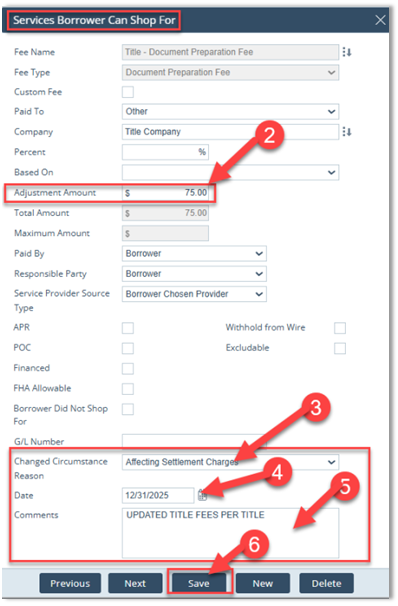
- Select Changed Circumstance Reason.
- Enter the Date.
- Add Comments (recommended).
- Click Save.
Example: Update the applicable fees under C. Services Borrower Can Shop For (for example: Title – Document Preparation Fee, Title – Endorsement Fee, and Title – Lender’s Title Insurance).

Compare Current Fees to the Last Disclosed CD
- From Compliance > Closing Costs > Fees, click Compare Fees.
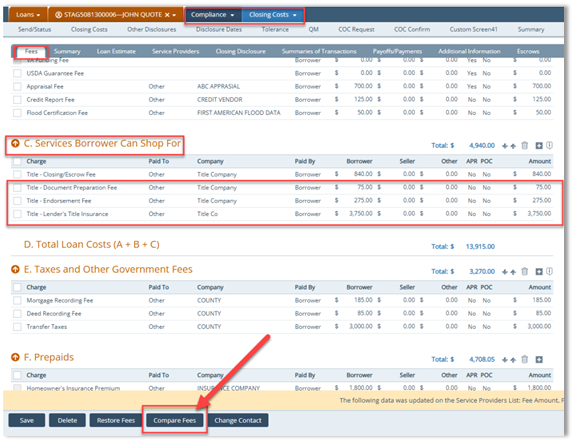
- In the Compare Fees lightbox:
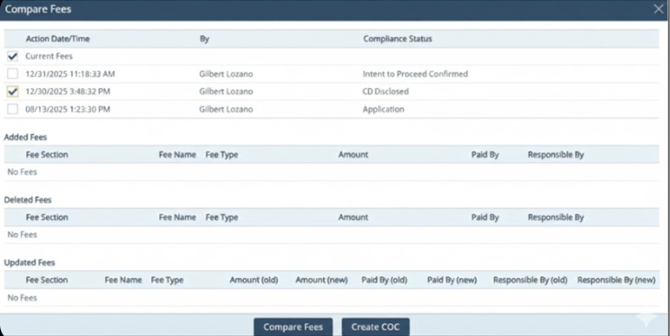
- Check the Current Fees indicator.
- Check last CD Disclosure.
- Click Compare Fees.
- The Updated Fees section is updated based on the indicators you selected.
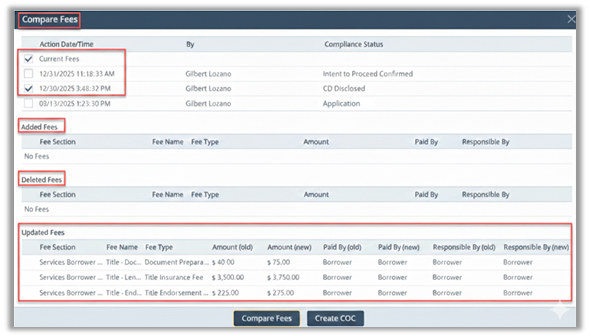
- Verify whether fees were added, deleted, or updated.
- If fees were updated, review these columns:
- Fee Section
- Fee Name
- Fee Type
- Amount (old) and Amount (new)
- Paid By (old) and Paid By (new)
- Responsible By (old) and Responsible By (new)
Create the Change of Circumstance Form Data (Critical)
To ensure updated fees populate the Change of Circumstance form:
- Click Create COC.
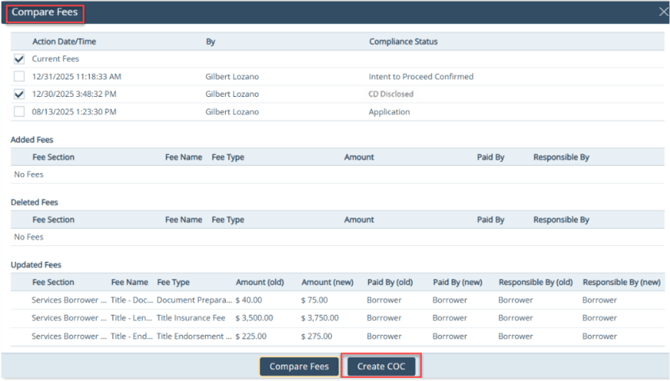
Critical Note: If you do not click the Create COC button, the Change of Circumstance form will be blank. - After clicking Create COC, the Create COC Information popup appears confirming the data will be added to the Change of Circumstance form.
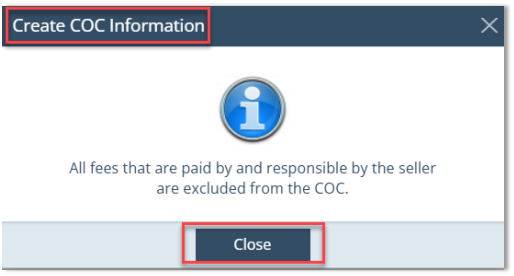
- Click Close.
Request the COC on the Closing Disclosure
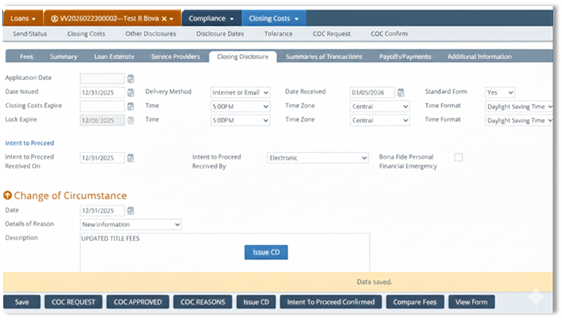
- Go to Compliance > Closing Costs > Closing Disclosure > Change of Circumstance.
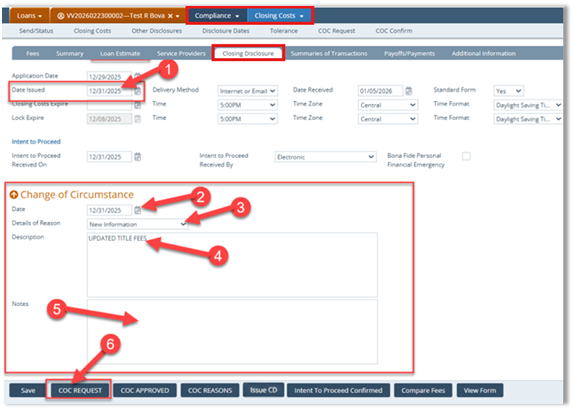
- Complete the following fields and actions:
- Update Date Issued (should match COC Date).
- Enter Change of Circumstance Date.
- Select Details of Reason.
- Enter Description.
- (Optional) Enter Notes (do not print on forms).
- Click COC Request.
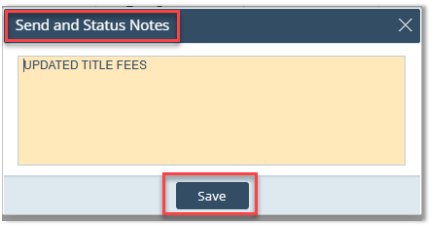
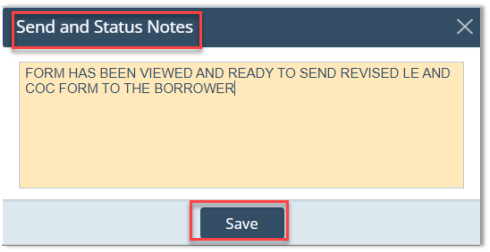
- The Send and Status Notes pop-up appears.
- Add notes (recommended)
- Click Save.
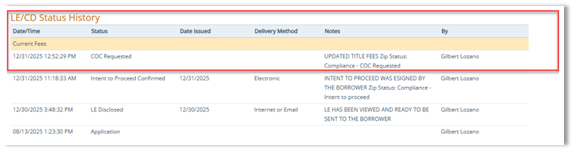
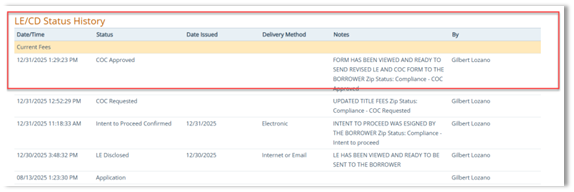
- Confirm LE/CD Status History shows COC Requested.
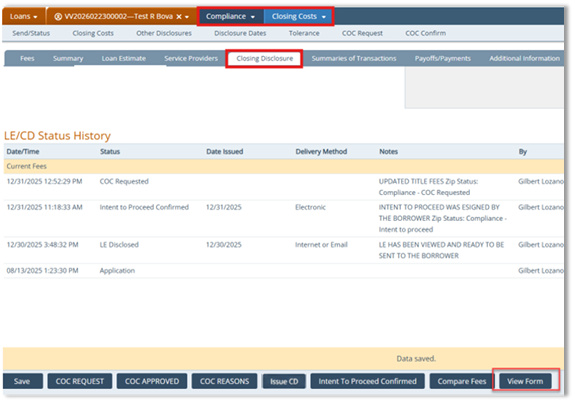
View Revised Forms (Recommended)
It is recommended to view both the revised closing disclosure and the Change of Circumstance form.
- Click View Form.
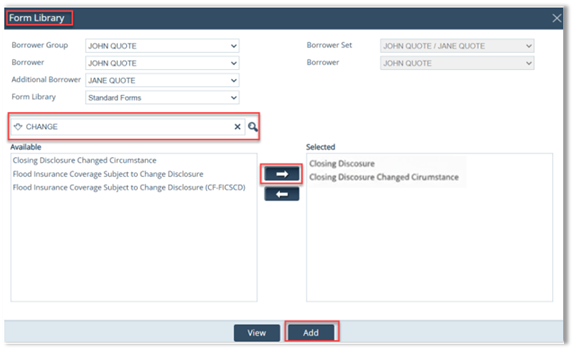
- In the Form Library lightbox:
- Use the search bar and type “Change”.
- Select Closing Disclosure Changed Circumstance.
- Click the arrow button to move the form to Selected.
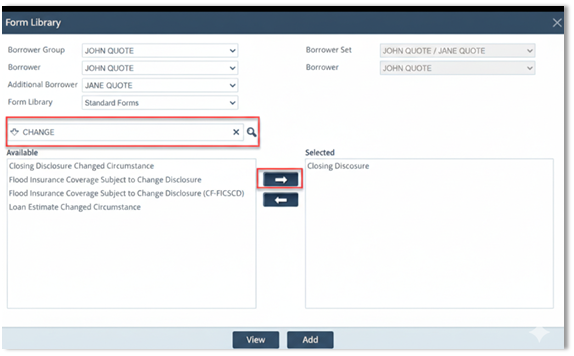
- After the form is in Selected, click the View button.
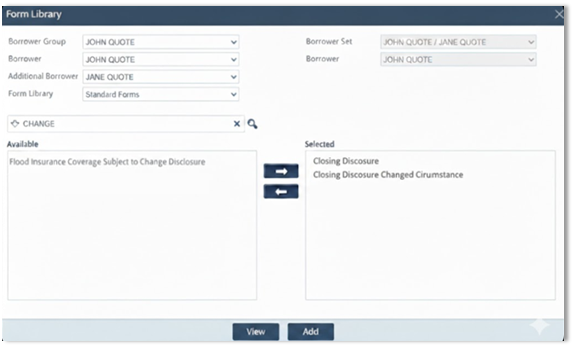
- Review the revised CD (page 1 and updated fee section).
Page 1 shows the updated loan estimate details.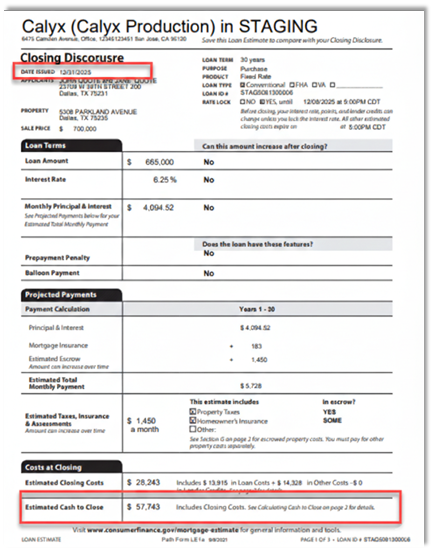
Page 2 shows the updated fee section.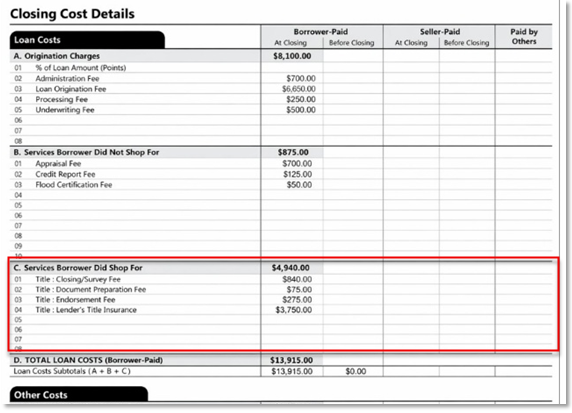
- Review the Closing Disclosure Changed Circumstance form to confirm it’s not blank and reflects changes.
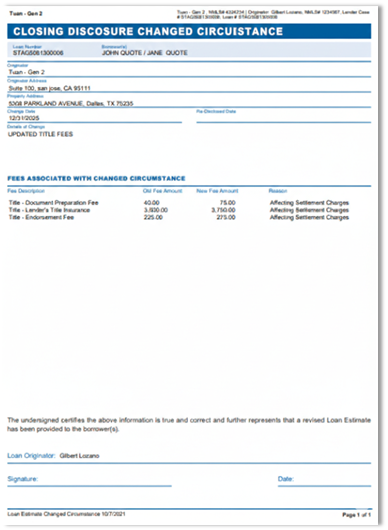
Note: If the Closing Disclosure Changed Circumstance form is blank, the user forgot to click the Create COC button.
Approving the Change of Circumstance
- After viewing both forms, click the COC Approved button.
- Add notes in Send and Status Notes, click Save.
- Confirm Status History shows COC Approved.
Issue the Revised Closing Disclosure (CD)
- Click Issue CD.
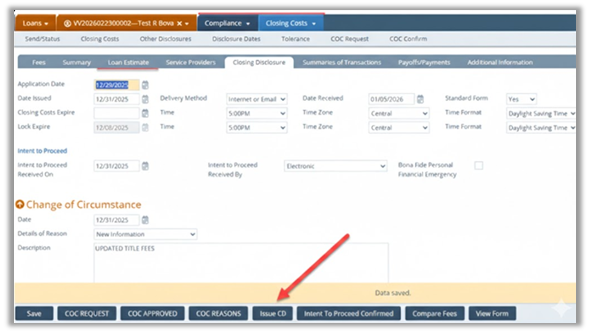
Critical: This overrides the old CD data to ensure the borrower/vendor gets the correct updated CD. - Confirm Status History shows CD Disclosed (revised).
Add Forms to Documents and Send
- Click View Form again to open Form Library.
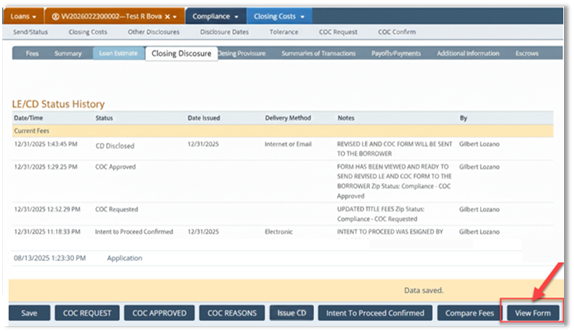
- In the Form Library lightbox:
- Type “Change” in the search bar.
- Move the form to Selected by clicking the right arrow.
- Click Add button.
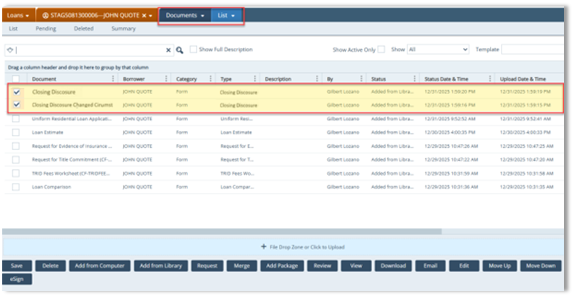
- Next, go to Documents > List to view the added forms.
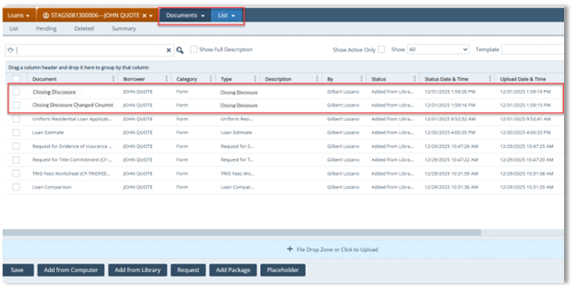
- Go Select the checkboxes for:
- Closing Disclosure
- Closing Disclosure Change Circumstance
- Additional buttons appear at the bottom; choose how you want to send the forms to the borrower.
Summary
This structured workflow replaces manual complexity with a high-efficiency process that guarantees data accuracy and a clear audit trail. By utilizing Path’s automated comparison tools, you eliminate errors and deliver professional, timely disclosures that maintain momentum toward a successful closing.
