

Pricing LoanSifter in Path helps users quickly compare loan pricing options, review available rates, and select the best pricing scenario without leaving the loan workflow.
Open the Loan in Path
- Navigate to Loans > Pipeline.
- Select the applicable loan from the pipeline.
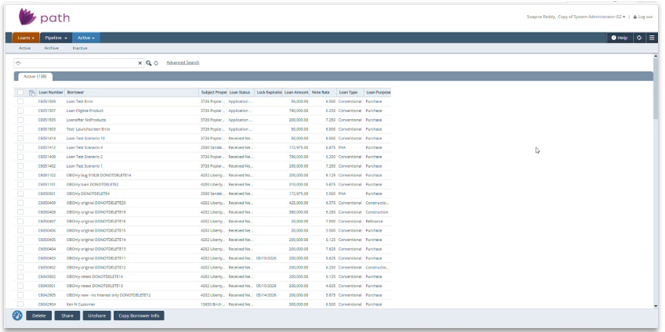
- Confirm the loan file opens to the applicable loan screen.
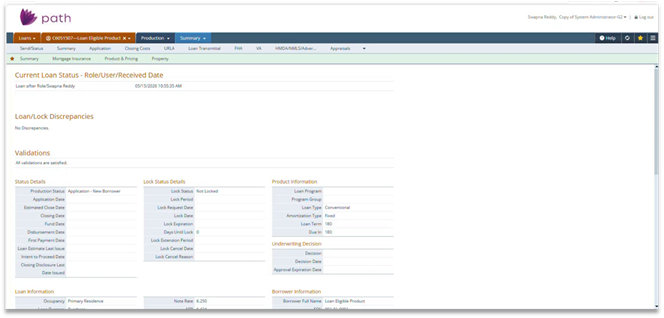
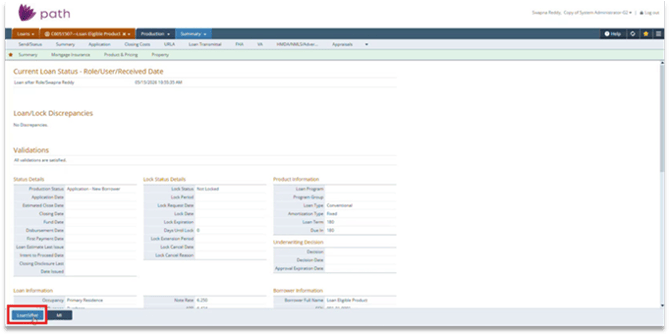
- Click LoanSifter at the bottom of the loan screen.
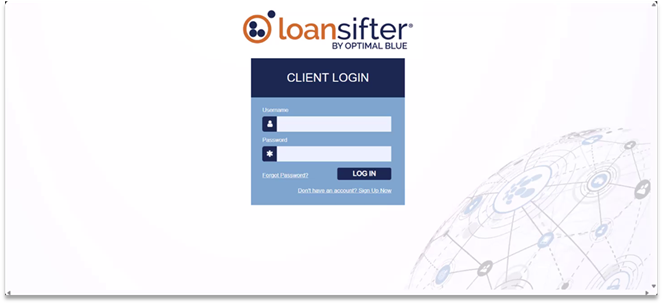
- Enter your LoanSifter Username and Password.
- Click Log in.
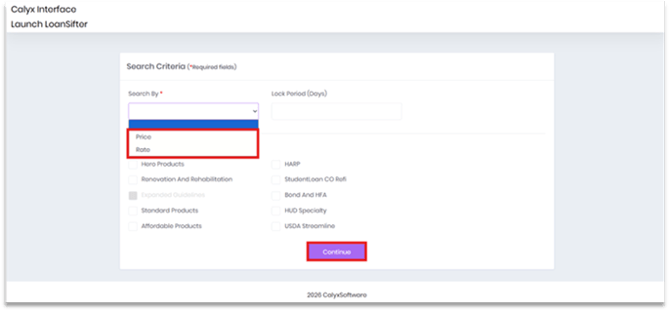
- Review the Calyx Interface > Launch LoanSifter page.
- Complete the Search Criteria fields, including Search By, Desired Price ($) or Rate, Lock Period (Days), and Desired Products.
- Click Continue.
Note: The LoanSifter button can be configured on any screen. In this example, the button is configured on the Production > Summary screen.
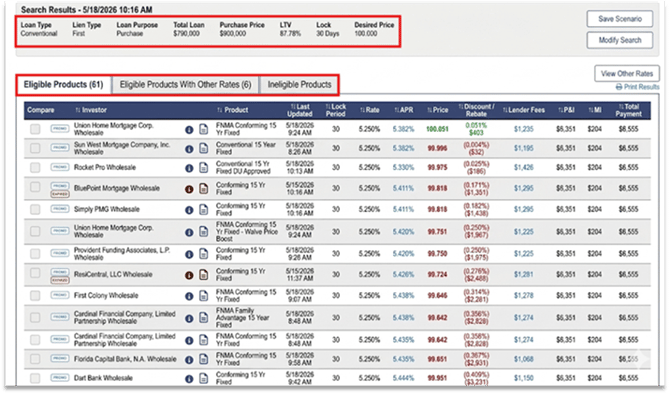
- Review the Search Results header for the loan type, lien type, loan purpose, total loan amount, purchase price, LTV, lock period, and desired price.
- Review the Eligible Products tab.
- Review the Eligible Products With Other Rates tab, if needed.
- Review the Ineligible Products tab, if needed.
- Compare the available product details, including Investor, Product, Last Updated, Lock Period, Rate, APR, Price, Discount/Rebate, Lender Fees, P&I, MI, and Total Payment.
- Select the applicable eligible product and pricing option.
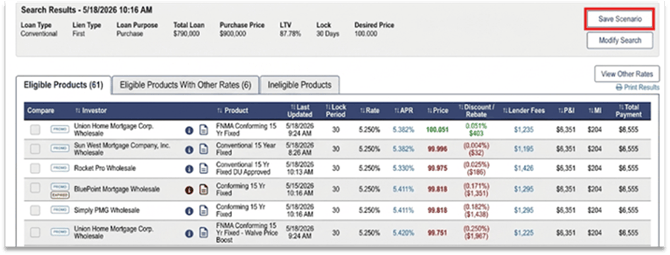
- Click Save Scenario if the pricing scenario needs to be saved in LoanSifter.
- Select the applicable pricing option before the pricing results expire.
- If the session expires, re-price the loan or close the session and search again.
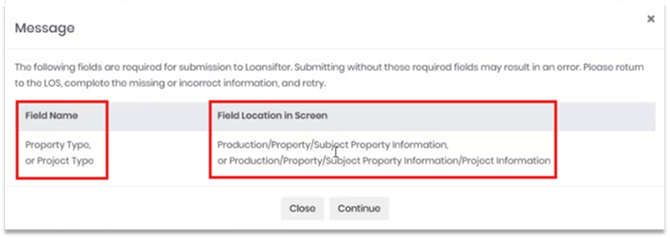
- Review any Message window that displays before LoanSifter opens or submits the search.
- Review the Field Name column to identify the missing or incorrect field.
- Review the Field Location in Screen column to locate the field in Path.
- Click Close, return to the listed Path screen, complete the missing or incorrect information, and retry LoanSifter.
5. If LoanSifter displays Unable to Proceed, review the listed validation error.
6. Correct the required field and submit again.
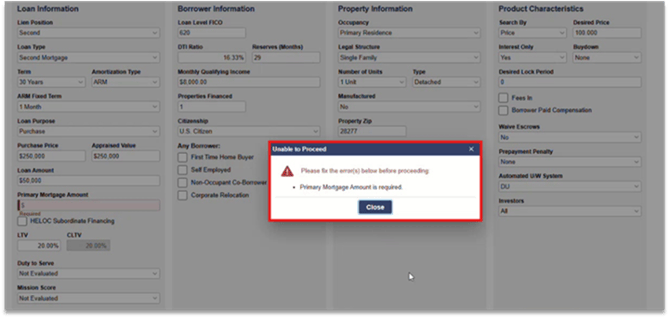
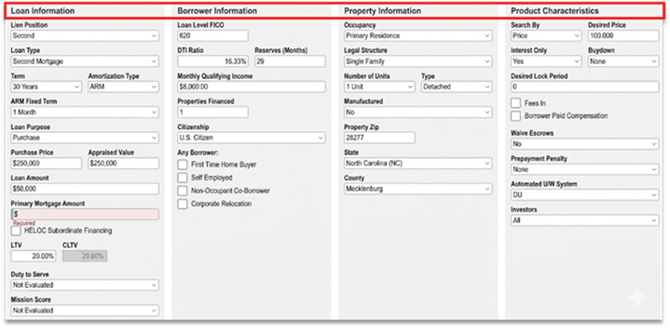
- After reviewing all required Loan, Borrower, Property, and Product information, click Submit.
By using LoanSifter through Path, users can streamline the pricing process, reduce manual entry, and keep pricing details organized within the loan file for a cleaner, more efficient workflow.
