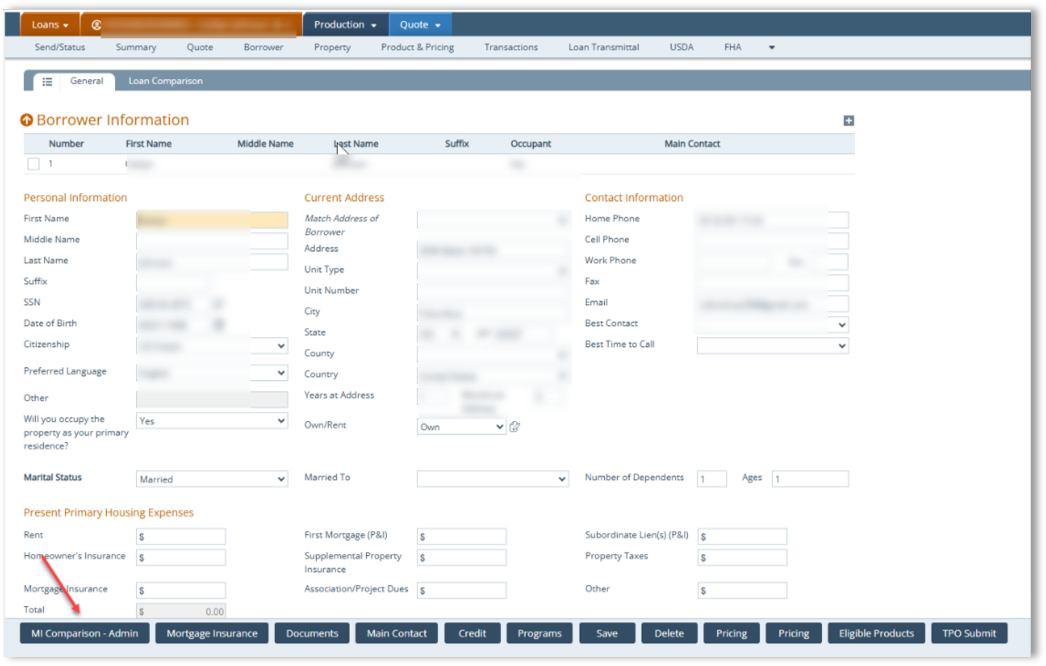
The MI Admin Setup screen is where administrators configure Mortgage Insurance settings for the MI Comparison and MI Application tools. This area controls user access, MI companies, rate quote options, application options, and all admin-level setup required for the MI workflow in Path.
Applies To
- Path administrators
- Users responsible for Mortgage Insurance admin setup in Path
Important: To access the MI admin site, users must contact Path support. When contacting support, you are required to provide your Path user ID.
- Sign in using your Path username and password.
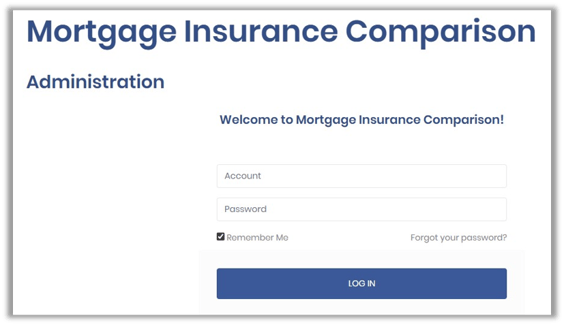
- Once logged in, you will see the available administrative tabs.
(This is the admin login piece where the admin can configure users for their company.)
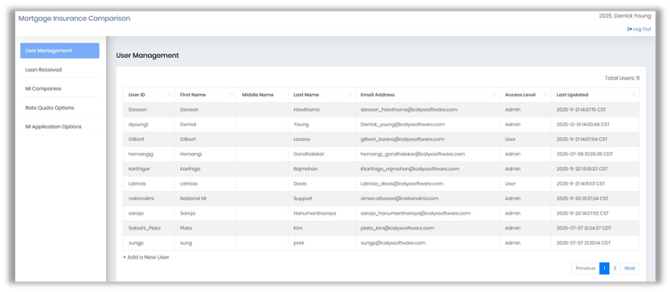
Note: Columns can be sorted.
User Management Tab
Purpose
Used to create and manage user access for the MI tools.
What You Can Do Here- Add new users.
- Edit existing users.
- View users and overall MI submission activity for the company.
- At the bottom of the User Management screen, click +Add a New User
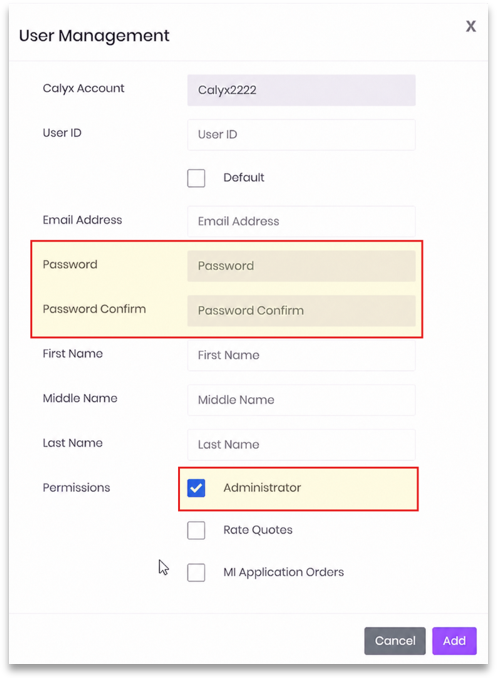
- Enter the First Name and Last Name. Middle Name is optional.
- Select Administrator as applicable.
- If not selected, Password and Password Confirm remain disabled.
- If Administrator is checked, the Password and Password Confirm fields are enabled.
- Click Add to save.
Creating a Default User
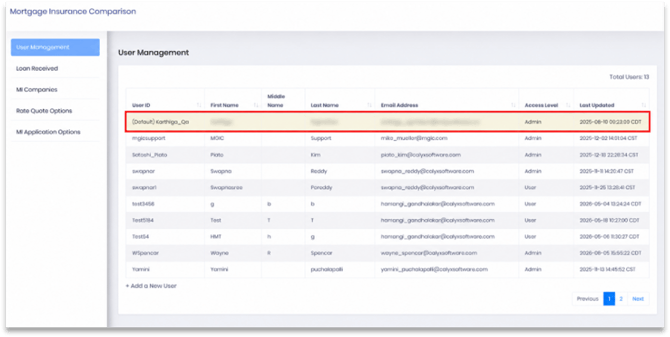
The default user comes to the top of the user list, and (Default) is marked next to the Last Updated time.
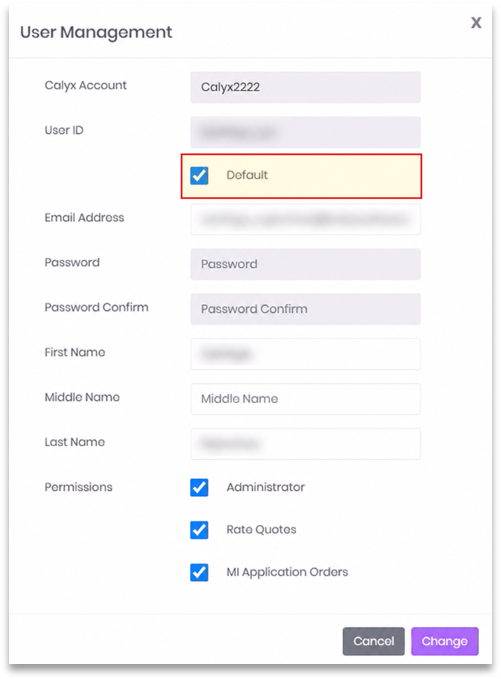
- From User Management, open the applicable user.
- Select the Default checkbox to designate the user as the default MI user.
- Click Change to save the update.
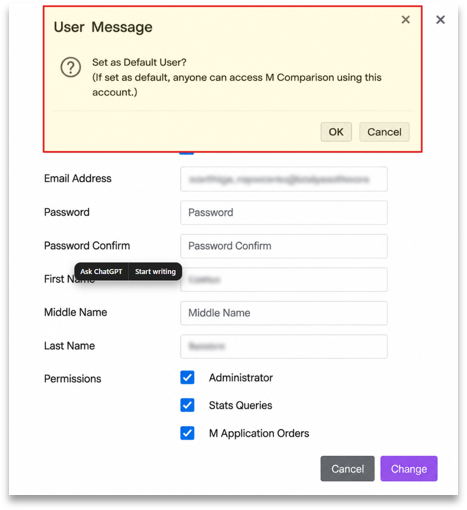
- Review the caution message that displays.
- Confirm the default user appears at the top of the User Management list with (Default) displayed before the User ID.
Loan Received Tab
Purpose
Displays MI Application activity submitted by users in the company. This section is read-only reporting.
What You See- Loan file details
- MI company used
- Application status and type
- Borrower and loan originator information
- Date Last Updated
Note: This tab only shows MI applications — NOT rate quotes.
MI Companies Purpose
Controls which Mortgage Insurance companies are available to users and stores credential requirements for each vendor.
What You Can Do Here
- Enable or disable MI companies (visibility affects all users).
- Enter required login credentials (varies by MI vendor).
- Enter Master Policy Numbers, including separate values for multiple business units if needed.
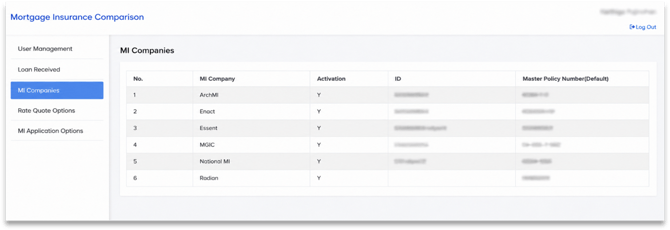
- Click the appropriate MI Company tab to view the Display/Hide toggle and the company credentials.
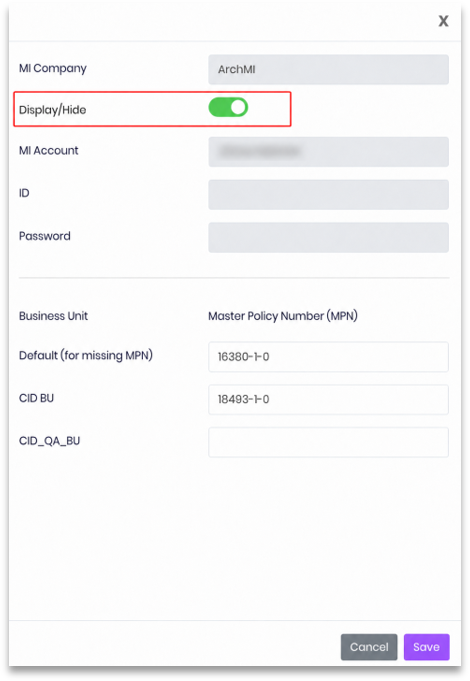
- Arch MI - ID and Password are disabled; header system login comes from the Calyx system.
- MGIC - ID and Password are disabled; header system login comes from the Calyx system.
- Radian - ID and Password are disabled; header system login comes from the Calyx system.
- Enact - Header system login is provided by the Calyx system.
- Essent - Header login comes from MI Admin.
- National MI - Header login comes from MI Admin.
Note:
- Some companies use shared system-level login credentials, so fields may remain blank.
- Required fields vary by MI vendor.
Rate Quote Options
Purpose
Sets the default values users see when running rate quotes. These settings automatically populate fields on the Rate Quotes screen.
What You Can Configure
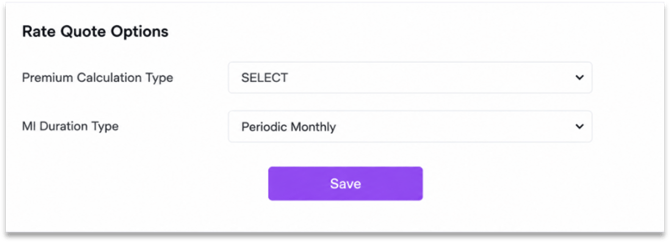
Field Descriptions
- Premium Calculation Type
- Determines how MI premiums are calculated.
- The default option shown (Constant) means the calculation uses a fixed method.
- MI Duration Type
- Defines the duration structure for the MI premiums.
- Periodic Monthly means the system defaults to monthly MI premium calculations.
Note: The Rate Quote Options fields display are non-required fields.
- Select Save to apply the chosen default settings to all users within the system.
MI Application Options
Purpose
Defines default settings used when submitting a Mortgage Insurance application after a rate quote has been selected.
What You Can Configure
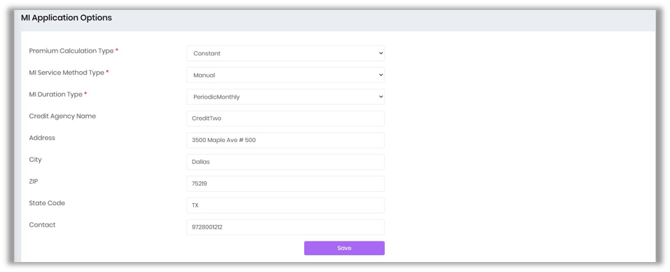
- Default values for MI application fields
- Credit agency name and address
- MI Program and Special Loan Program selections (commonly used in Path today)
Configuring the MI Comparison Button in Path
- Log in to Path and navigate to the main loan pipeline in the Desk/Production view.
- Open a loan by clicking the Borrower Name or Loan Number.
- Navigate to Loans > Roles > Screens to configure the MI Comparison button.
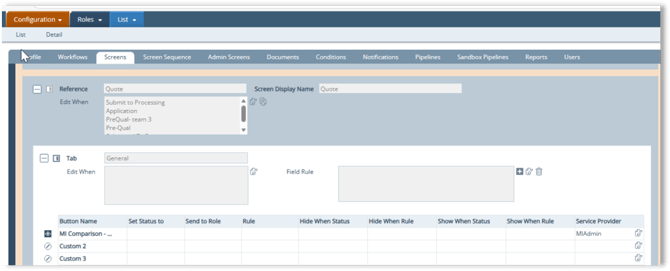
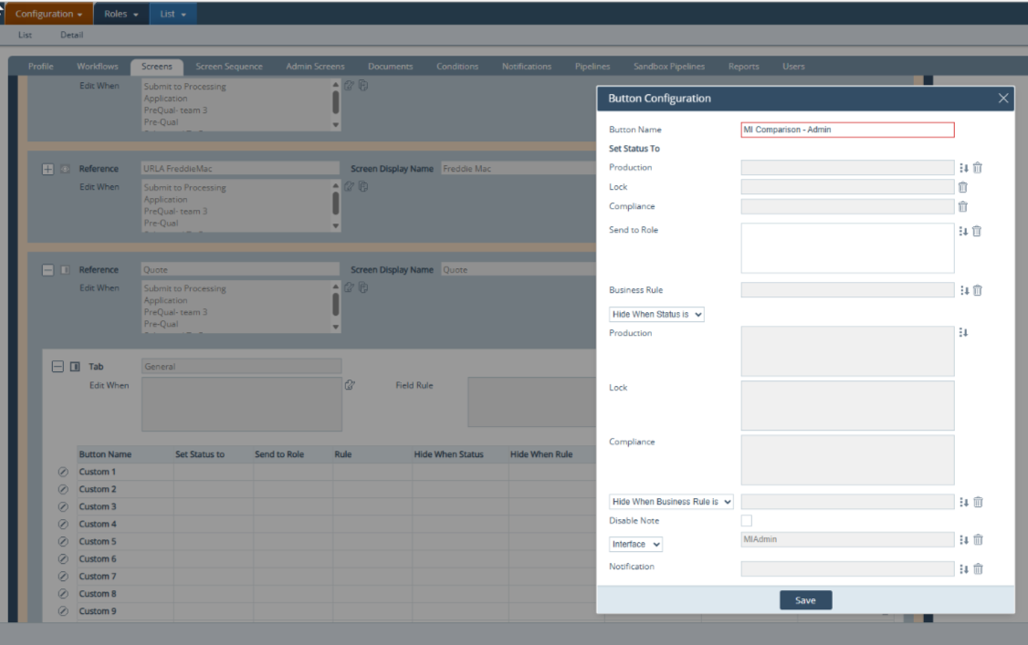
- Below is an example of how the MI Comparison button can be configured on the screen.