
The MI Comparison tool allows you to request and compare quotes from multiple MI providers at once using the same loan data. Path automatically pre-fills borrower and loan details so you can generate quotes quickly and accurately.
Summary
The MI Comparison tool simplifies the process of obtaining and comparing MI quotes from multiple providers using the same loan data. Path pre-fills borrower and loan details for speed and consistency, giving you an accurate side-by-side view of pricing and eligibility.
Available Actions in MI Comparison
• Getting Rate
- Request a new MI rate quote
• View Past Result
- Review previously returned MI quotes
Requesting (MI) Rate Quotes
How to Start:
1. Review the pre-filled loan and user information.
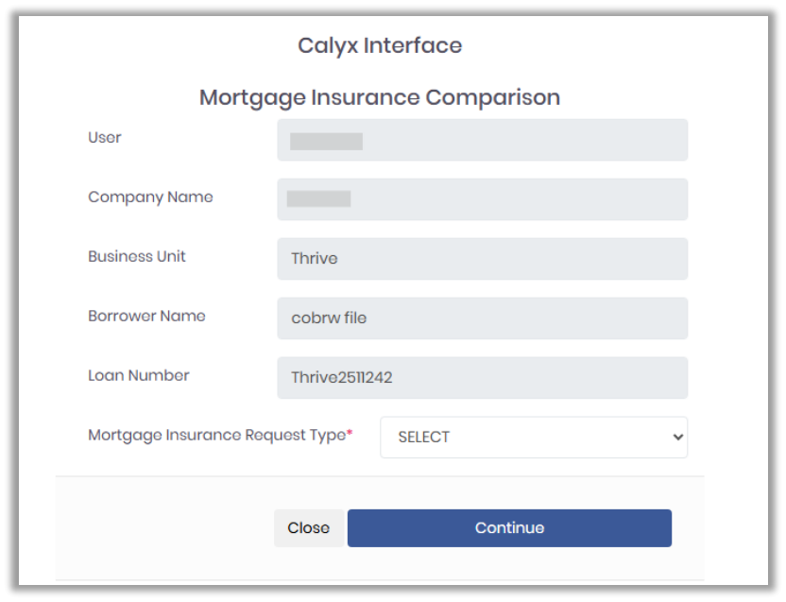
2. Select the Mortgage Insurance Request Type from the dropdown.
|
|
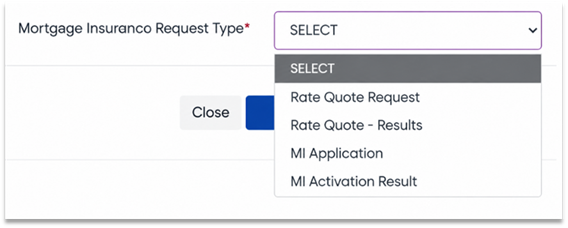
Mortgage Insurance Request Type Definitions
• Rate Quote Request
- Runs a new MI rate quote using current loan data.
• Rate Quote – Results
- Displays previously returned MI quotes still valid.
• MI Application
- Opens the MI Application screen to submit or check an application.
• MI Activation Result
- Displays the most recent MI activation outcome.
Request Types
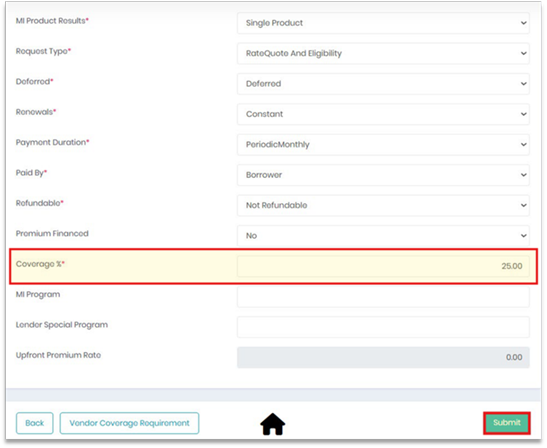
• Single Product
- Returns results for the exact MI product you select.
• Multi-Product
- Retrieves all available MI options for the loan for broader comparison.
Steps to Request Quotes
1. Select the MI providers.
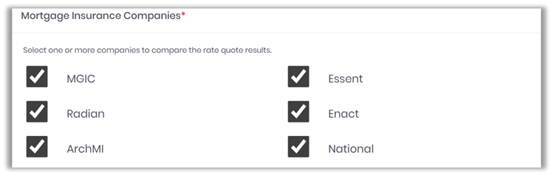
2. Choose Single Product or Multi-Product.

3. Enter required fields:
- Coverage %
- Premium type
- Program codes (if applicable)
4. The Coverage % field is automatically calculated and populated based on the loan data entered.
5. Click Submit.
Note: Quotes may take a few seconds to process, depending on the number of providers included.
Reviewing and Comparing (MI) Rate Quotes
Navigation
Path → Mortgage Insurance → Rate Quote Comparison
Understanding the Comparison Table
MI Company
Name of the MI provider
Time Sent
Timestamp of when the quote was submitted
Duration Type
MI structure (e.g., Monthly, Periodic, Upfront)
MI Premium
Cost breakdown (upfront and renewal amounts)
Paid By
Who pays MI (Borrower or Lender)
Quote Status
Indicates if the quote is valid and usable
View
Opens detailed pricing and structure
Selecting an MI Provider
1. Review the returned quotes.
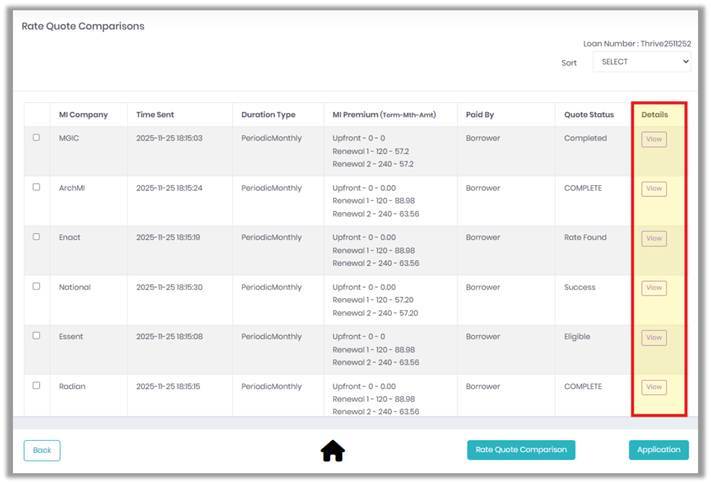
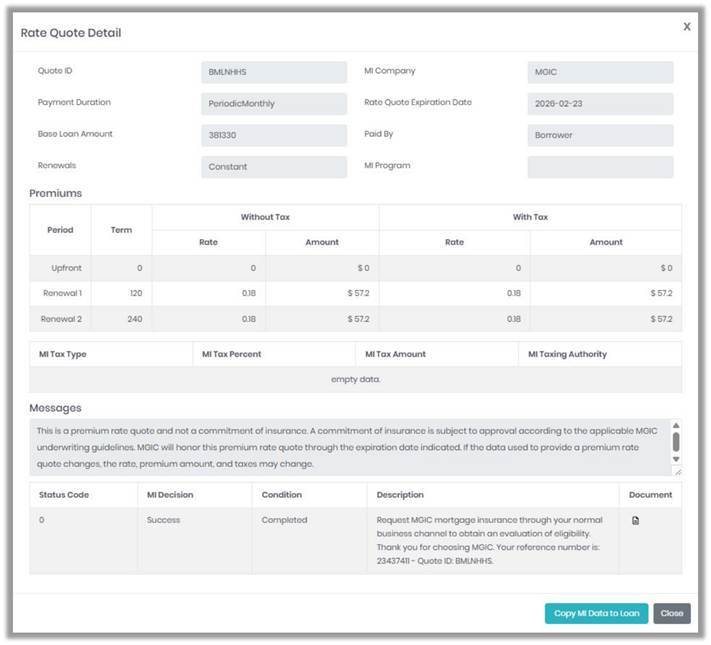
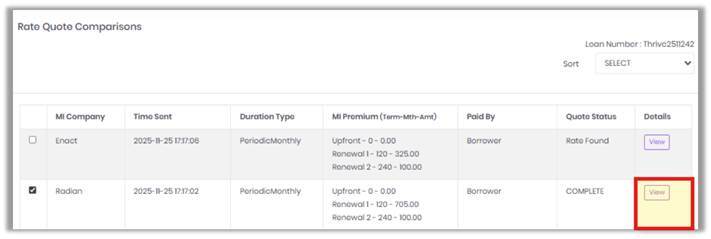
2. Click View (optional) to see full premium details.
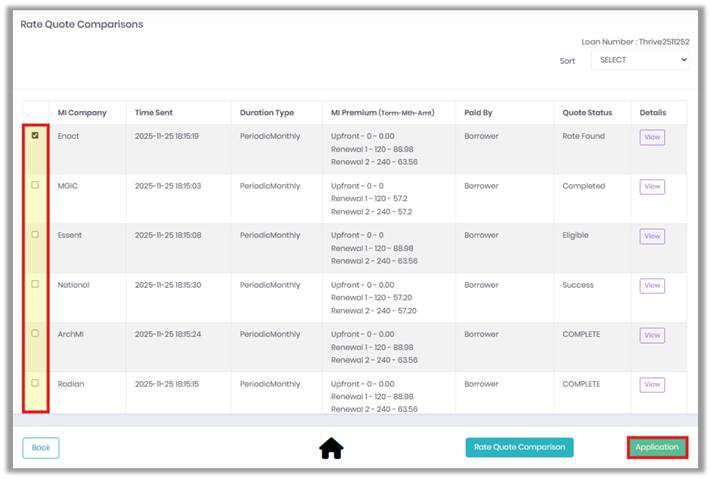
3. If you already know which provider you want to proceed with, click Application to begin the MI application process for the selected provider.
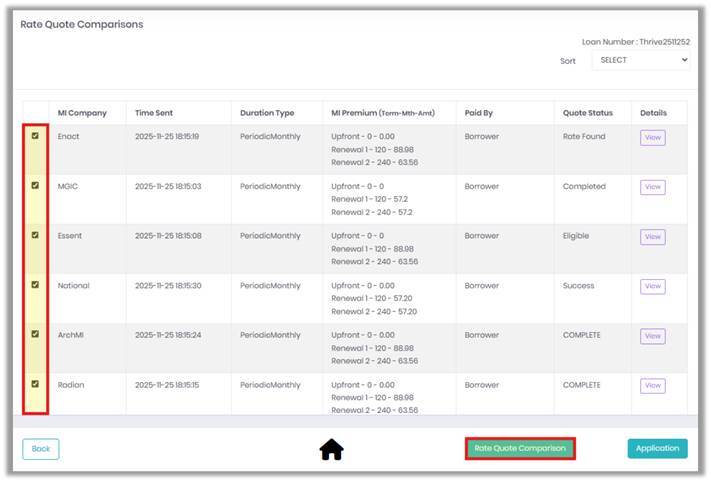
4. To compare, select up to six providers and click Rate Quote Comparison to view the quotes side-by-side.
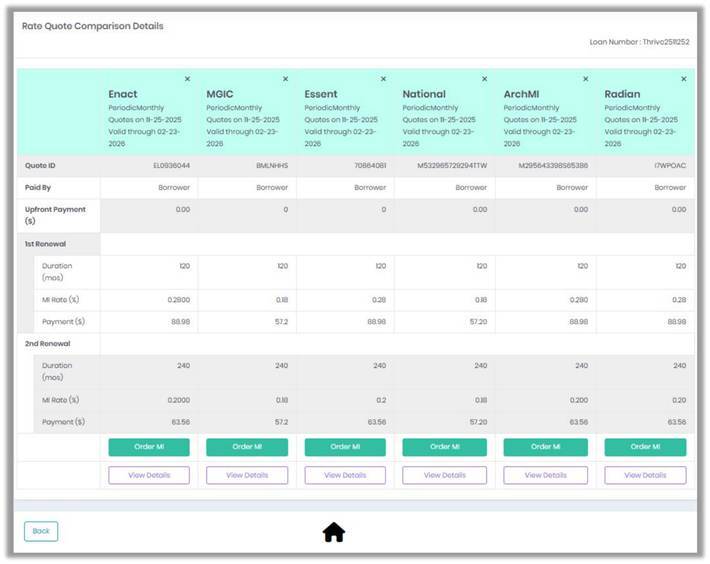
Next Options After Comparing MI Quotes
Order MI Button
• Click Order MI under the chosen provider.
• Starts the process of ordering MI based on the selected quote.
• Only order MI from one provider, even if multiple were compared.
View Details Button
• Review full breakdown:
- Premium structure
- Coverage details
- Renewal amounts
- Eligibility info
• Use before ordering MI to confirm pricing accuracy.
Back Button
• Return to the previous screen without ordering MI.
• Use if you need to adjust loan data or re-run the comparison.
Copying Data to the Path Loan
Navigation
MI Screen → Rate Quote Comparison → Select Provider → View Details
Steps
1. Open MI Comparison and review quotes.
2. Select the provider by checking the box next to the quote.
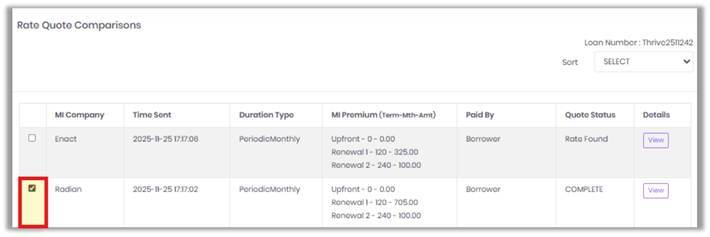
3. Click View Details to open the full quote breakdown.
4. Select the option labeled Copy MI Data to Loan (if displayed for the MI provider).
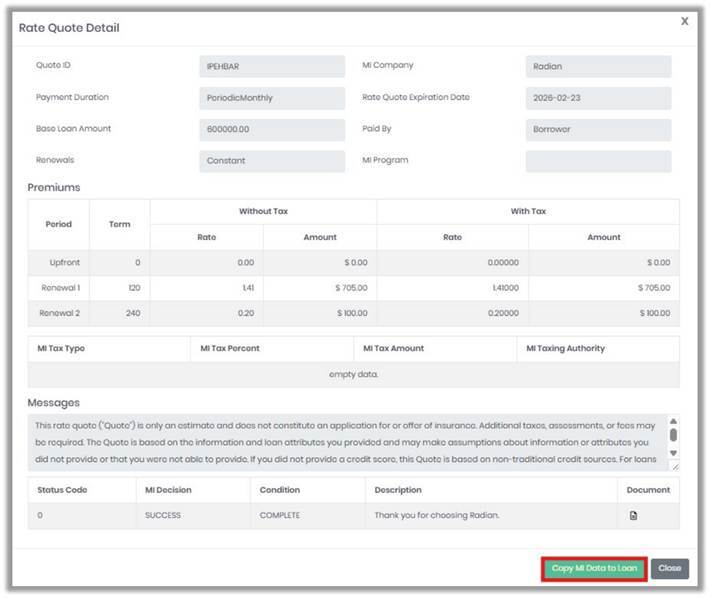
5. Confirm the copy action when prompted.
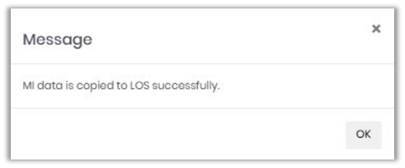
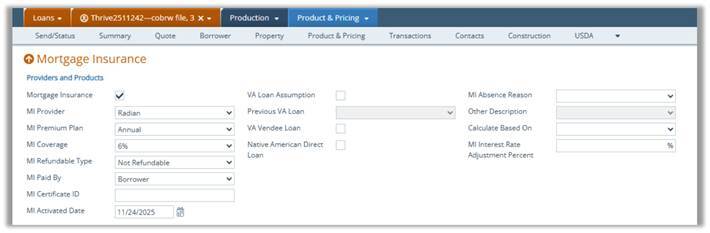
6. Return to the loan file and verify the MI fields are updated correctly and the documents are stored.
Workflow Summary
1. Run Quotes
2. Review Results
3. Compare if Needed
4. Select Provider
5. View Details
6. Review Response
7. Copy MI Data to Loan
