-
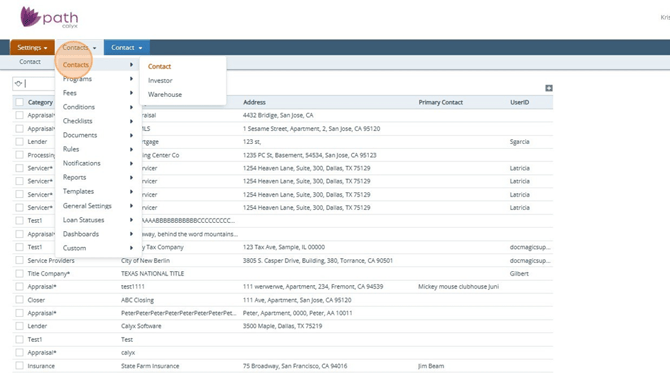
Settings - Contacts: In the Admin role, navigate to Settings > Contacts.
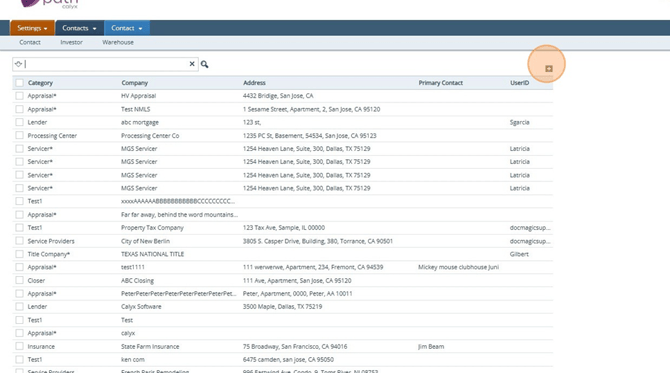
- Settings - Contacts: Select the plus icon to enter a new Contact.
-
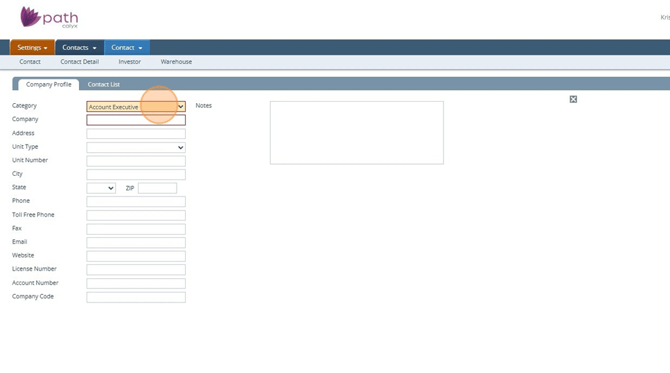
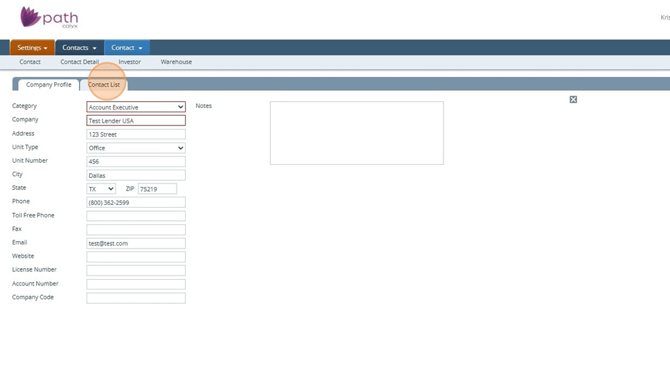
Settings - Contacts: Select a Category then enter in the Company Name of the contact. Next, enter any applicable information you have for the contact
-
Settings - Contacts: Once all information has been entered, select the Contact List tab to enter the name of the specific contact(s)
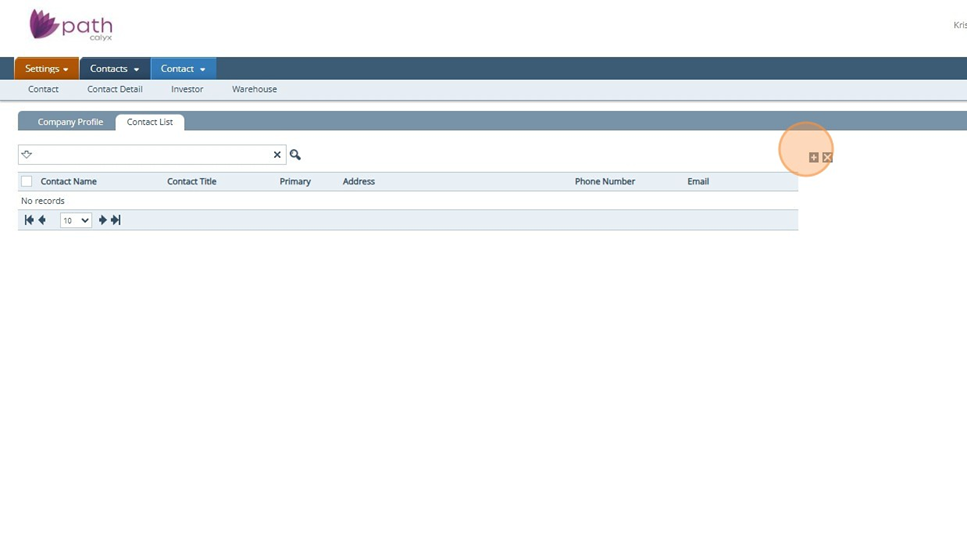
- Settings - Contacts:In the Contact List tab, select the plus icon
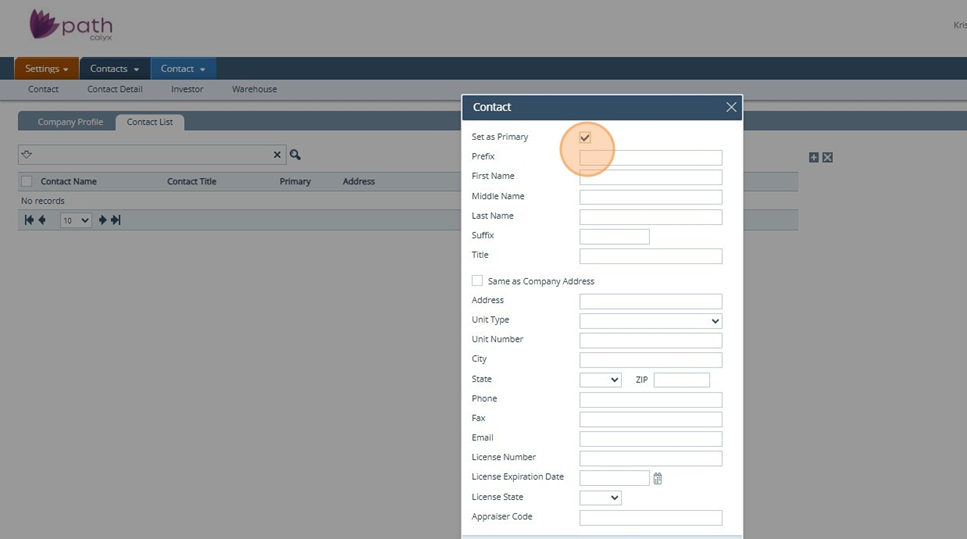
- Settings - Contacts:Select Set as Primary if the contact will be the primary contact
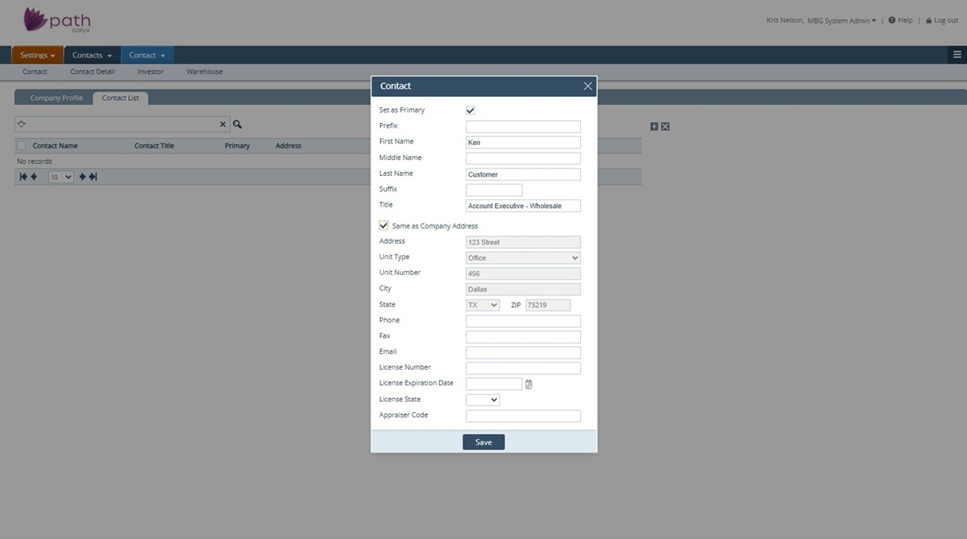
- Settings - Contacts: Enter the contact's information and save. You can enter additional contacts, though Path will default to whoever is the Primary first
- Pipeline: Access your loan
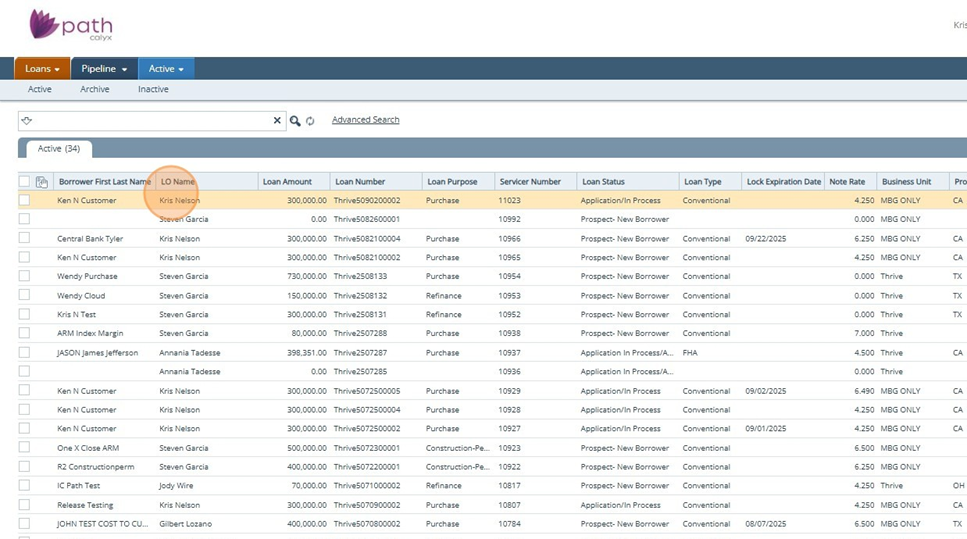
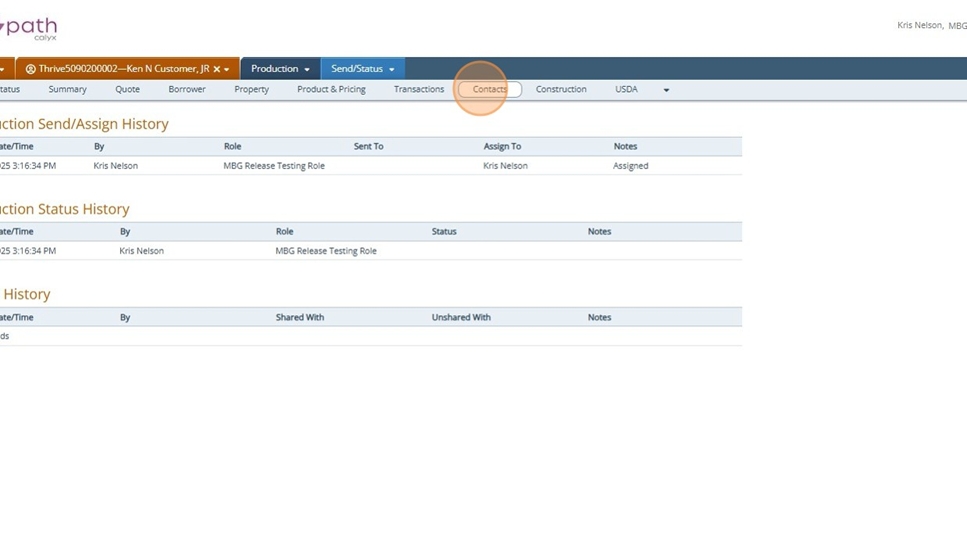
- Production - Contacts Navigate to the Contact screen
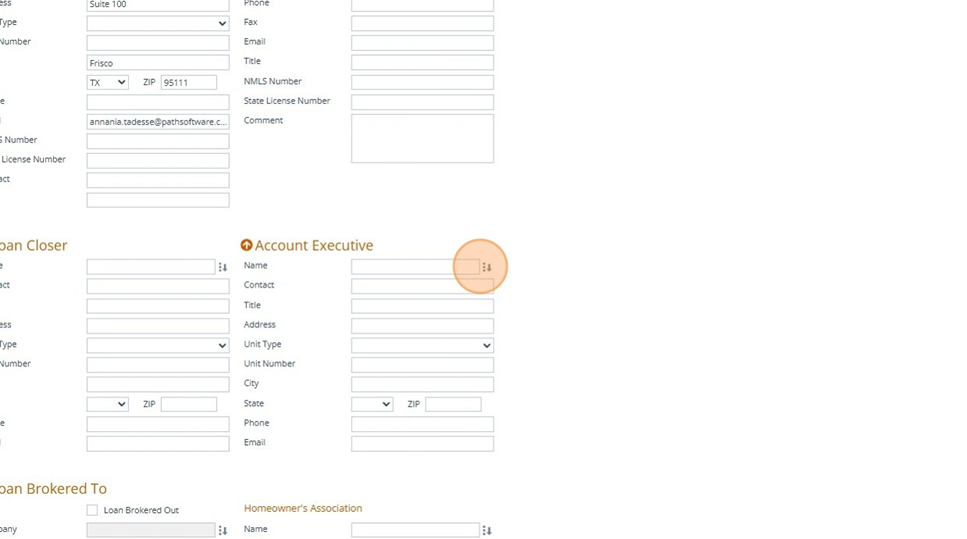
- Production - Contacts: Click on the selection icon
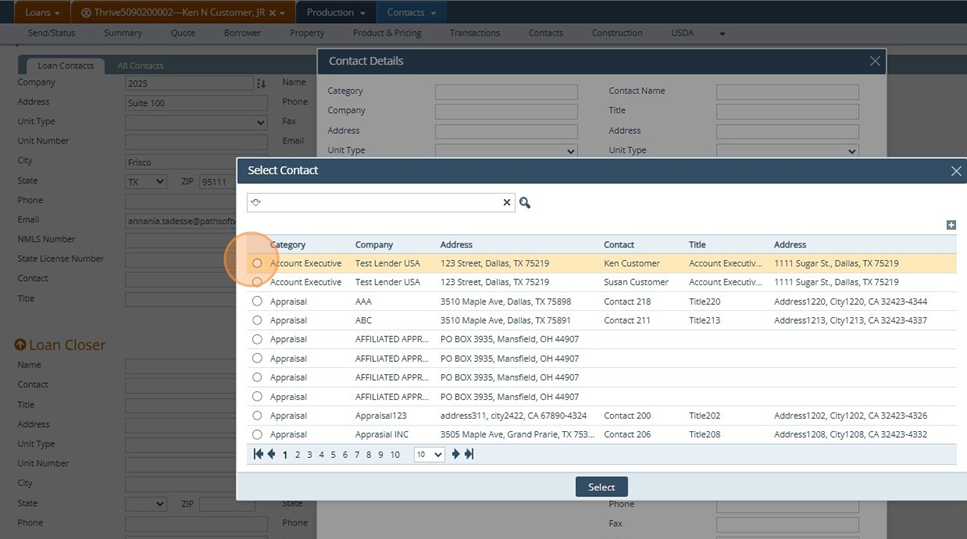
- Production - Contacts: Search for your contact and press select
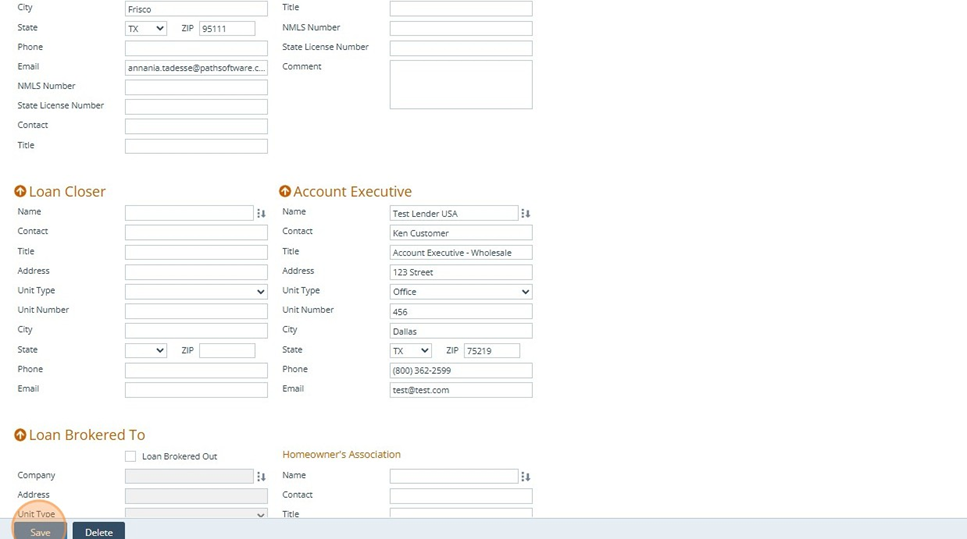
- Production - Contacts: Then press the save button
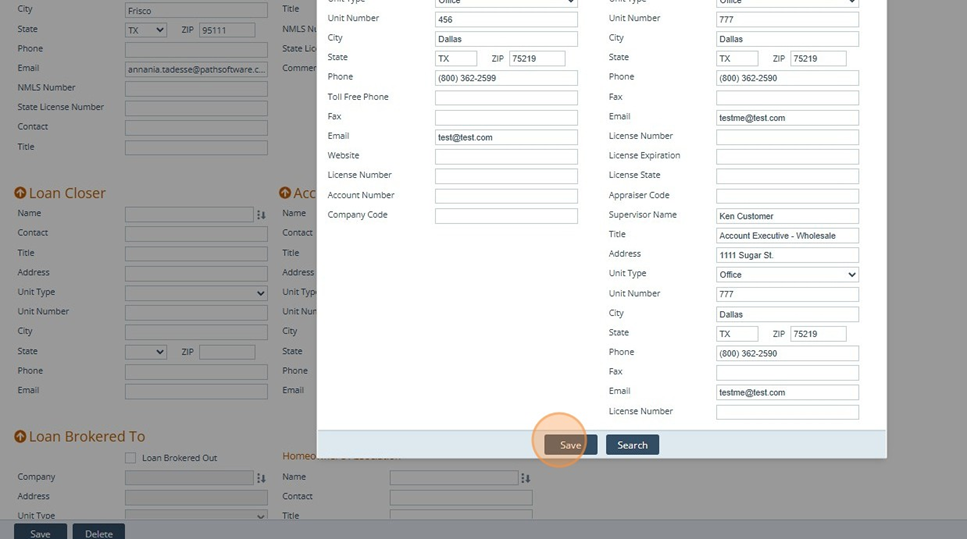
- Production - Contacts: Select the save button to save the contact to the screen.