-
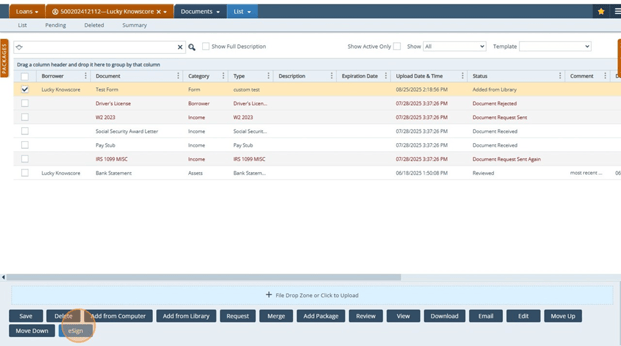
Navigate to Documents
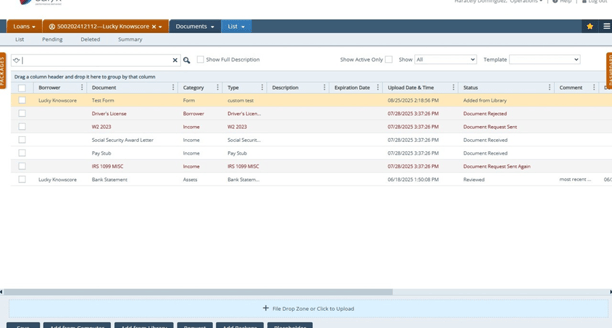
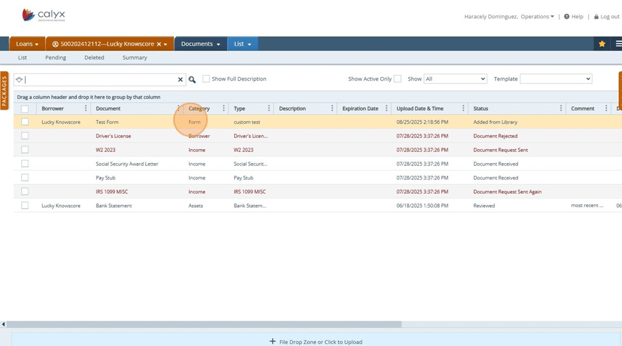
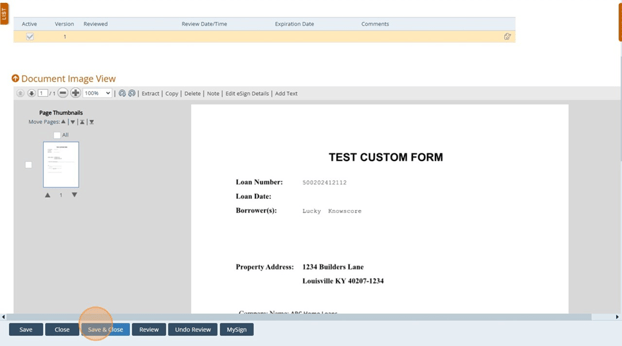
- Click on Document to sign
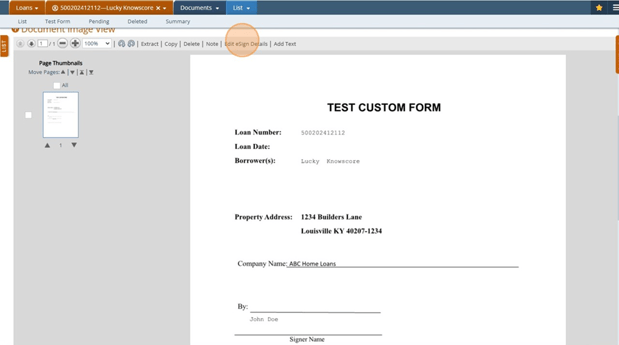
- Click "│ Edit eSign Details"
- Select Signer and Signature type
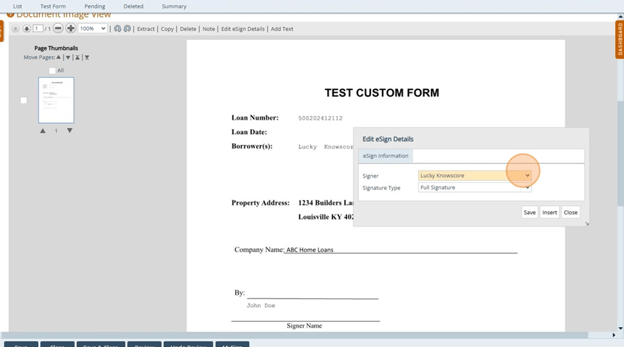
- Click "Insert"
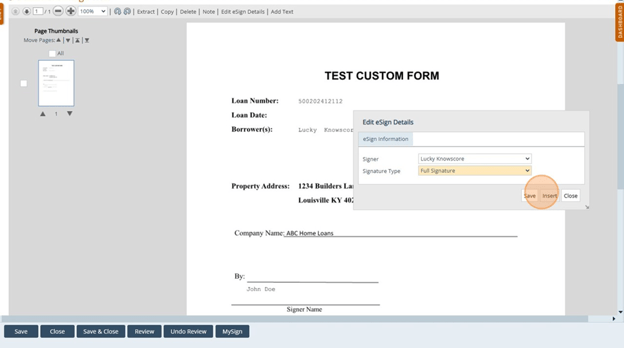
- Move text box to desired location and Click "Save"
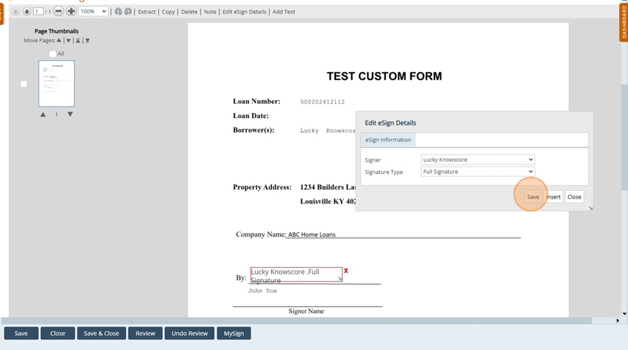
- Click "Close"
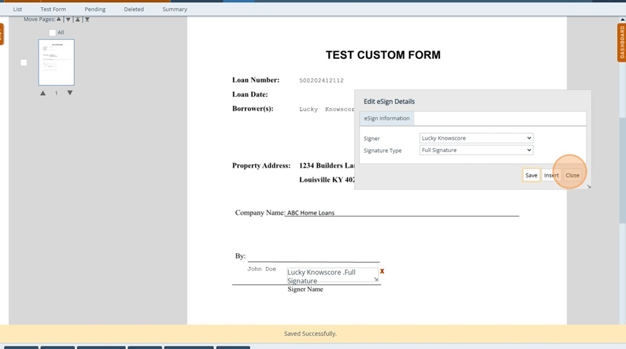
- Click "save and close" out of document
- Select document and click "esign"
-
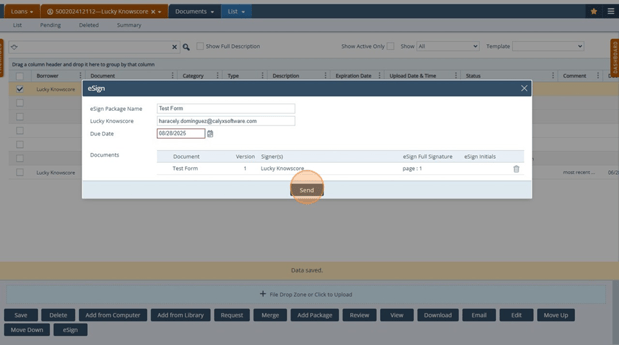
Enter in information and hit "send"
- CUSTOMER VIEW: They will get an email to login and sign document
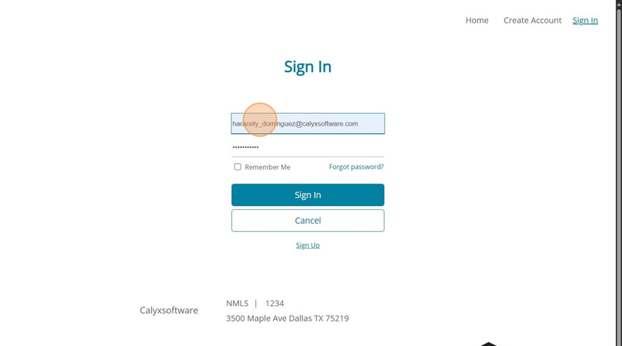
- Click "Sign"
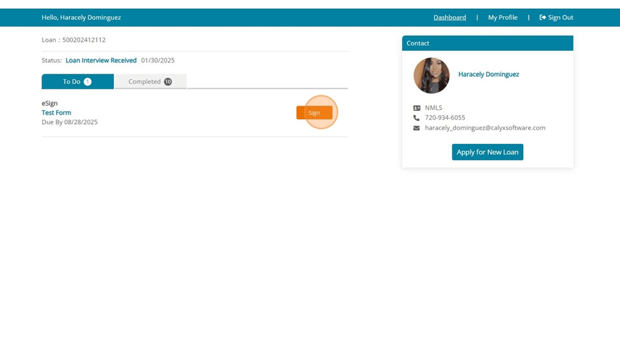
- Form will appear with text box for borrower to sign
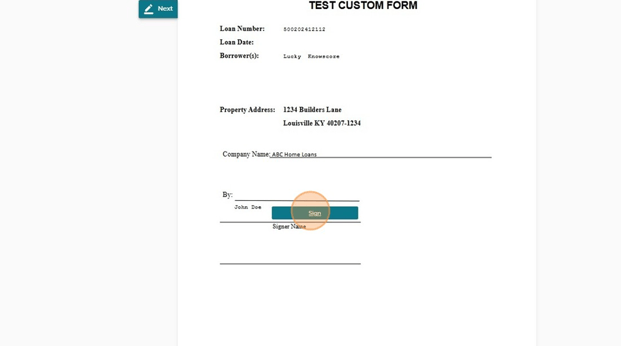
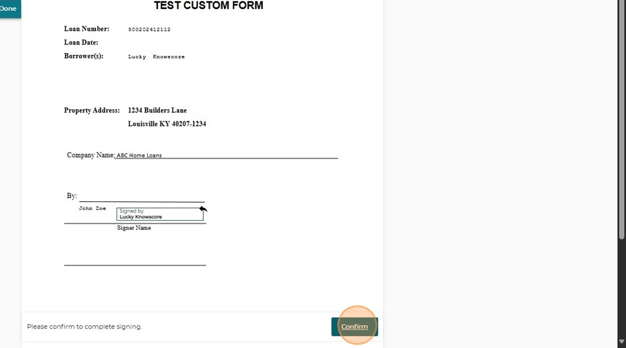
- Click "Confirm"
- Click "Review Documents"
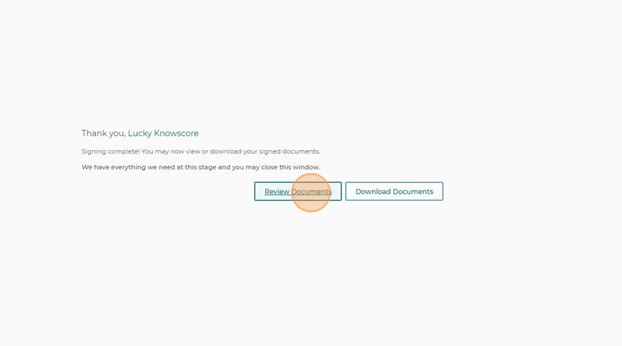
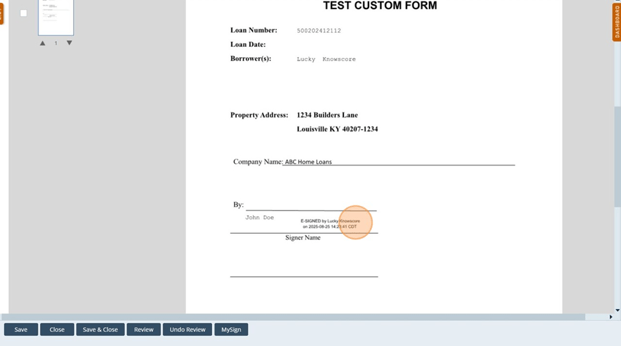
- Document shows esigned
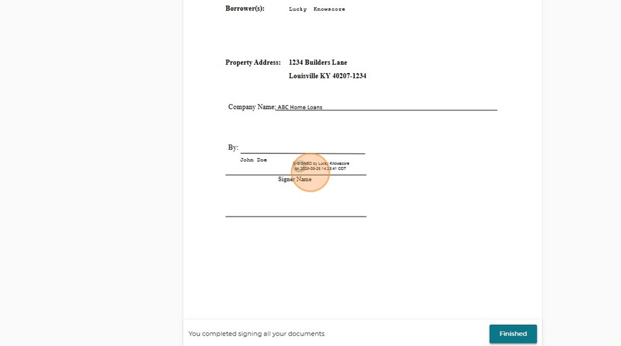
- Signed document dropped into Path.