
This article shows how to add and manage Contacts in Path so your team can quickly select trusted vendors and partners (like title, appraisal, and account executives) without retyping details in every loan. Keeping Contacts maintained improves speed, consistency, and accuracy—helping reduce mistakes, streamline Production workflows, and keep loan files moving.
Create the Contact in Admin Settings
- Log in using the Admin role.
- Navigate to Settings > Contacts.
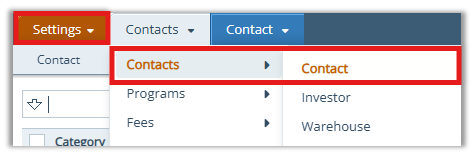
- Select the Plus (+) icon to enter a new Contact.

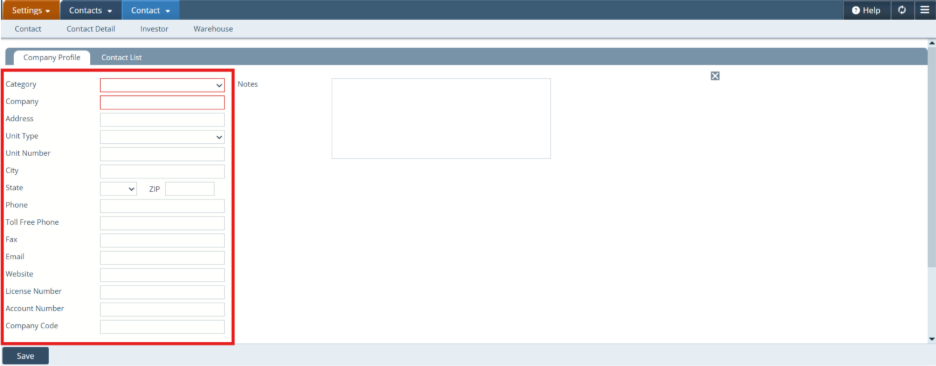
- In the Company Profile tab:
- Select a Category.
- Enter the Company Name.
- Enter any applicable company information (address, phone, email, etc.).
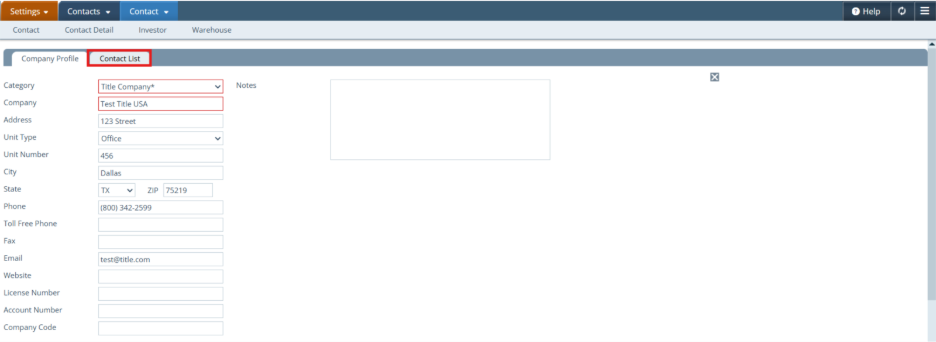
- Once company information is entered, select the Contact List tab.
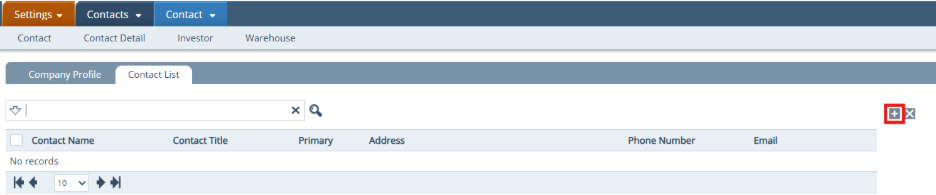
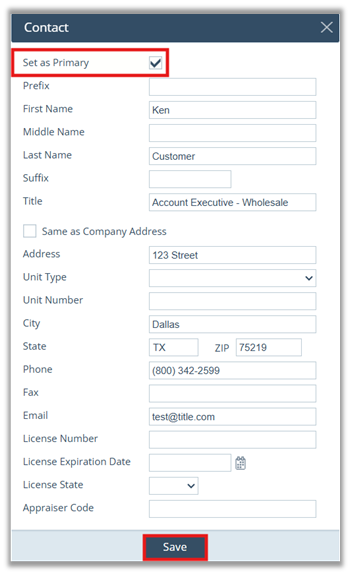
- In the Contact List tab, select the Plus (+) icon to add an individual contact.
- If applicable, select Set as Primary if this contact will be the primary contact.
- Enter the contact’s information (Name, Title, Phone, Email, etc.).
- Select Save.
- You may enter additional contacts.
- Path will default to the contact marked as Primary first.
Add the Contact to a Loan File
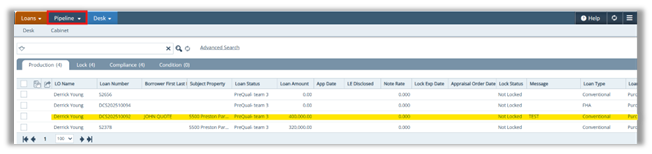
- Navigate to Pipeline and access the desired loan file.
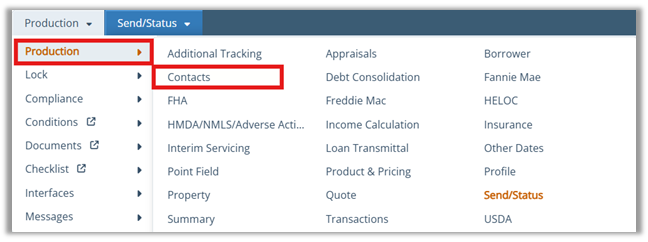
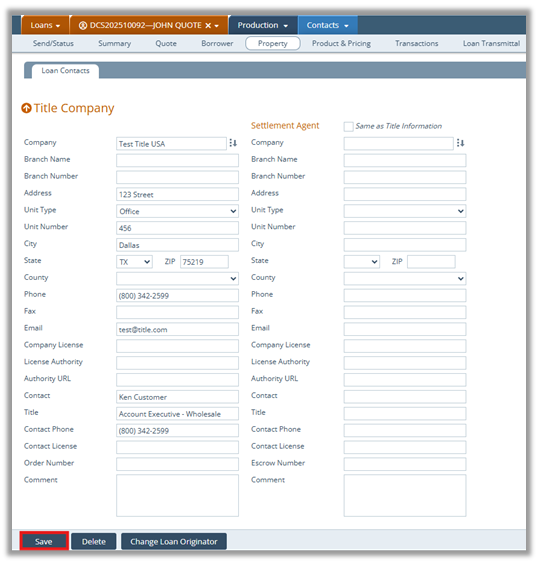
- In the loan file, navigate to Production > Contacts.
- Click the Selection icon next to the contact field.
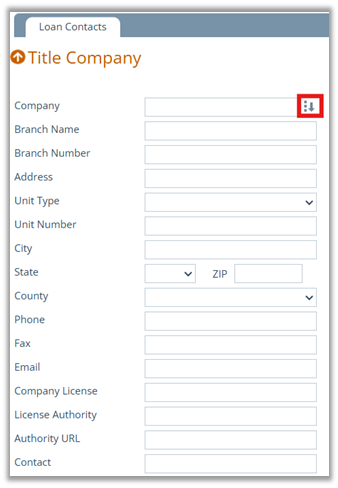
- Search for the contact you created and press Select.
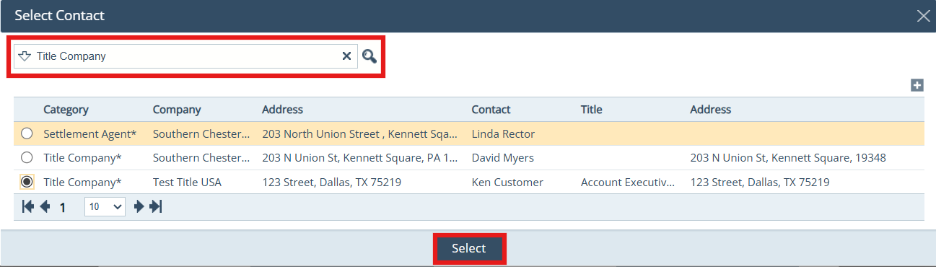
- Select Save to apply the contact to the screen.
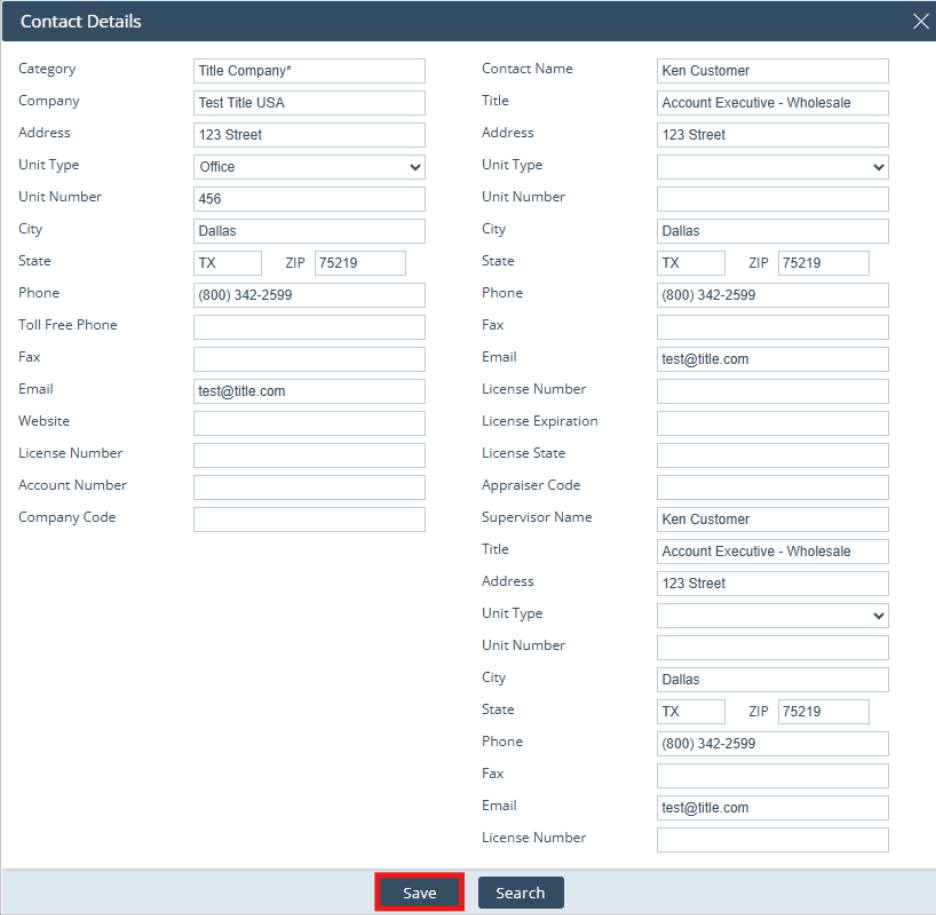
- Select Save again to confirm and save the contact to the loan file.
Summary
By creating Contacts once in Admin Settings and then selecting them inside a loan file, you standardize who your team uses and ensure the right information is always pulled into Production. The result is faster data entry, fewer errors, cleaner loan files, and a smoother workflow—especially when using Primary contacts for default selections.
