
This article covers how to add and maintain Investors in Path so your team can quickly select accurate investor details during the loan process. Keeping investor profiles, address records, and note endorsements up to date helps reduce manual entry, prevent funding/shipping mistakes, and keep loan files consistent.
Add an Investor
- Go to Settings > Contacts > Investor.
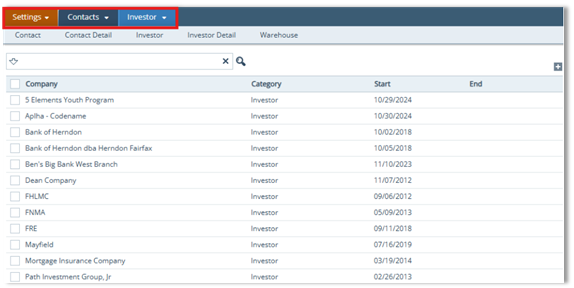
- Click the Add icon ( ) to open the Profile tab.
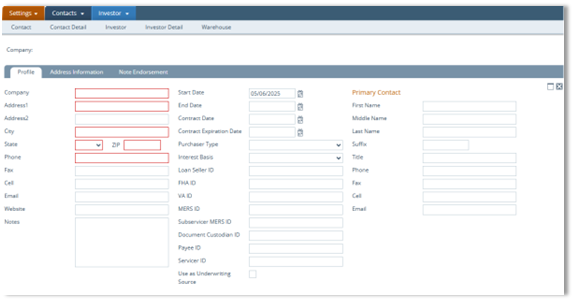
- Enter required fields (as indicated in the document), including company name, address, and contact info.
- Complete other applicable fields as needed.
- In the Primary Contact section, enter the investor’s primary contact.
- Click Save, then close using the Close () icon.
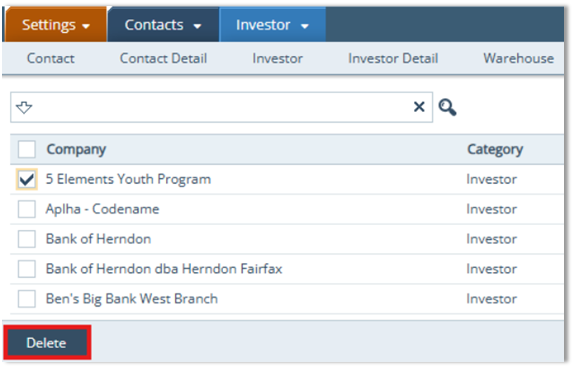
- Optional (Delete Investor): Select the investor checkbox and click Delete.
Investor Address Information
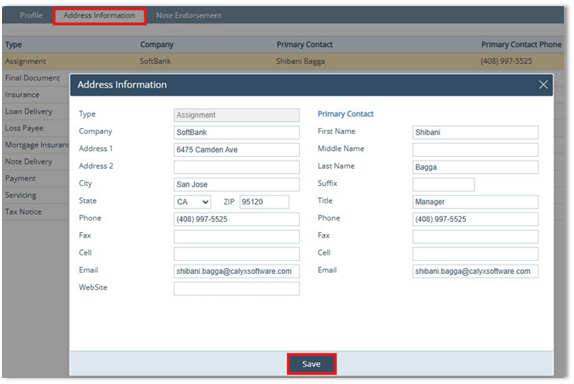
The Investor > Address Information tab allows you to set up multiple types of addresses and company information as related to a particular investor.
- Click the Address Information tab.
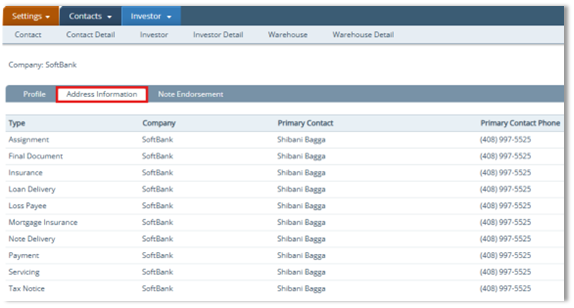
- Click the address/type you want to modify to open the Address Information lightbox.
- Update address, primary contact details, and other relevant information for that service type.
- Click Save.
Note Endorsement
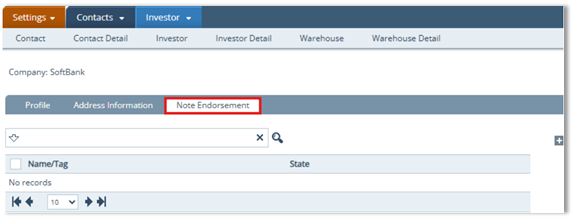
- Click the Note Endorsement tab.
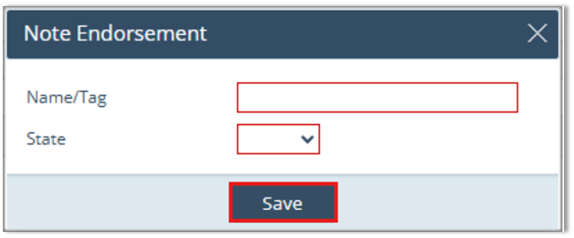
- Click the Add ( ) icon to open the Note Endorsement lightbox.
- Enter a Name/Tag and select a State, then click Save.
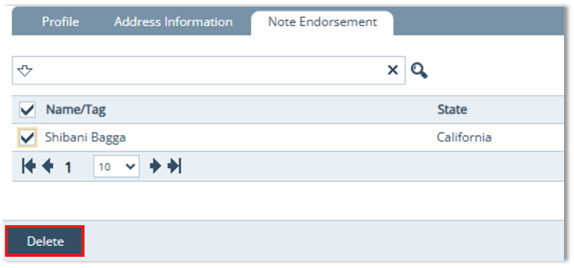
- Optional (Delete Note Endorsement): Select the checkbox and click Delete.
Summary
By setting up an Investor profile, maintaining the correct Address Information for each service type, and adding Note Endorsements when needed, you create a reliable investor database in Path. The result is faster workflows, fewer errors from retyping or outdated info, and smoother processing when assigning investors to loans.
