
This article explains how to add and manage Warehouse Lenders in Path so your team can store lender profiles, maintain wiring details, and link the correct investors in one place. Setting this up upfront helps speed up funding workflows, reduces rekeying, and lowers the risk of costly wire errors caused by outdated or inconsistent information.
Add a Warehouse Lender
- Go to Settings > Contacts > Warehouse.
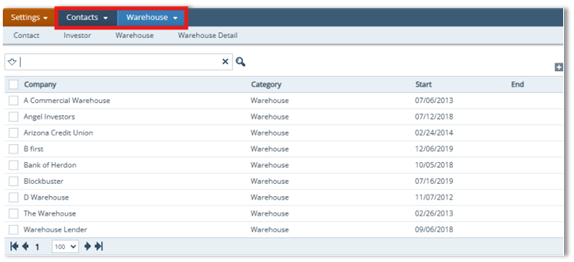
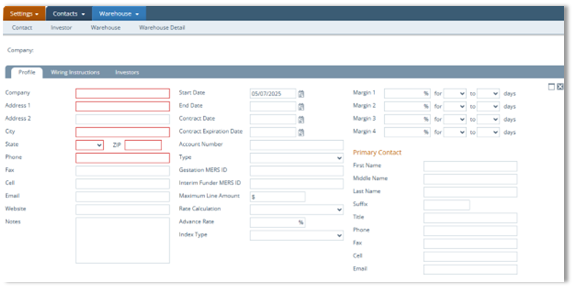
- Click the Add icon ( ) to open the Profile tab.
- Complete required fields (as indicated in the document).
- Complete additional fields as needed, including the Primary Contact section.
- Click Save, then close using the Close (X) icon.
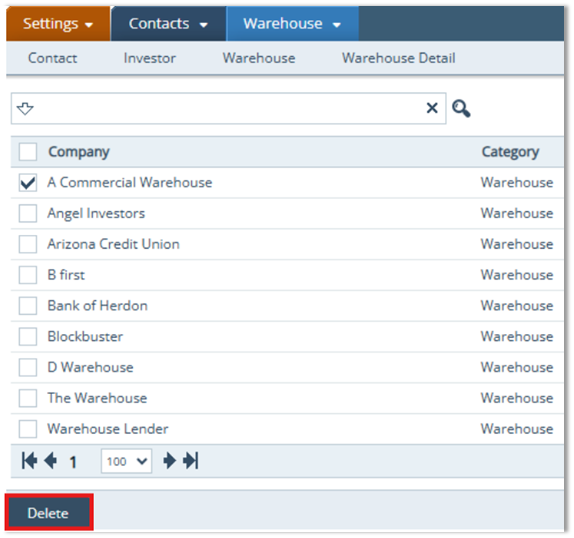
- Optional (Delete Warehouse): Select the warehouse checkbox and click Delete.
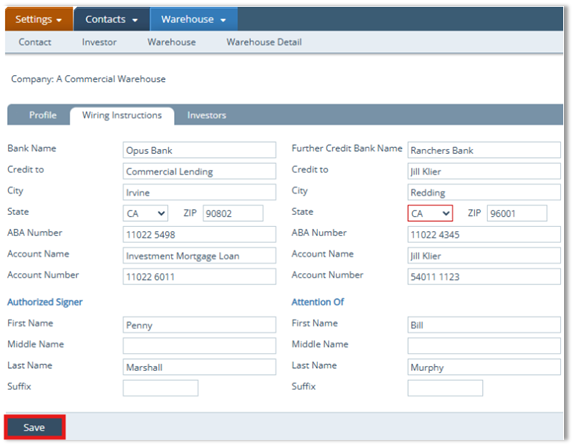
Wiring Instructions
- Select the Wiring Instructions tab.
- Enter all relevant wire transfer information.
- Click Save.
Warehouse Investors (Associate Investors to a Warehouse)
- Select the Investors tab.
- This list is populated by investors created in Settings > Contacts > Investor.
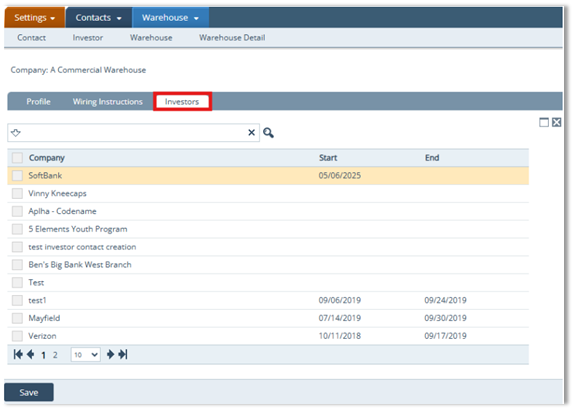
- This list is populated by investors created in Settings > Contacts > Investor.
- To associate an investor with the selected warehouse, click an investor's name.
- Enter the Start Date and, if applicable, the End Date, then click Save.
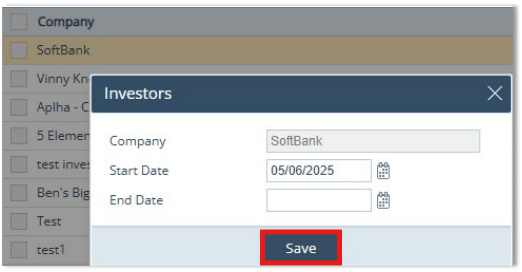
- Confirm the dates now displayed in the investors table.

Summary
By creating the Warehouse Lender profile, entering accurate Wiring Instructions, and associating the right Warehouse Investors with effective dates, you build a reliable warehouse setup that’s easy for teams to use across loans. The payoff is faster processing, cleaner loan files, and fewer funding delays or corrections.
