
To change the company name for one or multiple title fees in (section C. Services Borrower Can Shop For) follow the steps below.
1. Go to Production > Closing Costs > Fees and select the checkbox(es) of the title fee(s).
2. Click the Change Contact button.
Note: Only select fees that start with Title. 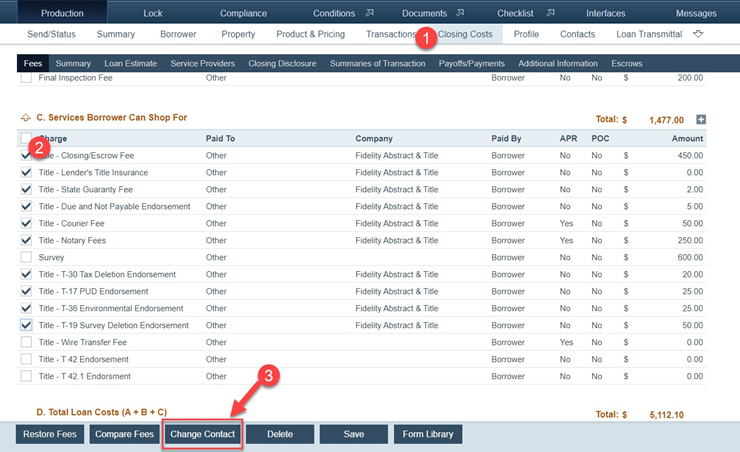
After the Change Contact button is clicked, the Select Contact lightbox appears.
3. Enter Title into the search field at the top of the lightbox and click Enter on your keyboard. Next, the title companies are displayed in the table 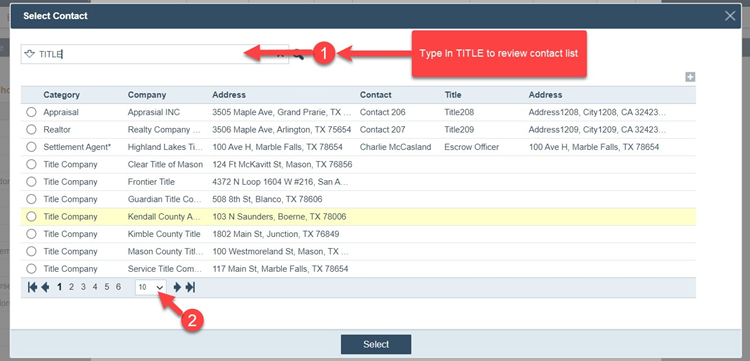
Tip: Use the dropdown menu at the bottom of the table to select how many companies to display in the table on one page.
4. Select the title company and click on the Select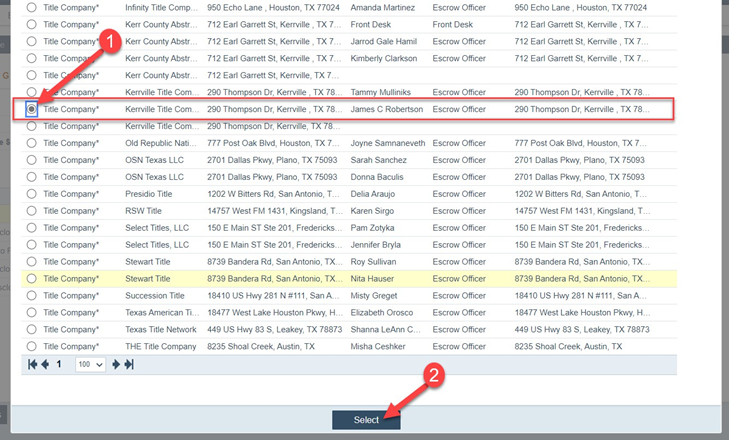
NOTE: After clicking Select, the Contact Details lightbox appears, displaying the selected title company’s information.
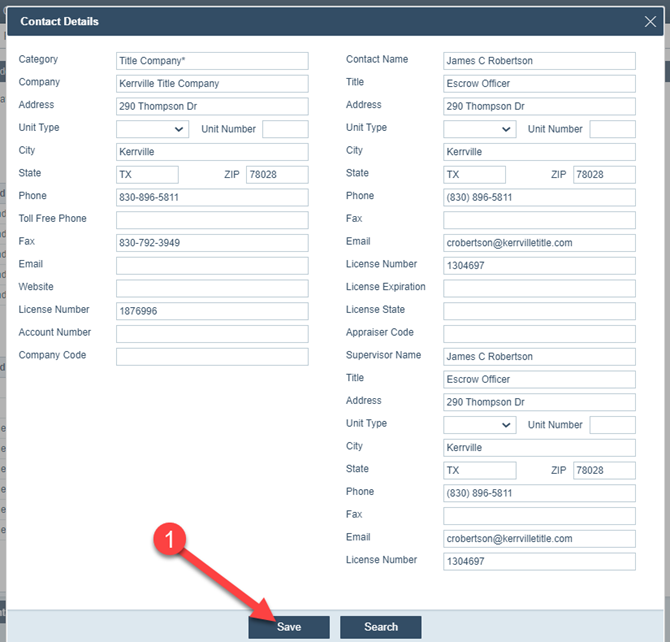
The company name has changed to the selected title company 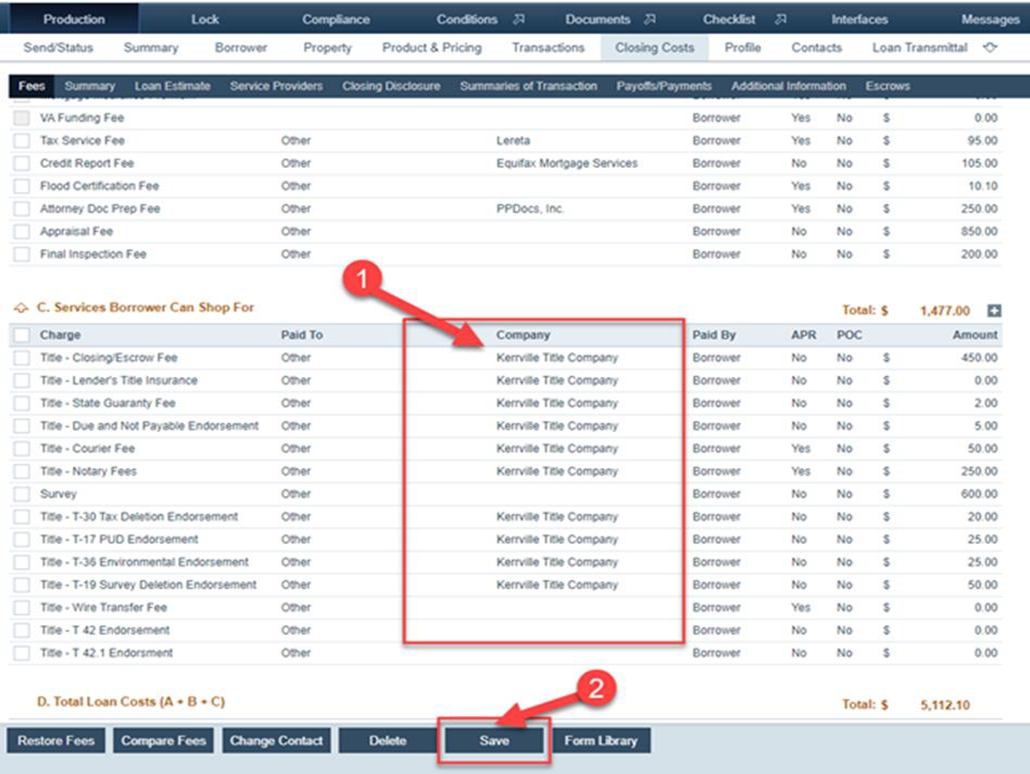
6. If a title company is not found through the above steps, you can add it to the loan via Production > Contacts > Loan Contacts. 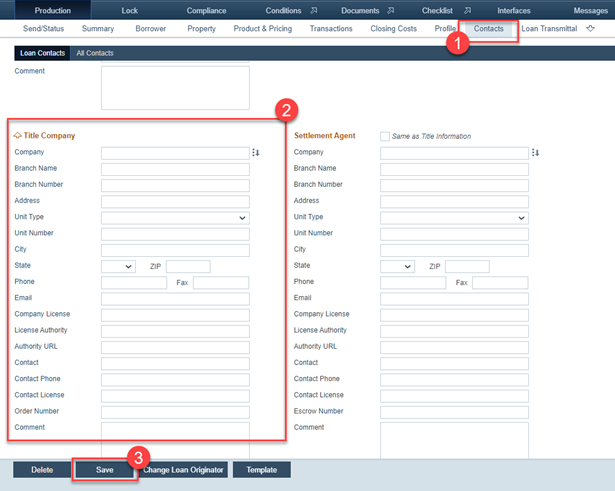
Note: Adding a title company (or any entity) to your organization’s contact list requires your system administrator to add it via Settings > Contacts. After it has been added to Settings > Contacts, you will be able to search for and find it via the above steps.
