
Content
Content................................................................................................................................................................................................................ 1
Introduction...................................................................................................................................................................................................... 1
Complete Intent to Proceed Fields................................................................................................................................................ 1
Confirm Intent to Proceed Status.................................................................................................................................................... 2
Verify LE/CD Status History Updates.......................................................................................................................................... 3
Quick Checklist (Recommended)................................................................................................................................................... 3
Introduction
This guide helps users navigate Compliance > Closing Costs > Loan Estimate in Path to execute the Intent to Proceed workflow.
Complete Intent to Proceed Fields
- Navigation: Compliance > Closing Costs > Loan Estimate > Intent to Proceed
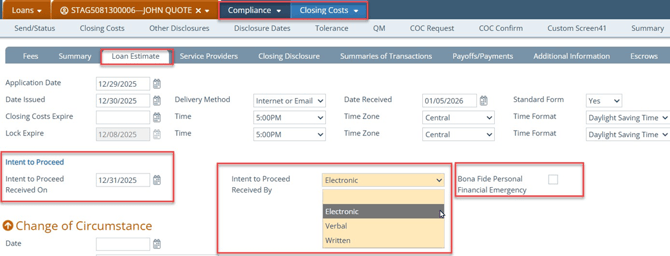
- Complete the following fields:
- Intent to Proceed Received On: user must verify and manually enter the
- Intent to Proceed Received By: select from the dropdown
- Bona Fide Personal Financial Emergency: optional indicator; refer to company compliance guidelines before selecting.
Confirm Intent to Proceed Status
After completing the fields above, the user must update status to complete the process:
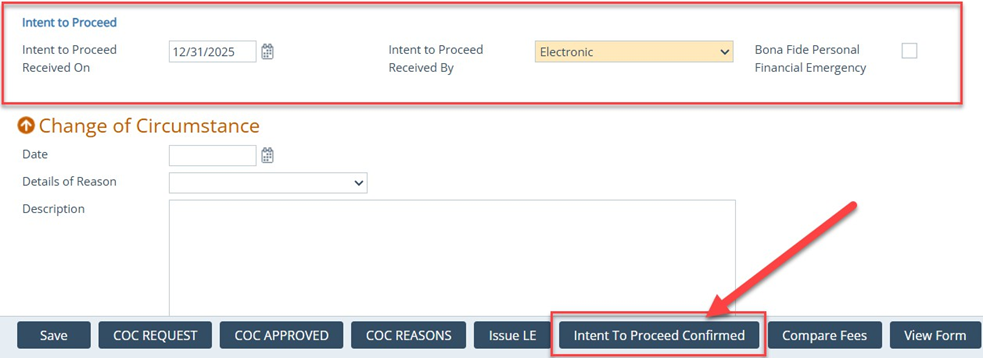
- Click the Intent to Proceed Confirmed
-
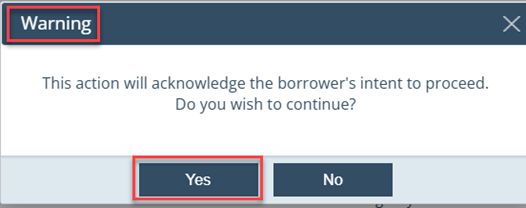
A warning popup appears. Click Yes or No to proceed.
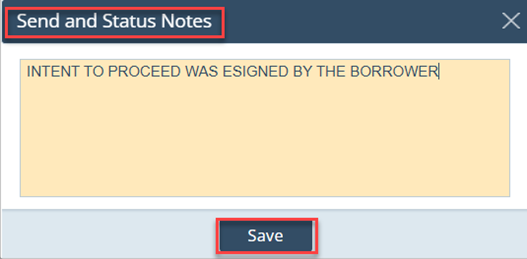
- If you click Yes, the Send and Status Notes popup
-
- Add notes (recommended), then click the Save
Verify LE/CD Status History Updates

- After confirmation, the LE/CD Status History populates:
- Date/Time: auto-populates
Status: Intent to Proceed Confirmed
- Date Issued: auto-populates
- Delivery Method: auto-populates
- Notes: auto-populates
- By: name of the user who clicked the Intent to Proceed Confirmed button
Quick Checklist (Recommended)
- Entered Intent to Proceed Received On (verified date)
- Selected Intent to Proceed Received By
- Considered Bona Fide Personal Financial Emergency per company guidelines (if applicable)
- Clicked Intent to Proceed Confirmed button
- Clicked Yes on the warning popup (if proceeding)
- Added notes in Send and Status Notes (recommended) and clicked Save button
- Verified LE/CD Status History shows status Intent to Proceed Confirmed and includes Date/Time, Date Issued, Delivery Method, Notes, and By
