
This article guides System Administrators in entering Zip Credentials in Calyx Path to enable secure, accurate integration with features like the Online Application and Document Request.
Setting Up Zip Delivery
Use the Delivery screen to connect Zip to Path. After the connection is saved, applications submitted through the organization's Zip portals are imported automatically into Path.
Use this setup when Path is the organization's loan origination system.
- In Zip Admin, select Delivery.
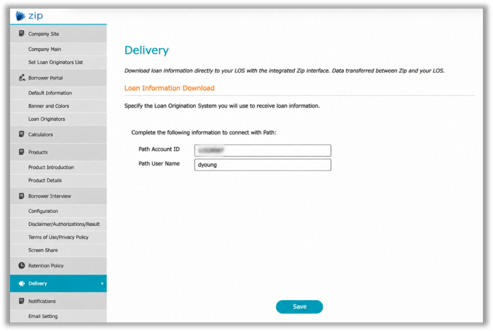
2. Under Loan Information Download, enter the Path Account ID and Path Username.
Path Account ID is the organization's Path company account and is shared by all Zip interview portals.
Path Username identifies the Path user account connected to the Zip interview portal. Different Zip interview portals can use different Path user accounts within the same company account.
3. Select Save. A confirmation message appears.
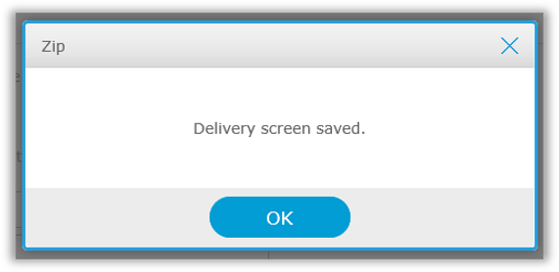
4. Select OK.
Navigate to the User Configuration
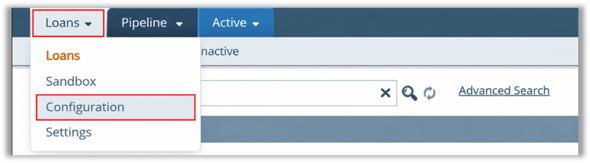
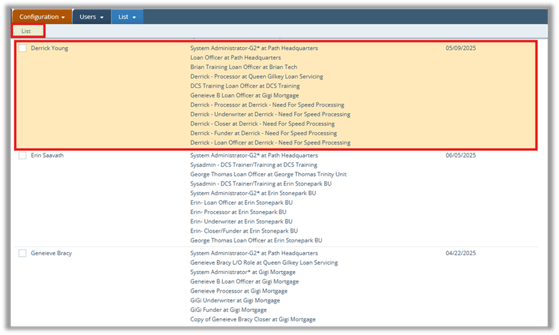
1. Click the Configuration tab on the top navigation bar.
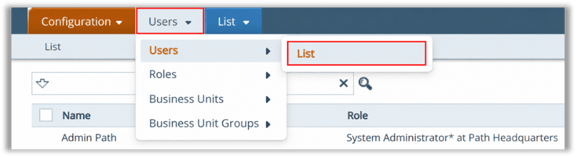
2. From the dropdown, select Users, then click List.
3. Select or double-click to open the specific user profile you wish to edit (e.g., Derrick)
Locate the Zip Configuration Section
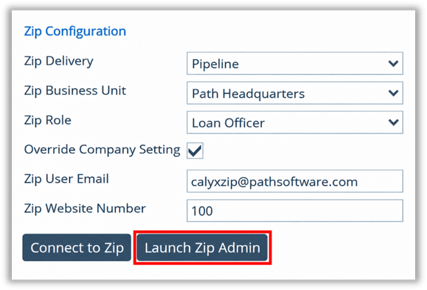
Find the section labeled Zip Configuration on the right side of the user details screen.
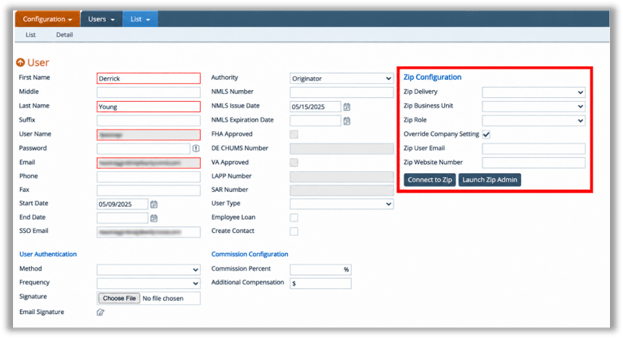
Enter the Zip Credentials and Configuration Details
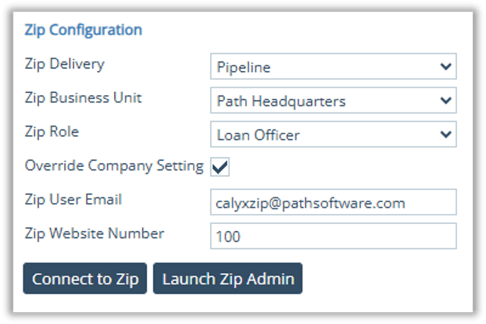
In the Zip Configuration section, do the following:
- Zip Delivery: Select Pipeline or Sandbox to choose where the Zip Application imports.
- Zip Business Unit: Select the correct unit from the dropdown (e.g., Path Headquarters).
- Zip Role: Select the user role from the dropdown (e.g., Loan Officer).
- Override Company Setting: Check this box if you need to override the default company Zip configuration.
- Zip User Email: Enter your Zip login email address (e.g., Path.Test@calyxsoftware.com).
- Zip Website Number: Enter your assigned Zip Website Number (e.g., 100).
Save and Connect
After you have entered all credentials:
1. Click the Connect to Zip button to verify and establish your Zip connection.
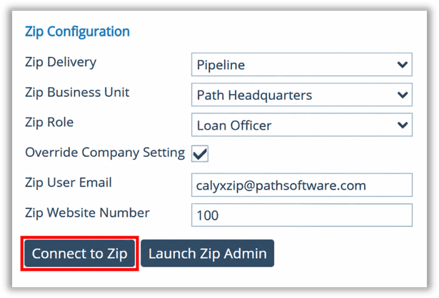
2. (Optional) Click Launch Zip Admin for advanced or admin settings related to Zip.
Review and Confirm
- Verify that all information is correct, then Save or update the user profile.
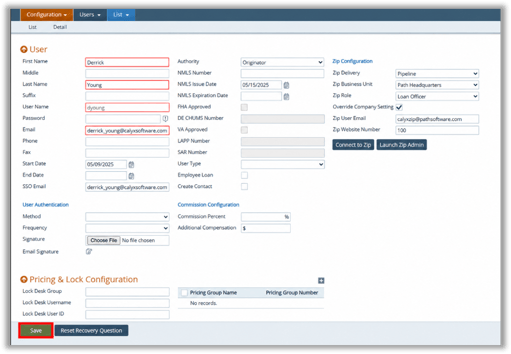
Note: Only users with the required authority (such as System Administrators) can modify Zip settings for other users. Ensure you have the necessary permissions before making changes.
This process guides System Administrators through configuring Zip Credentials in Calyx Path—accessing user profiles, entering key Zip details, verifying the connection, and saving changes—all to ensure secure, role-based integration with Zip services.
