
Document Categories in Path Admin allow administrators to organize Document Types into structured, logical groupings such as Income, Assets, or Credit. When configured correctly, categories improve filtering, simplify template creation, enhance reporting accuracy, and support role-based access control—creating a more organized and efficient document management system throughout the loan lifecycle.
Applies To
- Path System Administrators
Examples of Common Categories
- Income
- Pay stubs
- W-2s
- Tax returns
- Assets
- Bank statements
- Investment records
- Retirement account statements
- Credit
- Credit reports
- Liability documentation
Create a Document Category
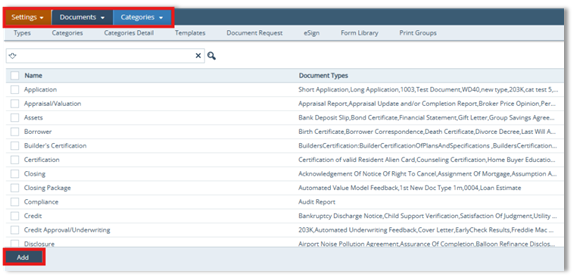
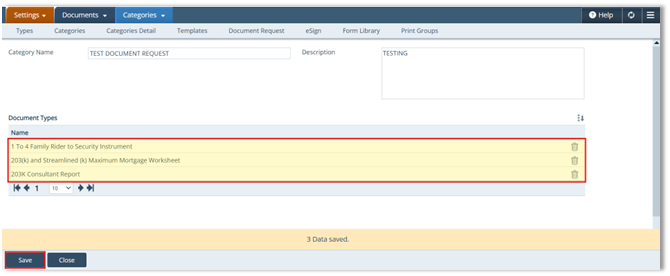
- Go to Settings > Documents > Categories.
- Click Add to open the Categories Detail screen.
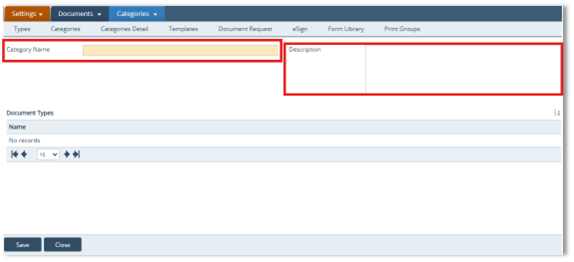
- Enter the Category Name (required and unique).
- (Optional) Enter a Description.
- Click the Select icon () under Document Types to open the Available Document Types lightbox.
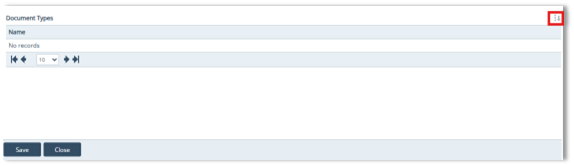
Note: The Select icon is only enabled after entering a Category Name and clicking Save.
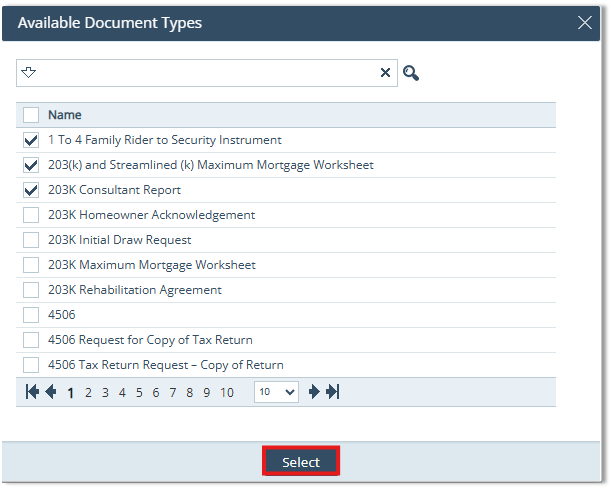
- Click the checkbox next to the Document Type(s) and click Select.
- Click Save.
Summary
Document Categories provide the structural backbone for organizing documents in Path. By creating clear, well-defined categories and assigning the correct Document Types, administrators improve usability, streamline template creation, enhance reporting, and maintain stronger role-based control. Proper category management results in a more efficient, consistent, and scalable document workflow across the organization.
