
Configuring a Dashboard in Path lets you create a quick, at-a-glance view of the loan details you care about most—without bouncing between screens or hunting for fields. A well-built Dashboard helps users work faster, stay consistent, and reduce missed details by keeping key information visible in one place.
Applies To
- Path users configuring Dashboards in Settings
- Path users viewing Dashboards inside a loan file (Production)
Configure a Dashboard
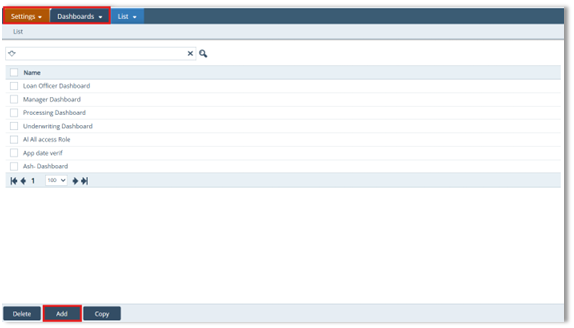
- Navigate to Settings > Dashboard.
- Click the Add button to add a new Dashboard.
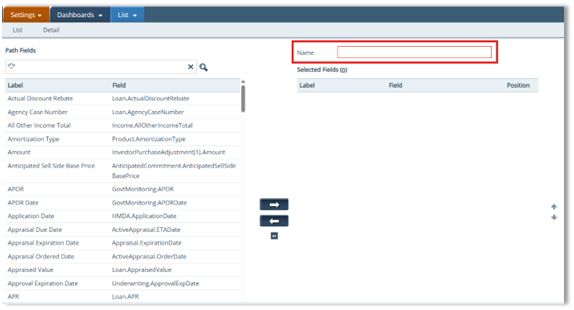
- Enter a Name for your Dashboard.
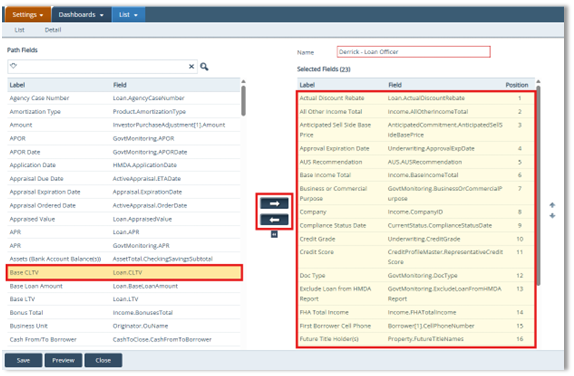
- From the list of available Path Fields, click the line item(s) for the field(s) you want to add to your Dashboard.
- Select the arrow icon to move the selected field(s) to your Dashboard.
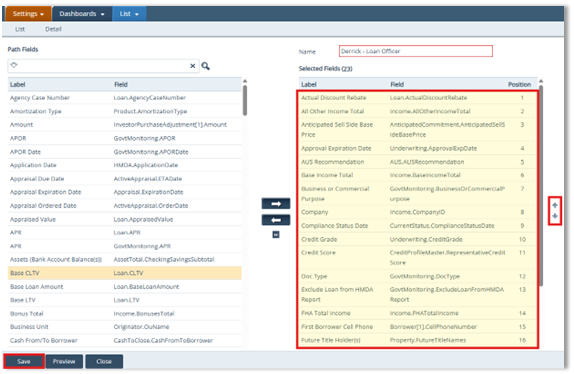
- Use the up/down arrows to reorder the fields into your desired display order, then click Save to complete the Dashboard setup.
View the Dashboard in a Loan
- Open a loan file.
- Select the orange Dashboard icon on the right side of the screen.
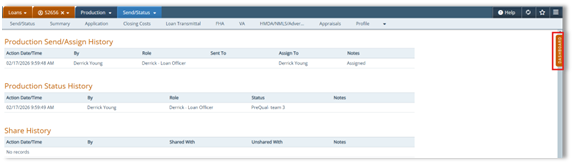
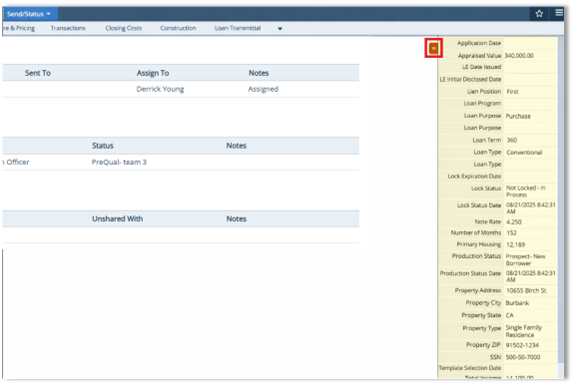
- The Dashboard opens and displays your pre-selected fields.
- To close the Dashboard, select the orange icon at the top of the Dashboard.
Summary
By configuring a Dashboard in Path, you can standardize which fields users see first and keep the most important loan details front-and-center. The result is faster navigation, fewer missed data points, and a cleaner workflow—especially for teams that want a consistent, repeatable view across loan files.
