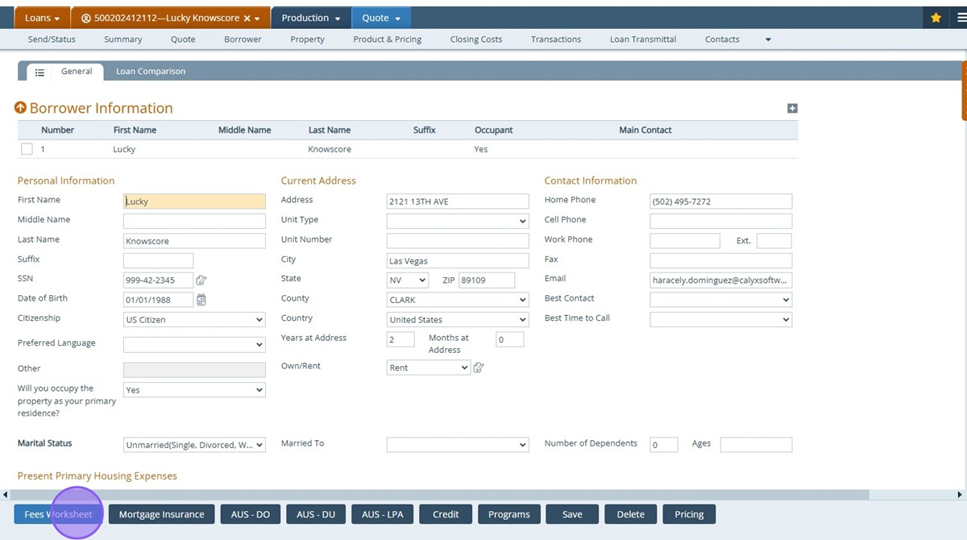
This feature for custom buttons allows users to view any form from any screen/tab.
For example, the system admin can configure a button specifically to view the Fees Worksheet for the Closing Costs > Fees tab or the Quote screen, or configure a button specifically to view the Wire Disbursement form for the Closing Information > Wire tab.
This eliminates the extra step of having to view/add form from the "Documents" section.
In this example, we will add "Fees Worksheet" form to the quote screen for Loan officers.
1. Within System Admin role, Navigate to "Configuration"
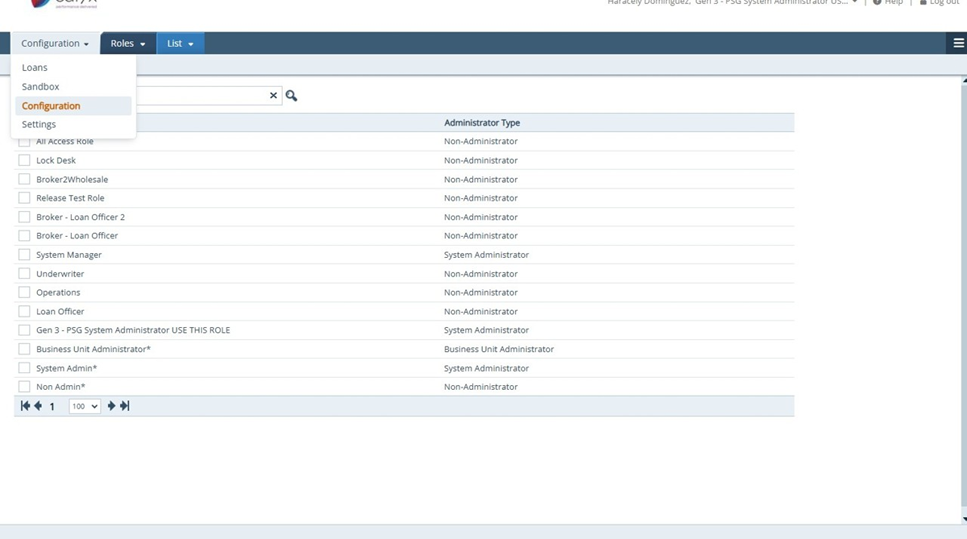
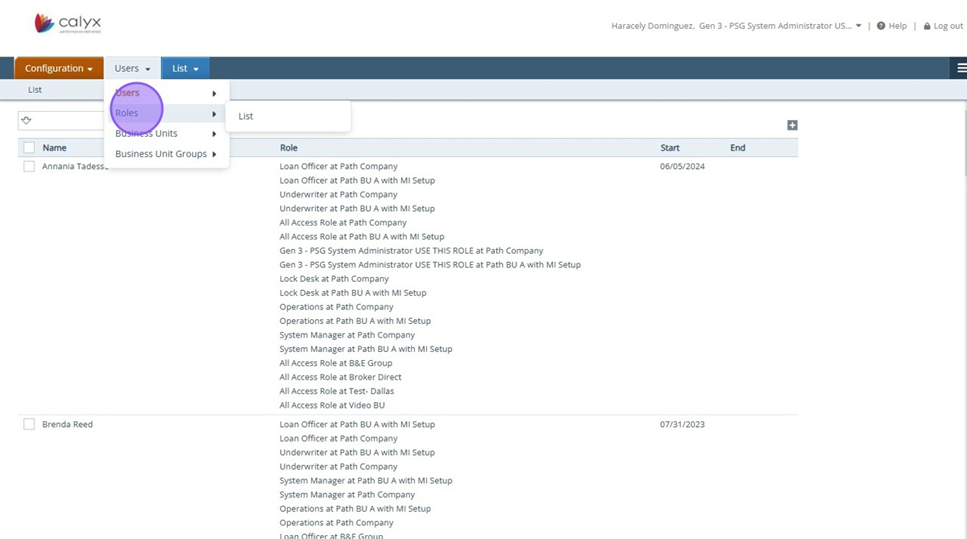
2. Click "Roles"
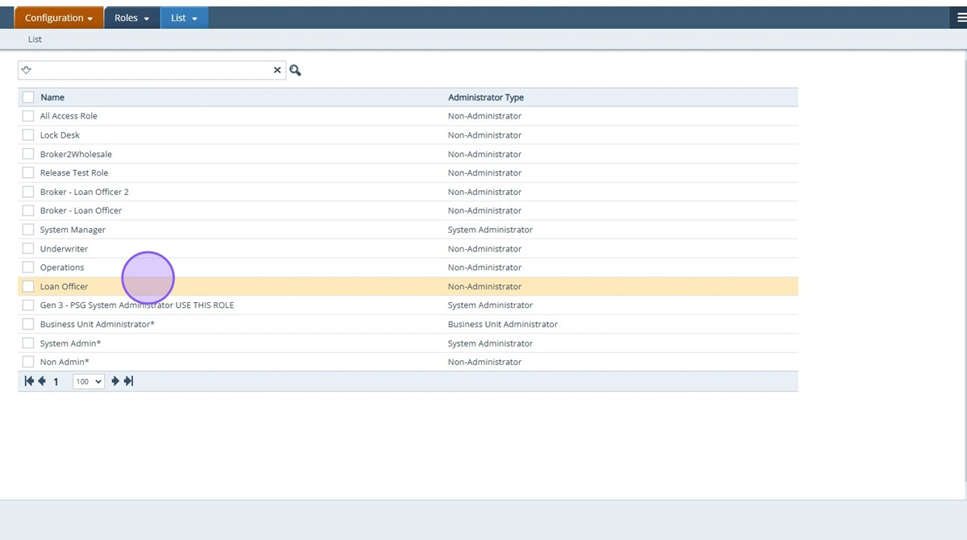
3. Select role:
4. Click "Screens"
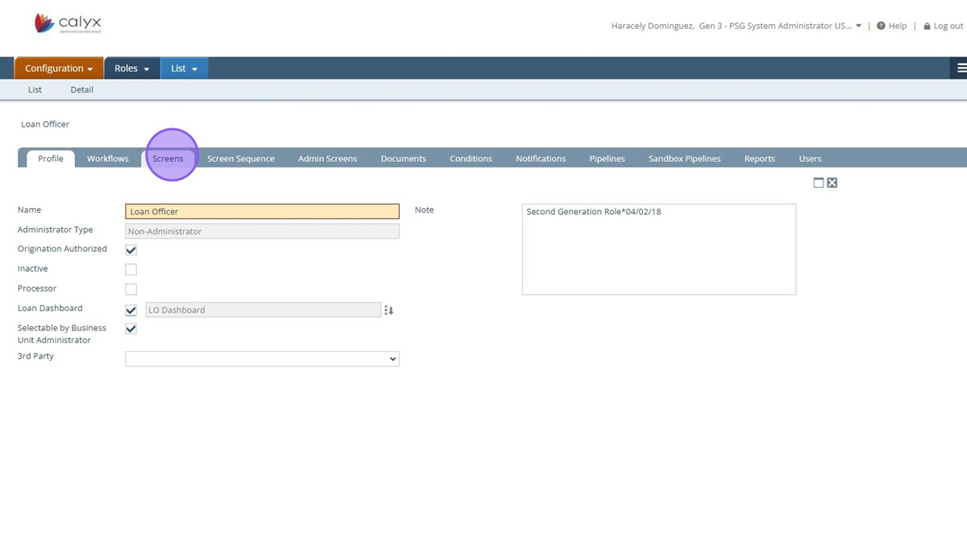
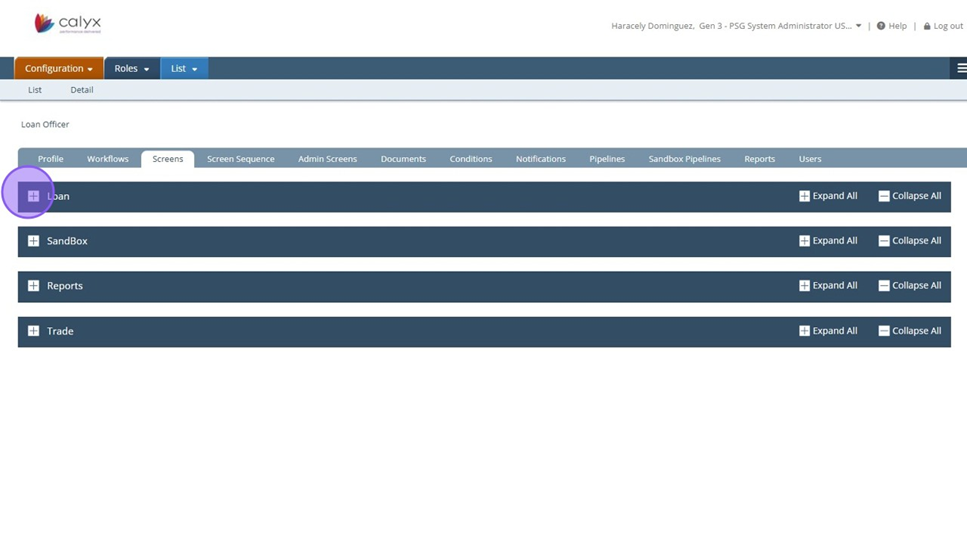
5. Click on "Loans"
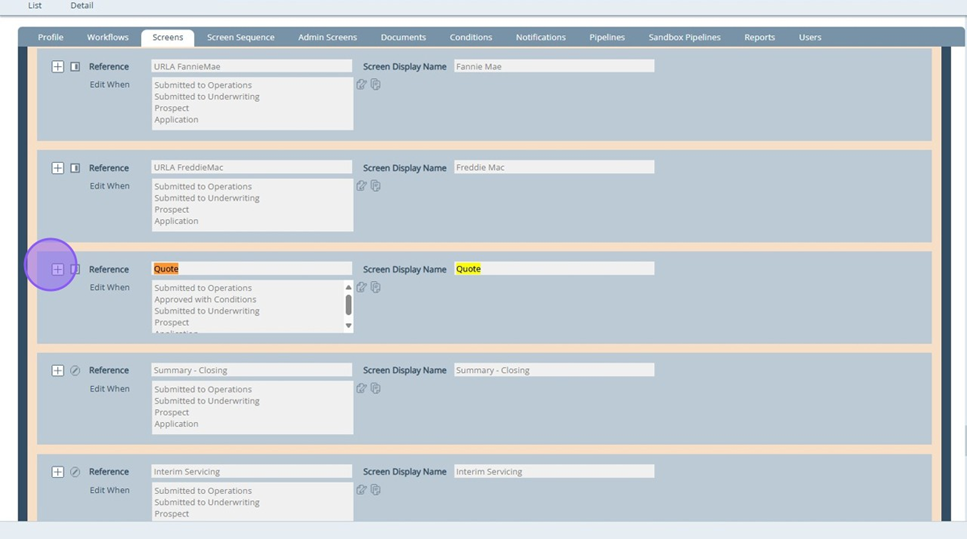
6. Select/search for screen you want to add button to:
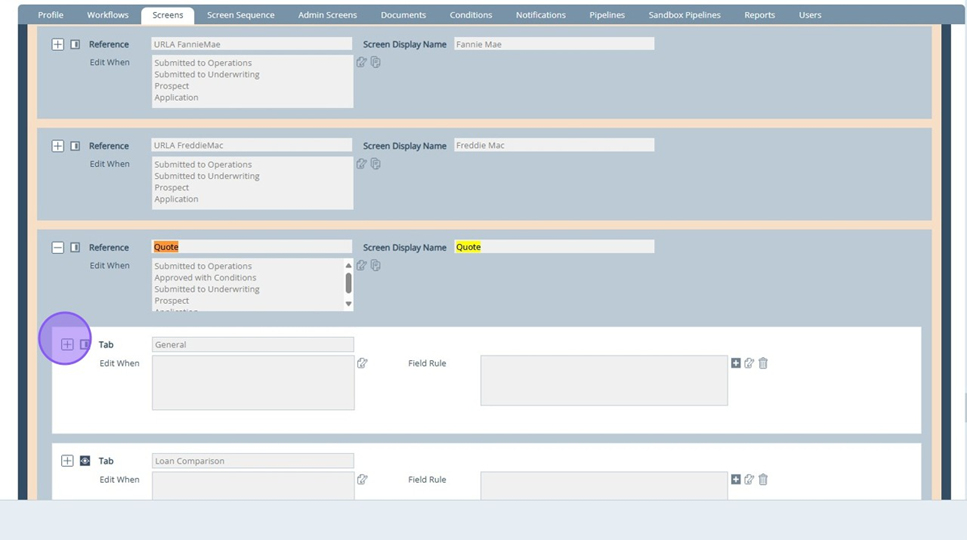
7. Open screen to show buttons
8. Click on "Edit" icon to any "Custom" button
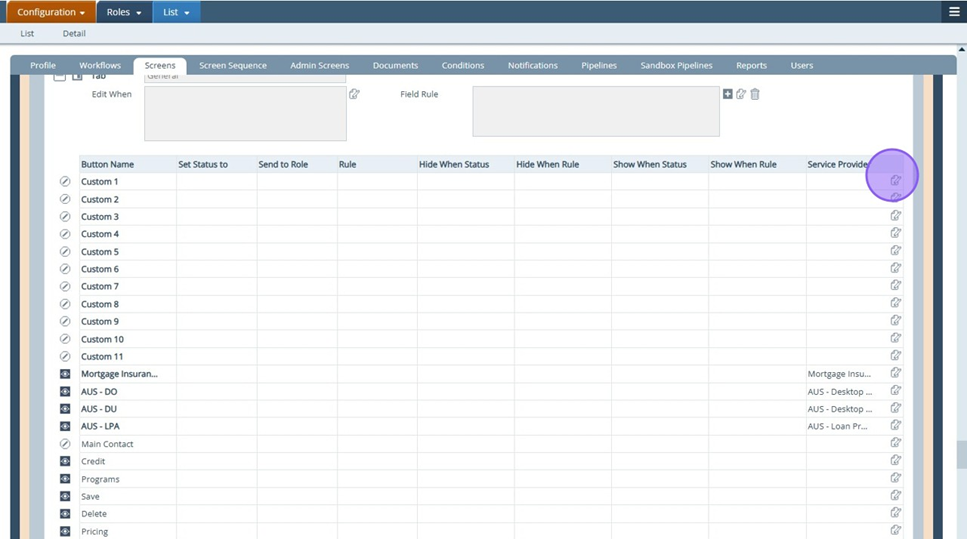
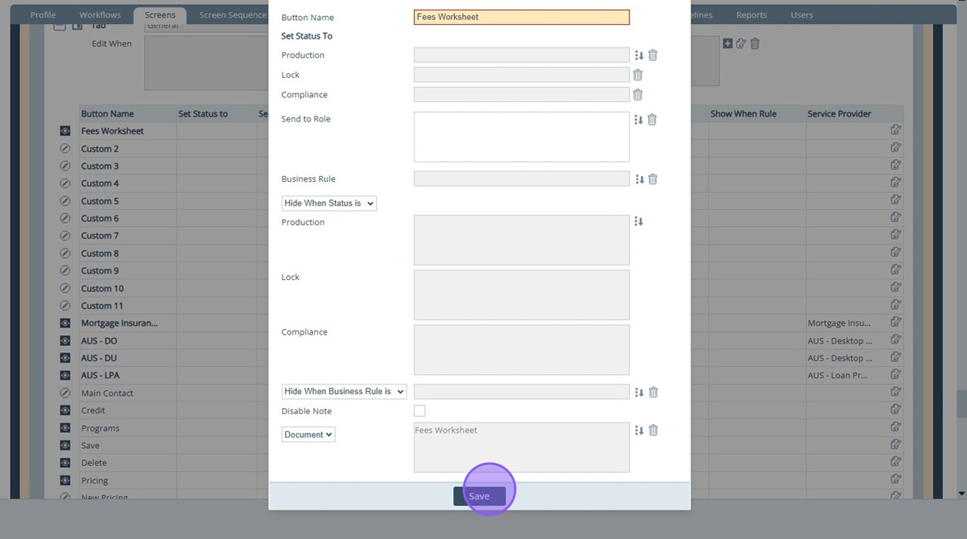
9. Add Button name and select "Document" to tie function to button
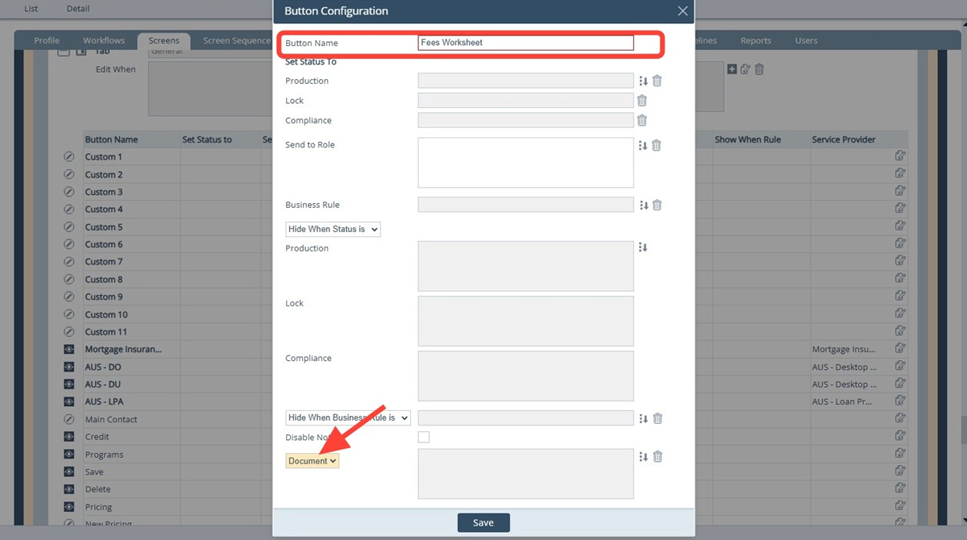
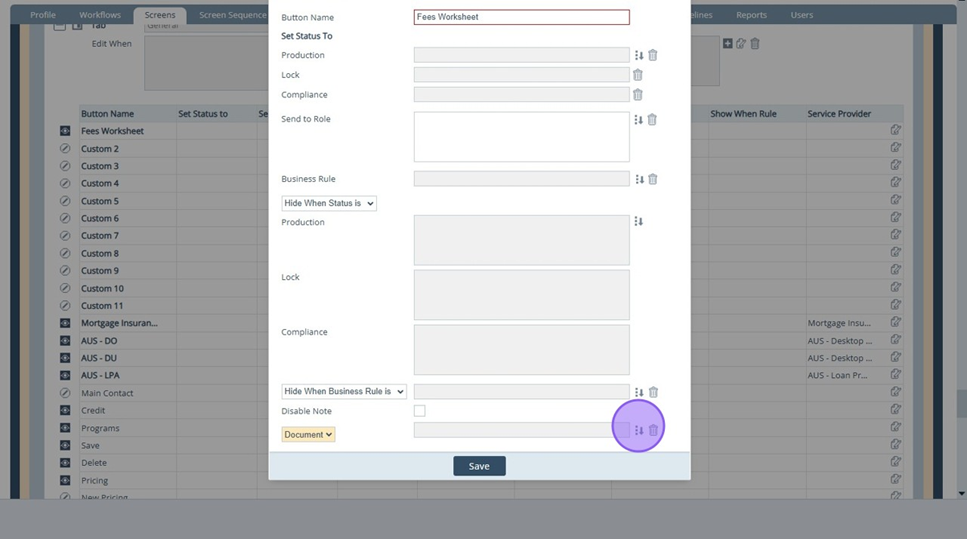
10. Select dropdown icon to open the select document lightbox
11. Search form in form library and select
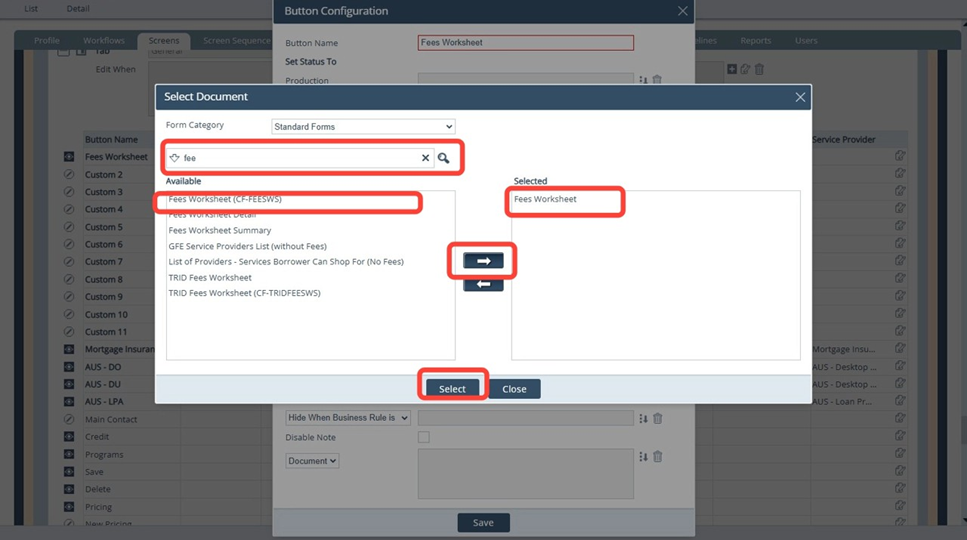
12. Save all edits made to custom button
13. IMPORTANT! Ensure to turn button "ON"
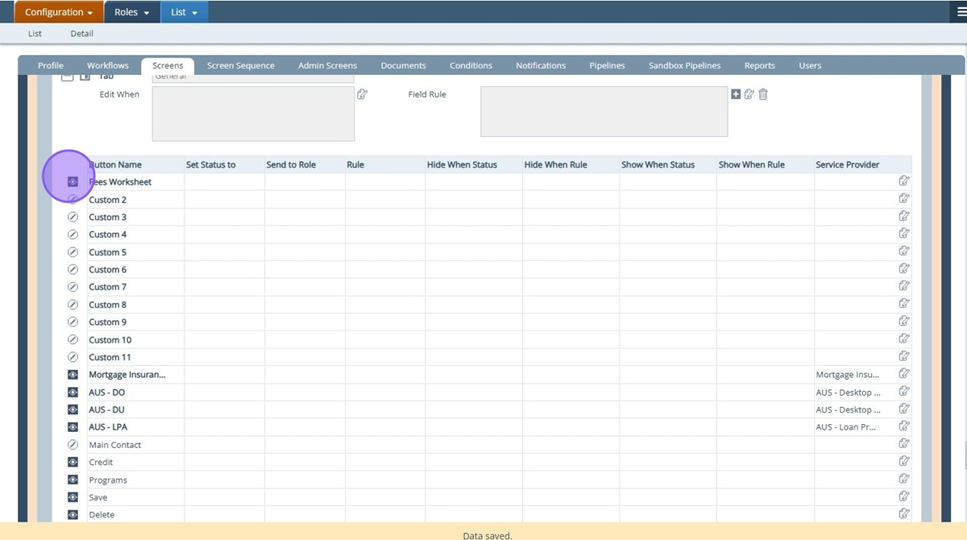
14. After selecting the form and configuring the button, it is now displayed in the corresponding screen/tab in Loans.