
- Within Reports, identify the report MCR Report Check the box and click on RUN at the bottom left corner.
- Once step one is done, go to the Report History screen, check the box and click Download at the
- This window will Please provide the date range for the quarter you want to run the report and click on Submit. For instance, 2nd Quarter (04/01/2025 – 06/30/2025)
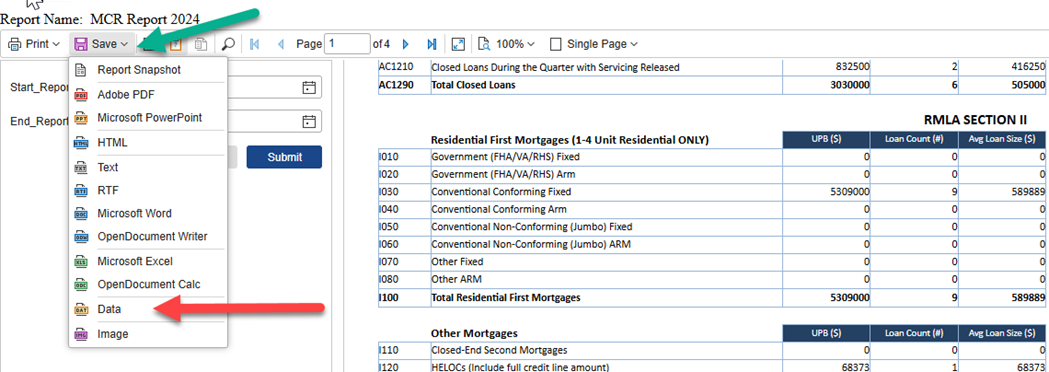
- After the report is generated, click Save, from the dropdown please select Data.
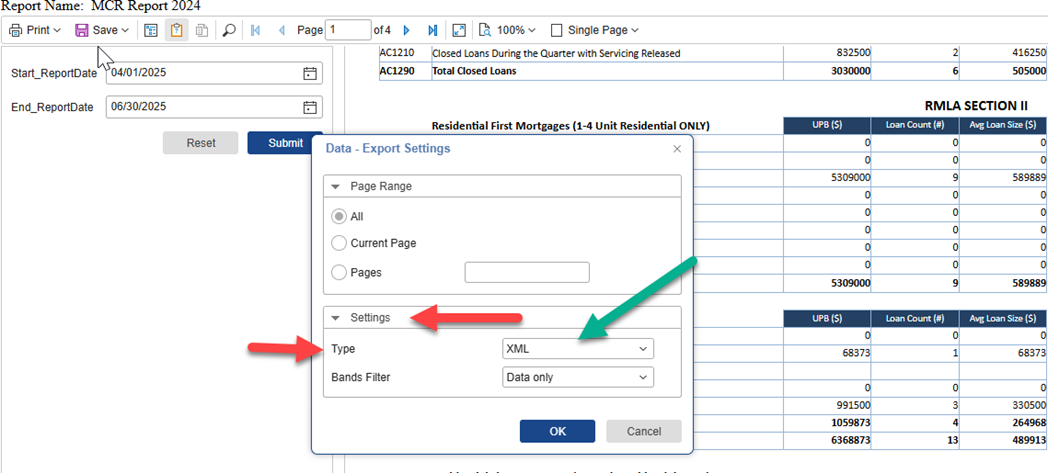
- In the Data - Export Settings lightbox, if the Type is selected to CSV, please change it to display XML from the drop-down menu, as shown below, and click OK.
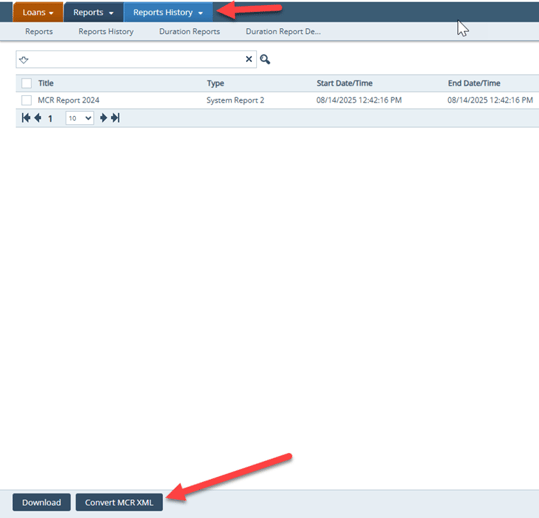
- The report will be downloaded as an XML Once this is downloaded head back to Report History on and click on Convert MCR XML button at the bottom.
- The Convert MCR XML lightbox Click Choose a file, upload the XML report previously downloaded, and click Convert.
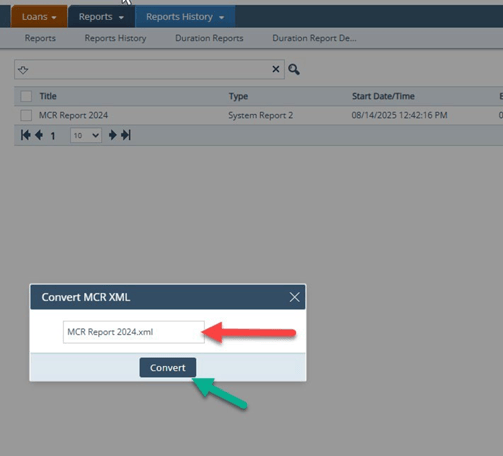
- The report will convert to the correct required version 5 or 6, ready to submit to the state/regulatory agency.
