
This article explains how to quickly import a Fannie Mae 3.2 (.fnm) file into Path and enable URLA mode when needed, helping reduce manual data entry and keep the loan in the correct format.
PREREQUISITES
- File format — The source file must be a valid Fannie Mae 3.2 (.fnm) file saved locally on your computer.
- Access — Users must have access to the Loans pipeline and permission to import files in Path.
- URLA applicability — The URLA checkbox and Convert to URLA button apply to loans that require the redesigned Uniform Residential Loan Application format. Not all imported loans will require conversion.
PART 1 — IMPORTING THE FNM 3.2 FILE
Import begins from the loan pipeline list. The FNM 3.2 option is selected by default in the Import dialog.
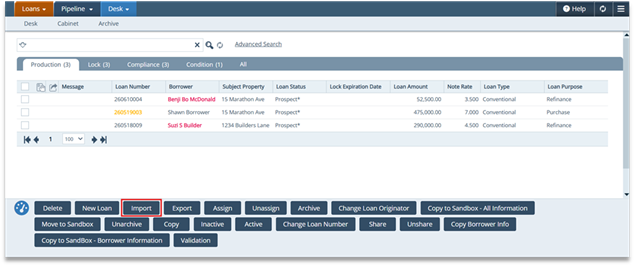
- From the top navigation, click Loans and select Loans from the dropdown to open the loan pipeline list.
- At the bottom of the screen, click the Import button.
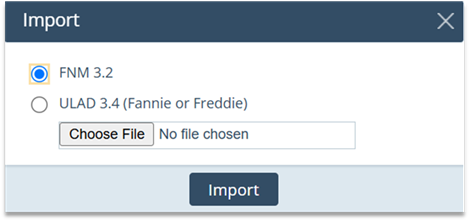
- In the Import dialog, confirm the FNM 3.2 radio button is selected. It is selected by default.
- Click Choose File and select the 3.2 file from your computer.
- Click the Import button to complete the import. The loan file will open automatically.
PART 2 — CHECKING THE URLA CHECKBOX
After the loan opens, use the Borrower tab to enable URLA mode. There are two ways to do this — manually checking the checkbox or using the Convert to URLA button.
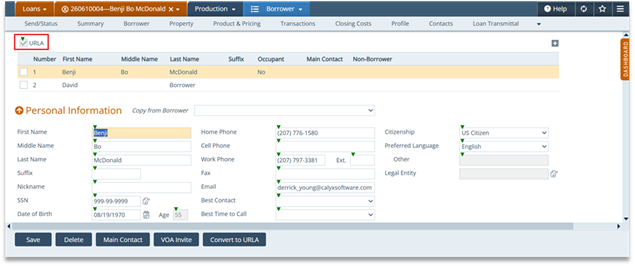
- Click the Borrower tab in the loan's navigation bar.
- At the top of the Borrower tab, locate the URLA checkbox above the borrower list.
- Check the URLA checkbox to enable URLA mode for the loan.
ADDITIONAL BEHAVIOR TO KNOW
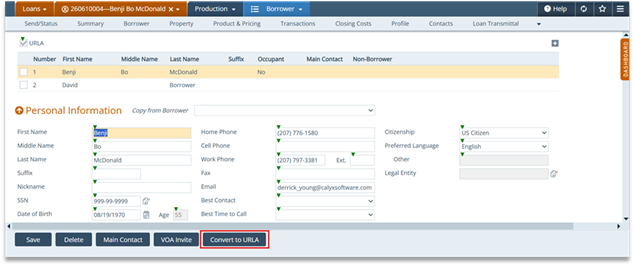
Convert to URLA button — Clicking Convert to URLA at the bottom of the Borrower tab converts the loan to URLA format and automatically checks the URLA checkbox. Either method produces the same result.
URLA checkbox location — The checkbox appears at the very top of the Borrower tab, above the borrower list — not within an individual borrower record.
When to use URLA — Only check URLA or use Convert to URLA if the loan needs to be submitted in the redesigned URLA format. Leave unchecked for loans that do not require conversion.
Importing an FNM 3.2 file lets users bring loan data into Path efficiently. If URLA is required, users can enable it from the Borrower tab using the URLA checkbox or Convert to URLA button.
