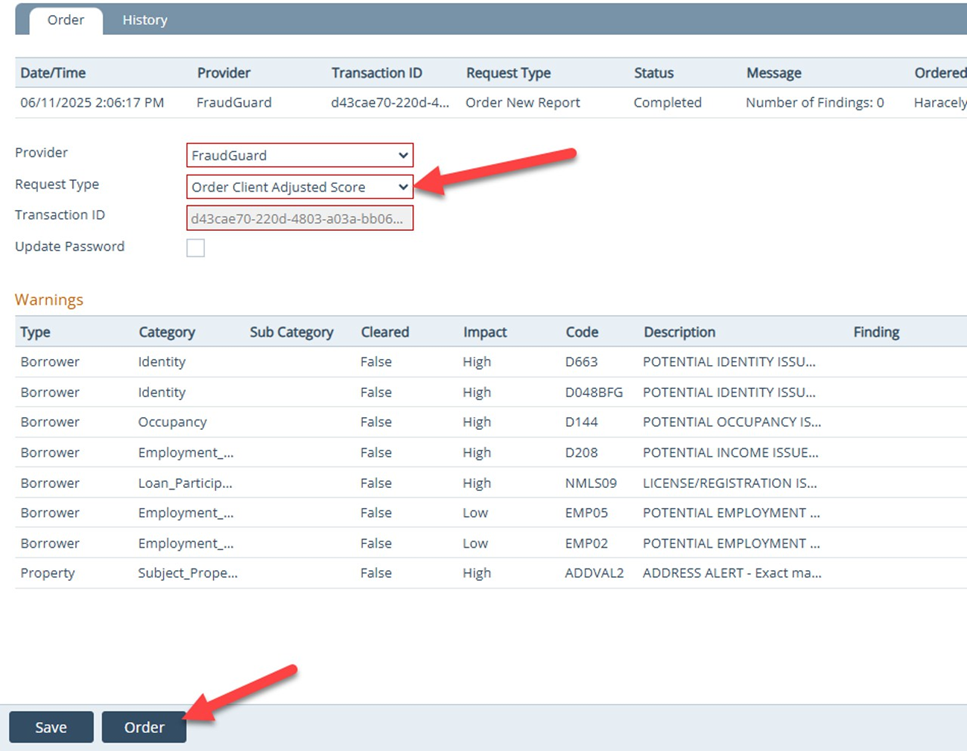
Difference between FraudGuard and FraudGuard 5.0
- Both FraudGuard and FraudGuard 5.0 can be utilized the same
- If a report has been ordered via FraudGuard, user may order through Fraudguard 5.0 with no issues
- FraudGuard 5.0 is the latest version and has more data points
- PDF report will automatically download into Path once ordered versus current FraudGuard requiring a 2 step process (Order new report then order PDF report)
- Technical issues can be resolved without the delay of an upcoming release
1. Within your loan: Click "Interfaces"
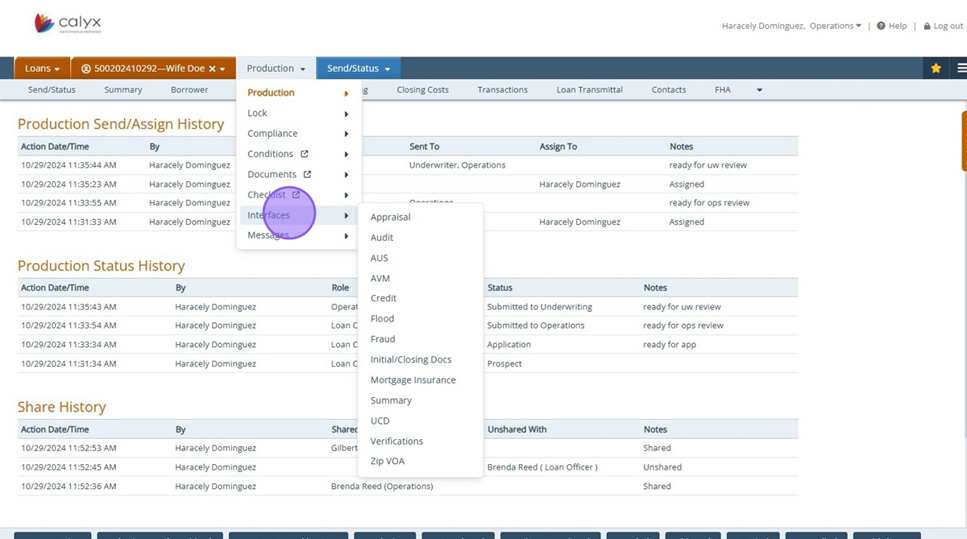
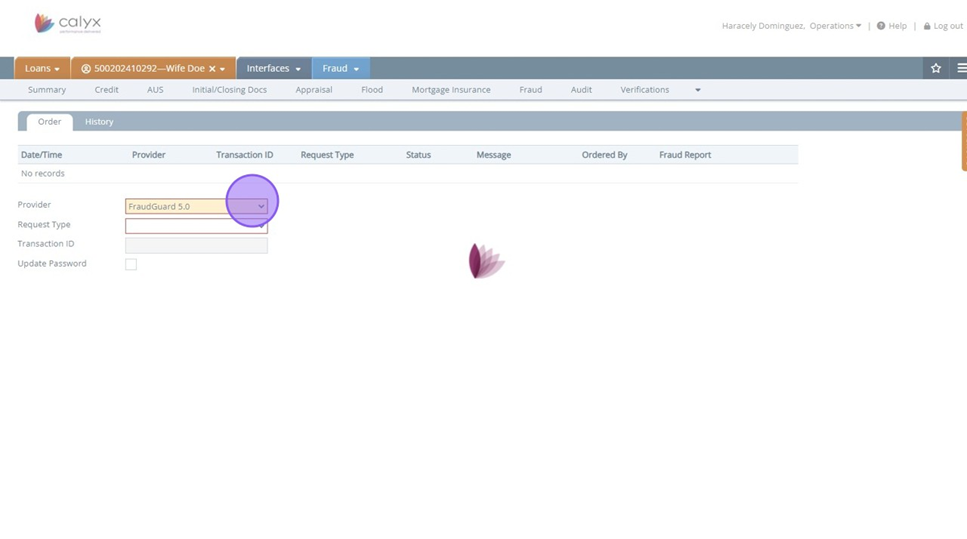
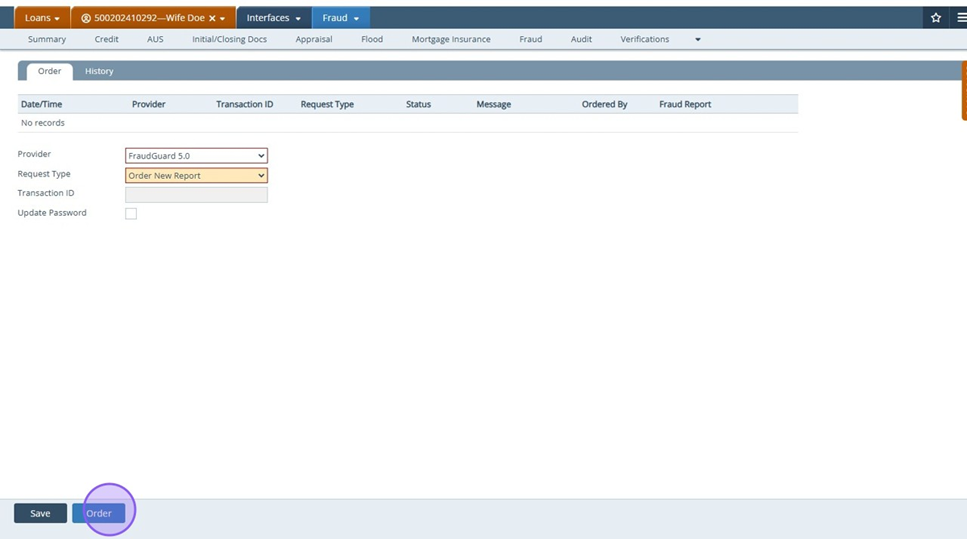
2. Navigate to the Fraud screen and select the "FraudGuard 5.0" option.
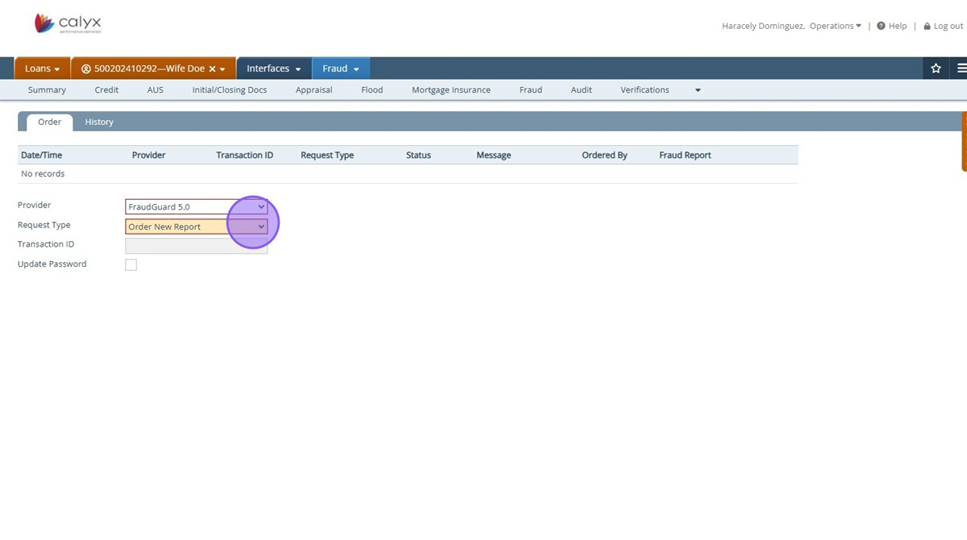
3. Select the "Order New Report" option.
4. Click "Submit"
5. Order will default Warnings Table and attach a copy of report automatically
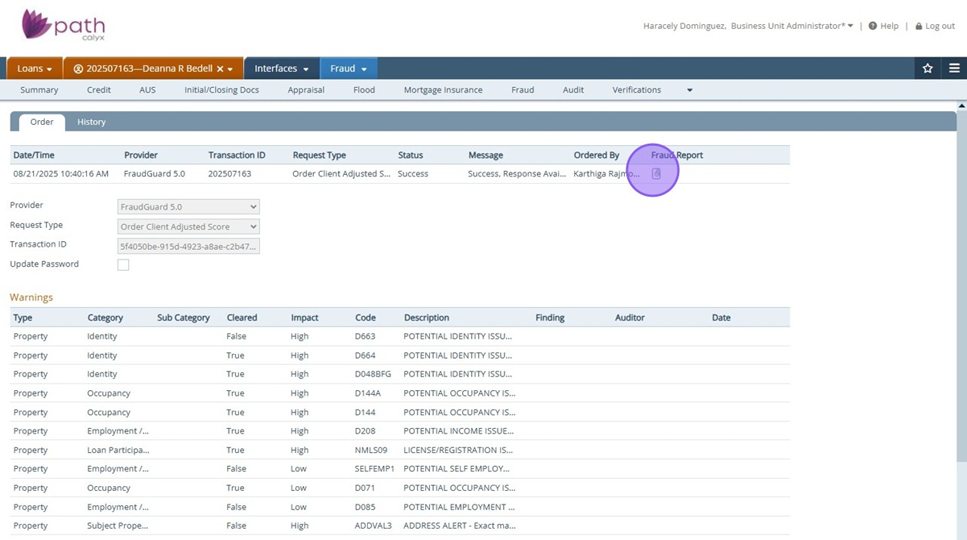
Reminder: If using older Fraudguard version, PDF document will not automatically upload. You must select " Order PDF report" from dropdown.
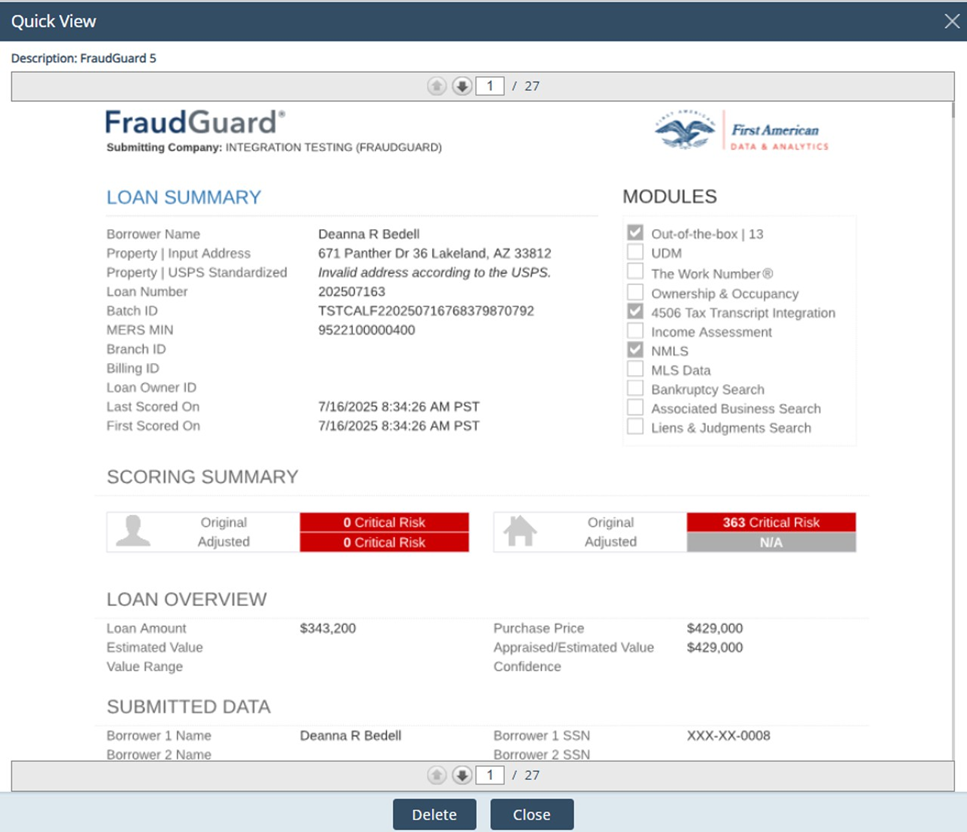
6. Copy of report is also uploaded within Documents section
7. To begin working "Warnings": click on specific row
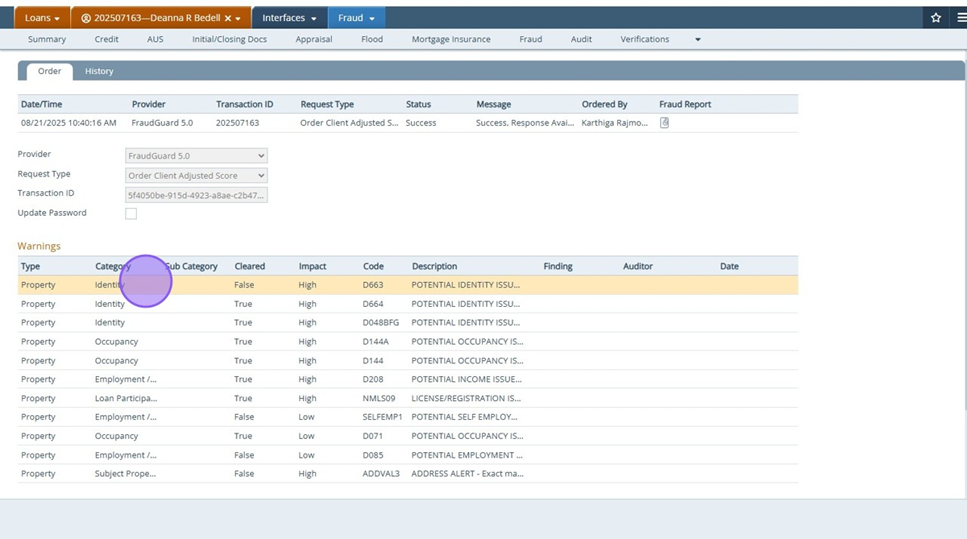
8. User may add findings and comments for a "Client Adjust Score" report
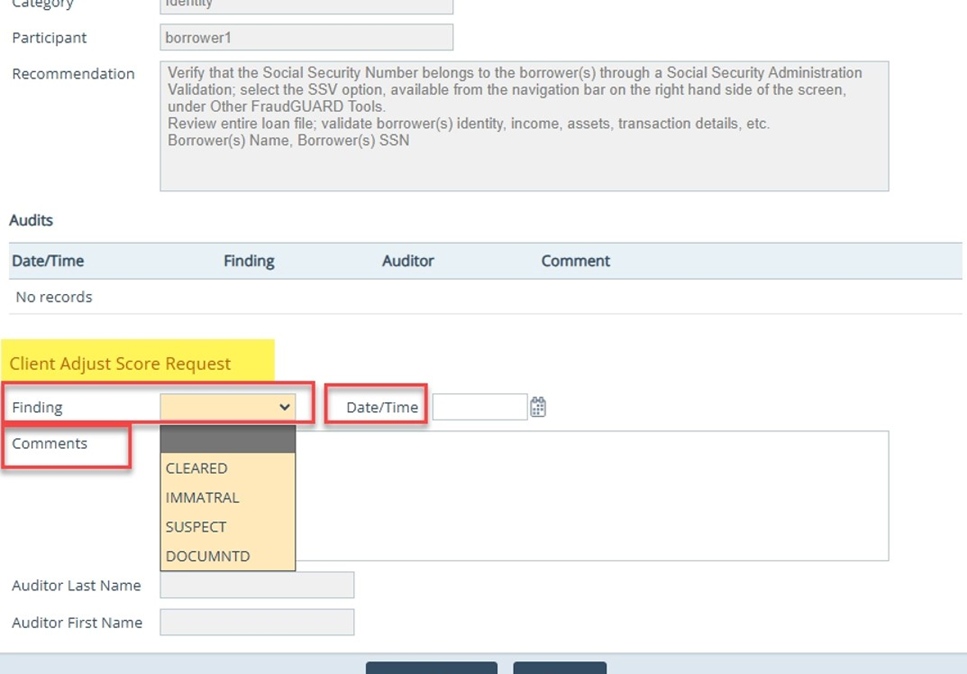
9. Once all warnings have been addressed, a "Client adjusted score" report can be ordered via dropdown.