
Mastering the Change of Circumstance (COC) workflow in Path is essential for disclosure integrity and a seamless borrower experience. This streamlined process ensures all fee updates flow accurately into revised Loan Estimates (LE), keeping your pipeline transparent and fully compliant with regulatory timelines.
Applies To
- Path users with access to Compliance > Closing Costs.
- Users responsible for disclosing a revised Loan Estimate after a valid COC.
- Update fees
- Compare fees to last disclosed LE
- Create COC (builds COC form data)
- Request COC (LE)
- View revised forms
- Approve COC
- Issue revised LE
- Add forms to Documents and send
Update Fees for the COC
- Go to Compliance > Closing Costs > Fees.
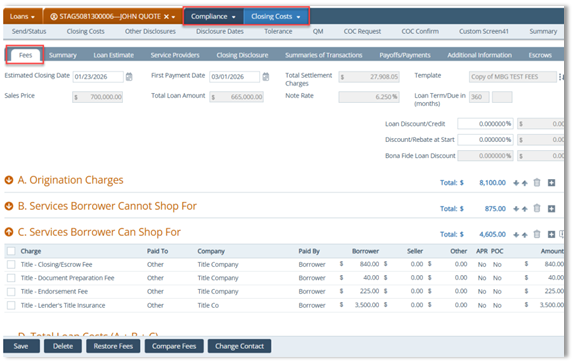
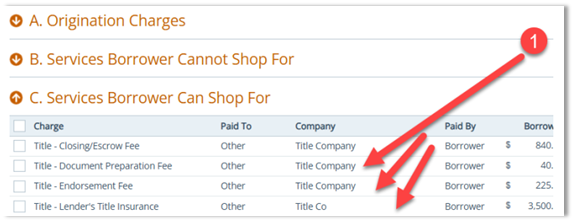
- For each fee you need to add, update, or delete, complete the steps below (repeat for each fee):
- Update the fee as needed (example: Adjustment Amount).
Note: If you update multiple fees, you must repeat these steps for each fee.
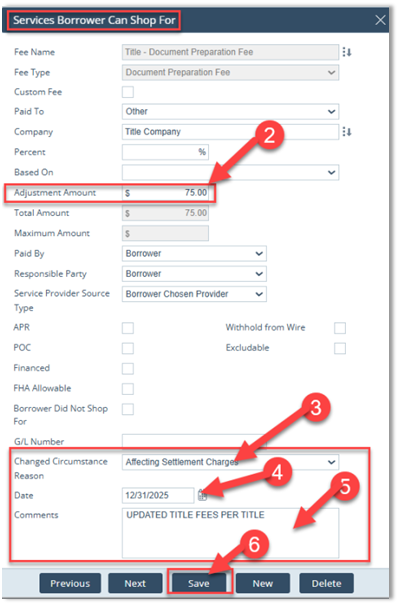
- Select Changed Circumstance Reason.
- Enter the Date.
- Add Comments (recommended).
Click Save.
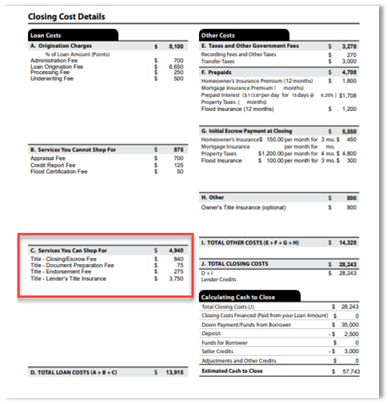
Example: Update the applicable fees under C. Services Borrower Can Shop For (for example: Title – Document Preparation Fee, Title – Endorsement Fee, and Title – Lender’s Title Insurance).
Compare Current Fees to the Last Disclosed LE
- From Compliance > Closing Costs > Fees, click Compare Fees.
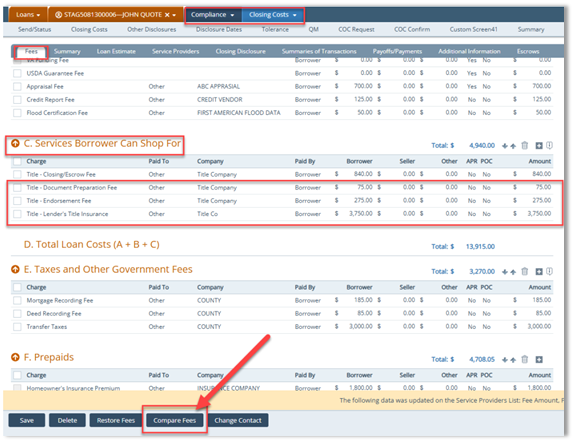
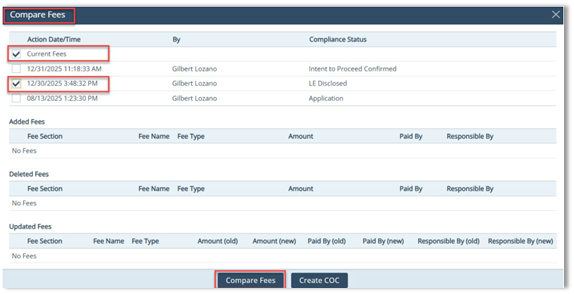
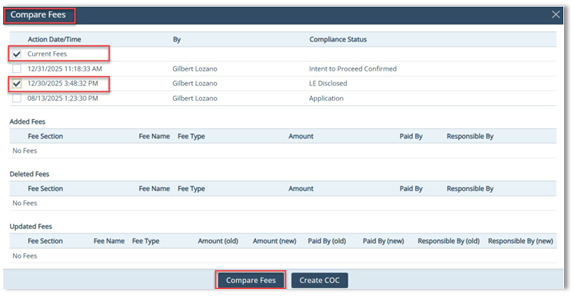
- In the Compare Fees lightbox:
- [Text Wrapping Break]
- Check the Current Fees indicator.
- Check last LE Disclosure.
- Click Compare Fees.
- The Updated Fees section is updated based on the indicators you selected.
- In the Compare Fees lightbox:
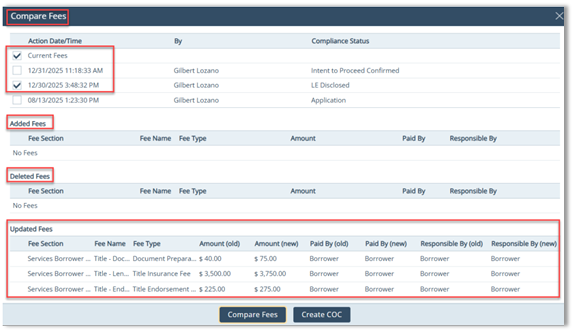
4. Verify whether fees were added, deleted, or updated.
5. If fees were updated, review these columns:
-
- Fee Section
- Fee Name
- Fee Type
- Amount (old) and Amount (new)
- Paid By (old) and Paid By (new)
Responsible By (old) and Responsible By (new)
Create the Change of Circumstance Form Data (Critical)
To ensure updated fees populate the Change of Circumstance form:
- Click Create COC.
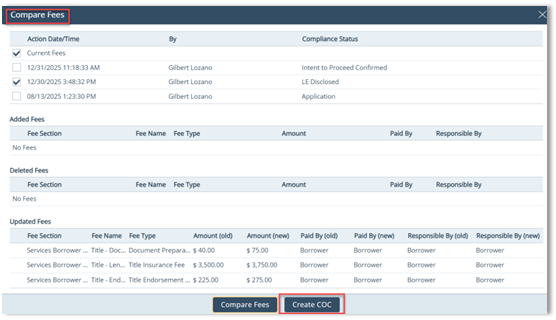
Critical Note: If you do not click the Create COC button, the Change of Circumstance form will be blank. - After clicking Create COC, the Create COC Information popup appears confirming the data will be added to the Change of Circumstance form.
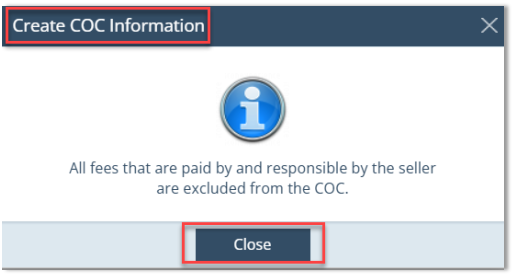
Create Request the COC on the Loan Estimate
- Go to Compliance > Closing Costs > Loan Estimate > Change of Circumstance.
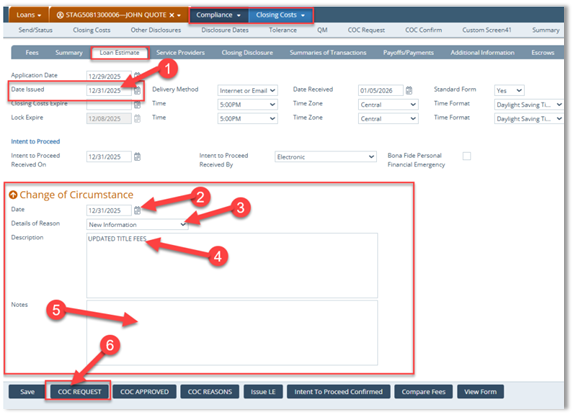
- Complete the following fields and actions:
- Update Date Issued (should match COC Date).
- Enter Change of Circumstance Date.
- Select Details of Reason.
- Enter Description.
- (Optional) Enter Notes (do not print on forms).
- Click COC Request.
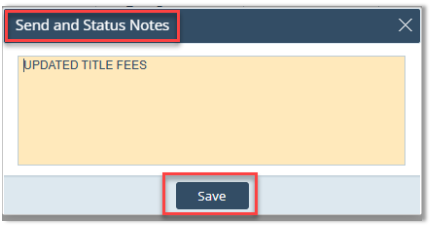
- The Send and Status Notes pop-up appears.
- Add notes (recommended)
- Click Save.
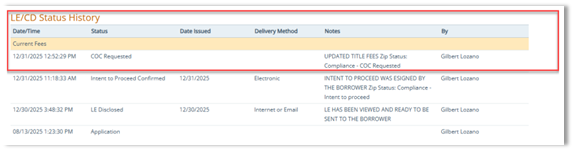
View Revised Forms (Recommended)
It is recommended to view both the revised loan estimate and the Change of Circumstance form.
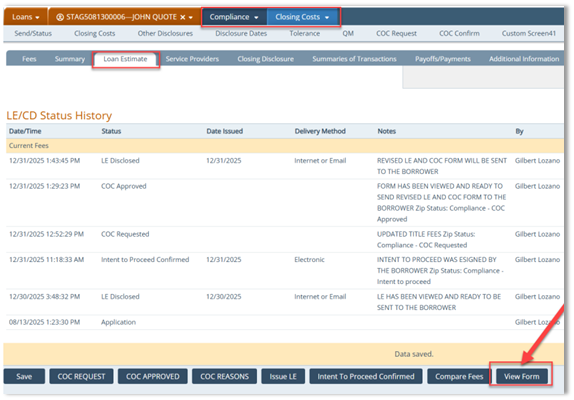
- Click View Form.
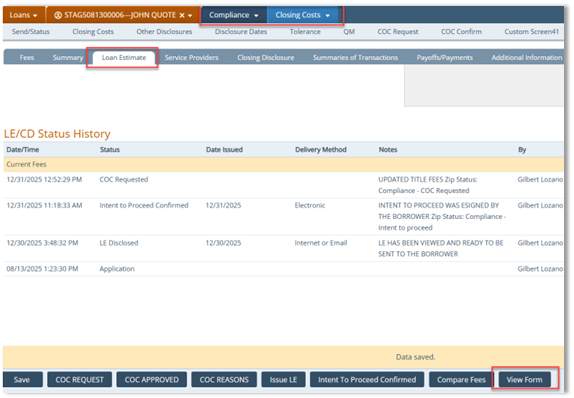
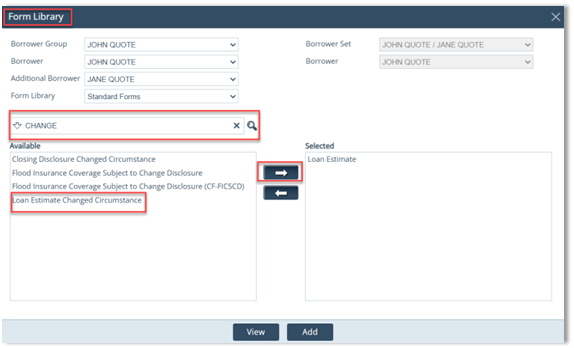
- In the Form Library lightbox:
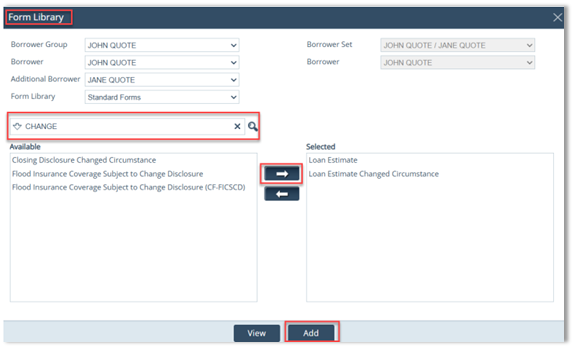
- Use the search bar and type “Change”.
- Select Loan Estimate Changed Circumstance.
- Click the arrow button to move the form to Selected.
- After the form is in Selected, click the View button.
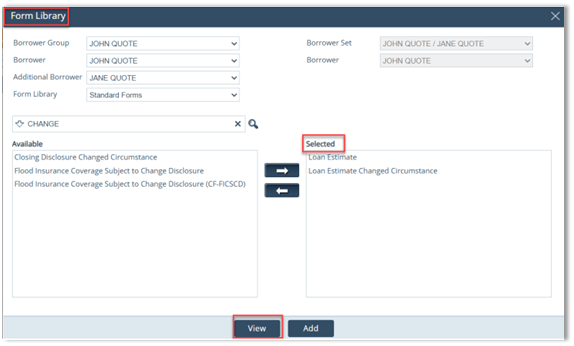
Review the revised LE (page 1 and updated fee section).
Page 1 shows the updated loan estimate details.
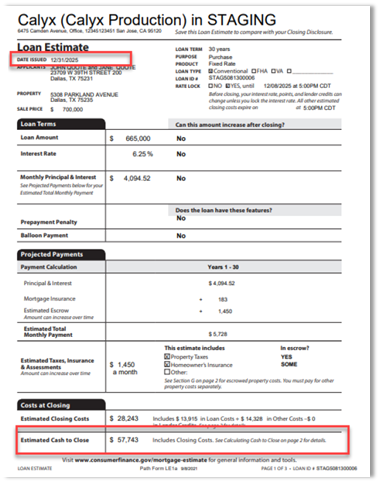
Page 2 shows the updated fee section.
5. Review the Loan Estimate Changed Circumstance form to confirm it’s not blank and reflects changes.
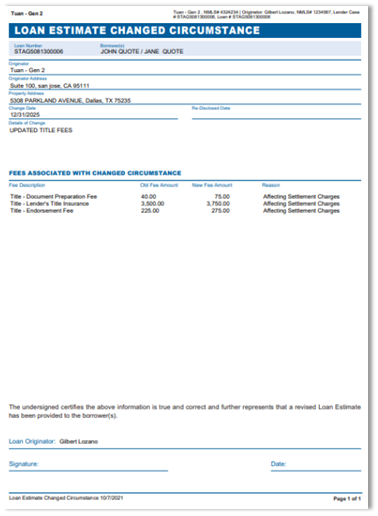
Note: If the Loan Estimate Changed Circumstance form is blank, the user forgot to click the Create COC button.
Approving the Change of Circumstance
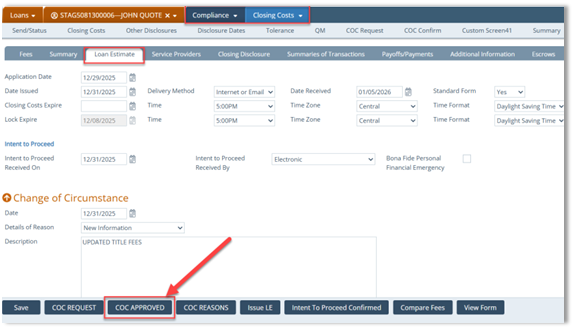
- After viewing both forms, click the COC Approved button.
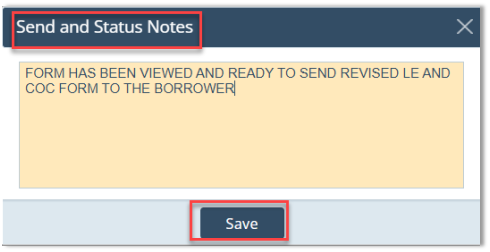
- Add notes in Send and Status Notes, click Save.
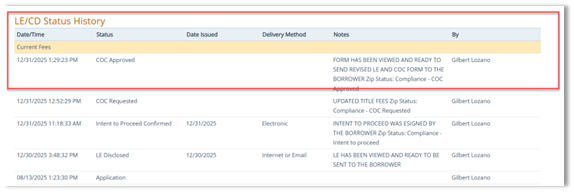
Issue the Revised Loan Estimate (LE)
- Click Issue LE.
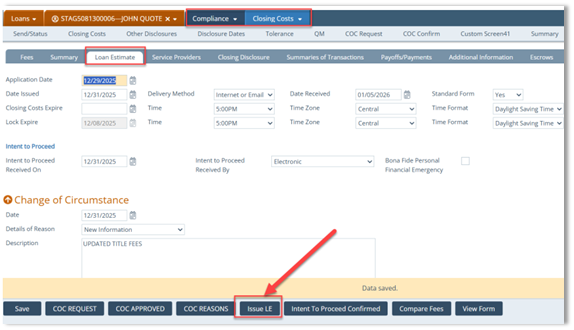
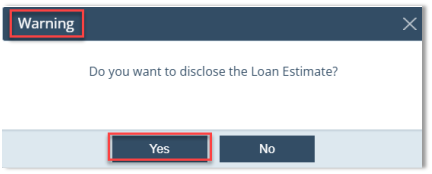
Critical: This overrides the old LE data to ensure the borrower/vendor gets the correct updated LE. - Select Yes to disclose, and add notes (recommended)
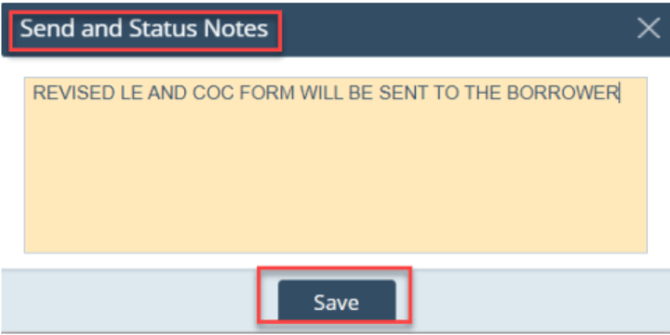
- Add notes (recommended) and click the Save button.
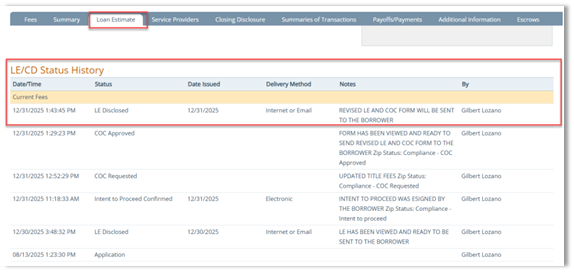
Add Forms to Documents and Send
- Click View Form again to open Form Library.
- In the Form Library lightbox:
- Type “Change” in the search bar.
- Move the form to Selected by clicking the right arrow.
- Click Add button.
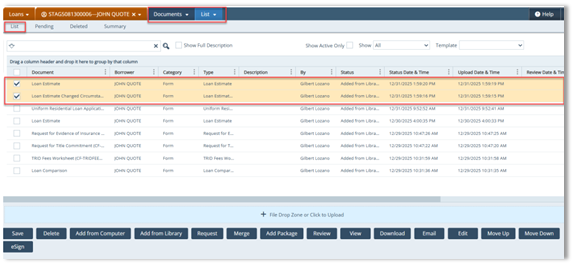
- Next, go to Documents > List to view the added forms.
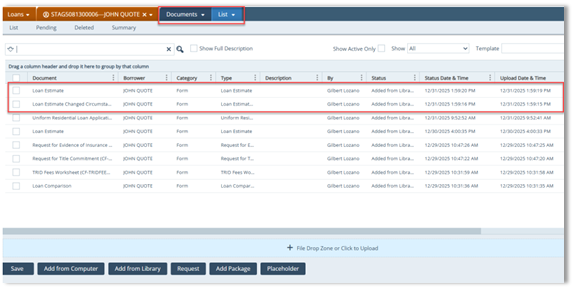
- Go Select the checkboxes for:
- Loan Estimate
- Loan Estimate Change Circumstance
- Additional buttons appear at the bottom; choose how you want to send the forms to the borrower.
Summary
This structured workflow replaces manual complexity with a high-efficiency process that guarantees data accuracy and a clear audit trail. By utilizing Path’s automated comparison tools, you eliminate errors and deliver professional, timely disclosures that maintain momentum toward a successful closing.
