
Content
Content................................................................................................................................................................................................................. 1
Introduction....................................................................................................................................................................................................... 1
Before You Begin (Recommended Order of Operations).............................................................................................. 2
Workflow Overview (What You’ll Do Here)................................................................................................................................ 2
Reference Dates............................................................................................................................................................................................ 2
Proposed Monthly Payment................................................................................................................................................................ 3
Add Flood Insurance (Supplemental Property Insurance)........................................................................................... 5
Select Flood Insurance Type.............................................................................................................................................................. 5
Make Flood Insurance count in Proposed Monthly Payment.................................................................................... 6
Waive Escrows............................................................................................................................................................................................... 7
Other Financing (Other Mortgages or Down Payment Assistance)........................................................................ 8
Add a New Other Financing Item..................................................................................................................................................... 8
Decide Whether DPA Is Treated as a Closing Credit......................................................................................................... 8
Minimum Required Funds or Cash Back (Calculated Review Area)..................................................................... 11
Key Line Items and Sources............................................................................................................................................................... 12
Due from Borrower(s).............................................................................................................................................................................. 12
Total Mortgage Loans............................................................................................................................................................................. 12
Total Credits.................................................................................................................................................................................................... 13
Line-item L. Seller Credits................................................................................................................................................................... 13
Line-item M. Other Credits.................................................................................................................................................................. 13
Validate Cash From/To Borrower.................................................................................................................................................. 15
Energy Improvements (If Applicable)......................................................................................................................................... 15
Other Loan Information (Templated IDs)................................................................................................................................. 16
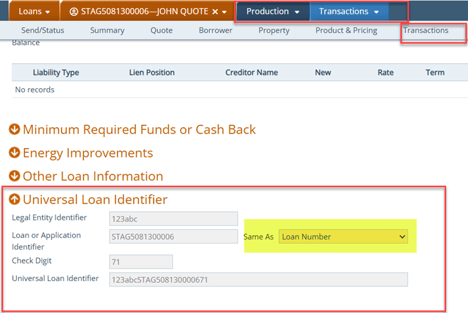
Universal Loan Identifier (ULI).......................................................................................................................................................... 16
Quick Checklist (One-Minute Review)....................................................................................................................................... 17
Introduction
The Transactions screen in Path is where you validate and fine-tune key transaction details that drive borrower cash-to-close, monthly payments, escrow setup, and credits (seller credits, DPA, earnest money, gift funds, etc.). Much of the data on this screen pulls from other screens (Quote, Product & Pricing, Borrower Assets, Closing Costs), and many fields here are calculated based on those upstream values. Because of this, the Transaction screen often serves as the final math check to confirm the loan file is consistent and accurate before disclosures or closing steps proceed.
Important: Any data changed or updated on the Transactions screen carries over to other screens in Path (including Quote and Product & Pricing).
Before You Begin (Recommended Order of Operations)
To reduce rework, it helps to complete these areas first:
- Quote: reference dates, taxes/insurance/MI amounts (if known).
- Product & Pricing: final loan amount and program/pricing
- Borrower > Assets: other credits (earnest money, gift funds, ).
- Closing Costs > Fees: closing cost fees that feed borrower closing
Workflow Overview (What You’ll Do Here)
On the Transactions screen, you’ll typically:
- Verify Reference Dates (and understand RESPA timing impact).
- Review Proposed Monthly Payment, including editing insurance/taxes and adding flood
- Set or waive escrows (per company guidelines).
- Add Other Financing (other mortgages or down payment assistance) and decide whether it’s treated as a
- Review Minimum Required Funds/Cash Back calculations and confirm the cash-to-close makes
- Add Seller Credits and validate other credits pulled from
- (If applicable) enable Energy Improvements.
- Review templated identifiers (agency/lender/MERS MIN) and Universal Loan Identifier defaults (admin settings).
Reference Dates
- Navigate to: Production > Transactions > Reference Dates

- What happens by default:
- Reference Dates carry over from the Quote screen if entered
- If you change dates here, Path updates those dates on other screens as
- Critical compliance note (RESPA)
- The Application Date is one of the six pieces of information that triggers
- If Application Date is entered manually or triggered by a rule, you must consider the 72-hour RESPA rule timing.
Best practice: Treat Application Date edits as “high-impact changes” and ensure downstream disclosure timing aligns with policy.
Proposed Monthly Payment
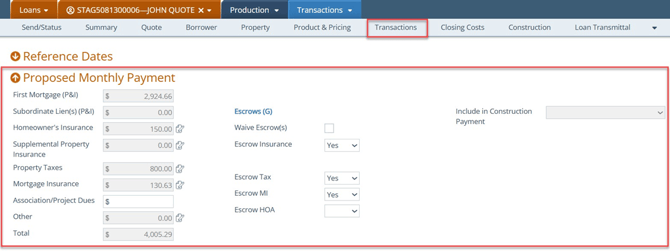
- Where values come from:
- Proposed Monthly Payment populates from the Quote screen this information is entered on Quote.
-
- Any edits here update other screens in
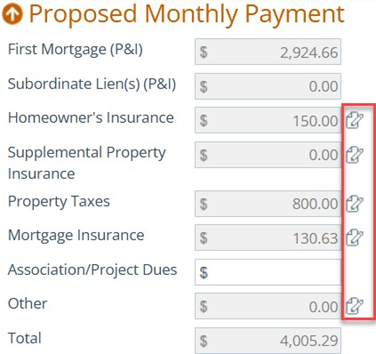
- Edit insurance and taxes
-
- Click the edit icon (opens a lightbox).
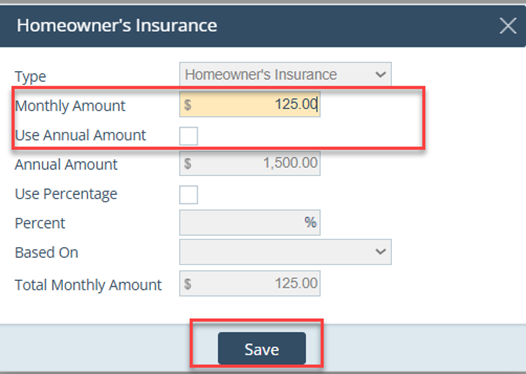
- Insurance
- Click the edit icon (opens a lightbox).
-
-
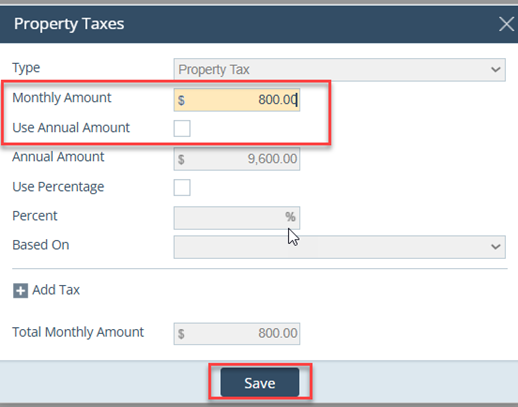
- Taxes
-
Add Flood Insurance (Supplemental Property Insurance)
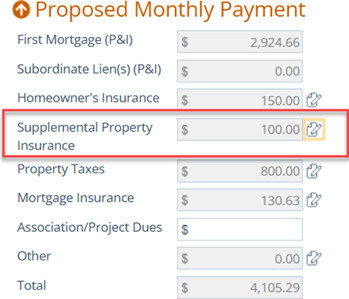
Flood insurance is added via Supplemental Property Insurance and then rolls into Proposed Monthly Payment.
Select Flood Insurance Type
- In Supplemental Property Insurance, click the edit icon (lightbox opens).
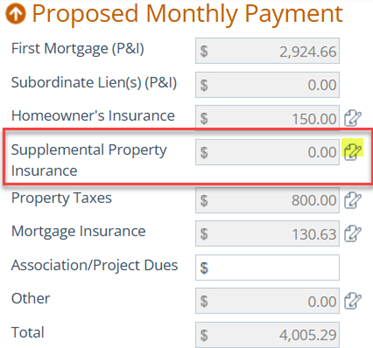
-
- Click the select icon of Fee Name.
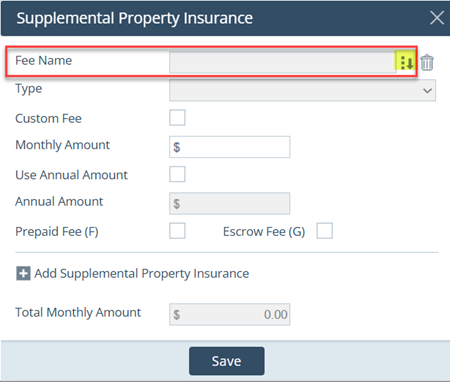
-
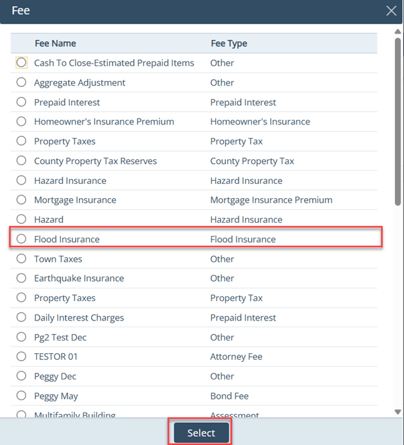
- Select Flood Insurance.
Make Flood Insurance count in Proposed Monthly Payment
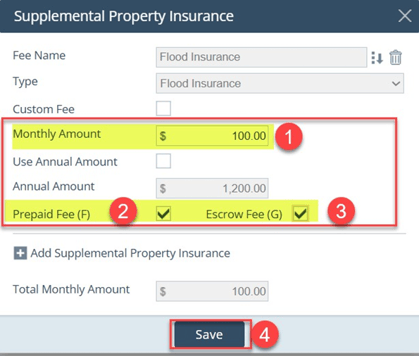
- To ensure the monthly flood premium carries into Proposed Monthly Payment, complete:
-
- Enter the Monthly Amount.
- Check Prepaid Fee (F) if you need to collect the
- Check Escrow Fee (G) (flood insurance must be escrowed) .
- Click Save.
- After saving, the flood premium appears in Proposed Monthly Payment.
Waive Escrows
- To waive escrows:
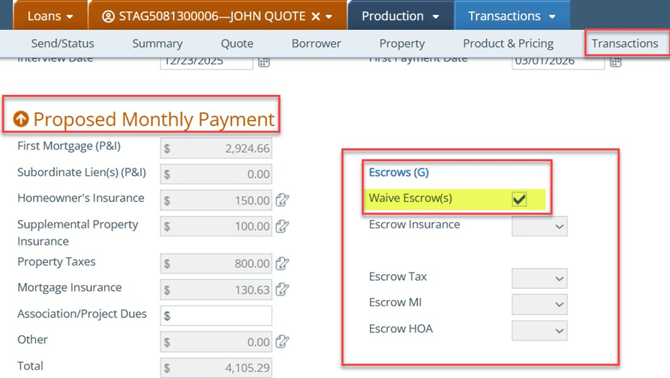
- Check Waive Escrow(s)
- Path will gray out:
- Escrow Insurance
- Escrow Tax
- Escrow MI
- Escrow HOA
Note: Follow company guidelines—waiving escrows may impact pricing adjustments and closing fees.
Other Financing (Other Mortgages or Down Payment Assistance)
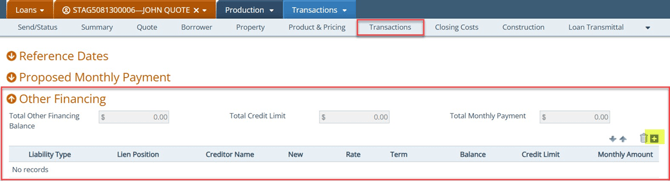
Add a New Other Financing Item
- Click the add icon (lightbox opens).
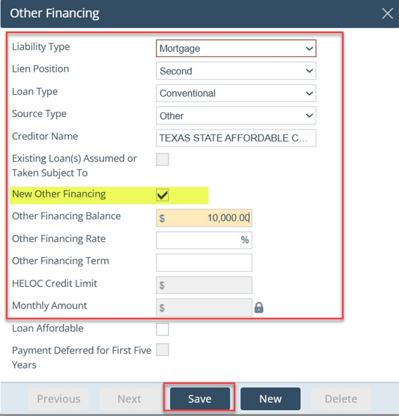
- Complete the required fields and
Decide Whether DPA Is Treated as a Closing Credit
- If you want the DPA amount to be a credit toward closing costs:
- Check New Other Financing
-
- Result:
- DPA displays under Other Financing.
- Result:

-
-
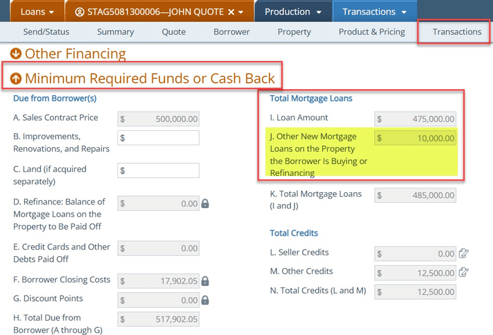
- The DPA mortgage amount is listed as a credit under: Minimum Required Funds or Cash Back > Total Mortgage Loans > Other New Mortgage Loans on the Property the Borrower Is Buying or Refinancing
-
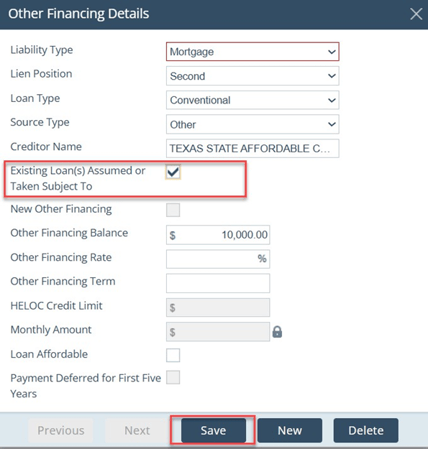
- If you do NOT want the other financing to be a credit at closing, select the Existing Loan(s) Assumed or Taken Subject To checkbox.
Minimum Required Funds or Cash Back (Calculated Review Area)
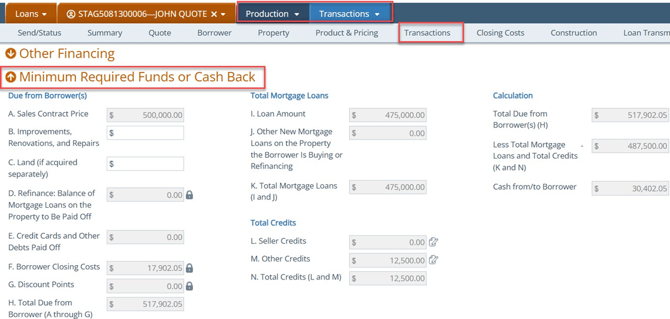
- Fields shown in gray are calculated and pull data from other screens.
Key Line Items and Sources
Due from Borrower(s)
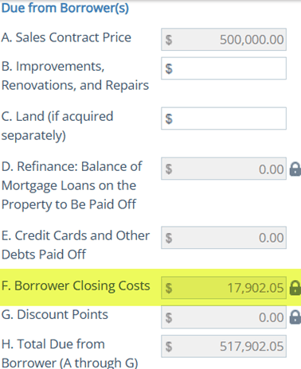
- Line-item Borrower Closing Costs pulls from Closing Costs > Fees
- You can click the lock icon to open/edit the amount here, but it’s recommended to update fees at the source screen (Closing Costs > Fees) instead.
Total Mortgage Loans
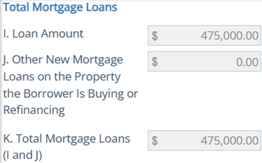
- Line-item Loan Amount pulls from the Product & Pricing screen.
- Line-item J. Other New Mortgage Loans on the Property the Borrower Is Buying or Refinancing pulls from the Other Financing section.
Total Credits
Line-item L. Seller Credits
- Seller credits are added under Total Credits > Line-item L.
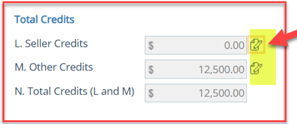
- Click the edit icon to open the lightbox.
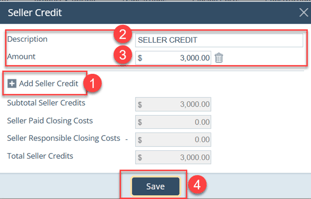
-
- Click the add icon corresponding to Add Seller Credit.
- Enter the Description.
- Enter the Amount (Path calculates Total Seller Credits).
- Click Save.
- Credits can be removed using the delete
Line-item M. Other Credits
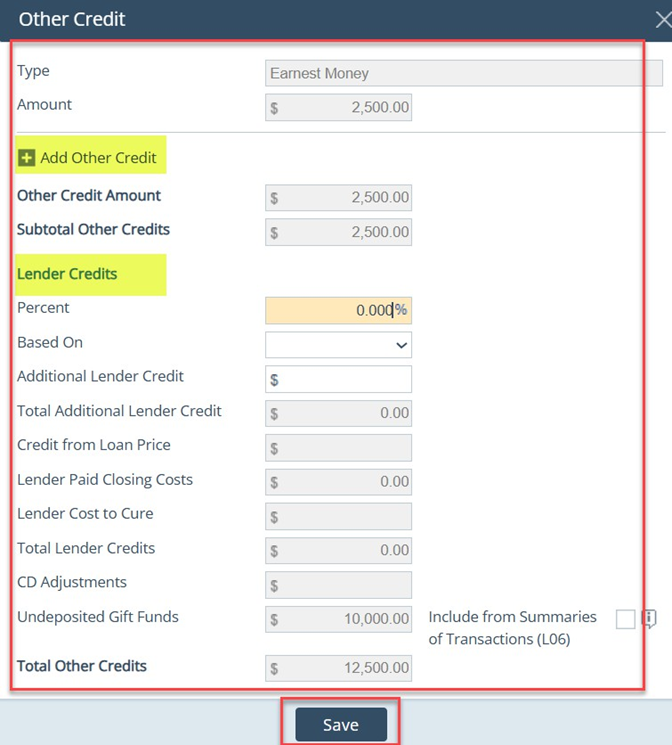
- Line-item Other Credits is a calculated field that pulls from Borrower > Assets > Other Credits including Earnest Money and Gift Funds.
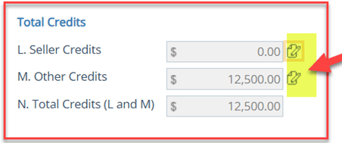
- Click the edit icon to open the lightbox.
-
- The lightbox lists Earnest Money and any Lender Credits.
- You can also click add icon to Add Other Credit.
Validate Cash From/To Borrower
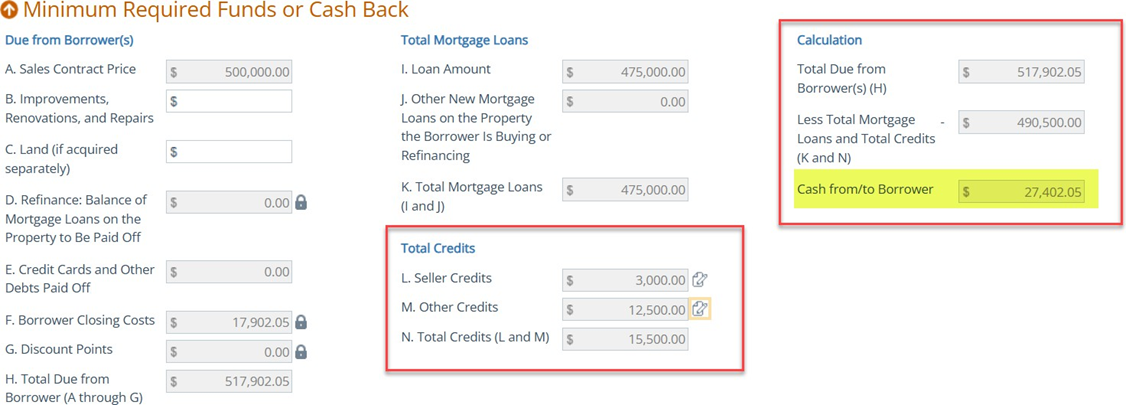
- It is the user’s responsibility to review Cash from/to Borrower and verify the calculation is accurate after:
- Borrower Closing Costs populate
- Total Mortgage Loans update
- Total Credits update
Best practice: Treat this as your final reconciliation checkpoint before moving to disclosures or closing steps.
Energy Improvements (If Applicable)
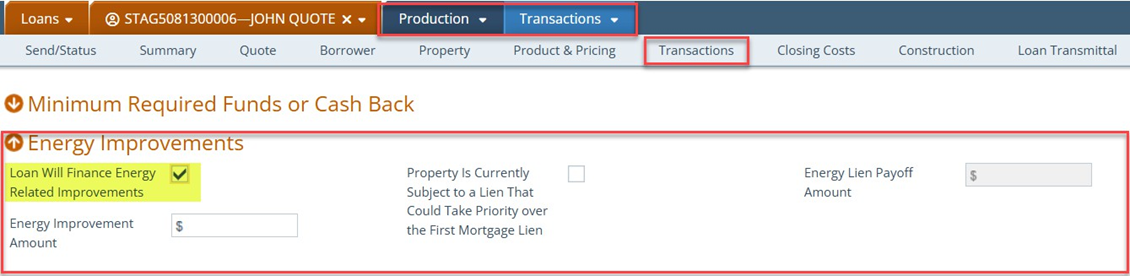
- To enable the Energy Improvement Amount field, select the Loan Will Finance Energy Related Improvements
Other Loan Information (Templated IDs)
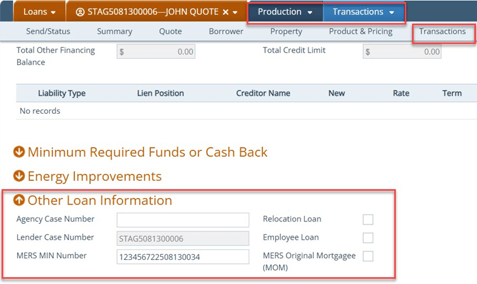
- Agency Case Number, Lender Case Number, and/or MERS MIN Number can be templated by the system admin.
Universal Loan Identifier (ULI)
- Fields can default when the Same As dropdown is used (requires configuration by the system admin).
Quick Checklist (One-Minute Review)
- Reference Dates correct; Application Date handled with 72-hour RESPA awareness
- Proposed Monthly Payment matches expected (Insurance/Taxes/MI validated)
- Flood Insurance added correctly (monthly amount + Prepaid F if needed + Escrow G + Save)
- Escrow waiver set only per company rules (understand pricing/fee impact)
- Other Financing entered; DPA credit treatment set correctly (New Other Financing vs Existing Loan assumed)
- Borrower Closing Costs sourced from Closing Costs > Fees (avoid overriding in Transactions unless necessary)
- Seller credit entered (line L) and other credits validated (line M)
- Cash from/to Borrower calculation reviewed and passes sanity check
- Energy Improvements indicator set if applicable
- ULI and templated IDs validated if admin defaults are in use
