
Configuring fee templates and helps streamline fee setup by grouping fees into reusable templates for different loan scenarios. This improves consistency, reduces manual work, and helps ensure the correct fees are applied based on key loan attributes.
Applies To
-
Path system administrators
-
Users responsible for configuring fee templates in Path Admin
Configuring Fee Templates in Path
-
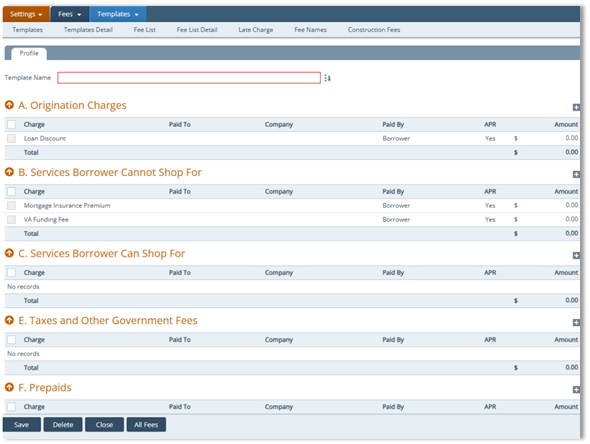
Navigate to the Fees activity and open Fee Templates.
-
Click the Add (
 ) icon to create a new template in the newly opened Profile tab.
 -
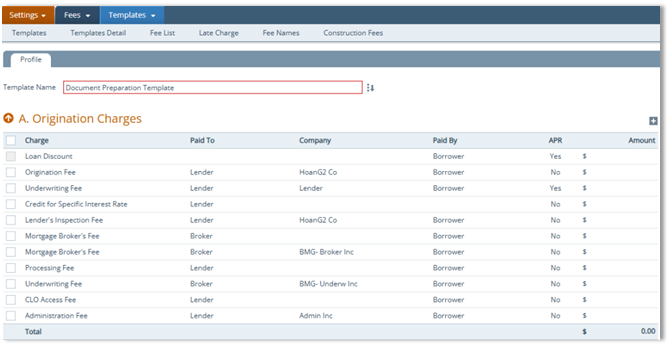
Enter the Templates Name (e.g.: Document Preparation Template).
Adding Fees Through the Select Fees Lightbox
-
If needed, click the select (
 ) to open the Fee Select lightbox.
-
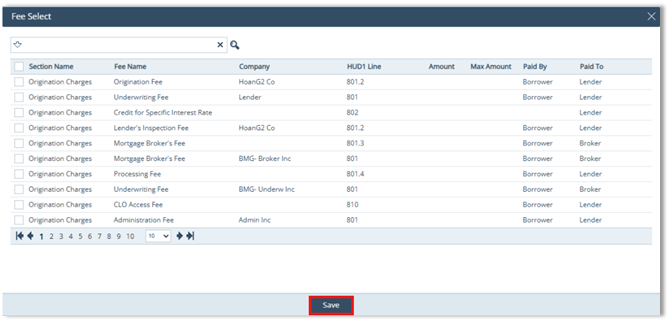
Use the lightbox to:
-
Quickly add multiple preconfigured fees to the template.
-
View fees already defined in the system.
-
Maintain consistency by using standardized fee definitions.
-
-
-
Click Save in the lightbox to populate the selected fees into the template.
-
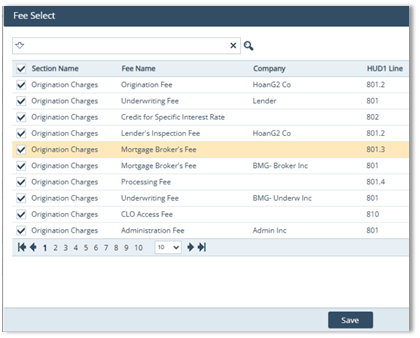
The image below displays an example of all the fees on the first page.
-
-
Click the Save button to close the lightbox and automatically populate all selected fees into their appropriate sections or blocks in the template.
Adding Fees Through the Sections
-
Click the Add (
 ) icon for the applicable section or block.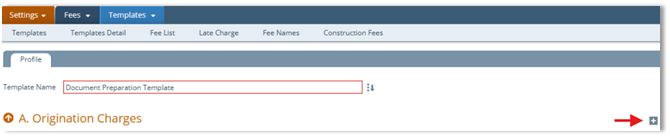
-
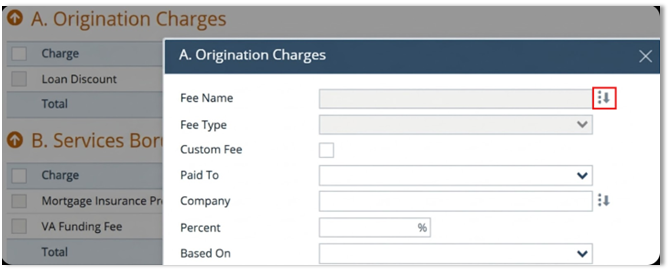
In the section lightbox, click the select icon (
 ) next to the Fee Name.
 -
Choose the fee to add to that section.
-
In the A. Origination Charges lightbox, click the select
 icon next to the Fee Name field to open the Fee Select lightbox and view a list of fees configured for this section (as shown below).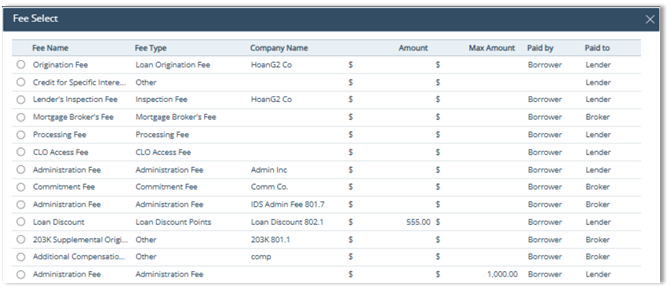
-
Select the Fee: Choose the fee to add to the current section or block.
Adding a Custom Fee
For users wanting to add a custom fee:
-
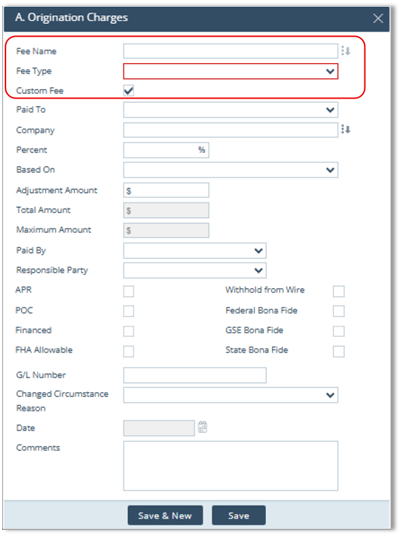
On the Template screen, click on the Add (
) icon for the desired section. -
Select the Custom Fee checkbox. This enables the Fee Name field and Fee Type dropdown, so you can create a fee specifically for that template.
-
Complete the applicable fields, that may include:
-
Paid To
-
Company
-
Contact Details Percent Based On
-
Additional Amount
-
Paid By
-
Compliance Flags
-
Other applicable fields, checkboxes, or dropdowns.
-
-
Repeat these steps as needed for each applicable fee template section:
-
A. Origination Charges
-
B. Services Borrower Cannot Shop For
-
C. Services Borrower Can Shop For
-
E. Taxes and Other Government Fees
-
F. Prepaids
-
G. Initial Escrow Payment at Closing
-
H. Other
-
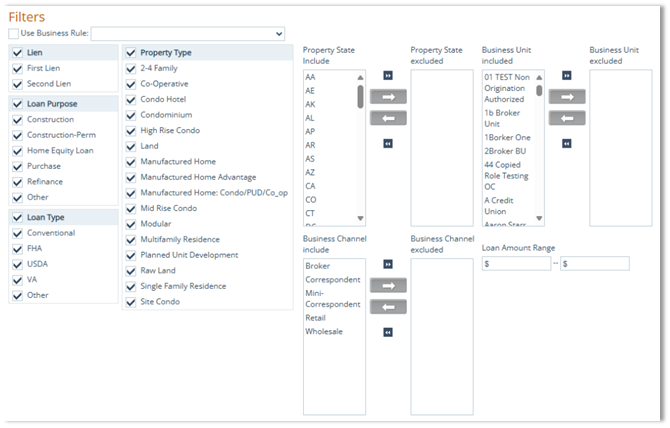
Completing the Filters Section
Complete the Filters section to define when the template should be applied.
-
Use filters to target the template to specific loan scenarios.
-
Available filter categories include:
-
Lien Type
-
Loan Purpose
-
Loan Type
-
Property Type
-
Property State
-
Business Channel
-
Business Unit
-
Loan Amount Range
-
-
Leave filters blank if the template should be available to all loans.
Applying a Business Rule (If applicable)
Check the Use Business Rule box.
If needed, select an option from the Use Business Rule dropdown when the template selection should follow predefined business logic beyond standard filters.
This can help apply templates only when specific conditions are met.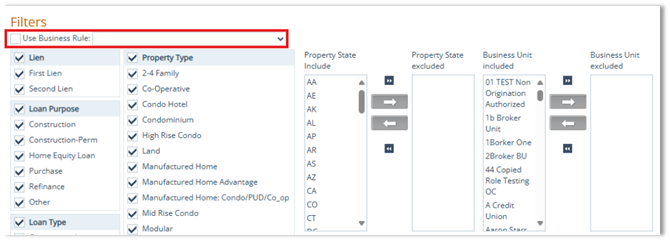
Using the All Fees Button (if applicable)
-
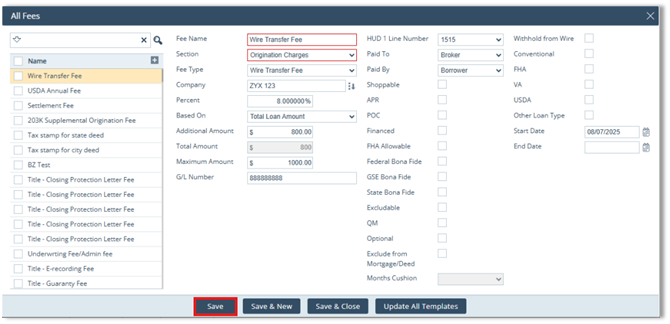
If applicable, click the All Fees button. Use the All Fees lightbox to:
-
View and manage all configured fees.
-
Edit fee details
-
Apply changes across templates
-
Add new fees that can later be used in templates.
-
-
After completing the template setup, click Save to finalize the template.
Summary
Using fee templates makes fee management more efficient, standardized, and easier to maintain. With preconfigured fees, custom fee options, filters, and business rules, administrators can reduce repetitive setup and apply fees more accurately across the Path LOS.
