
Setting up fees in helps keep fee data accurate, consistent, and easier to manage throughout the loan lifecycle. By properly creating fee names, configuring fee details, and assigning fees to templates, administrators can support cleaner disclosures, stronger compliance alignment, and more efficient fee setup in Path LOS.
Applies To
-
Path system administrators.
-
Users responsible for configuring fees and fee templates in Path Admin.
Setting Up Fees in Path
The Settings > Fees area is used to define, manage and enforce fee-related settings for the loan lifecycle, including fees that appear on the Loan Estimate, Closing Disclosure, and HUD-1 forms. The setup process includes three main parts.
-
Creating the Fee Name.
-
Configuring the fee in the Fee List.
-
Adding the fee to a Fee Template.
Create the Fee Name
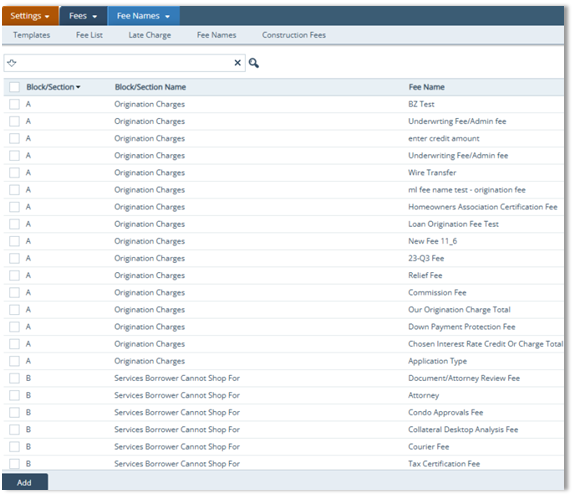
A fee name must be created before it can be used in a fee profile or fee template. Fee names are base labels used to organize charges be section and fee type.
-
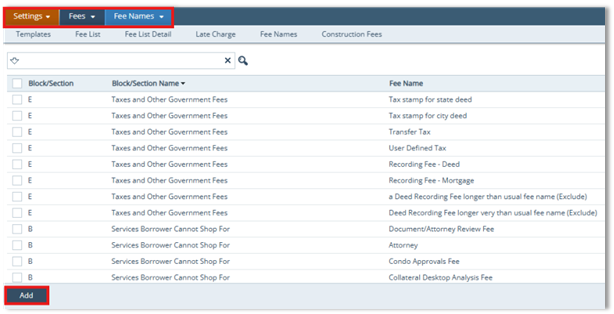
Navigate to Settings > Fees.
-
Open the Fee Names screen.
-
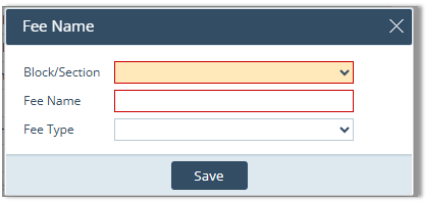
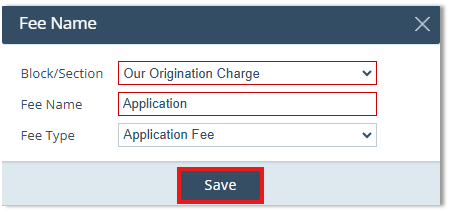
Click Add to open the Fee Name lightbox.
-
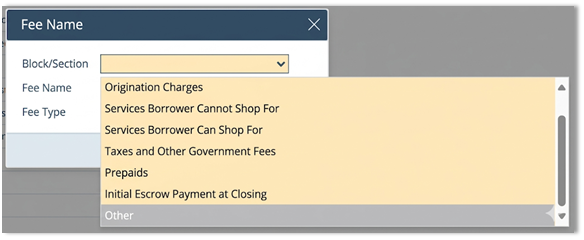
In the Block/Section dropdown, select the appropriate fee section.
-
In the Fee Name field, enter the name of the fee.
-
Select the appropriate Fee Type.
-
Click Save.
Example: Adding a Document Preparation Fee
-
Open the Fee Names screen.
-
Click Add.
-
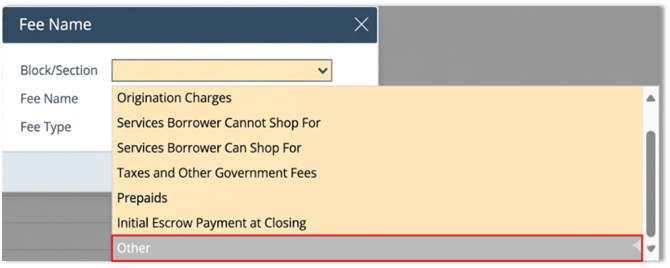
In Block/Section, select Other.
-
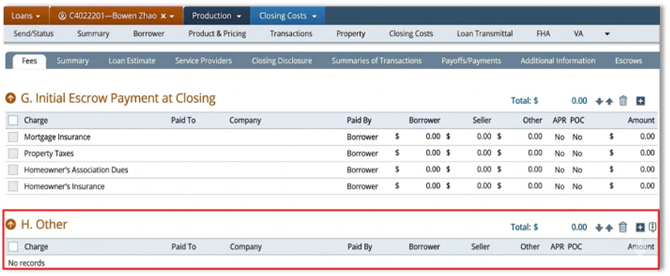
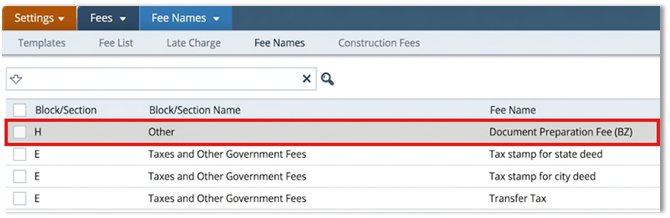
Other corresponds with the H. Other section in Path LOS, as shown below.
-
-
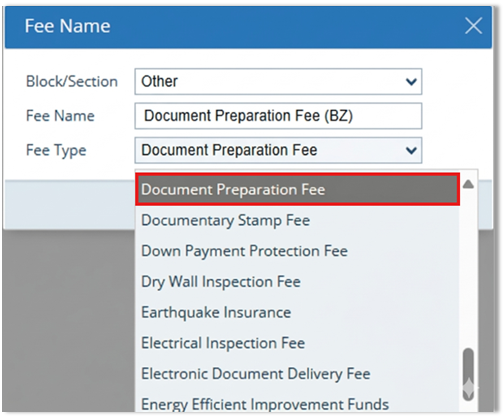
Enter Document Preparation Fee in the Fee Name field.
-
Select Document Preparation Fee as the Fee Type, if applicable.
-
Click Save. The new fee name is now added to the Fee Names screen, as shown in the image below.
Configure the Fee in the Fee List
Fees are configured to define their calculation logic, applicability, and compliance attributes.
-
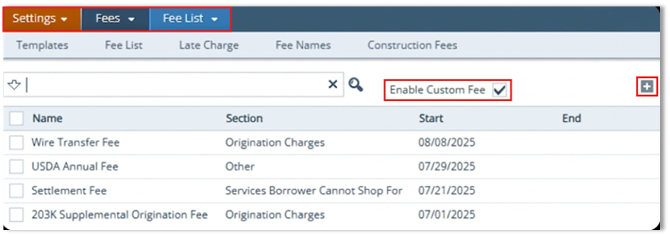
In Settings > Fees, open the Fee List screen.
-
If needed, select the Enable Customs Fee checkbox.
-
This allows the LOS users to edit the fee name for a specific loan without changing the system-wide fee configuration.
-
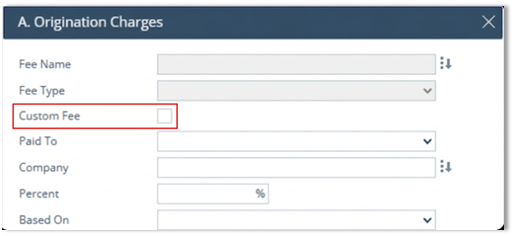
Once enabled, the Custom Fee checkbox becomes available at the loan level, so users can customize the fee as needed.
-
-
Click the Add (
 ) icon to open a new Profile tab.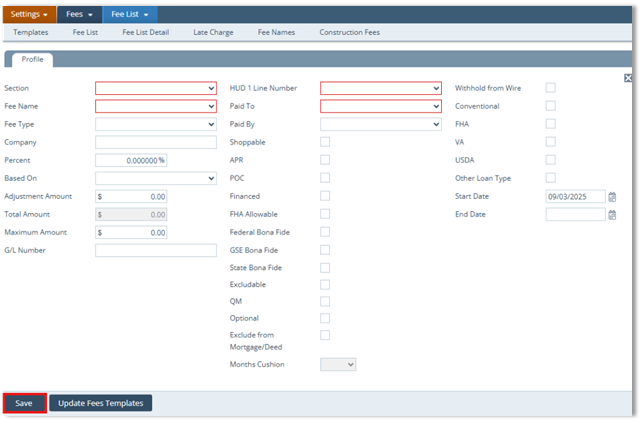
-
Select the appropriate Section, Fee Name, and Fee Type.
-
Enter the Company providing the service.
-
If applicable, enter the G/L Number.
-
Complete the fee amount fields as needed:
-
Percent
-
Based On
-
Adjustment Amount
-
-
Enter a Maximum Amount, if applicable.
-
Select the appropriate HUD-1 Line Number.
-
Assign who the fee is Paid To and Paid By.
-
Select any applicable compliance checkbox.
-
Select the applicable loan types.
-
Complete date-related fields, if applicable.
-
If the fee is already used in templates and needs to be updated globally, click Update Fees Templates.
-
Click Save.
Fee Configuration Fields
Use the fee configuration fields based on how the fee should behave:
-
Percent is used when a fee should be calculated from a financial base such as loan amount, purchase price, appraisal value, or total loan amount.
-
Based On defines which value the percentage is applied to.
-
Adjustment Amount can be used for a flat dollar amount, either alone with a percentage.
-
Maximum Amount sets an upper cap for the fee.
-
HUD-1 Line Number maps the fee to the correct settlement statement line.
-
Start Date and End Date control when the fee is active.
-
Months' Cushion is used only for escrow-related fees in the Initial Escrow Payment at Closing section.
Compliance and Loan Type Options
When configuring the fee, select only the checkboxes that apply to the fee setup, such as:
-
Shoppable
-
APR
-
PCO
-
Financed
-
FHA Allowable
-
Federal Bona Fide
-
GSE Bona Fide
-
State Bona Fide
-
Exclude from Mortgage/Deed
-
Optional
-
Withhold from Wire
Also, define which loan types the fee applies to:
-
Conventional
-
FHA
-
VA
-
USDA
-
Other Loan Type
Example: Configuring a Document Preparation Fee
-
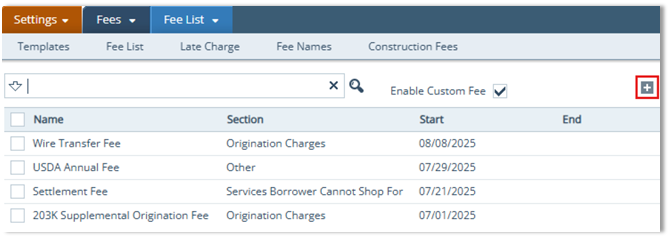
Navigate to the Fees activity and open the Fee List screen.
-
If applicable, select the Enable Custom Fee checkbox.
-
Click the Add (
 ) icon to create a new fee in the newly opened Profile tab.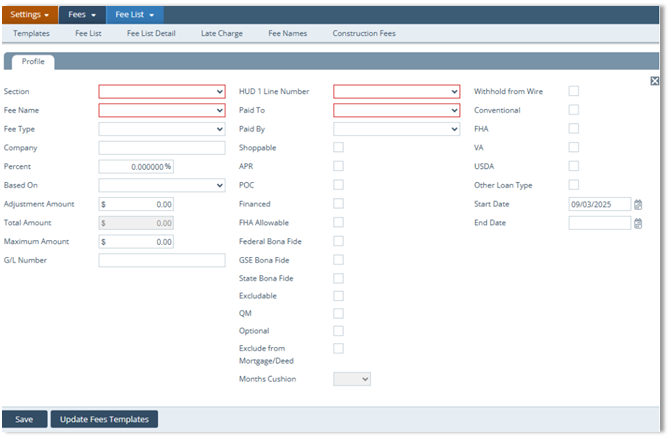
-
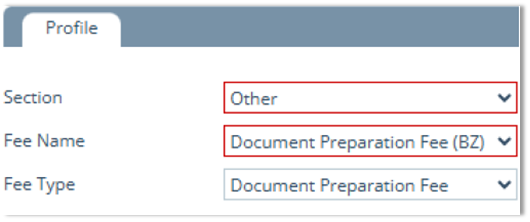
Select:
-
Section: Other
-
Fee Name: Document Preparation Fee (BZ)
-
Fee Type: Document Preparation Fee
-
-
Complete any additional fields that apply to your organization.
-
Click Save to finalize the fee.
Summary
Configuring fees in Path Admin gives administrators better control over how fees are created, calculated, and applied across loans. A well-structured fee setup helps reduce manual work, improve consistency, and support more accurate disclosures throughout the Path LOS.
