
This article explains how to manage Contacts in Path Admin, so your team can store business partner details (companies, individual contacts, and categories) in one place. Keeping Contacts maintained helps users select the right parties faster during the loan process, reduces repetitive data entry, and improves consistency across loan files.
Applies To
-
Path users with the System Admin role.
-
Organizations maintaining business partner contacts used throughout the loan process.
Path Contact Setup Options
-
Add Contact Companies.
-
Add Individual Contacts (Within a Company).
-
Add/Edit/Delete Contacts Categories.
-
Add Investors and manage Investor Address Information + Note Endorsements.
-
Add Warehouse Lenders (Wiring Instructions + Warehouse Investors)
Add Contact Companies
In Path Admin:
-
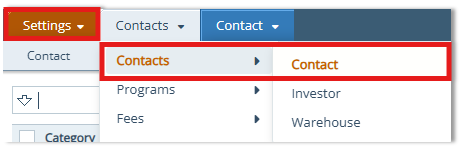
Open Settings > Contacts > Contact.
-
Click the Add icon.

-
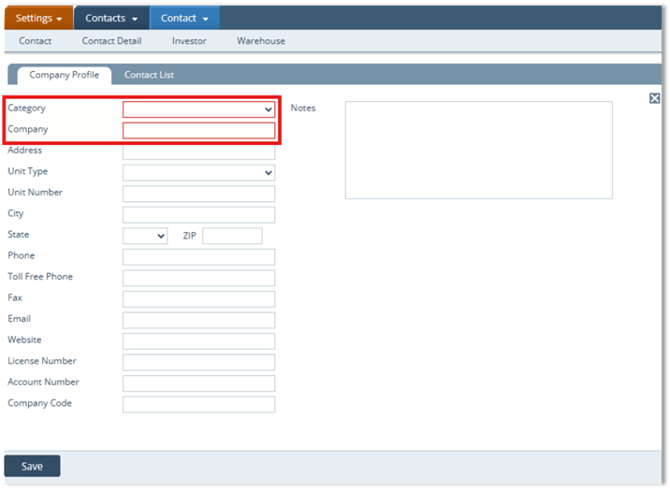
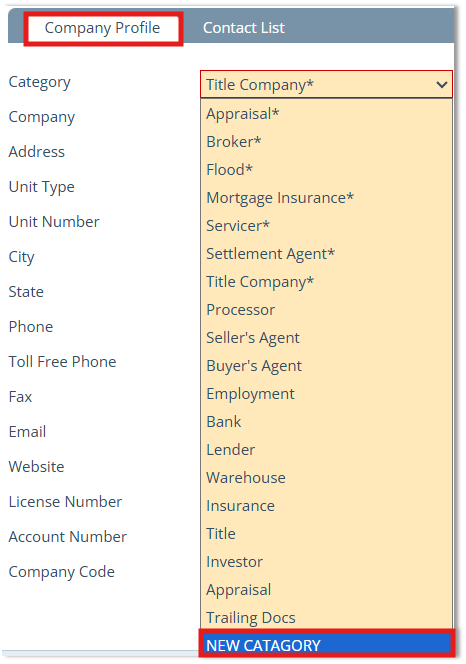
On the Company Profile tab, select the Category for the contact company.
-
In the Company field, enter the company name.
-
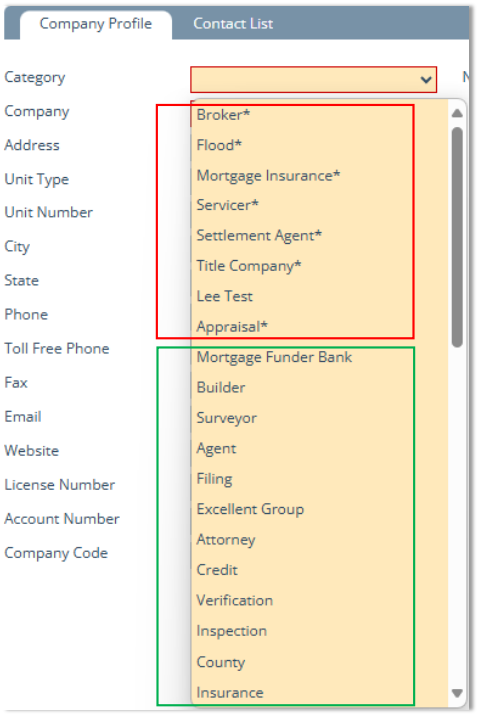
Notice the options that have asterisks (*). These are preconfigured options and cannot be deleted or modified.
-
The category options that do not have asterisks are added and configured by system admins. These options can be deleted or modified.
-
Related: For more information on adding or editing categories (which will be available for selection here once they are created), see Adding a Category.
-
-
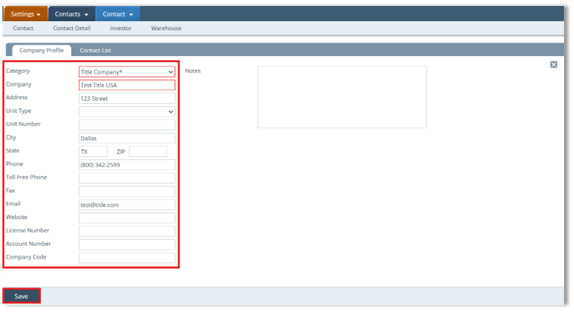
Complete any other relevant contact information fields.
-
Click Save, then close the Company Profile tab using the Close (X) icon.
-
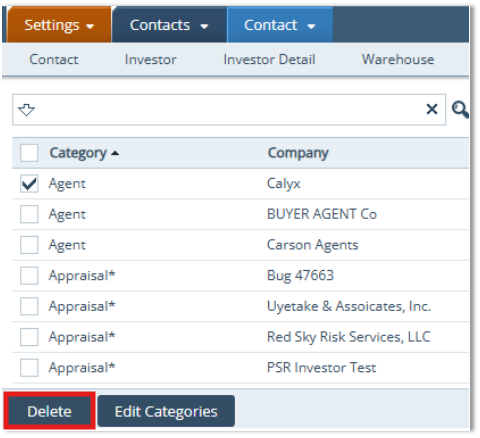
Optional (Delete a Contact Company): Select the company checkbox and click Delete.
-
Add Individual Contacts (within a Contact Company)
After saving the Company Profile:
-
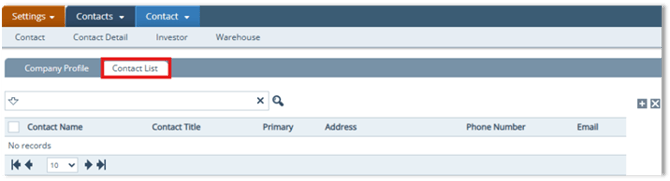
Click the Contact List tab.
-
To add contacts to an existing company later: return to Settings > Contacts > Contact, then select the company first.
-
-
Click the Add icon (
 ) to open the Contact lightbox.
 -
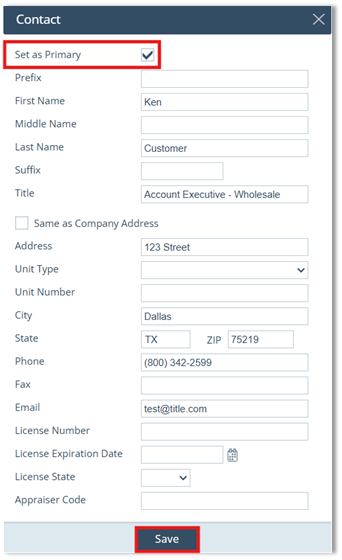
Select Set as Primary if this is the primary contact for the company.
-
Enter the contact's name, Title, and other relevant fields.
-
If the contact address is the same as the company address, select Same as Company Address.
-
If different, manually enter the contact's address.
-
-
Click Save.
-
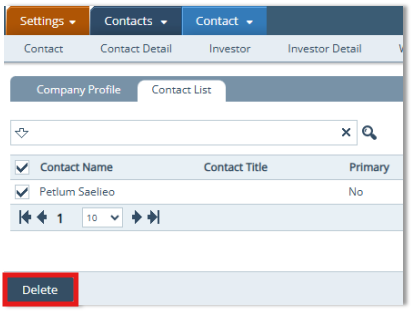
Optional (Delete an individual Contact): Select the contact checkbox and click Delete.
Adding a Category
-
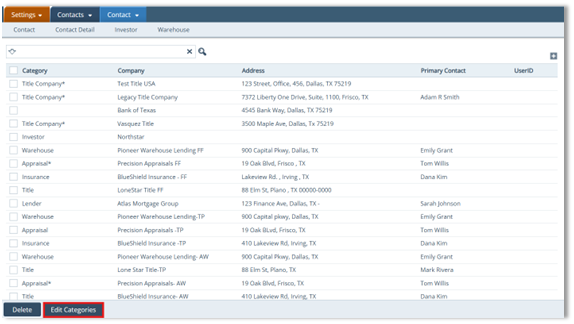
Open Settings > Contacts > Contact.
-
Click Edit Categories (bottom action bar).
-
Enter the category name in Add New Category.
-
Click the Add icon.
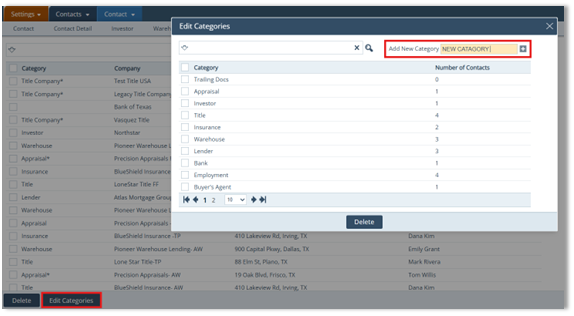
- Note: The Number of Contacts column shows how many contacts are tied to each category.
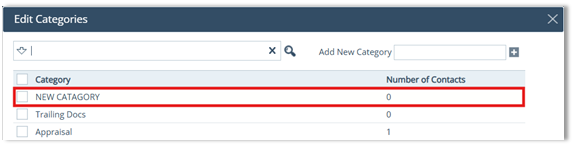
- Confirm the new category appears in the Edit Categories list.
-
The newly added category is now available from the Categories dropdown in the Company Profile tab.
Editing a Category
Click a category to open the Edit Category lightbox, make changes, and click Save. 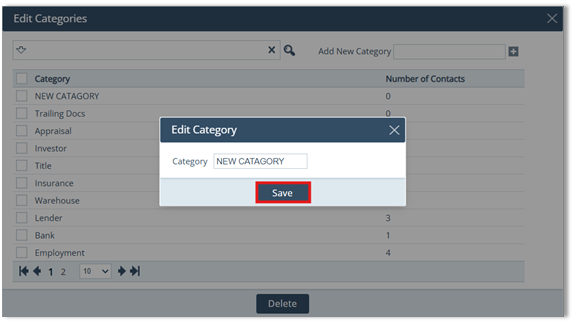
Deleting a Category
Select the category checkbox and click Delete. 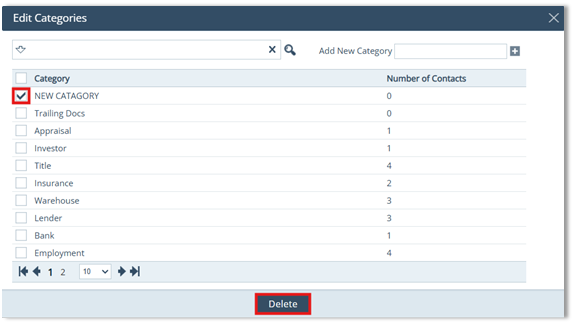
Summary
By setting up Contact Companies, Individual Contacts, and Categories in Path Admin, you create a clean reusable contact database for everyone to pull from. The payoff is quicker workflows, fewer mistakes from manual typing, and more standardized loan files, especially when using Primary contacts and controlled category.
