
The Document Requests screen allows administrators and authorized users to create, manage, and track document requests from borrowers or other parties. By defining clear document names, categories, due dates, and instructions, organizations improve borrower communication, strengthen compliance tracking, and streamline document collection workflows.
Applies To
- Path System Administrators
- Authorized Path users
Navigation & Setup
- Go to Settings > Documents > Document Requests.
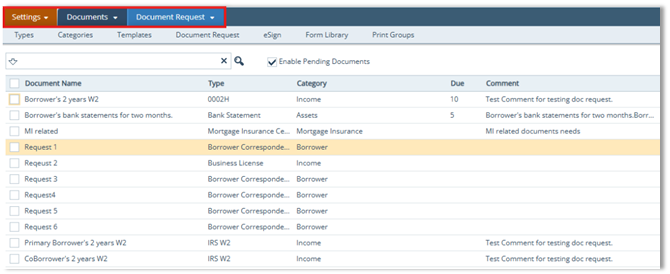
- Review the list of existing requests. Each row displays:
- Document Name
- Category
- Type
- Due
- Comment
- (Optional) Select or deselect the Enable Pending Documents checkbox.

Creating a Document Request
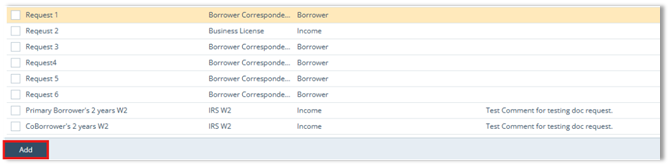
- Click Add.
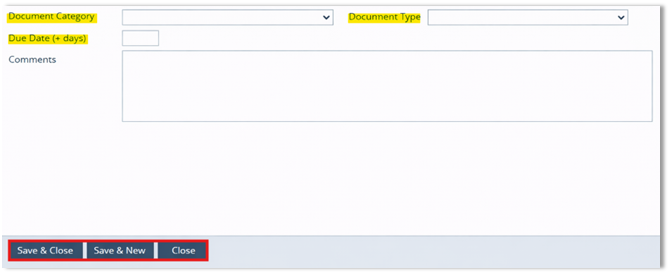
- Enter the Document Name (required).

- Select the Document Category (required).
- Select the Document Type (required).
- Enter the Due Date (+ days), if applicable.
- Enter Comments, if applicable.
- Click one of the following:
- Save & Close
- Save & New
- Close
Manage Existing Requests
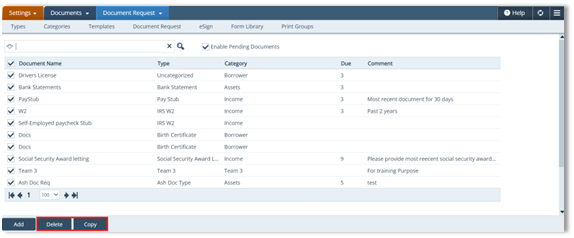
- Select the checkbox next to a request to enable management options.
- Click Copy to duplicate the selected request (adds suffix such as “(2)”).
- Click Delete to remove the selected request(s).
Borrower Submission Workflow
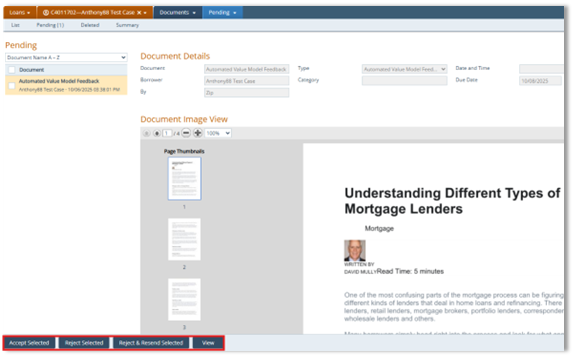
- When borrowers send the requested documents to Path LOS, it will look like this, where the LOS user will be able to:
- Accept Selected
- Reject Selected
- Reject & Resend Selected
- View
Summary
Numbered and structured Document Request configuration ensures clear borrower communication, accurate categorization, and better visibility into outstanding documents. When used consistently, this feature reduces follow-up delays, strengthens compliance tracking, and keeps loan workflows moving efficiently.
