
Document Templates in Path Admin let you standardize how documents are packaged by defining a consistent stacking order. When templates are used, teams spend less time manually selecting and ordering documents, which reduces errors and ensures every package looks the same—no matter who builds it.
Applies To
- Path System Administrators
Creating a Template
- Go to Settings > Documents > Templates.
- Click the Add icon (
 ) to open a new Templates Detail screen.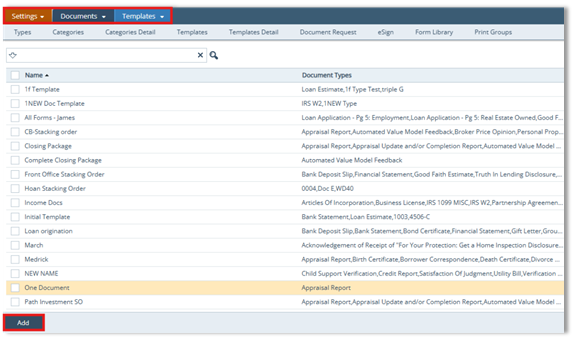
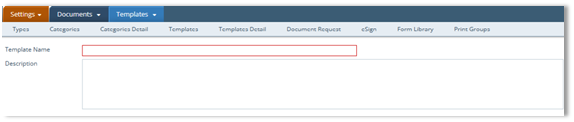
- Enter a Template Name (required and unique).
- Enter a Description (optional).
- Select document types from Available Document Types.
- Use the right arrow (
 ) to remove the type from the template, back to the Available Document Types section.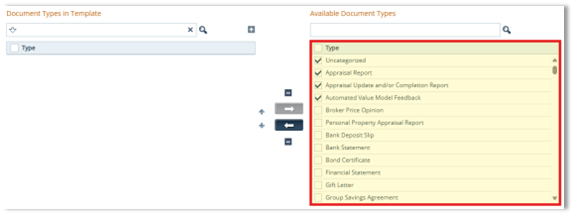
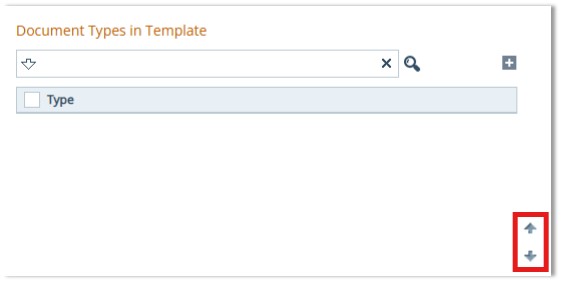
- Use up/down arrows to reorder stacking order.
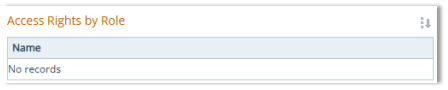
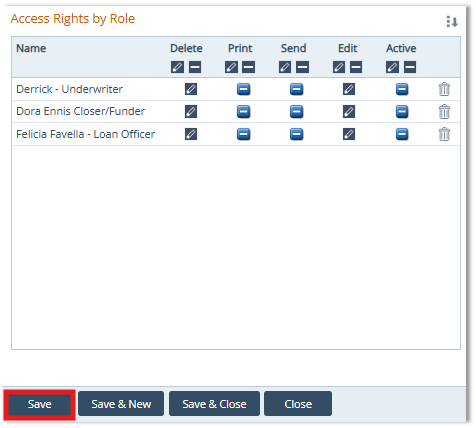
- Assign role-based access in the Access Rights by Role section.
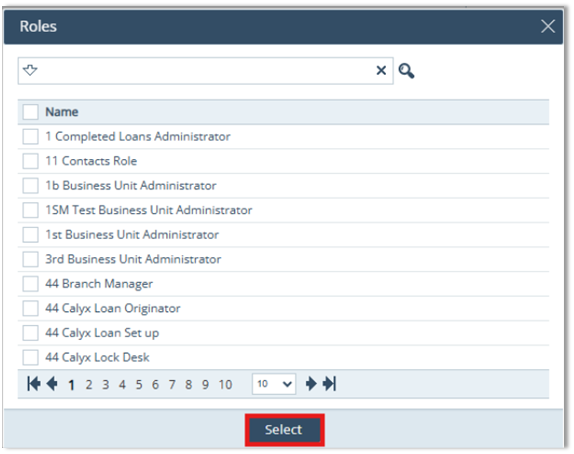
- Click the select icon () to open the Roles lightbox.
- In the Roles lightbox, check the role(s) you want to assign to the selected Document Template and click Select.
- Click Save.
Summary
By creating a template, adding the right Document Types, ordering them correctly, and setting role-based access, you build a repeatable packaging process. The result is faster document prep, fewer stacking mistakes, and more consistent, professional document delivery across the organization.
