
Path Admin – Creating Document Types
Document Types in Path Admin are the foundation for keeping loan documents organized, searchable, and secure. When Document Types are configured correctly, your team gets consistent classification and categorization, better reporting accuracy, and tighter role-based control over who can view, edit, print, send, or delete documents, helping reduce errors and keeping document workflows clean and compliant.
Applies To
- Path System Administrators
Purpose of Document Types
- Classification → Identifies and labels documents based on their function or content.
- Categorization → Groups document types into logical categories (e.g., Income, Assets).
- Access Control → Defines which roles can view, edit, print, send, or delete each document type.
- Template Integration → Includes document types in stacking orders (templates) for packaging.
Create a Document Type
-
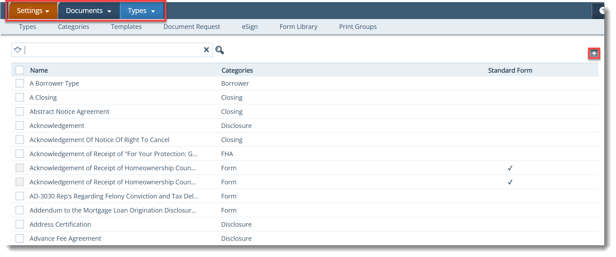
Go to Settings > Documents > Types.
-
Click the Add icon (
 ) to open the Types Detail screen.
 -
Enter the Document Type Name (required and unique).
-
Standard Forms are read-only.
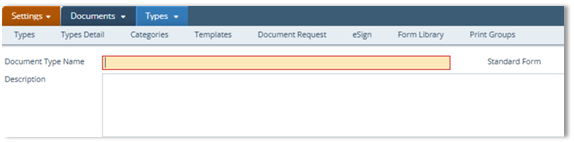
- Standard forms are indicated by a check mark in the Standard Form column under Settings > Documents > Types.
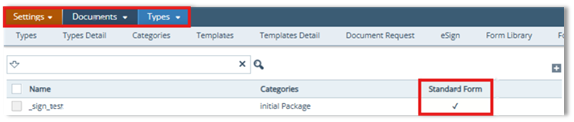
- Standard forms are also indicated by a checkmark next to the Standard Form field when the document type is opened in its Types Detail screen.

- If left blank: *This field is required.

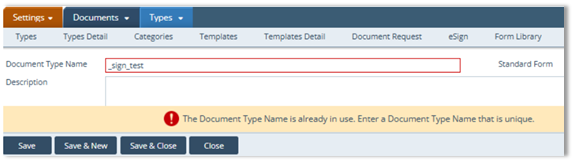
- If duplicate: The Document Type Name is already in use. Enter a Document Type Name that is unique.
-
- Enter a Description (optional but recommended).

- In the Categories section, click the corresponding select icon (
 ) to open the Document Category lightbox.
 - Select one or more categories and click Save or Save & Close.
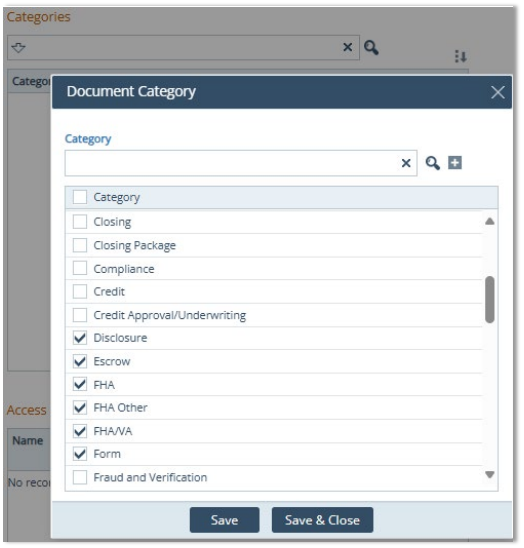
- A Category checkbox at the top allows select all/unselect all.
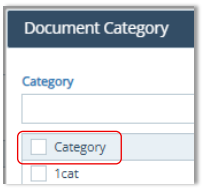
- A Category checkbox at the top allows select all/unselect all.
- Click the Add icon (
 ) to launch the Document Category lightbox to create a new category.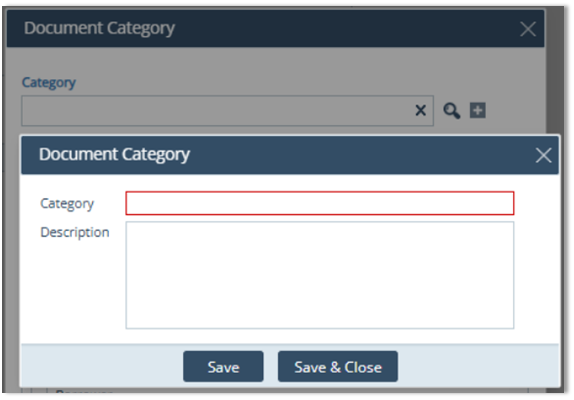
- If no category is selected: Please select a category.
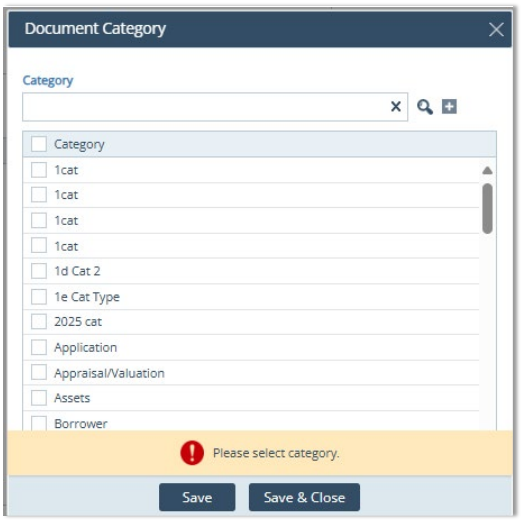
- If no category is selected: Please select a category.
- Once finished, click Save or Save & Close.
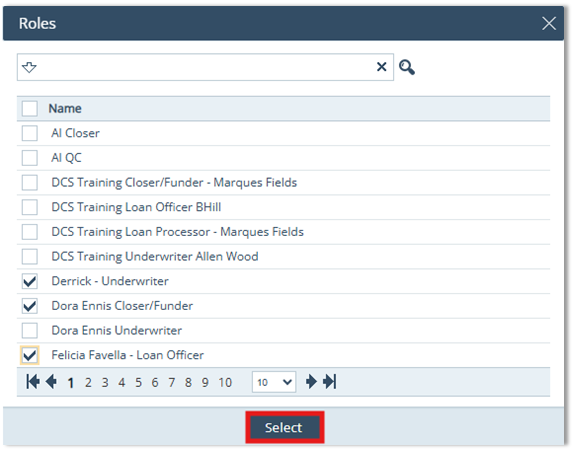
- In Access Rights by Role, click the select icon to open the Roles lightbox.
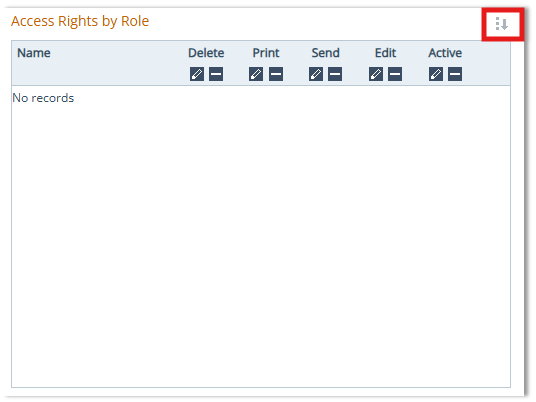
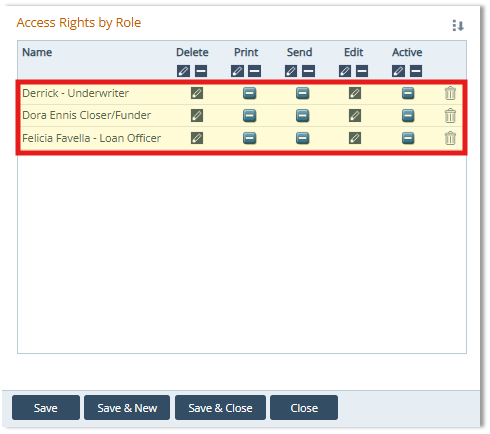
- Select roles and configure permissions (Delete, Print, Send, Edit, Active).
- Click Save, Save & New, or Save & Close.
Summary
By creating Document Types with unique names, assigning the right categories, and setting role-based access permissions, you standardize how documents are handled across the loan lifecycle. The payoff is faster navigation, more reliable reporting, fewer permission issues, and smoother template packaging, especially when Standard Forms are clearly identified and protected from edits.
