
The eSign screen in Path Admin allows administrators to control which user roles have access to electronic signature functionality within Path LOS. Properly managing eSign access ensures that only authorized roles can send documents for electronic signature, strengthening security, supporting compliance requirements, and maintaining operational control across the organization.
Applies To
- Path System Administrators
Grant eSign Access
-
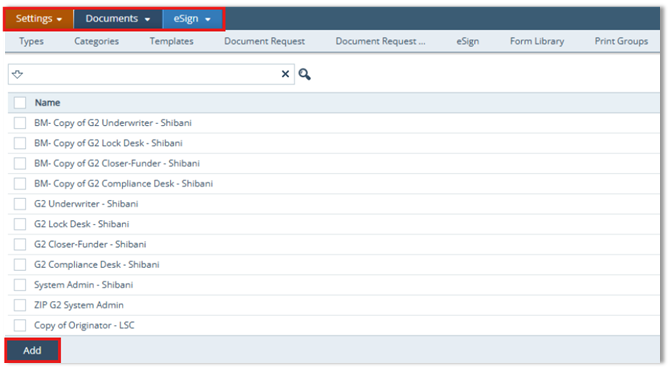
Go to Settings > Documents > eSign.
-
Review the list of roles currently assigned eSign access.
-
Click Add to grant access to a role not currently listed.
-
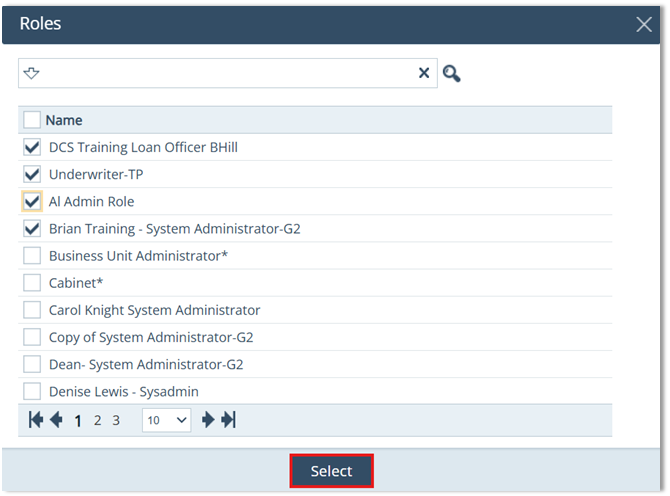
In the Roles lightbox:
-
Select the checkbox next to the roles(s) you want to grant eSign access.
-
Use the Search box to filter roles by name if needed.
- Use the top checkbox to Select All/Unselect All, if applicable.
-
-
Click Select to add the selected roles to the eSign access list.
-
If needed, click the Close (X) icon to exit the lightbox without saving changes.
Remove eSign Access
To remove eSign access from a role:
-
Select the checkbox next to the assigned role.
-
Click Delete.
