
The Form Library is a centralized place where administrators can upload, edit, and manage custom Word and PDF forms used throughout the loan origination process. With field mapping, layout customization, and support compliance-driven workflows while keeping forms organized, up-to-date, and role-appropriate.
Applies To
-
Path System Administrators
-
Authorized users managing custom forms document workflows.
What the Form Library Enables
-
Upload and store custom forms used in Path LOS.
-
Edit and update forms while preserving field mappings.
-
Duplicate forms for faster customization.
-
Control visibility with Active/Inactive status.
-
Download blank forms for review for offline use.
Adding Forms
-
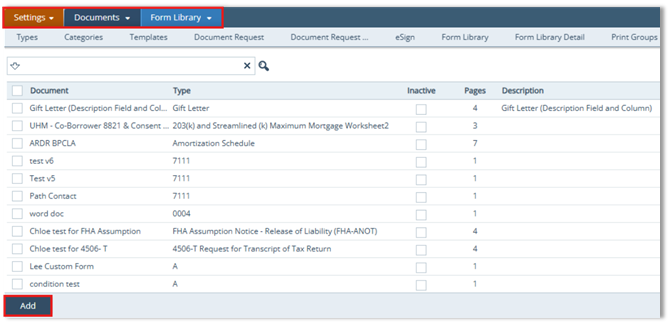
Open Settings > Documents > Form Library.
-
Add a form by clicking Add in the action bar to open the Add lightbox.
-
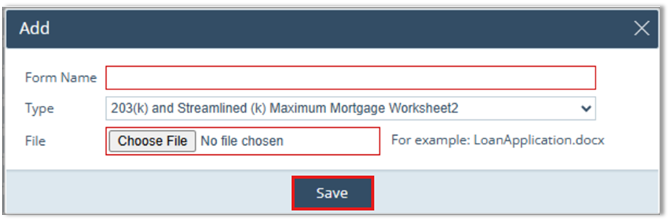
Enter the Form Name and select the Type.
-
In the File field, click Choose File and select the document from your computer.
-
Click Save.
Editing a Form
Form the Form Library list:
-
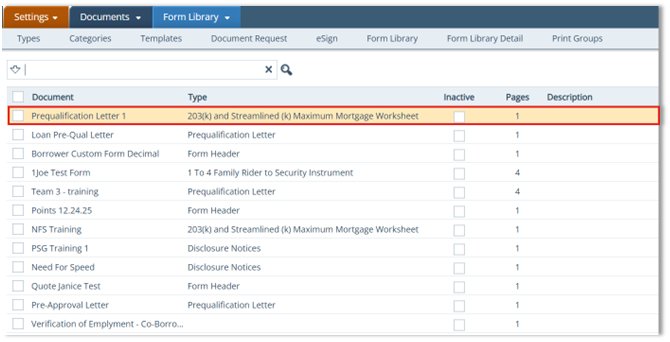
Click the form to open the Form Library Detail screen.
-
Update the Form Name and Description, as needed.
-
To prevent the form from being used in Path LOS, select Inactive Form.

Toolbox
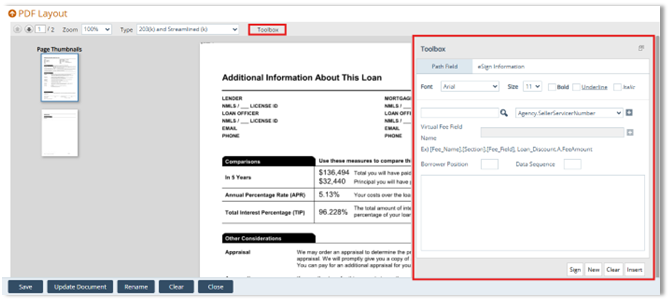
The Toolbox lightbox is used to edit, customize, and map fields on uploaded PDF or Microsoft Word forms. This Toolbox lightbox defines how Path data populates the form and allows precise placement of fields on the document layout.
Map Fields Using the Toolbox
-
Open the form and the Toolbox lightbox.
-
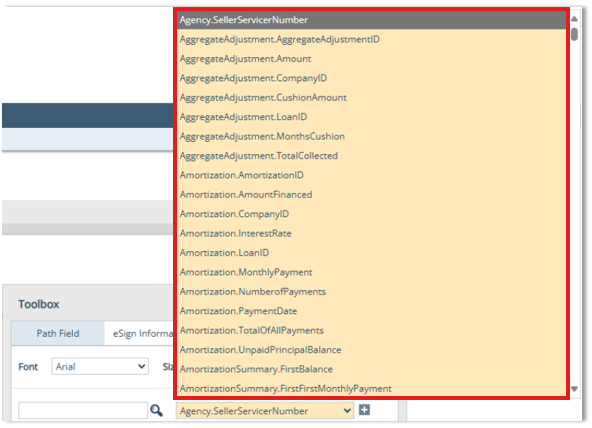
Select the field block you want to map (example: Borrower Name, punctuation, address).
-
Click the Add icon (
 ) to add the selected field block.
 -
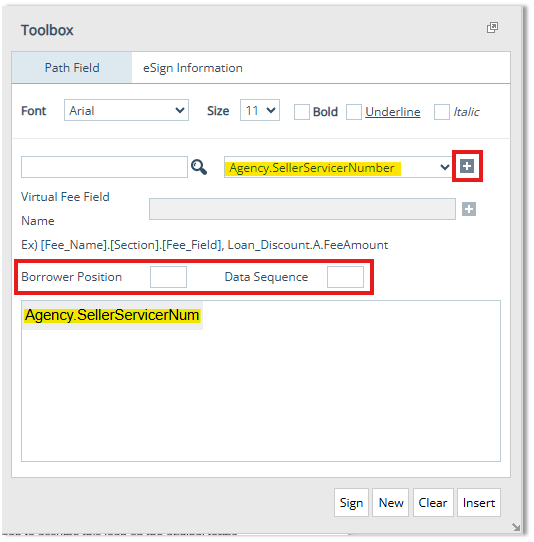
(Optional) Enter the Borrower Position when mapping multi-borrower scenarios.
-
Purpose → Identifies which borrower the field belongs to (Borrower 1, Borrower 2, etc.).
-
Default → Borrower 1
-
-
(Optional) Enter Data Sequence for repeated data (multiple employers /assets /liabilities).
-
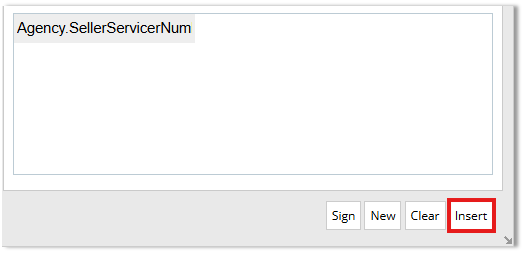
Once completed, click Update or Insert, confirm the field is inserted and positioned correctly.
-
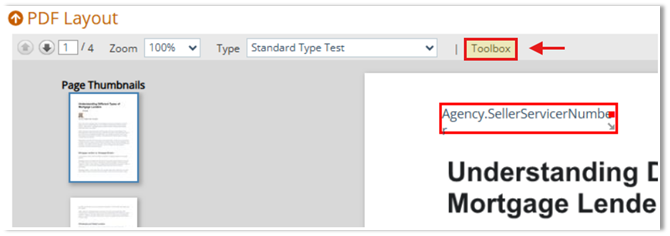
Drag the field to the desired location on the document.
-
After clicking Update or Insert, the field is inserted into the document.
-
Drag the mapped field to the desired position on the document.
-
Click the Toolbox icon to close the lightbox.
eSign Information Tab
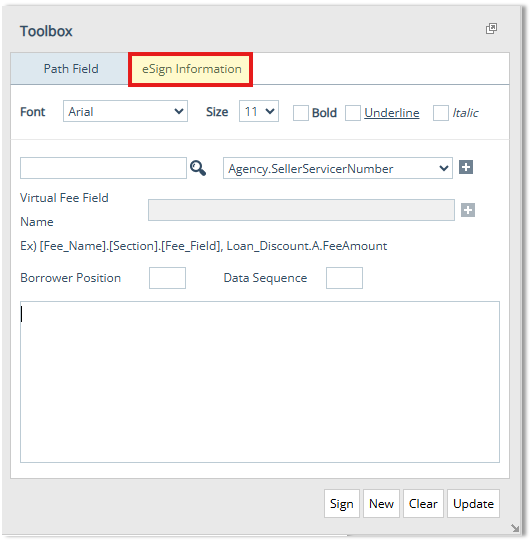
The eSign Information tab is used to configure electronic signature fields on custom forms, including who signs, where they sign and signing order.
In the Toolbox:
-
Open the eSign Information tab.
-
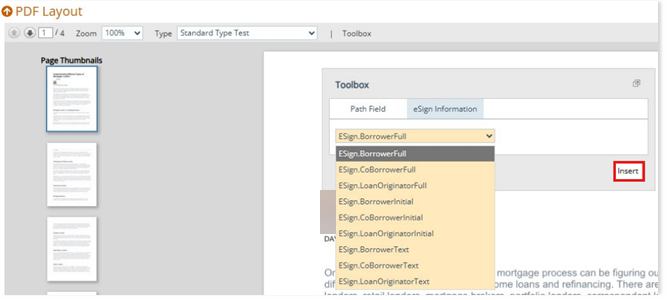
Select the Signer from the dropdown list.
-
Click Insert.
-
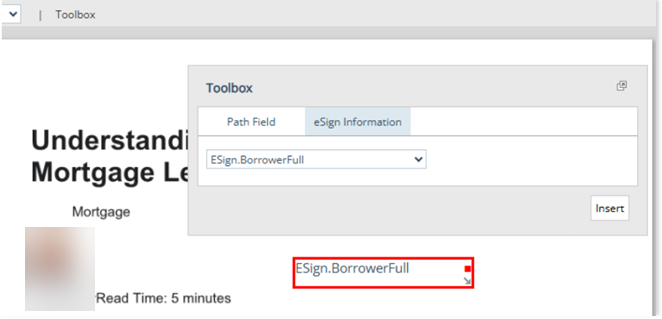
Drag the signature field to the desired position on the document.
Update the Document
Use this option to replace a form file while preserving field mappings.
-
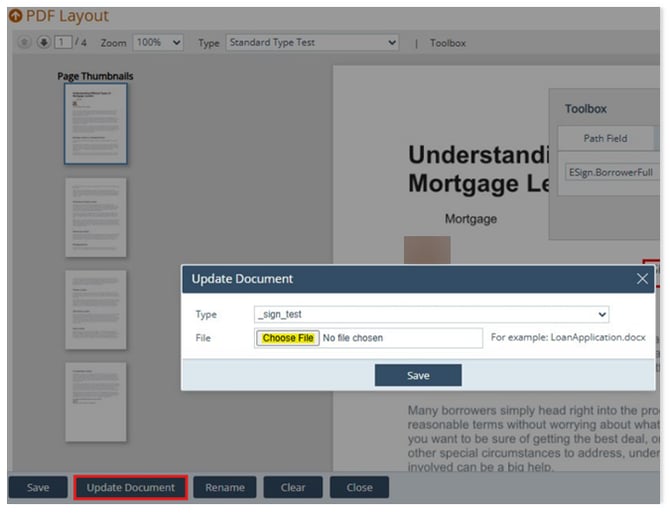
Click Update Document.
-
Choose the updated Microsoft Word (.docx)/PDF file.
-
Validate the layout and confirm field mappings still align correctly.
Summary
The Form Library gives administrators a powerful way to manage custom forms with mapping, layout control, and version retention, so teams can generate consistent, accurate documents without manual rework. By using toolbox mapping, role-based access, and version updates, organizations improve borrower data collection, reduce document errors, keep forms compliant, and maintain a clean, scalable document library tailored to real mortgage workflows.
