
Notifications in Path help keep users informed when important activity occurs in the system. By setting up notifications, administrators can improve communication, reduce missed updates, and make sure the right users are alerted at the right time.
Applies To
-
Path administrators
-
Users responsible for configuring notifications in Path.
Accessing the Notifications
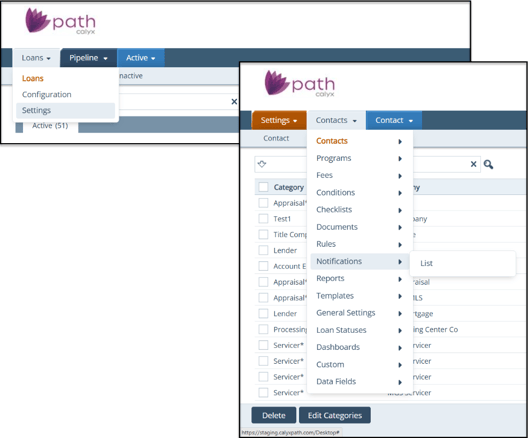
The steps below explain how to access the Notification Lists.
-
Open the first main menu tab.
-
Click Settings.
-
In the second main menu tab, click Notifications.
Creating a Notification
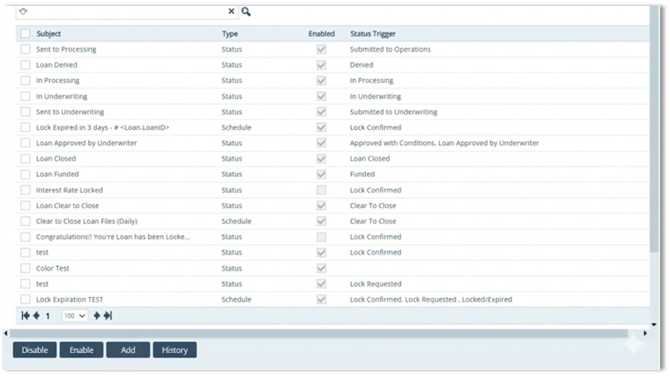
In the Notification screen:
-
Click the Add button to create new notification.
-
Click the Type dropdown to select the notification type.
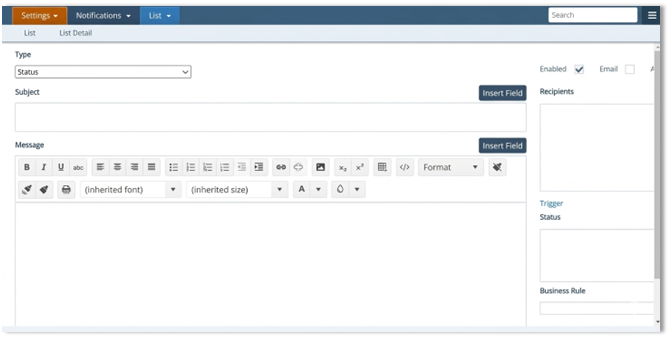
Example: Select Status to send a notification when a status is captured in Path.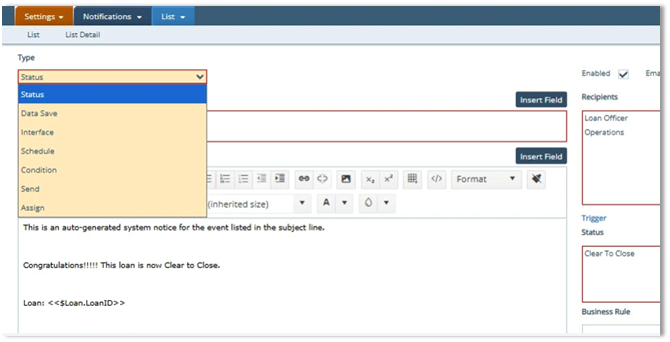
Other Notification Types
The following notification types are also available:
-
Data Save - Sends a notification when data is saved or auto-saved in the system.
-
Interface - Sends a notification when the interface runs.
-
Schedule - Sends a notification at a pre-selected time.
-
Condition - Sends a notification when a file is sent to another role.
-
Assign - Sends a notification when a file is assigned.
Adding a Subject Line
Type the desired opening into the Subject field. Use the Insert Field button to insert auto-populating values.
Insert Field Button
The Insert Fields button allows for inserting tags that auto-populated values into the Subject line.
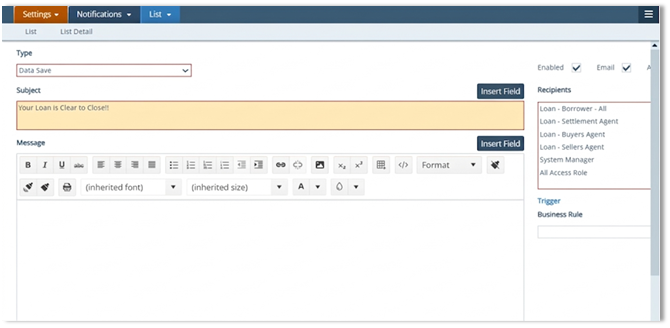
To use the Insert Field tag for the Subject:
-
Click Insert Field button.
-
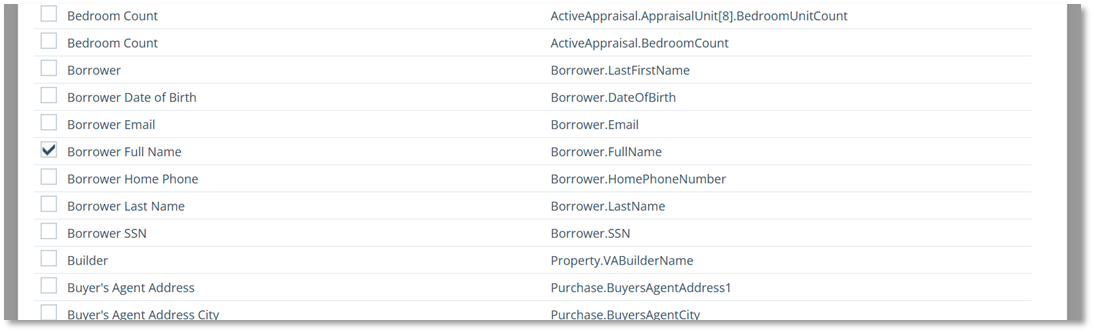
Choose one or multiple tags, if appropriate.
-
Scroll down and click Export.
-
If needed, highlight the full tag (ex.: "<Borrower.FullName>")
-
Cut and paste the tag to the desired location on the Subject line.
Example:
Path Notifications
-
Subject Line - <Borrower.FullName>, we appreciate your feedback
Sent Email
-
Subject Line - Andy America, we appreciate your feedback
Customizing the Message
Type the body of the email in the Message field. Use the formatting tools to customize the email.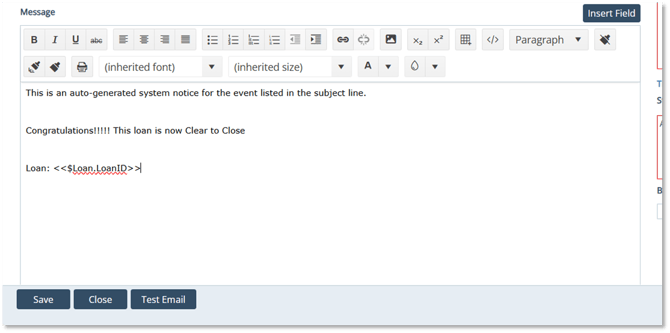
Enable Email Notifications
-
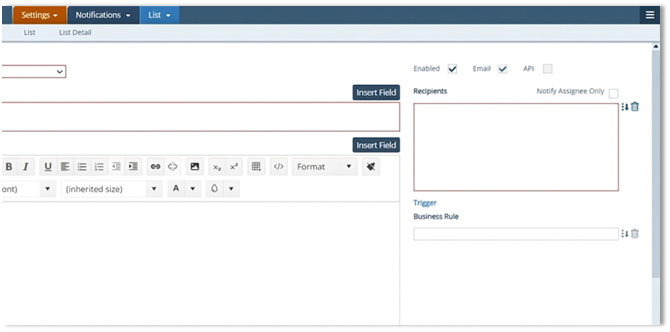
Click the Email indicator.
-
Confirm Enabled is checked.
-
Ensure that the Email box is also checked (required).
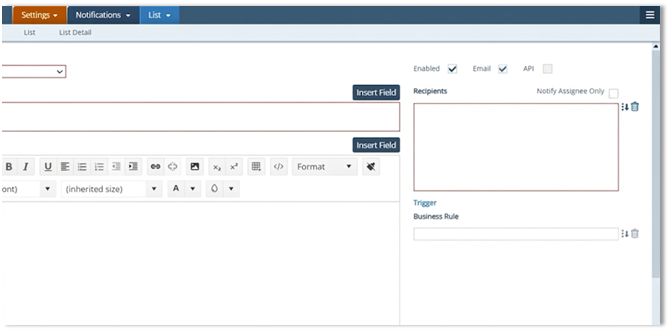
Notify Assignee Only
Notify Assignee Only sends the notification only to users already assigned to the file.
If left unchecked, all users in the selected recipient roles receive the notification.
Adding Recipients
-
Click the
 icon under Recipients.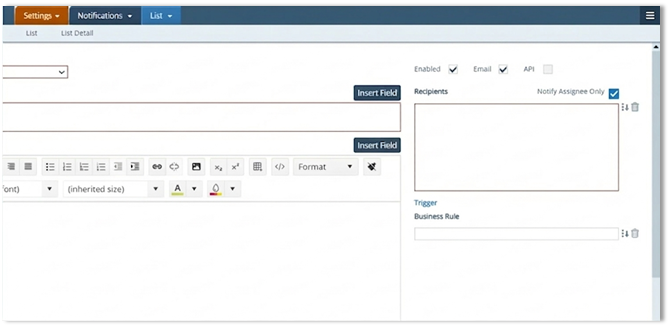
-
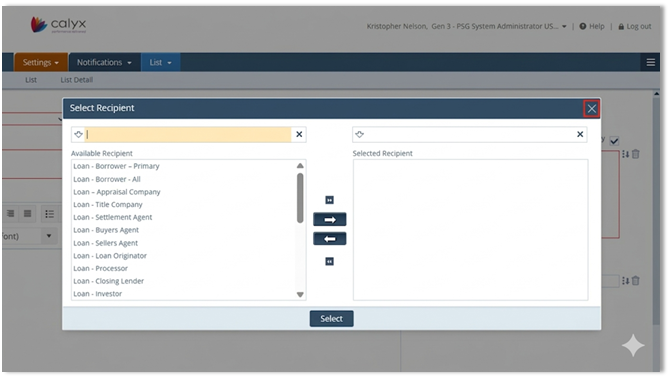
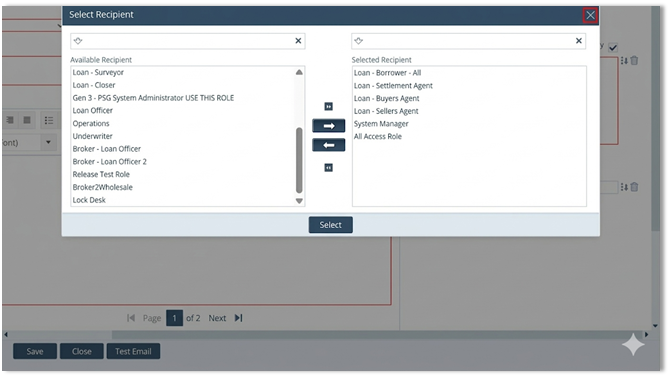
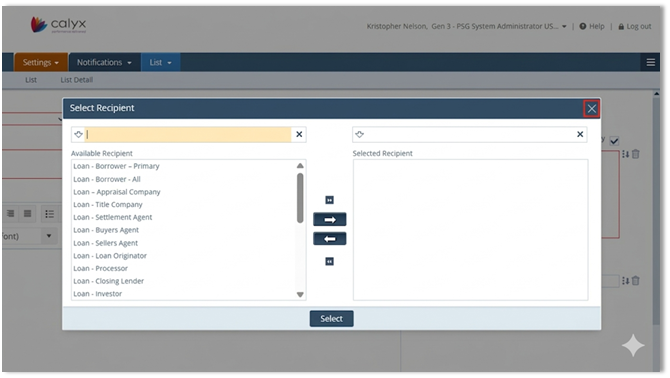
In the Select Recipients window, choose the users or roles that should receive the notification.
-
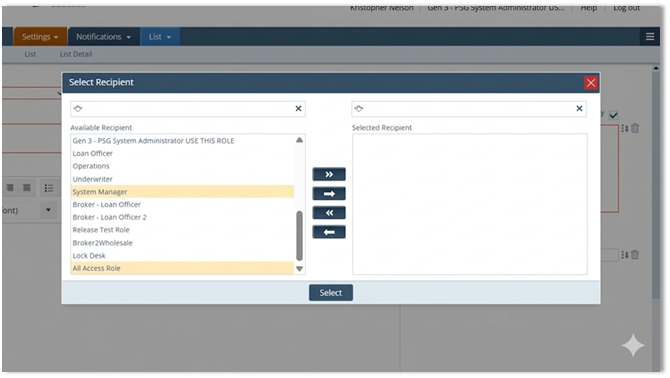
Move the desired recipients to the right using the arrows.
-
Click Select to add the recipients to the notification.
Recipient Note
Recipients beginning with "Loan -" are external contacts.
Recipients listed at the bottom are internal contacts or Path roles.
Summary
Setting up notifications in Path helps improve visibility, communication, and follow-up across the loan process. With the right notification type, recipients, and message content in place, administrators can make sure important updates are delivered clearly and consistently.
