VA Loan Review Screen
The VA Loan Review screen is used to streamline and expedite the submission of post-close loan review documents to the VA, all done through Path Interfaces.
- With the new VA Loan Review screen, all the necessary post-close loan review documents can be submitted to the VA from within Path.
- Not only does this allow for a fully automated VA loan review process but also improves data accuracy
- This screen is used for:
- Purchase loans
- Refinance cash-out loans
- Refinance no cash-out loans
Order Tab
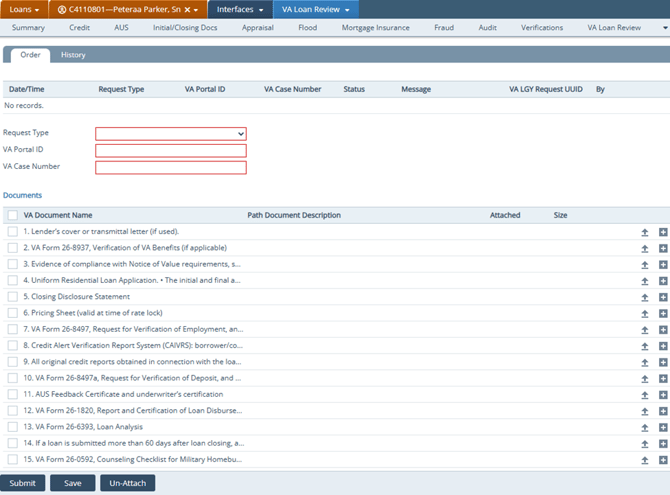
The Order tab is where users submit documents to the VA.
-
The Request Type dropdown allows users to select the appropriate submission of documents
.
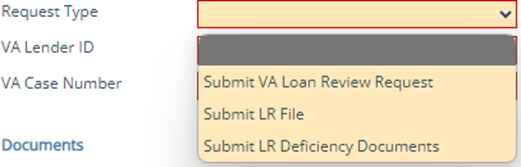
- For first-time submissions via this new functionality, select Submit VA Loan Review Request.
- VA Lender ID: Enter the VA Portal Number (maximum 40 characters).
- Example: CALYXSOFTWARE5998611234SERVICE
- VA Case Number: Must be a 12-digit number without hyphens.
- Documents section
-
- The Documents table lists all the relevant documents that can be submitted. Each row corresponds to a category of documents requested by the VA (Purchase , Refinance- Cashout, Refinance- No Cash out).
- Documents can be:
- Uploaded from the computer via the upload icon (
 ).
). - Added from Path’s form library via the add icon (
 ).
).
- Uploaded from the computer via the upload icon (
- The size of all documents cannot exceed 60 mb
- For the initial response to FFLR – if the size of the document submission exceeds 60Mb, divide them into chunks of documents less than 60Mb, using the Submit VA Loan Review Request as the Request Type and additional document use Submit LR File subsequently until all files are submitted.
-
Note: Submit LR File & Submit LR Deficiency - Up to five documents can be submitted at one time when choosing this Request Type.
-
-
- After the relevant documents have been uploaded or added, click Submit
-
Note: The list of documents displayed (the stacking order and categories) are subject to change depending on whether the VA loan is purchase, cash-out refinance, or no cash-out refinance.
-
-
- After the first submission has been successfully completed select either Submit LR File or Submit LR Deficiency Documents for subsequent submissions and only five documents can be submitted at one time.
- Select Submit LR File when:
- The payload size exceeds 60Mb and the document package needs to be split.
- The VA loan reviewer requests a resubmission of the entire package.
- Select Submit LR Deficiency Documents when:
- The VA loan reviewer identifies a deficiency and requests additional documents to be provided.
- Select Submit LR File when:
- Save – Saves the documents currently attached on the screen.
- Un-Attach – To delete a document:
- Check the box next to the document
- Click Un-Attach to remove it.
- After the first submission has been successfully completed select either Submit LR File or Submit LR Deficiency Documents for subsequent submissions and only five documents can be submitted at one time.
-
History Tab
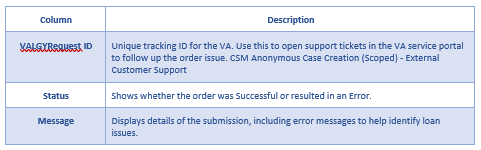
The History tab shows the history of all the document submissions.

View submission history under the History tab
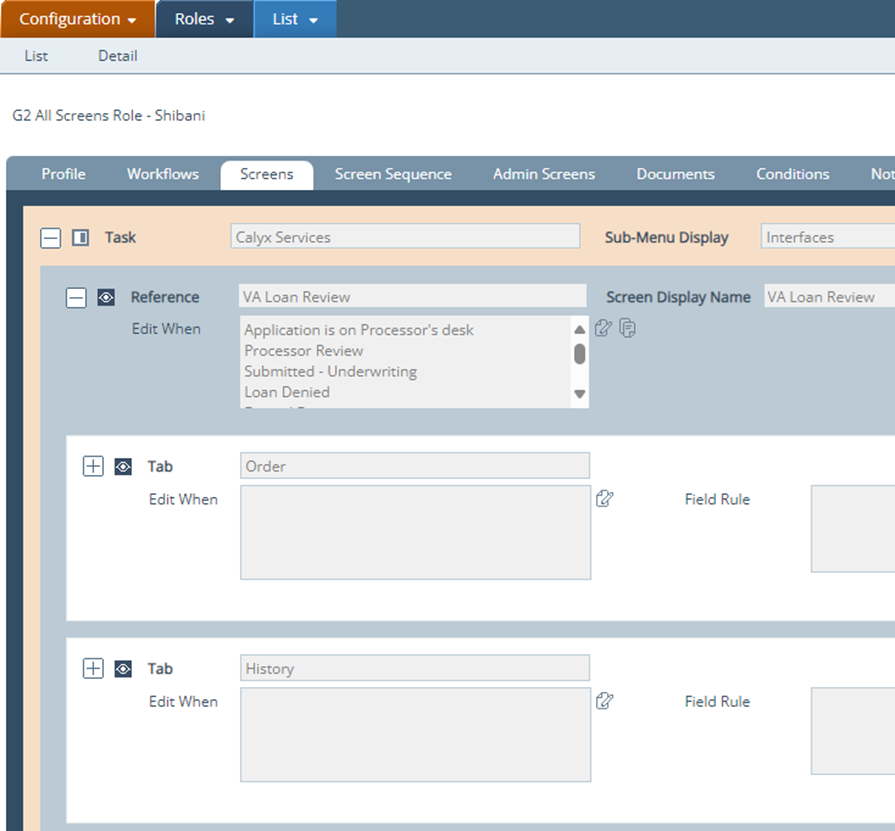
Configuration
Roles > Screens > Loan > Interfaces
As with any new screen, system administrators need to enable the VA Loan Review screen for the roles that are selected to have access to this screen and its tabs.
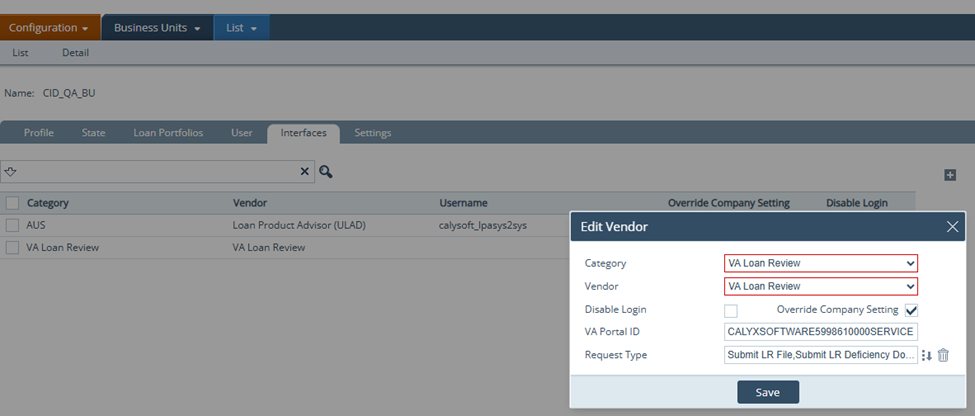
System Administrator can configure VA Portal ID and Request Type on the interface configuration screen