
This guide explains how to define and customize reports in the system by setting report parameters, selecting borrower data, and applying filters. Access to reports is determined by user roles.
Define custom reports and specify report parameters to view data for specific loans or groups of loans. Users are given permission to run certain reports based on the access defined during role configurations.
Define Report Parameters
Report parameters are defined in Settings. Defining the report parameters entails specifying the borrower data sequence and fields that are used in the report.
To define report parameters:
- Open the Reports activity
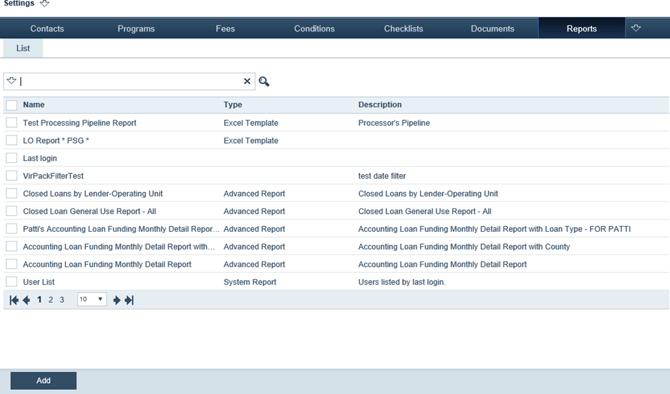
- Click the Add button to access the Report Detail
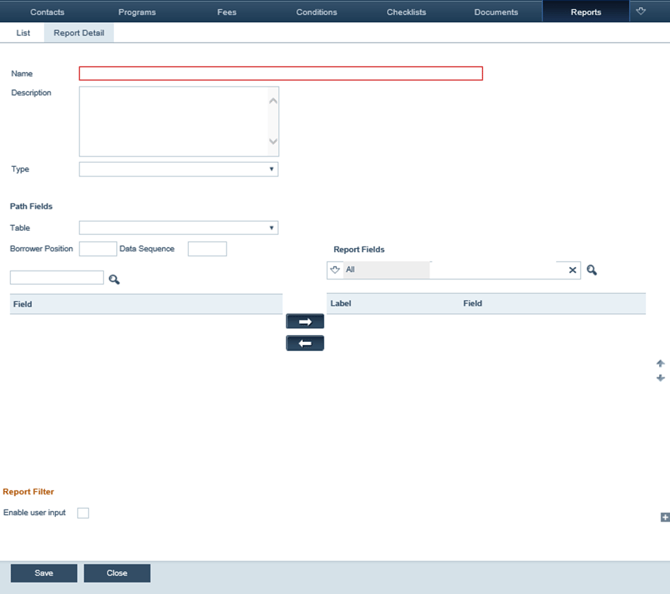
- Enter the name of the report in the Report Title
- Enter a report Description.
- Add fields to the
- Select a set of fields from the Table dropdown list
- The Table dropdown list contains a list of the field tables in the Path When a selection is made, the list of fields in that table are displayed.
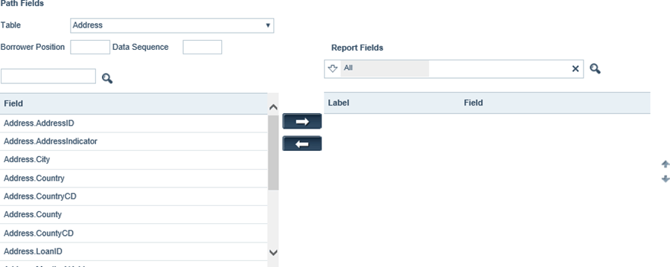
- Specify which borrower is used in the loan in the Borrower Position field
- The Borrower Position field is used to specify which borrower data to return for the selected fields.
- To collect data for the selected fields for the primary borrower, enter 1.
- To collect data for the coborrower or subsequent borrowers, enter 2, 3 or whatever number corresponds to the borrower’s position.
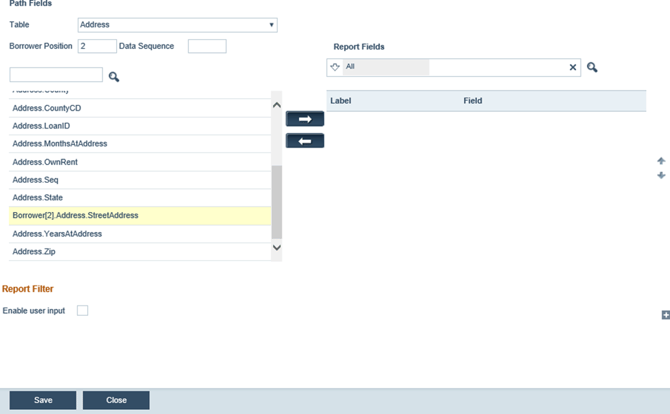
- Specify the Data Sequence for that
- The data sequence specifies the data to collect for the selected fields
- For example: If you were adding present address fields for borrower 2 (the co-borrower), you would enter 2 because you want the report to include the set of address data for borrower 2. When the street address field is selected, the field name changes to Borrower[2].Address[1].Street Address.
- Another example: If you want to compare two separate appraisal reports. Select the Appraisal table and enter 1 in the Data Sequence field to return data for the most recent appraisal. Select the fields that you want to include in the report. If you selected the Appraisal Value field, the field name changes to Appraisal[1].Appraisal Value.
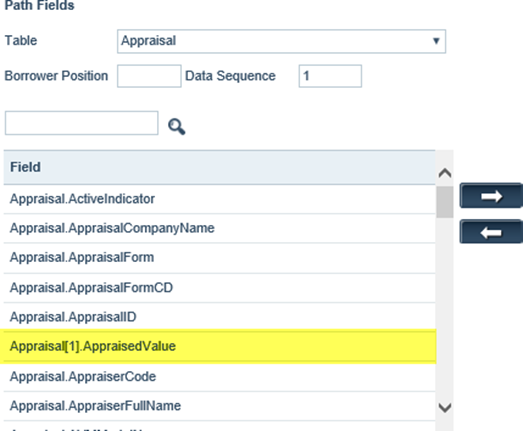
- To retrieve data from the second most recent appraisal, enter 2 in the Data Sequence field and repeat the field selection. In this case, the field name changes to Appraisal[2].Appraisal Value. The report will include data from the most recent appraisal and the second most recent appraisal.
- Select the fields from the table that you want to include in the report for the associated borrower position and data sequence. Use the search field to locate specific fields.
- Click the right arrow (
 ) to add the selected fields to the When fields are initially added, they are highlighted to distinguish them from existing fields.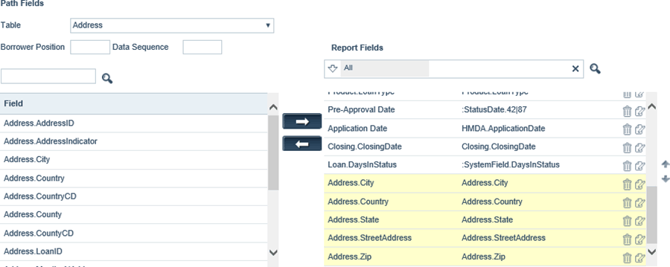
- Click Save to save the fields moved to Report Fields.
- Select a set of fields from the Table dropdown list
- Repeat Step 5 to add more fields to the report.
- Edit the fields.
-Click edit icon ( ) next to the field you want to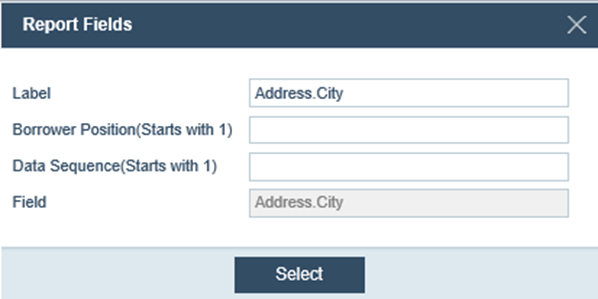
-Change the text in the Label field to the text you want as the column title on the generated
-Edit the Borrower Position and Data Sequence fields as
-Click Select. - After the fields are added and edited, adjust the field sequence by selecting a field or fields and clicking the up and down arrows to move them up or down in the table.
- Click Save.
- Complete the Report Filter sections.
-The Report Filter section is used to filter the report output to loans with specific parameters.
-For example, to include only loans for a certain amount or specific loan type.
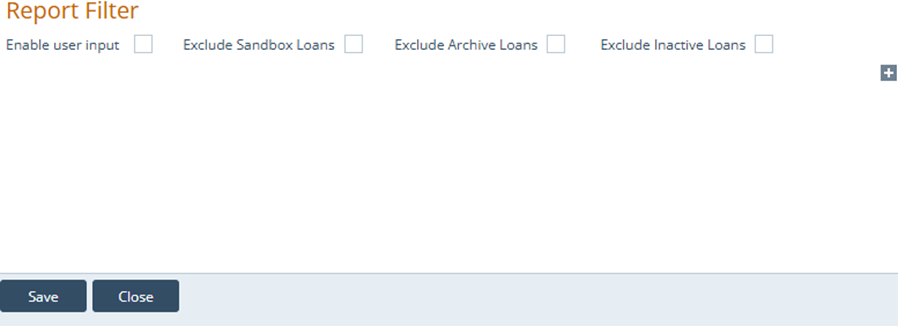
- Click the add icon (
 ).
).
- The Report Filter section expands.
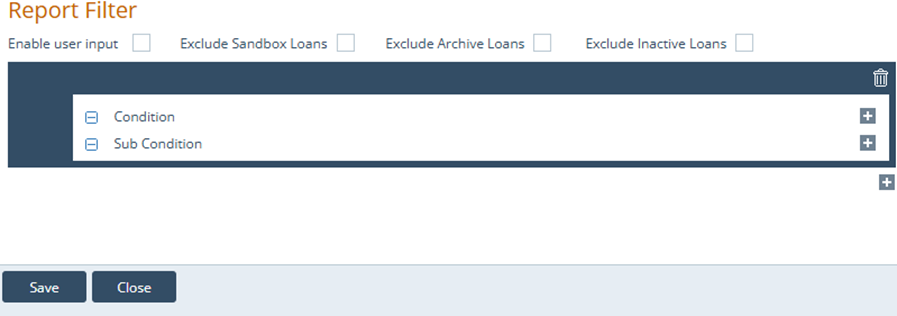
- Click in the Condition row to add a condition
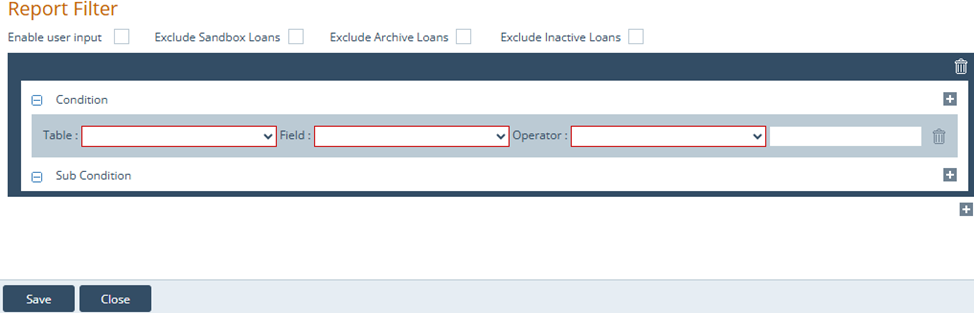
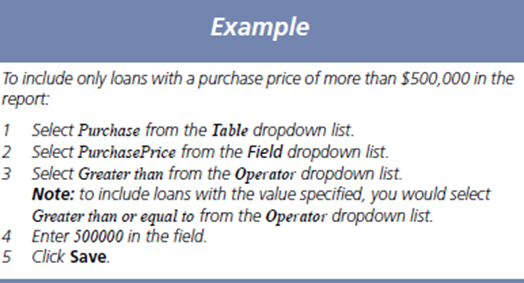
- Select the Table where the field is located from the dropdown list.
- Select the Field from the dropdown list where this condition applies.
- Specify the value Operator for this field where this condition applies.
- Enter the value next to the dropdown list.
- Click Save
- To further refine the report parameters, click in the Condition row to add more filters.
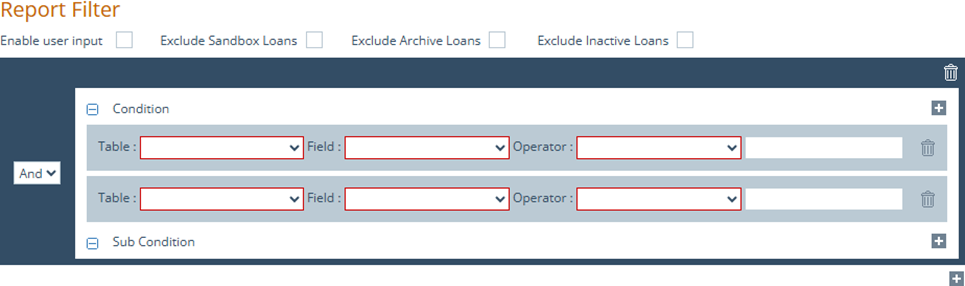
- Specify from the dropdown list on the left to indicate whether both conditions must be present (AND) or if either condition must be present (OR).
- Select the Table where the field is located from the dropdown list.
- Select the Field from the dropdown list where this condition applies.
- Specify the value Operator for this field where this condition applies.
- Enter the value next to the dropdown list.
- Click Save.
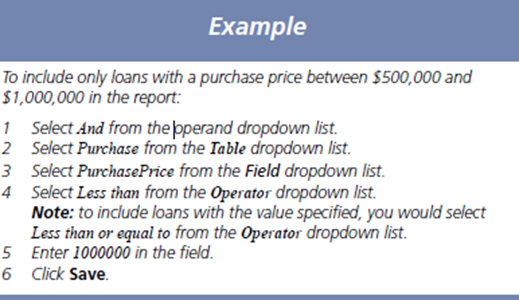
- To further refine the report results and create a multi-level condition, click in the Condition row to expand the fields.
- Click in the new Condition row to expand the fields
- Click
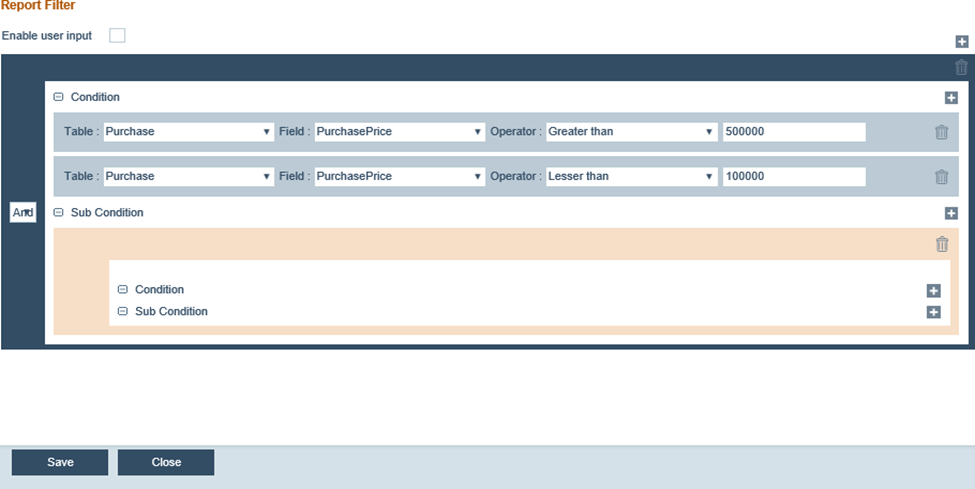
- Select the Table where the field is located from the dropdown list.
- Select the Field from which the dropdown list, where this condition applies.
- Specify the value Operator for this field where this condition applies.
- Enter the value next to the dropdown list.
- Click again to expand a second set of fields
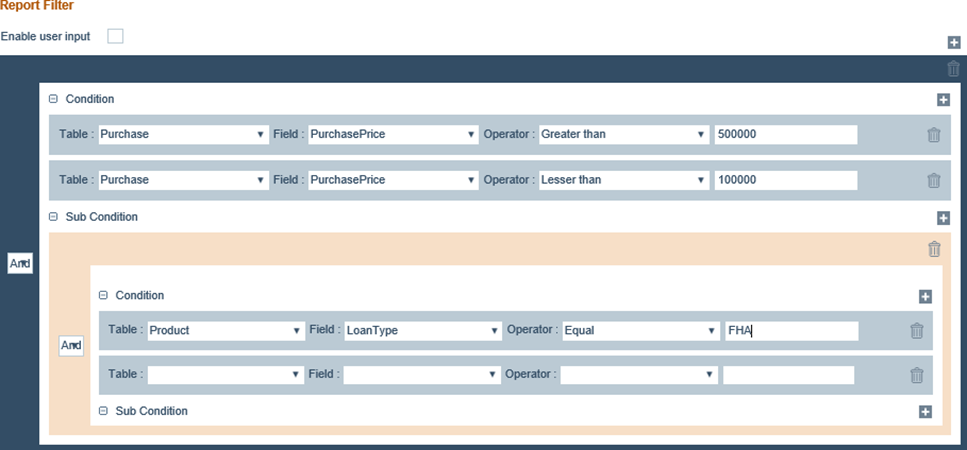
- Specify the dropdown list on the left to indicate whether both conditions must be present (AND) to include the loan in the report, or if either condition must be present (OR) to include the loan in the report.
- Select the Table where the field is located from the dropdown list.
- Select the Field from which the dropdown list, where this condition applies.
- Specify the value Operator for this field where this condition applies.
- Enter the value next to the dropdown list.
- Click Save.
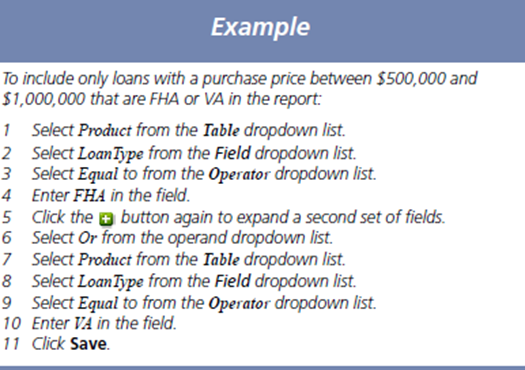
- This report is represented as: Loan >$500,000 & loans <$1,000,000 & (FHA or VA).
- Enter more conditions to apply to this report.
