
To get and compare pricing in Path:
1. Open a loan file and go to Lock > Request or Confirm screen, and click the Pricing button, which opens the Product Availability Search lightbox.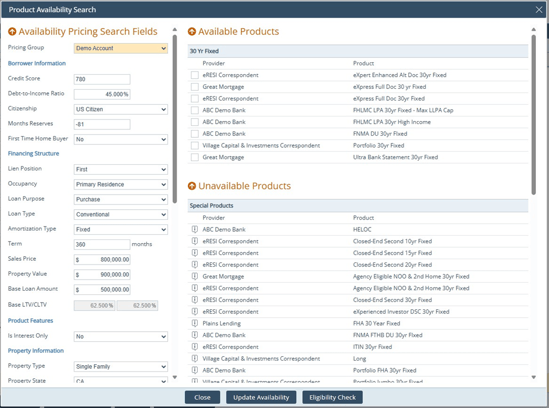
- Available products that are displayed are based on the loan information already The broader the loan information for product and pricing, the wider the range of available pricing.
- If the amortization type was not selected, all fixed and ARM products will be displayed here.
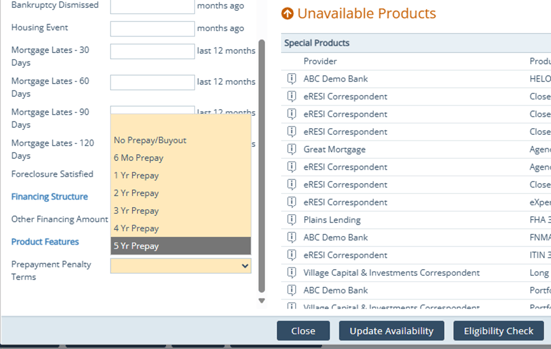
- Select from the Prepayment Penalty Terms dropdown.
2. After selecting at least one available product, click the Eligibility Check button, which opens the Eligibility Check
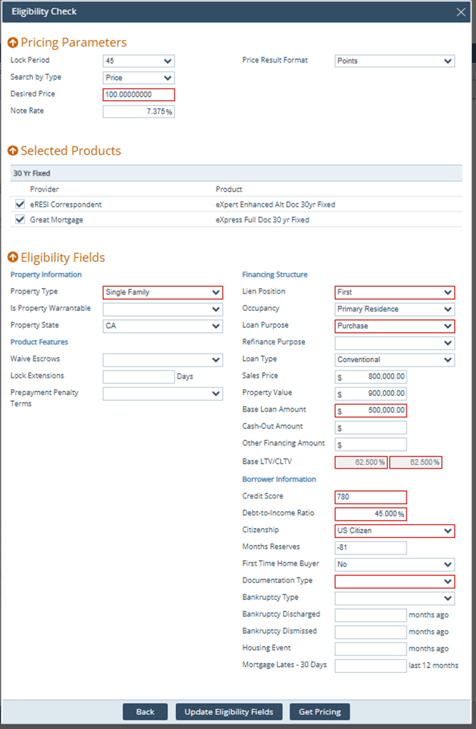
3. Click the Get Pricing button, which opens the Eligible Product Results lightbox.
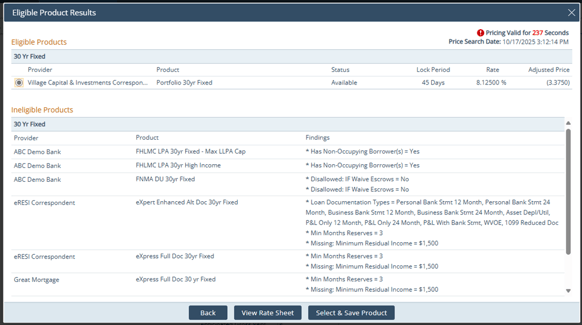
- Here only eligible products are This means they are eligible based on the information entered previously, matching the eligibility criteria. Ineligible products did not match.
- If amortization type was not selected, no fixed or ARM products are shown here.
4. Click the View Rate Sheet button, which opens the Rate Sheet Detail lightbox.
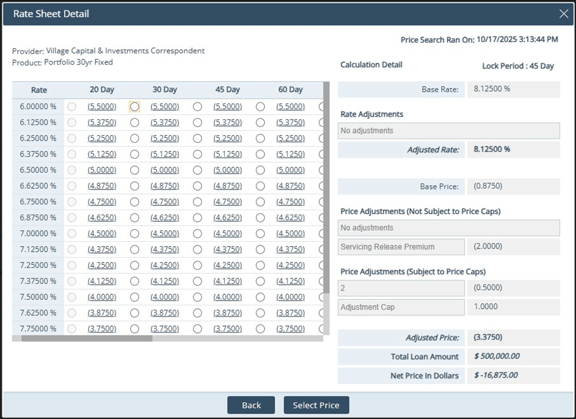
5. Select the most suitable rate and lock period and click the Select Price button,
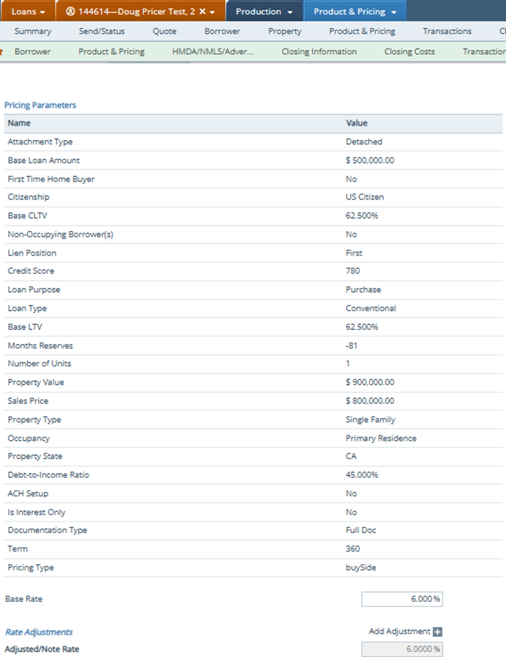
6. After clicking the Select Price button, the lightbox closes, and the selected product and pricing are displayed in the Pricing Parameter subsection of the Product Information section.
7. For historical pricing, click the Historical Pricing button, which open the Historical Pricing Search lightbox.
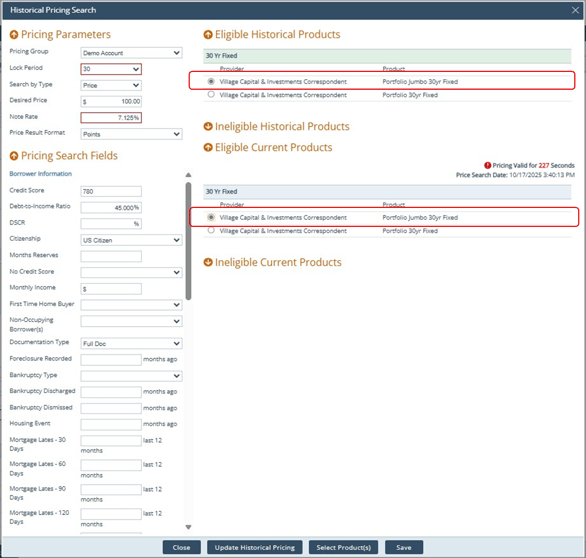
8. Select one product from each the Eligible Historical Products section and the Eligible Current Products section, to compare the pricing between the products.
9. Click the Select Product(s) button, which open the Historical & Current Pricing Details lightbox.
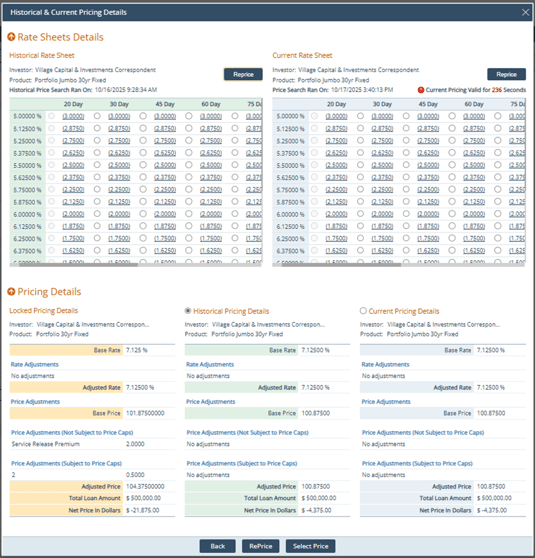
- In the Pricing Details section, compare the pricing between Locked Pricing Details, Historical Pricing Details and Current Pricing Details subsections.
- Each subsection displays the crucial and required data for each product.
- Other real-time information are factored in, such as the enumeration selected from the Prepayment Penalty Terms dropdown earlier.
10. Select the most suitable pricing after comparing or you can also reprice.
