
Use the DocMagic Direct integration to audit loan data, generate initial disclosures or closing documents, and send packages for electronic signature or print fulfillment directly from a Path loan file.
Prerequisites
- Select the applicable loan from the Path pipeline.
- Confirm the organization has an active DocMagic account and login credentials.
- Verify the required Document Plan Code is available in DocMagic.
- Use DocMagic Direct as the document provider.
Running DocMagic
- Navigate to Production > Interfaces > Initial/Closing Docs.
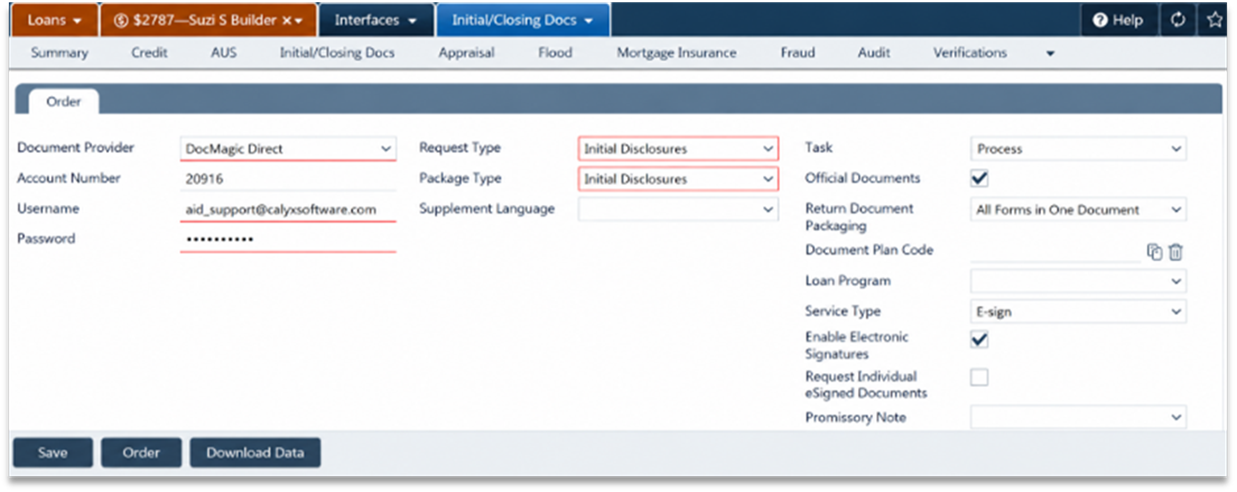
- Select DocMagic Direct, then enter the Account Number, Username, and Password.
- Select the Request Type and applicable Package Type. Select a Supplement Language only when configured for the DocMagic account.
- Select Audit to check the loan for data and compliance issues or Process to generate the package.
- Keep Official Documents selected for final documents. Clear it only to generate a watermarked sample package.
- Select the Order button.
- Select the applicable Document Plan Code and select Order.
- Select eSign or Print Fulfillment. For eSign, select Enable Electronic Signatures and, when needed, Request Individual eSigned Documents.
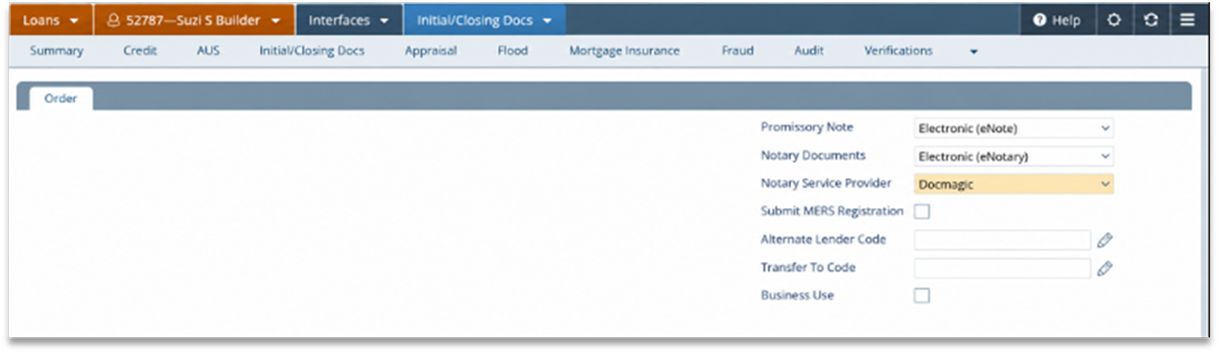
Optional eClose Configuration
- Select the Promissory Note format. Leaving the field blank generates a paper note for a closing package.
- Select whether Notary Documents will be completed on paper or electronically.
- For electronic notarization, select the applicable Notary Service Provider. Select DocMagic for its RON or IPEN services.
- Complete Submit MERS Registration, Alternate Lender Code, Transfer To Code, and Business Use, when applicable.
Submitting the Request
- Click Save to retain the information, Order to submit the request, or Download Data to download the loan data for review.
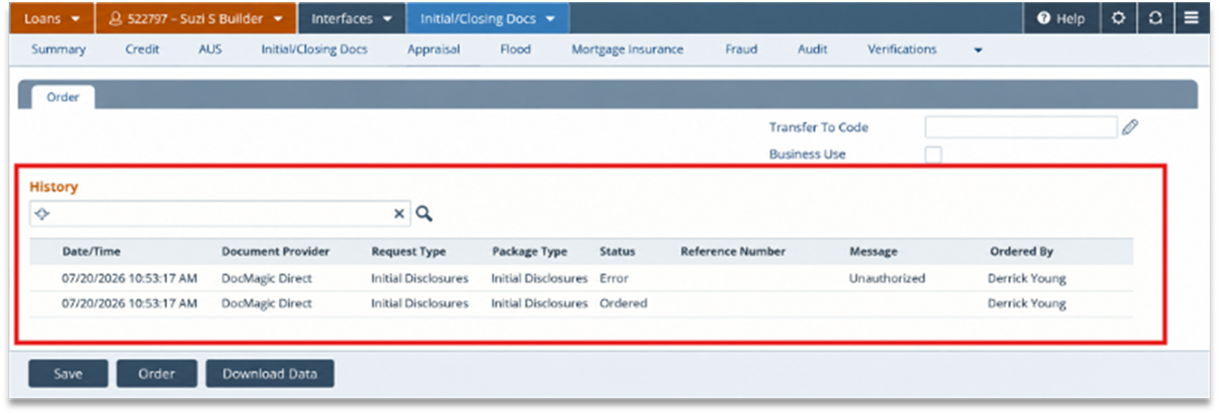
- Confirm the request when prompted. Correct any identified errors and resubmit the request, when necessary.
- Use History to review previous requests, search for a request, or clear the search criteria.

4. For eSign packages, open the DocMagic eSign Console to view and manage the package.
Important Notes
• eSigned documents are returned to Path as PDF files for loans processed using the new URLA.
• Path can request a Hybrid 1 Total eClose when ordering closing documents.
• Submit UCD requests through DocMagic; they cannot be submitted directly from Path.
• DocMagic documents returned to Path are provided in PDF, not DBK, format.
DocMagic Direct integration allows users to audit loan data, generate disclosure or closing packages, and manage electronic signature or print fulfillment options without leaving the Path loan workflow. Reviewing the request settings and correcting audit errors before processing helps prevent document delays and incomplete packages.
