
Content
Content....................................................................................................................................................................................................... 1
Introduction............................................................................................................................................................................................. 1
Overview of Pipelines...................................................................................................................................................................... 1
Using Path POS ZIP Online Applications.......................................................................................................................... 2
Buttons and Configuration.......................................................................................................................................................... 2
Move or Copy a Loan to the Loans Pipeline.................................................................................................................. 3
Button Reference (Sandbox Pipeline)................................................................................................................................. 3
What Happens When You Copy to Loans....................................................................................................................... 4
What Happens When You Move to Loans...................................................................................................................... 5
Loan Number Note................................................................,,,,,,,,.................................................................................................. 7
Quick Checklist (Recommended).......................................................................................................................................... 7
Introduction
- This guide helps users navigate the Sandbox pipeline in Path and complete the most common tasks in a typical workflow.
Overview of Pipelines
- Path includes two available pipelines: Sandbox and Loans. Where new loans are staged is part of initial setup with your admin.
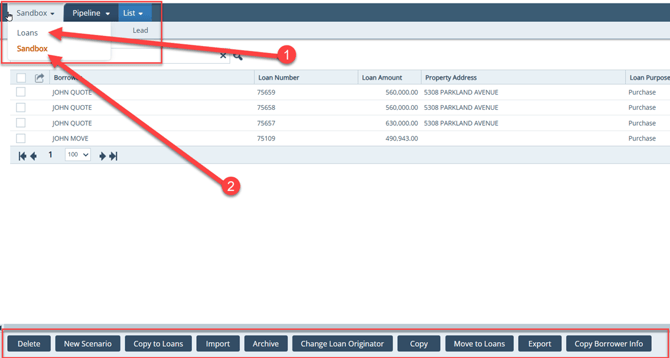
- To access the Sandbox pipeline, the pipeline must be enabled for the loan
- The Loans pipeline is for live loans that are ready to become a complete
- The Sandbox pipeline stores prospects or pre-quals before they are ready to become a complete loan application.
Note: The Sandbox pipeline is not for completing the full loan application or for processing the loan. It is used to test different loan scenarios (for example, changing loan programs, loan amounts, or sales price).
Using Path POS ZIP Online Applications
If you use Path POS (Zip) online loan applications, your online applications can be configured to land in the Sandbox pipeline. Once you are ready, you can move the application to the Loans pipeline to complete the application process.
Buttons and Configuration
Buttons at the bottom of the Sandbox pipeline can be configured to match the lender’s workflow requirements. The system admin needs to enable for your role the buttons that are needed to move or copy prospects/pre-quals from Sandbox to Loans.
Move or Copy a Loan to the Loans Pipeline
To move a Sandbox prospect or pre-qual to the Loans pipeline:
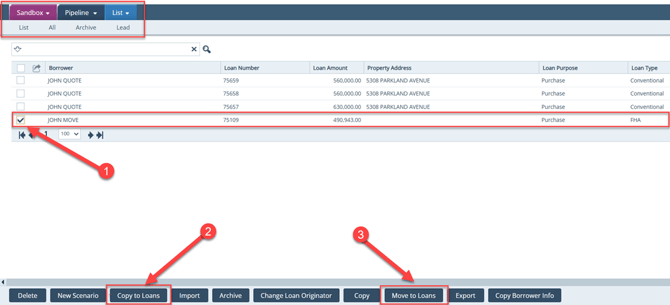
- Add a check mark to the loan you want to move to the Loans
- Choose one of the following actions:
- Click the Copy to Loans button to copy the loan into the Loans pipeline and keep the checked loan in the Sandbox pipeline.
- Click the Move to Loans button to move the loan from the Sandbox pipeline to the Loans
-
- After moving, the loan will no longer appear in the Sandbox
Button Reference (Sandbox Pipeline)
- The other buttons on the Sandbox pipeline are:
- Delete: deletes the loan from the Sandbox
- New Scenario: allows the loan officer to start a new loan in the Sandbox
- Copy to Loans: copies the loan into the Loans pipeline and keeps the checked loan in the Sandbox pipeline.
- Import: imports a 4 URLA into the Sandbox pipeline.
- Archive: moves files to Archive.
- Change Loan Originator: changes the loan originator (LO).
- Copy: copies an existing
- Move to Loans: moves the loan from the Sandbox pipeline to the Loans pipeline; the loan is removed from the Sandbox
- Export: exports the 4 URLA file out of Path.
- Copy Borrower Info: copies only the borrower’s information (not the complete file) within the Sandbox pipeline.
What Happens When You Copy to Loans
- If you click the Copy to Loans button, the following happens:
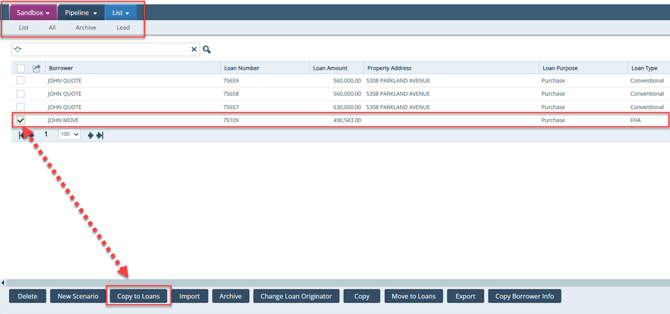
-
- Message confirms a new loan number was created successfully.
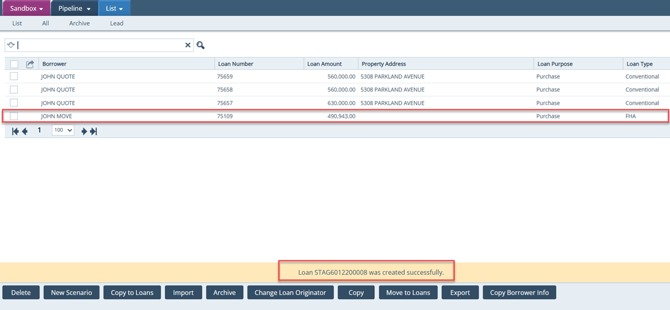
-
-
-
The original loan remains visible in the Sandbox pipeline.
-
-
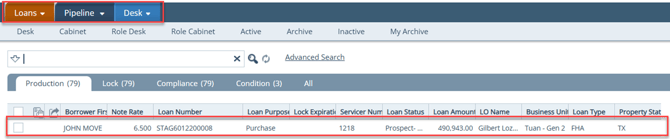
-
- The copied loan appears in the Loans
What Happens When You Move to Loans
- If you click the Move to Loans button, the following happens
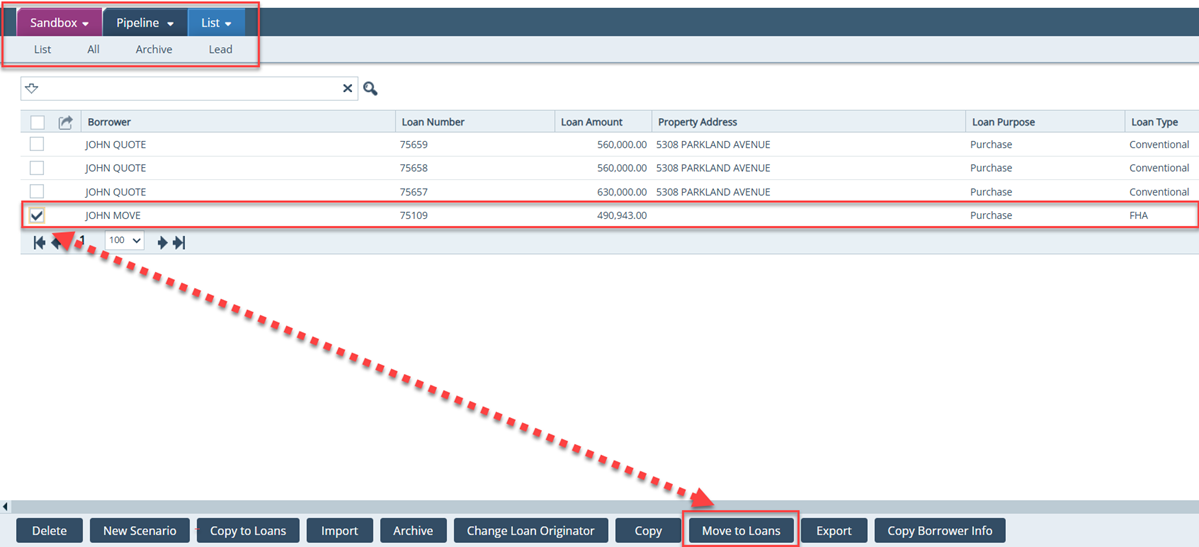
-
-
Message confirms a new loan number was moved successfully.
-
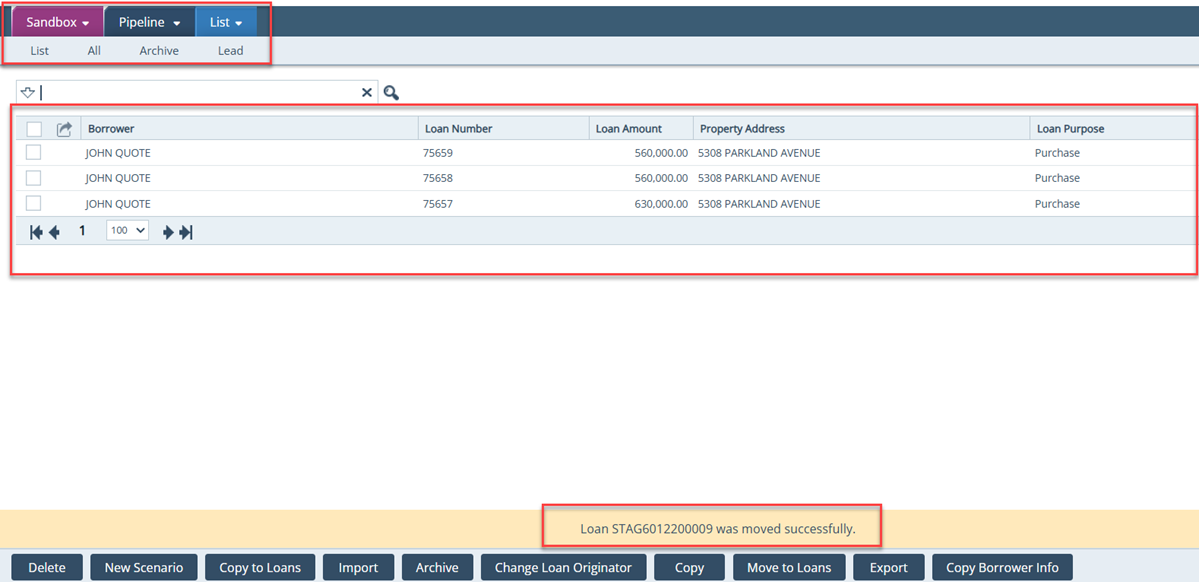
-
-
- The original sandbox loan is deleted from the Sandbox pipeline.
-
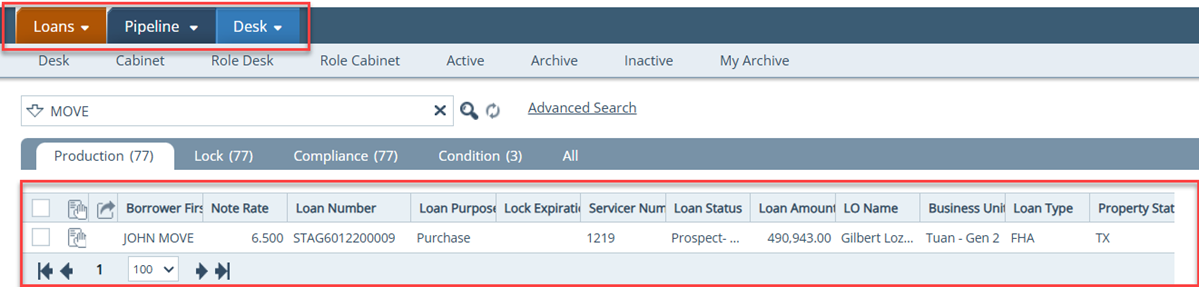
-
- The moved loan appears in the Loans
Loan Number Note
- The Sandbox pipeline and the Loans pipeline always have different loan Loan numbers can be preset by your admin in Path.
Quick Checklist (Recommended)
- Confirm the Sandbox pipeline is enabled for the user
- Use Sandbox for prospects/pre-quals and scenario testing (not for full application/processing)
- Select the loan’s check mark, then choose Copy to Loans button (keeps Sandbox loan) or Move to Loans button (removes Sandbox loan)
- Verify the popup confirmation and confirm the loan appears in the Loans pipeline
- Remember Sandbox and Loans loan numbers are always different (admin-configured)
