![Point.png]](https://www.calyxsoftware.com/hs-fs/hubfs/Point.png?height=40&name=Point.png)
Importing a PCF (Point Credit File) into Calyx Point is a quick way to restore loan data or move a loan between systems without re-keying everything. It helps you get back to work faster, keep your file consistent, and reduce the risk of missing key borrowers or loan details.
Import a PCF File
- Locate the PCF file (for example, in File Explorer or from an email attachment).

- Double-click the file or select it and choose Open.

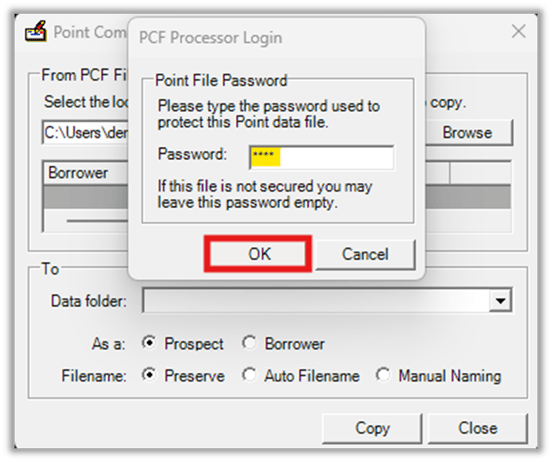
- In the PCF File Password window, enter the passcode assigned by the creator of the PCF file, then click OK.
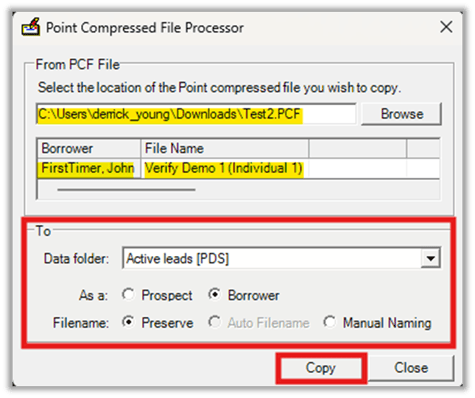
4. After the password window closes, confirm the “Select the location of the Point compressed file you wish to copy” field is now populated. You should now see the borrower's name and file name.
5. Select the data folder you want to import the file into.
6. Confirm the radio button is set to Borrower.
7. Choose how you want to name the file:
o Preserve the file name, or
o Manually enter a file name
8. Click Copy.
9. When the PCF Copy Results window appears, confirming the file has been imported into Point, click OK.
Post-Import Steps
- Log in to Point.
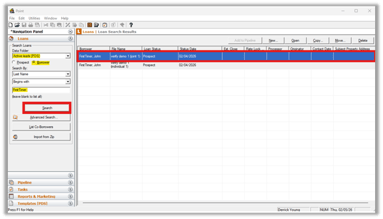
- In the Navigation Panel, use the Data Folder dropdown to select the same data folder you imported the file into.
- Search for the borrower (for example, by last name), then click Search.
- Confirm the imported PCF file now appears in your pipeline and is ready to be worked like a normal loan file.
Additional Notes
- PCF files contain loan data in a Calyx Point-specific standardized format.
- Import time varies by file size and system performance.
- Custom configurations or third-party integrations may affect import behavior.
- Contact Calyx support if import issues continue.
Summary
Importing a PCF file lets you bring a loan into Point quickly and continue working with minimal downtime. After the import, selecting the correct data folder and confirming the loan appears in your pipeline ensures you are ready to move forward confidently.
