![Point.png]](https://www.calyxsoftware.com/hs-fs/hubfs/Point.png?height=40&name=Point.png)
Track and manage DataVerify verification results in Point without leaving the loan file. This article explains how to review request progress in the Order Status table, use the Order Status Summary tab to retrieve completed results, and open finished documents using View Document or Document Storage.
Navigate to DataVerify Verifications
- Open a loan file.
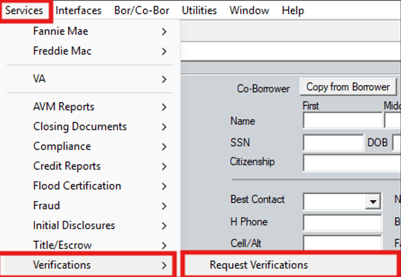
- Navigate to Services → Verifications.
- Select Request Verifications.
Review Order Status
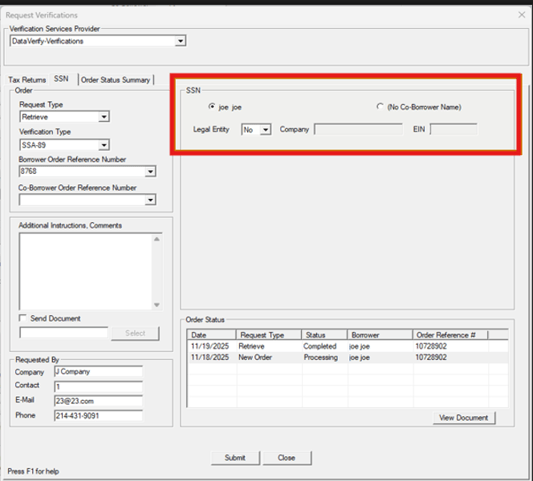
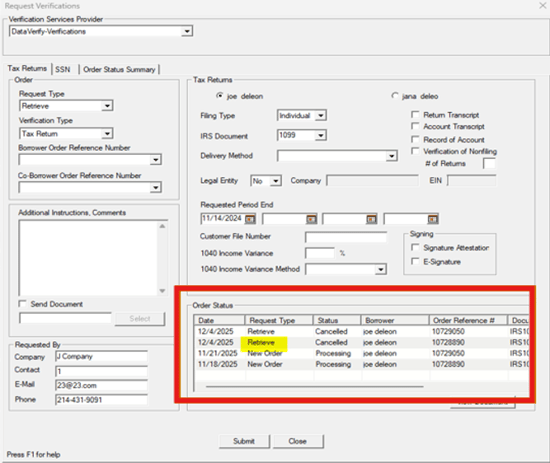
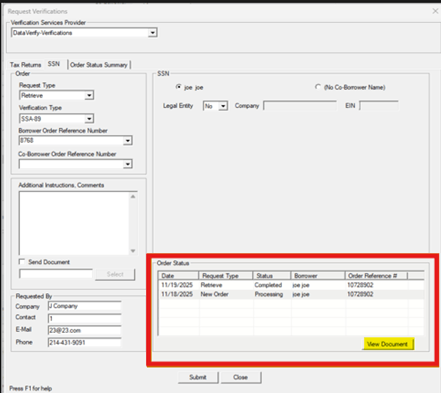
The Order Status table displays all verification requests and their current processing state.
4. Choose DataVerify Verifications from the available providers.
5. Review the Order Status table.
6. Locate the following details:
• Order Date
• Request Type (New Order or Retrieve)
• Status
• Borrower Name
• Order Reference Number
7. The SSN section is where you select the borrower/co-borrower and, if needed, enable Legal Entity to enter the Company name and EIN for business verifications.
⚠️ Note: Order Status – Each date listed will only have 1 Retrieve for the Order Reference.
Use the Order Status Summary Tab
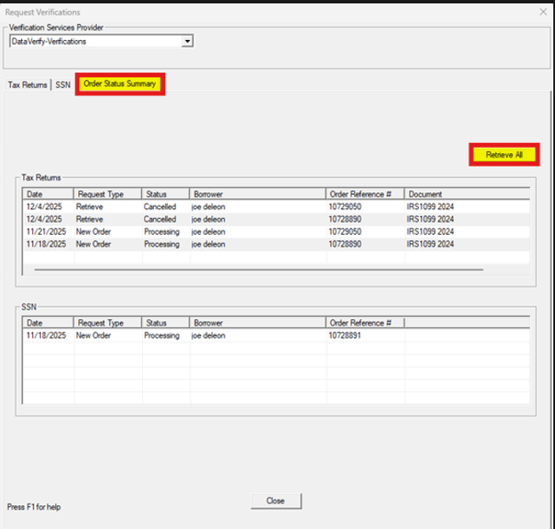
The Order Status Summary tab provides a consolidated view of all Tax Return and Social Security Number requests.
- Select the Order Status Summary
- Review all verification requests in a single view.
- Select Retrieve All to check for completed results.
View Completed Documents
Completed verification documents are available for review and stored automatically.
- Navigate to Services → Verifications → DataVerify.
- Locate a completed request on the status table.
- Select View Document.
- Access the document from Document Storage if needed.
Summary
Tracking and Viewing DataVerify Verification Results in Point lets you monitor verification progress, retrieve completed results, and view finished documents directly from the loan file using the Order Status table, Order Status Summary tab, and View Document/Document Storage options.
