![Zenly Primary Horizontal Color.png]](https://www.calyxsoftware.com/hs-fs/hubfs/Calyx%20Logos%20and%20Headers/Zenly%20Primary%20Horizontal%20Color.png?height=40&name=Zenly%20Primary%20Horizontal%20Color.png)
Depending on a user’s access rights, administrators may need to update a user’s account on their behalf through the Zenly Interview Configuration site (https://www.calyxzenly.com).
To update or change a User’s Landing Page information:
- Login to Zenly (https://www.calyxzenly.com).
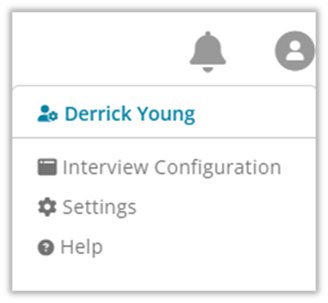
- Select the User Profile icon from the top right corner of the screen.

- Select Interview Configuration.
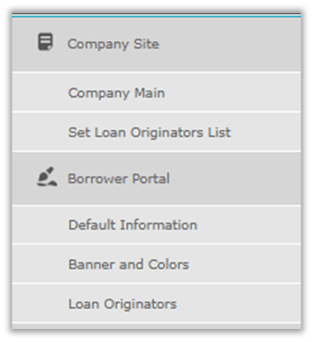
- Click the Loan Originator tab on the left navigation bar.
- Search for the Loan Originator Name.
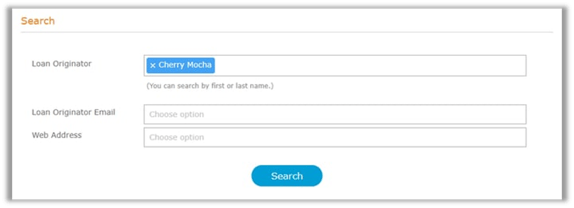
Note: The fields in the Search section allow manual entry or searching through the dropdown.
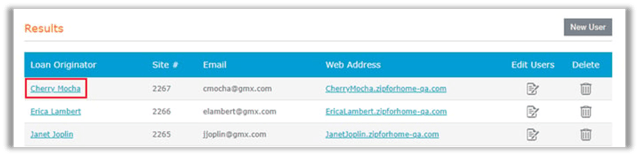
6. The Loan Originator will be shown in the Results section.
7. Click on the hyperlink of the User’s name.
8. Use the Set as Default radio button to determine if this Loan Originator will be used as the default for the company if using the Company Main page.
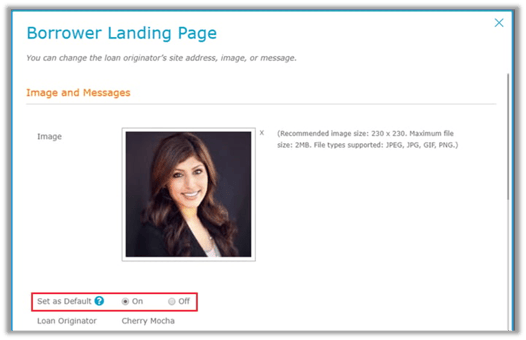
Note: Any Loan Originator set as the default will automatically be the selected Loan Originator for any borrower interviews submitted that a borrower has not selected a specific Loan Originator to apply with.
9. Update the information that is to appear on the Loan Originator's landing page as appropriate.
10. If desired, update or change their Website Address.
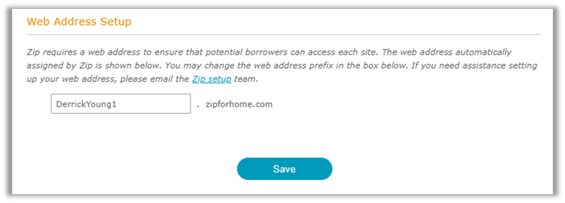
11. Click Save.
To change User’s Contact Information or access rights:
- Navigate back to the Zenly Home Screen.
- Click the icon Users

3. Select the Filter icon, then choose Active or Inactive to view the corresponding users.
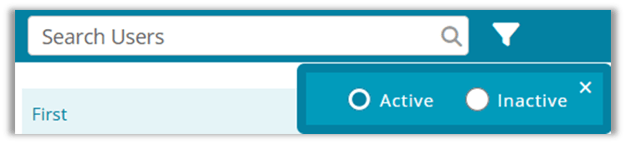
4. Double-click the user to update their Contact Information, Access Rights, and State Licenses, as needed.

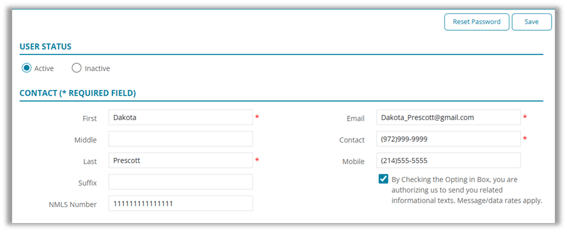
5. Click Save.
Summary
Use Loan Originator settings to keep landing page details and default routing correct and use the Users tab to quickly manage contact info, access rights, and state licenses for security and compliance.
