![Point.png]](https://www.calyxsoftware.com/hs-fs/hubfs/Point.png?height=40&name=Point.png)
Screen Share gives Zip users a way to see exactly what a borrower is seeing during an active interview, making it easier to offer real-time guidance without the back-and-forth of trying to describe steps verbally. Instead of guessing where a borrower is stuck, users can simply look and help.
Before You Begin
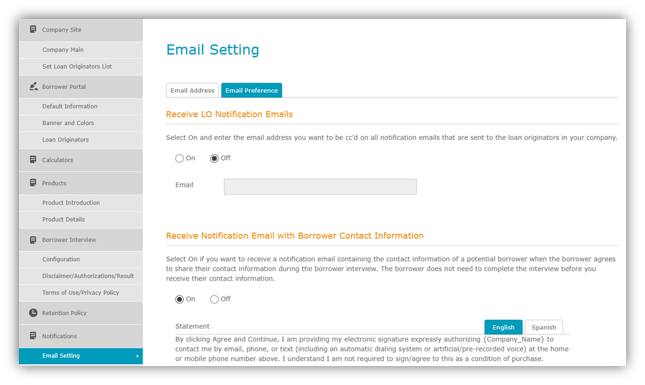
Screen Share must be enabled in the admin site before use. It requires the Receive notification email with borrower contact information setting to be turned on under Email Setting > Email Preference first.
Key Details
Requirement — The borrower contact notification email setting must be enabled before Screen Share can be turned on.
Device limitation — Screen Share is desktop-only. It is not available on phones or tablets, even if a mobile browser is switched to desktop mode.
How sessions begin — Screen Share is started by the Zip user, not by the borrower.
Session type — Screen Share is view-only. The Zip user can see the borrower's shared content but cannot take control of the borrower's screen.
Enable Screen Share in the Admin Site
- Under the Notifications, verify “Receive notification email with borrower contact information” is enabled in Email Setting > Email Preference.
2. In the Borrower Interview section, toggle Screen Share to On.
3. Under Access, move the originators from Available to Selected to grant LO site Screen Share access.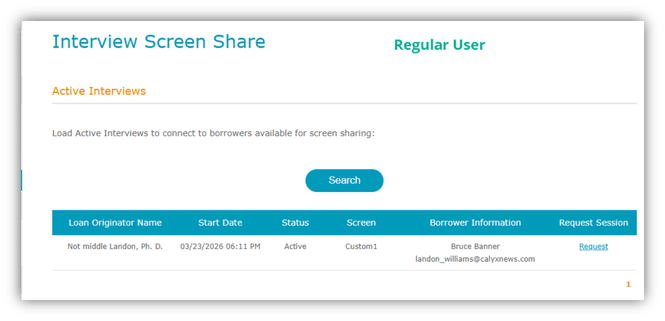
Access and Visibility
Admin users — Can view active interviews across all LO sites and can request a Screen Share session for an LO site other than their own.
Regular users — Can only view active interviews for their own LO site.
Borrower contact details — If the borrower agreed to share their information, their name and email address will appear within the table. If they did not agree, those fields remain blank, but the borrower can still take part in Screen Share.
Session limit — Only one active Screen Share session per LO site is allowed at one time.
Start a Screen Share Session
- On the Screen Share page, locate the borrower in the Active Interviews
- Click Request.

3. A new browser tab opens for the Zip user and remains waiting while the borrower prepares to connect.
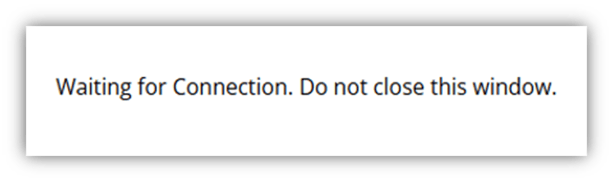
4. Leave that tab open while the borrower responds to the prompt in the interview.
Key Detail
Waiting tab — After Request is clicked, the waiting tab must remain open because it holds the session while the borrower indicates they are ready and selects what to share.
Borrower Screen Share Flow
1. After the Zip user clicks Request, the borrower receives the Screen Share dialog and clicks Ready.
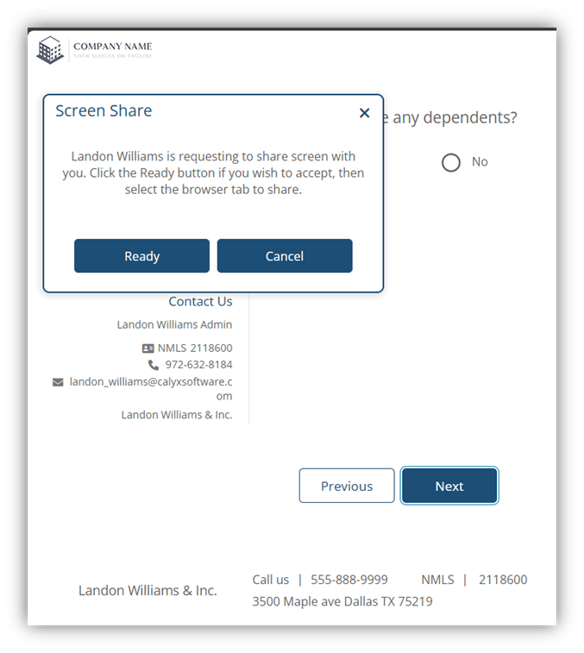
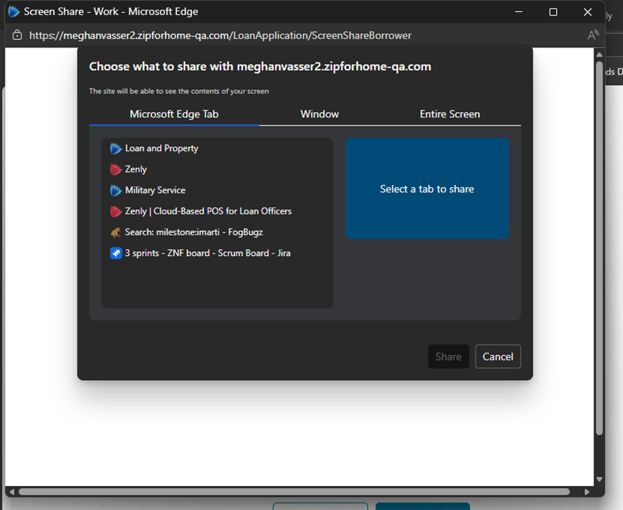
2. The borrower selects what to share (tab, window, or full screen) and clicks Share.
3. Once shared, the session becomes active and the Zip user can view the selected content.
Session Behavior
Browser differences — The share selection pop-up can look different depending on the browser.
What the Zip user can see — The Zip user sees whatever the borrower chooses to share. If the borrower shares an entire browser or full screen, that broader view is visible.
No remote control — The Zip user cannot click, type, or take over the borrower's screen.
No masking feature — There is no feature that hides or blurs sensitive information while the borrower is sharing. If it appears on the borrower's shared screen, the Zip user can see it.
Stop a Screen Share Session
1. To end the session, either the borrower or the Zip user must click Stop Sharing.

2. A session-ended message appears after the session stops.
End-of-Session Details
Who can end it — Either the borrower or the Zip user can stop the session.
Stop sharing location — In Chrome and Edge, the Stop sharing control appears at the top of the browser. In DuckDuckGo, it appears at the bottom.
Browser close behavior — Closing the borrower's browser also ends the Screen Share session.
Interview continuation — If the borrower stops sharing, they can continue working in the interview afterward.
Additional Behavior to Know
Screen Share displays whatever the borrower is sharing, not just the interview page. Content stays visible until sharing is stopped or the browser is closed, so users should treat each session as a live support call and guide the borrower accordingly.
Summary
Screen Share lets authorized Zip users view a borrower's screen in real time during an active interview, making it easy to offer live guidance without the guesswork. It's desktop-only, view-only, and either party can end the session at any time.
