![Point.png]](https://www.calyxsoftware.com/hs-fs/hubfs/Point.png?height=40&name=Point.png)
If a Windows 11 update is causing system instability or application conflicts, there are two methods available to undo it: uninstalling a specific update through Windows Update history or reverting a recent feature upgrade using the Recovery option. This article covers both methods, required conditions, and steps to follow before starting.
BEFORE YOU BEGIN
Complete the following before attempting either rollback method:
1. Back up any important files to an external drive or cloud storage.
2. If you work on a laptop, plug it into power to prevent interruption during the rollback.
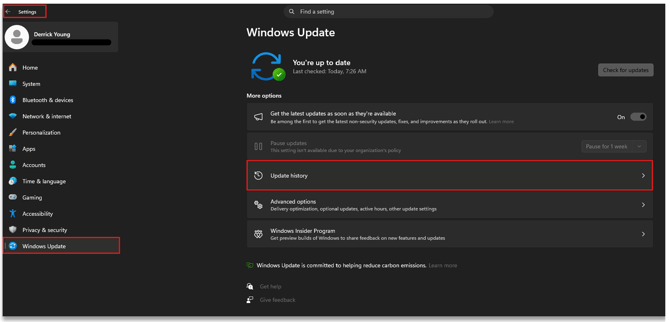
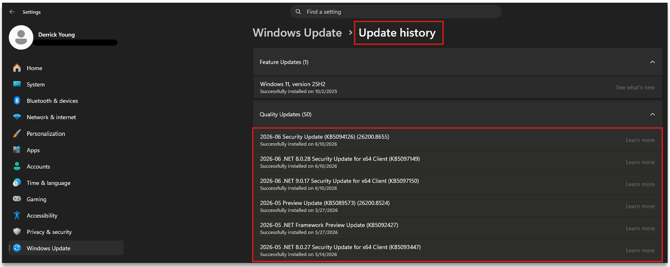
3. Confirm which update caused the issue. Open Settings > Windows Update > Update history to review installed updates.
UNINSTALL A SPECIFIC UPDATE
Use this method to remove an individual update, such as a quality update or security patch, without reverting the entire OS version.
1. Open Start > Settings.
2. Select Windows Update.
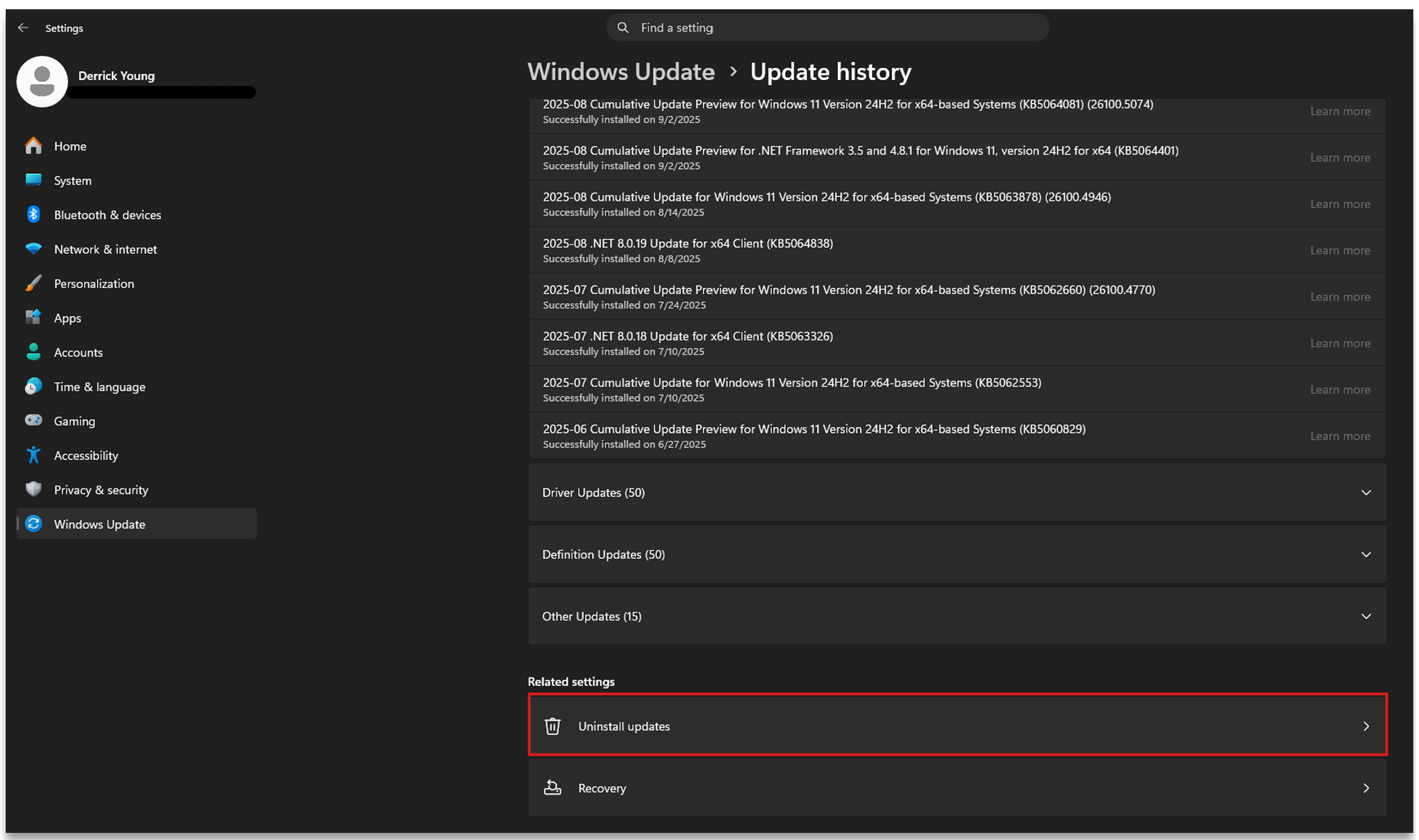
3. Click Update history.
4. Select Uninstall updates at the bottom of the screen.
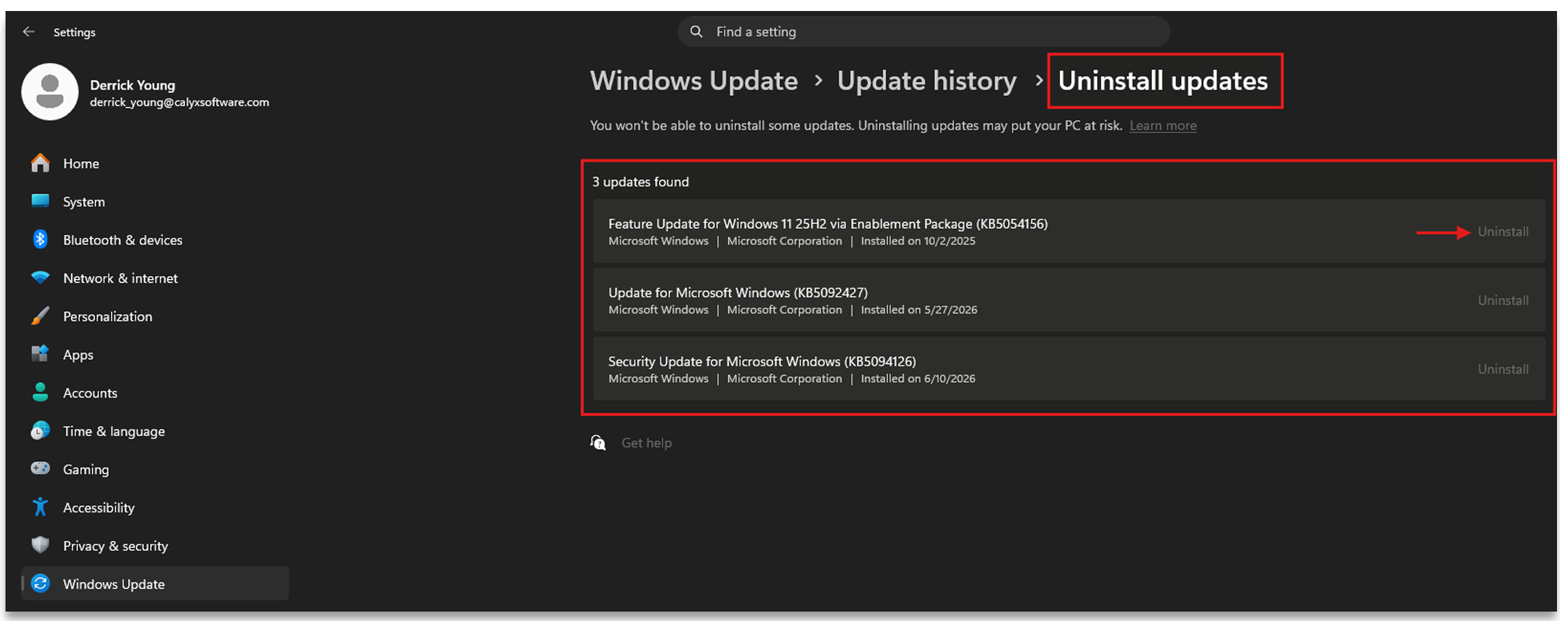
5. Locate the update you want to remove, select it, and click Uninstall.
6. Restart the PC when prompted.
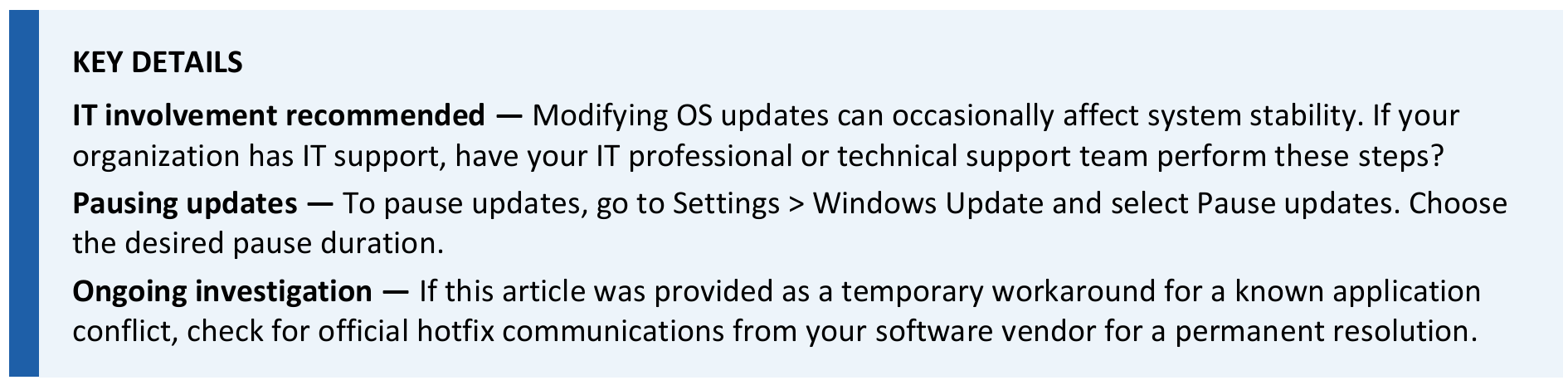
Rolling back a Windows 11 update can be done by uninstalling a specific update through Update history, reverting a feature upgrade via the Recovery (Go Back) option, or manually removing a known problematic update through Control Panel. Always back up data and plug in the device before starting. If the Go Back option is unavailable, a reinstall may be necessary. After removing any update, pause automatic updates to prevent reinstallation.
