![Point.png]](https://www.calyxsoftware.com/hs-fs/hubfs/Point.png?height=40&name=Point.png)
NOTE: On the Mortgage Call Report Screen the Action Date for Loan Originated refers to the Closed/Funded date not the application date.
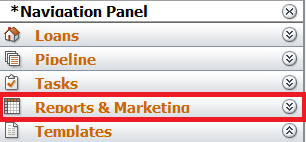
1. Navigate to Reports and Marketing Tab.
2. With the Reports radio button chosen, select Calyx Report - NMLS Call Report (Broker) v7 or Calyx Report - NMLS Call Report (Lender) v7 from the Report dropdown.

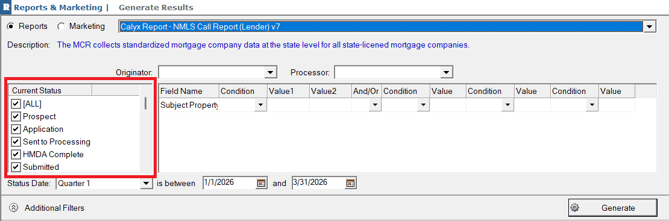
3. Check ALL for Current Status.
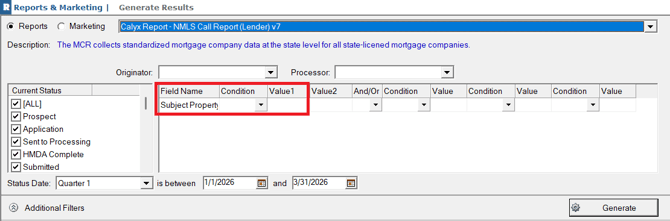
4. If you want to filter results by State, then select the Condition "Equal to" and enter the State Code into the Value1 field. If you want to view all States, then leave this blank.
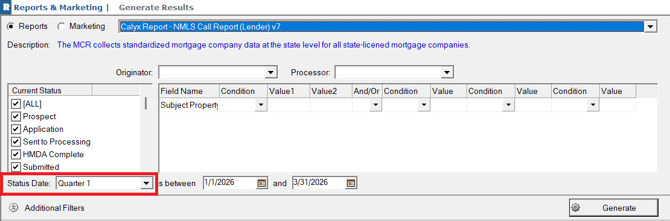
5. In the Status Date dropdown select the quarter you wish to report on. Quarter 1-4 options.
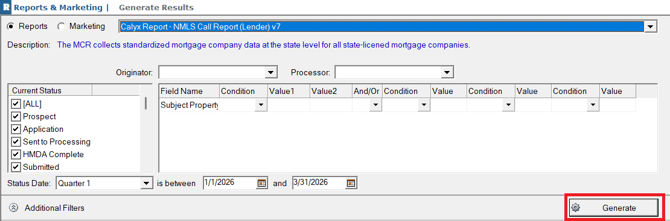
6. Click Generate.
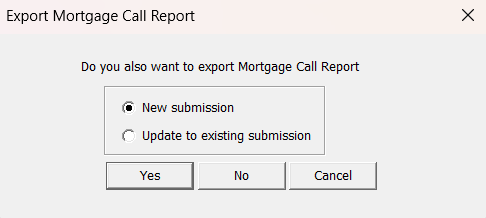
7. An Export Mortgage Call Report box will open. Selecting No will not export an XML, but instead will open a spreadsheet with your data for review.
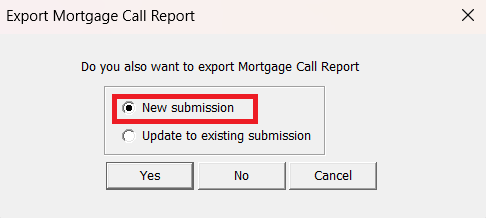
New Submission – This will create the XML for you to upload.
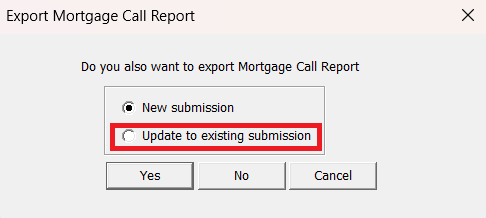
Update to existing submission – Select this option if your company has already submitted a report and you have made changes.
Inside the Excel Report
8. In the top left corner, field A2, verify the quarter is selected for the report. If another quarter is needed, update the dropdown.
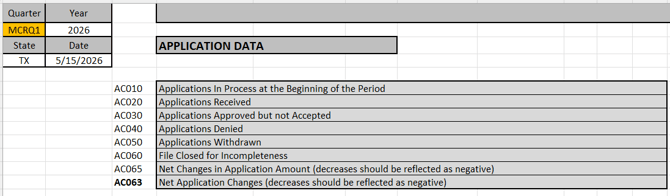
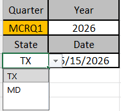
Note: If you did not put in a Subject Property State in the filter, and you have loans in multiple states, then you can review each by changing the state in field A4.
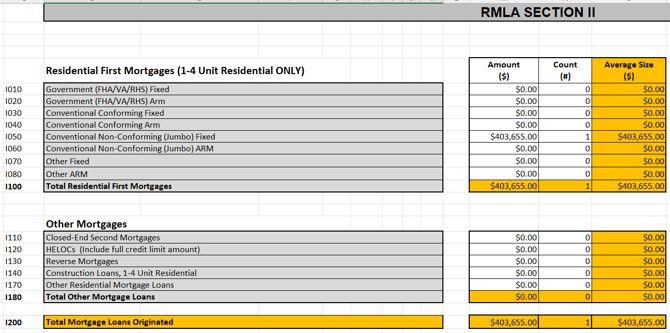
9. Lender V7 RMLA 2
10. On the data tab, fields will appear red to indicate that the file is missing that information, and that data is not populating to the Call Report.

11. To correct, users must open individual files and enter information that they want to flow over to the Call Report XML.
NOTE: Data must be entered into the Track-Mortgage Call Report screen for report. The Call Report will not pull data from Investments, Construction, HELOC or Other.
