![Point.png]](https://www.calyxsoftware.com/hs-fs/hubfs/Point.png?height=40&name=Point.png)
Invalid Root Folder Path – Adding Point Central Data Folders or Templates
This article explains how to resolve an Invalid Root Folder Path issue in Point Central that prevents administrators from adding data folders or making changes to template sets.
Symptoms
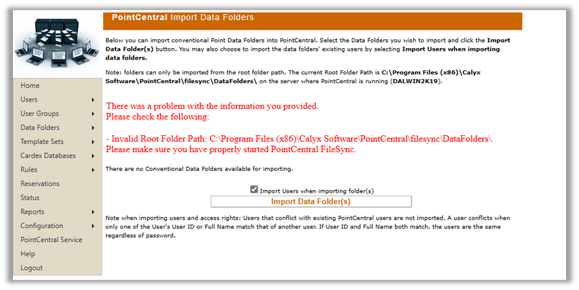
Users are unable to add a data folder or make changes to the template set from the Point Central Administration site.
Screenshot Placeholder: Symptom / Error Message Displayed in Point Central
Cause
The issue occurs when required Windows permissions are missing from the parent Point Central folder. Specifically, the following accounts do not have the correct permissions: - Network Service - IIS_IUSRS
The default Point Central installation path is:
C:\Program Files (x86)\Calyx Software\PointCentral\filesync\DataFolders\

Resolution
Login to the PointCentral Server and browse to the installed PointCentral working path (default path above).
⚠️ Important: These steps should be performed by your company’s IT Support team. Applying permissions may take time depending on the amount of data stored in the folders.
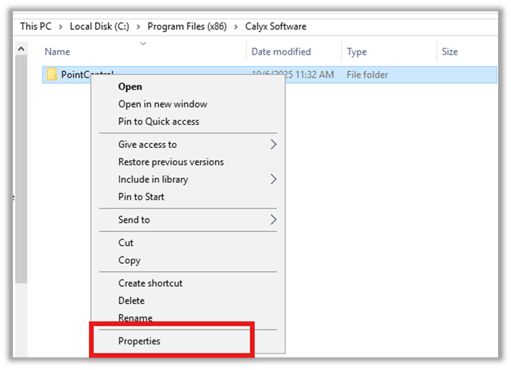
Open Folder Properties
- Right-click the Point Central
- Select Properties.
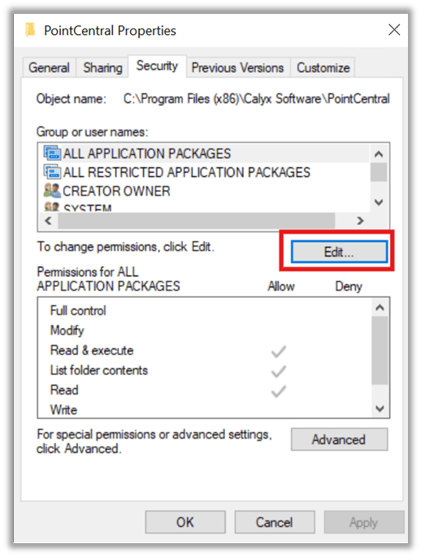
Access Security Settings
3. Select the Security
4. Click Edit.
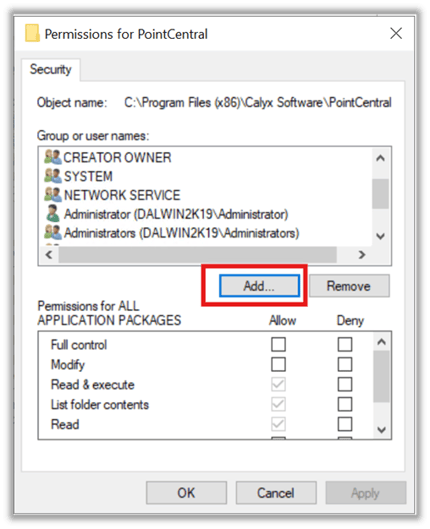
Add Required Users or Groups
5. Click Add.
6. In the Select Users or Groups dialog box, click Locations.
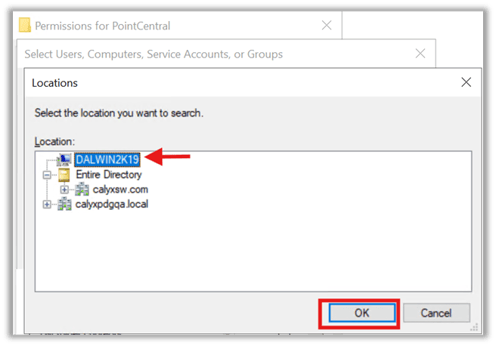
7. Highlight the top location in the list and click OK.
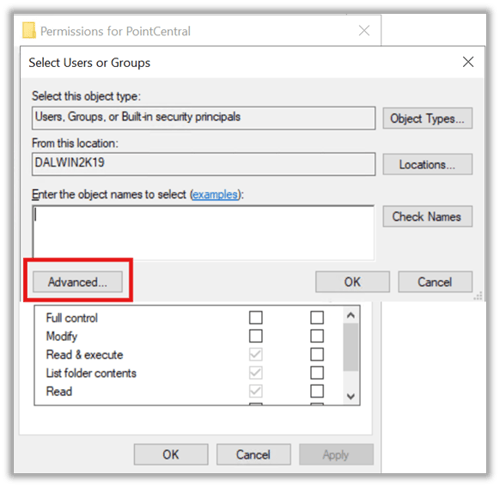
8. Click Advanced and select Find Now.
Assign Permissions
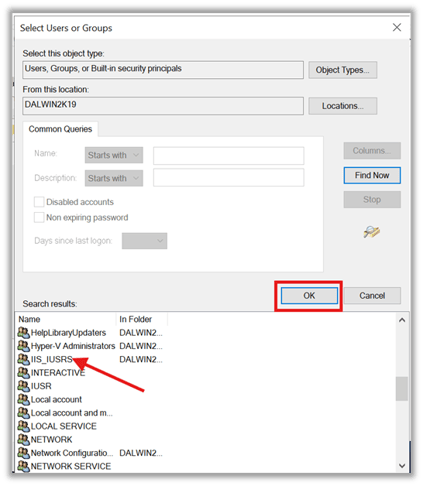
9. Select “Find Now” and from the results list, locate IIS_IUSRS.
10. Select it and check the Full Control checkbox.
11. Click OK.
⚠️ Important: Repeat step 5 to add Network Service with Full Control permissions.
Apply Advanced Permissions
12. Click the Advanced button.
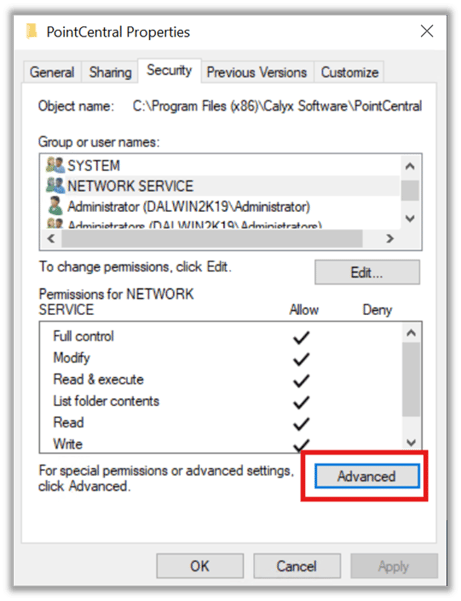
13. Highlight IIS_IUSRS.
14. Select Replace all child object permission entries with inheritable permission entries from this object.
15. Click OK.
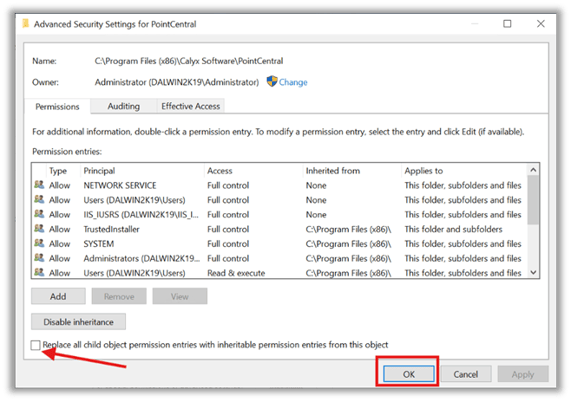
16. Repeat steps 7-9 for “Network Service”.
Additional Notes
⚠️These advance steps should be taken by the company IT Support Tech. The amount of time applying the permissions will depend upon the amount of data in the data folders and templates.
- Permission changes may take several minutes depending on folder size.
- Avoid interrupting the process once permission updates begin.
- After permissions are applied, verify that data folders and templates can be added successfully in Point Central.
Summary
Restores Point Central folder and template management by correcting missing server permissions (IIS_IUSRS and Network Service), helping prevent access errors, reduce admin downtime, and ensure Point Central data paths and deployments work reliably.
