![Point.png]](https://www.calyxsoftware.com/hs-fs/hubfs/Point.png?height=40&name=Point.png)
LoanSifterNOW is a pricing and product-eligibility tool that can be launched directly from Point. This article covers how to configure the integration and log in to LoanSifterNOW from the Point interface.
Prerequisites
- Open the applicable loan file in Point.
- Confirm the loan file contains the required loan and property information needed for pricing.
- Confirm that Loansifter is available as the pricing vendor on the Pricing screen.
- Have a LoanSifter username and password available to continue after the Client Login screen opens.
Configuring the LoanSifterNOW Integration
Before launching LoanSifterNOW, the integration must be selected in Path's product and pricing settings.
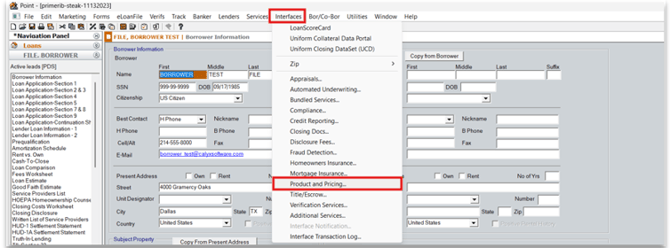
- Navigate to Interfaces > Product and Pricing.
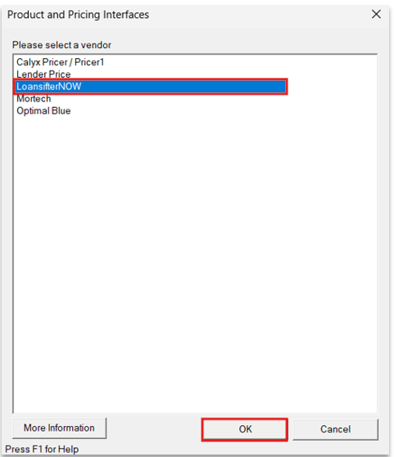
- Select LoanSifterNOW from the list of available integrations.
- Click OK to confirm the selection.
Launching and Logging In
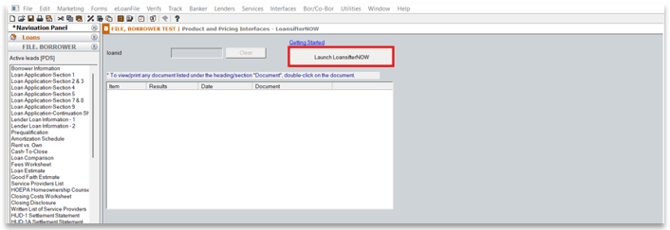
Once the integration is configured, LoanSifterNOW can be launched from the top of the screen.
- Click the Launch LoanSifterNOW button at the top of the screen.
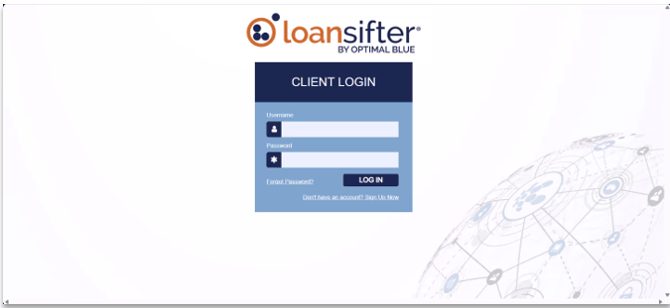
- Enter your LoanSifterNOW username and password on the login screen.
- Click Log In.
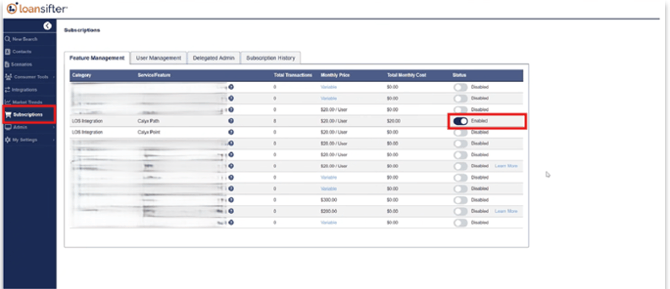
- Once logged in to the LoanSifter portal, click Subscriptions, select Calyx Path/Zenly from the list, and enable the Status.
Verify the Pricing Results
1. Confirm that the missing or incorrect information message no longer displays after the required LOS data is corrected.
- Confirm that LoanSifter launches to the Client Login screen.
- Enter the LoanSifter username and password and click LOG IN to continue pricing review.
Key Details
|
Area |
Detail |
|
Access |
LoanSifter pricing is accessed from Services > Pricing in the loan file. |
|
Vendor |
The Vendor dropdown must display Loansifter. |
|
Required fields |
The Launch LoanSifter screen marks required fields with a red asterisk. |
|
Search criteria |
The workflow shown uses Search By = Price, enters Desired Price ($), and selects a Desired Products option. |
|
Validation |
If required LOS data is missing or incorrect, the Message window identifies the Error and Description and instructs the user to return to the LOS, complete the information, and retry. |
|
Login |
After the workflow completes successfully, the LoanSifter Client Login screen opens. |
Use Pricing LoanSifter to launch LoanSifter pricing from Point after confirming the vendor and completing the required search criteria. If validation messages appear, correct the identified Point fields and retry the workflow until the LoanSifter Client Login screen opens.
