![Zenly Primary Horizontal Color.png]](https://www.calyxsoftware.com/hs-fs/hubfs/Calyx%20Logos%20and%20Headers/Zenly%20Primary%20Horizontal%20Color.png?height=40&name=Zenly%20Primary%20Horizontal%20Color.png)
Screen Share gives Zip users a way to see exactly what a borrower is seeing during an active interview, making it easier to offer real-time guidance without the back-and-forth of trying to describe steps verbally. Instead of guessing where a borrower is stuck, users can simply look and help.
Before You Begin
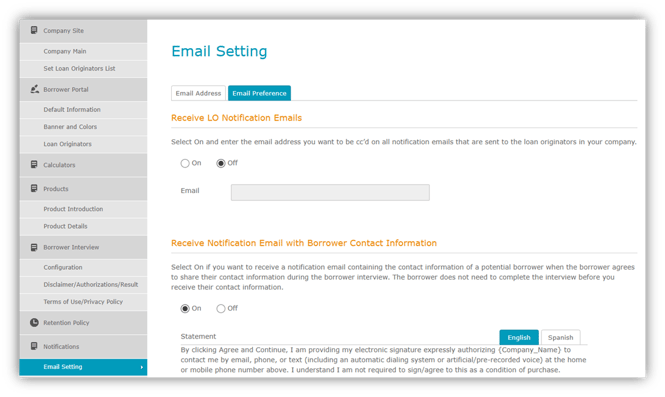
Screen Share must be enabled in the admin site before use. It requires the Receive notification email with borrower contact information setting to be turned on under Email Setting > Email Preference first.
Key Details

Enable Screen Share in the Admin Site
- Under the Notifications, verify “Receive notification email with borrower contact information” is enabled in Email Setting > Email Preference.
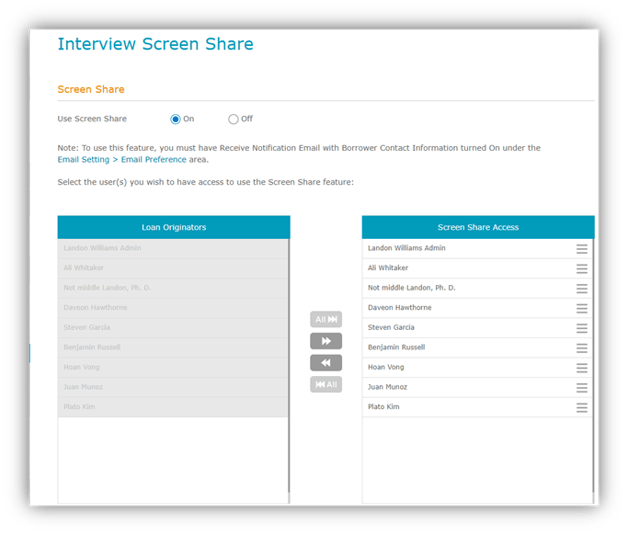
2. In the Borrower Interview section, toggle Screen Share to On.
3. Under Access, move the originators from Available to Selected to grant LO site Screen Share access.
Review Active Interviews
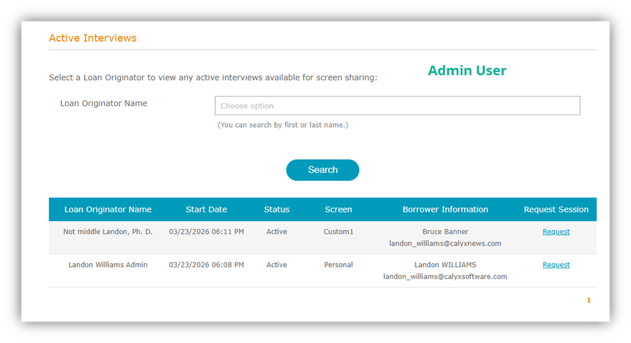
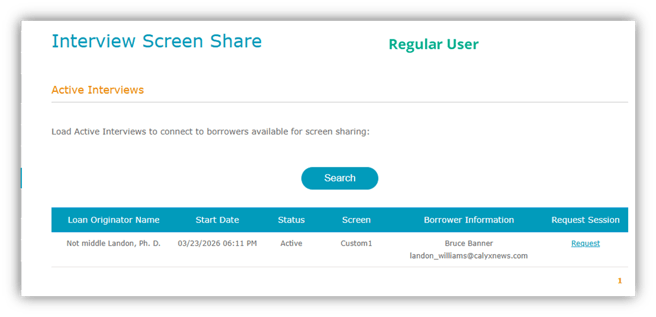
The lower section of the Screen Share page lists active interviews eligible for Screen Share. Borrowers appear in the request table only after completing the contact information section of the interview.
Access and Visibility

Start a Screen Share Session
- On the Screen Share page, locate the borrower in the Active Interviews
- Click Request.

3. A new browser tab opens for the Zip user and remains waiting while the borrower prepares to connect.
Key Detail

Borrower Screen Share Flow
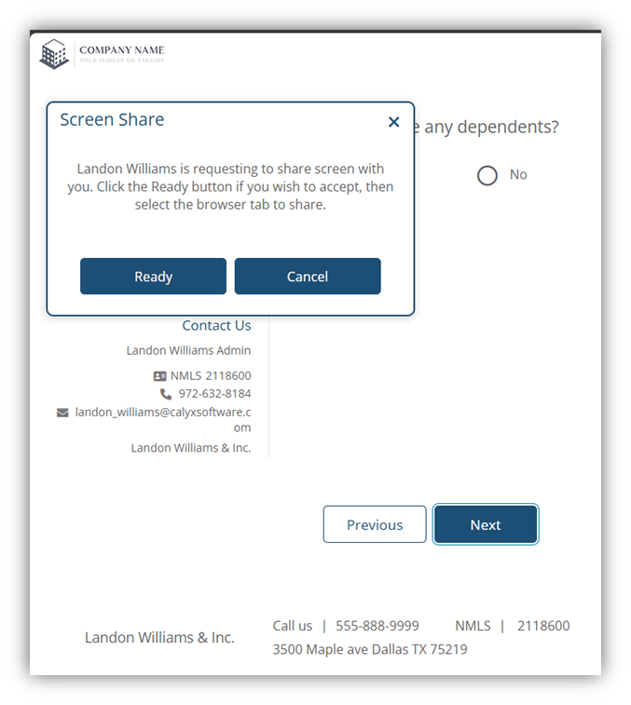
- After the Zip user clicks Request, the borrower receives the Screen Share dialog and clicks Ready.
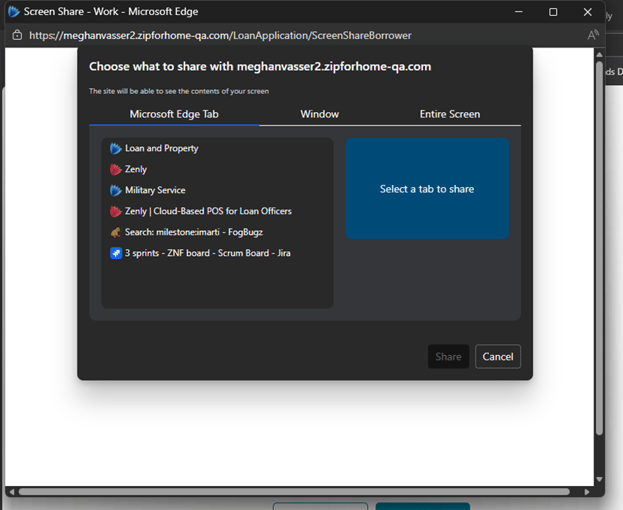
2. The borrower selects what to share (tab, window, or full screen) and clicks Share.
3. Once shared, the session becomes active and the Zip user can view the selected content
Session Behavior

Stop a Screen Share Session
- To end the session, either the borrower or the Zip user must click Stop Sharing.

2. A session-ended message appears after the session stops.

3. Close the session window or message prompt as needed.
End-of-Session Details

Additional Behavior to Know
Screen Share displays whatever the borrower is sharing, not just the interview page. Content stays visible until sharing is stopped or the browser is closed, so users should treat each session as a live support call and guide the borrower accordingly.
Summary
Screen Share lets authorized Zip users view a borrower's screen in real time during an active interview, making it easy to offer live guidance without the guesswork. It's desktop-only, view-only, and either party can end the session at any time.
