![Zenly Primary Horizontal Color.png]](https://www.calyxsoftware.com/hs-fs/hubfs/Calyx%20Logos%20and%20Headers/Zenly%20Primary%20Horizontal%20Color.png?height=40&name=Zenly%20Primary%20Horizontal%20Color.png)
Running a soft credit pull in Calyx allows users to review borrower credit information without affecting the borrower’s credit score. This workflow is useful for early qualification, pipeline screening, and confirming basic credit details before moving forward with a full credit review.
What is a Soft Credit Pull? A soft credit pulls allow lenders to review a borrower’s credit information without impacting their credit score. This is typically used for prequalification or early loan evaluation.
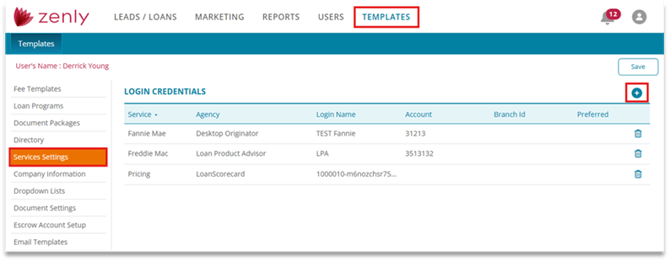
- Navigate to Templates > Services Settings.
- Click the plus sign (+) to add credit login credentials.
- Select Credit Reports from the Select Service dropdown.
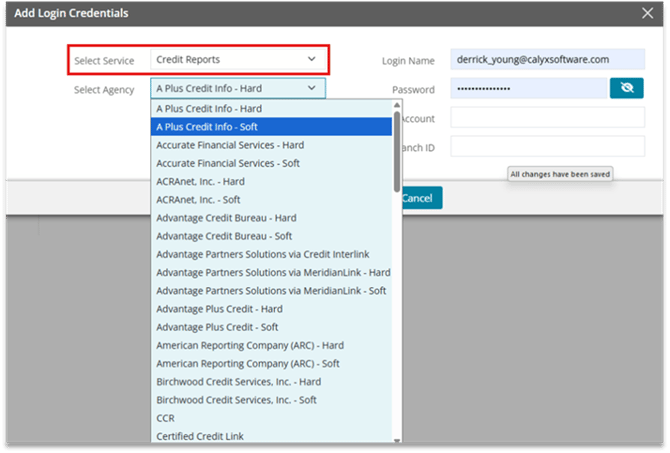
- Choose your credit agency. Each agency will display two options — one for hard pull and one for soft pull.
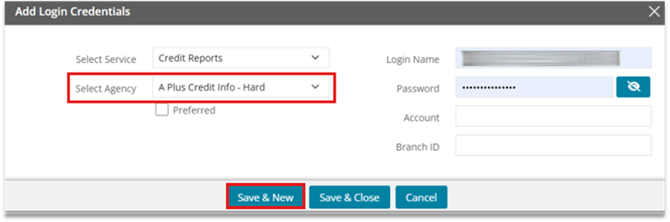
- Select the agency’s Hard Pull option and enter the hard pull credentials. Click Save & New.
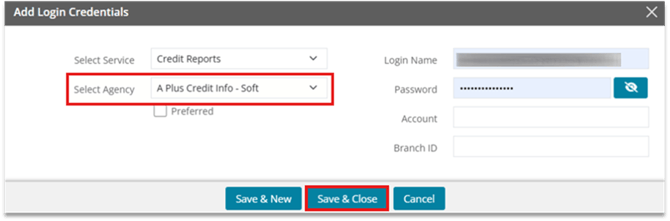
- Select the agency’s Soft Pull option and enter the soft pull credentials. Click Save & Close.
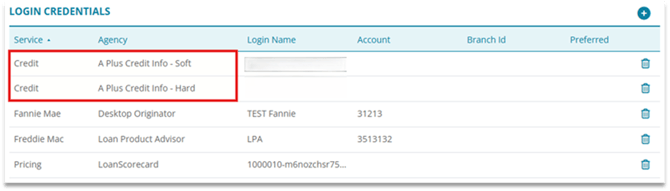
- The Credit Agency will now display under the Login Credentials list — one entry for soft credit and one for hard credit.
- Close the Credit Report results screen.
PULLING THE CREDIT REPORT:
- Open the loan file you will be pulling credit for.
- Select the Services tab.

- Verify that the borrower set you will be pulling credit on is selected as the Primary.
Note: if using a co-borrower, the section title will show Credit Order - Joint. - Use the Request Action Type dropdown to select the service type you are requesting.
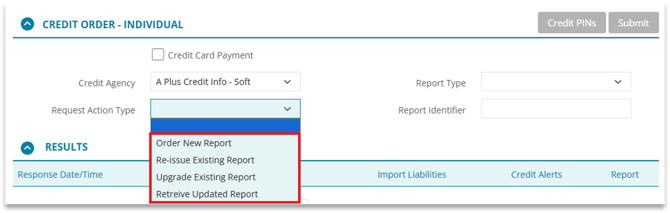
- If you are re-issuing a previously pulled report, complete the Report Identifier field.

6. If you are paying for this report at time of pull via the borrower's credit card, check the Credit Card Payment box.

7. Click the Submit button.
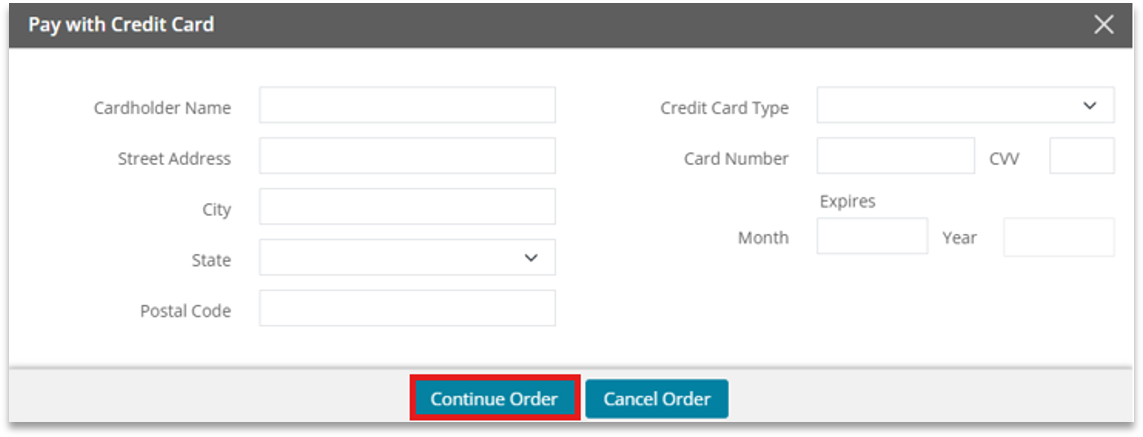
- If the Credit Card Payment checkbox is selected, the Pay with Credit Card window will open. Complete the available fields and click the Continue Order button.
- If no credentials have been saved in the Services Settings, you will be asked for them this time.
- Once the communication is complete, the full credit report will open for you to review.
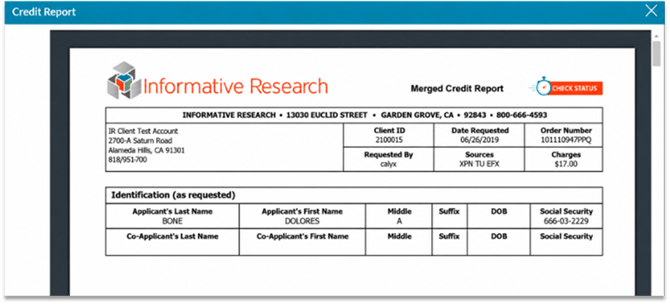
- Close the Credit Report results screen.
Note: The full report and any credit alerts are saved to the file and can be opened, reviewed, and downloaded as needed.
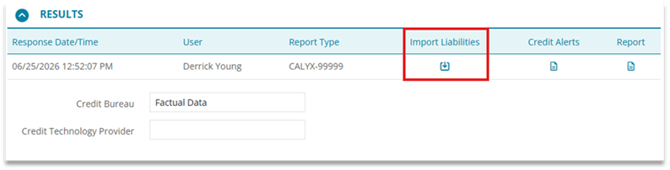
9. The Order Results section will populate.
10. Click the Import Liabilities icon to populate the file.
11. If you do not wish to include any closed accounts or those with a $0 balance, select the appropriate Ignore checkbox.
12. Click Yes.
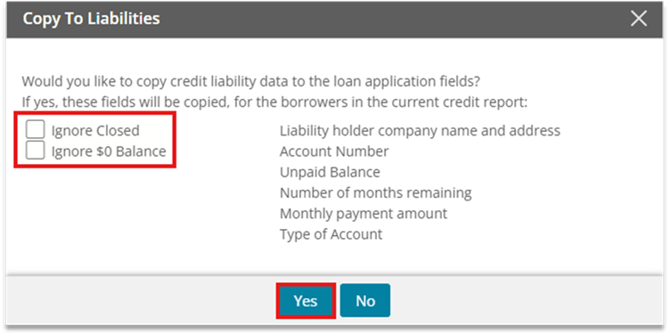
13. The Copy to Liabilities dialog box will close.
14. Click the Application tab.

15. From the Borrower screen scroll to the Liabilities section to view all imported liabilities.
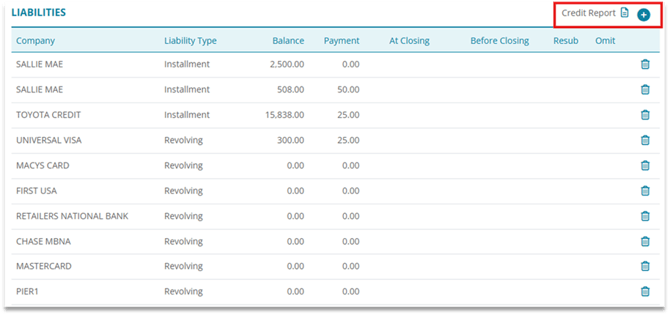
16. Click the Credit Report icon in the upper-right corner to copy liabilities from the credit report into the Liabilities table.
17. Click the plus (+) icon in the upper-right corner to add a new liability to the Liabilities table manually.
18. You can select the individual line items to edit as appropriate.
19. Click the Save & Close button after each edit to move to the next.
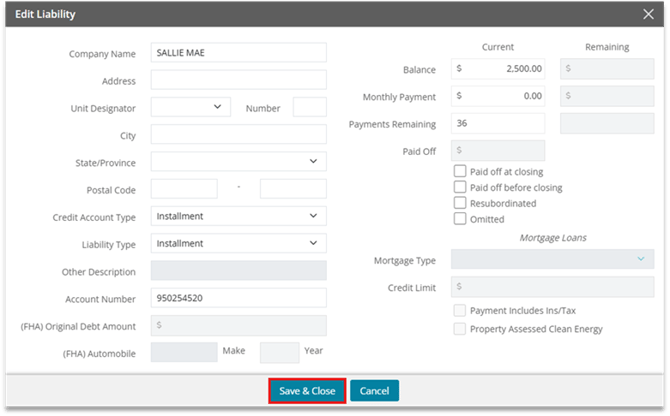
20. When ready, click the Save button at the top of the workspace.

______________________________________________________________________________
IF YOU NEED TO PULL CREDIT FOR 1 CREDIT AGENCY:
1. Open a loan in Zenly.
2. Select the Services.

3. Select the type of report from the Report Type.

4. Click the Credit PINs.

5. Uncheck the Credit Agency boxes for the Agencies you do not wish to pull credit from.
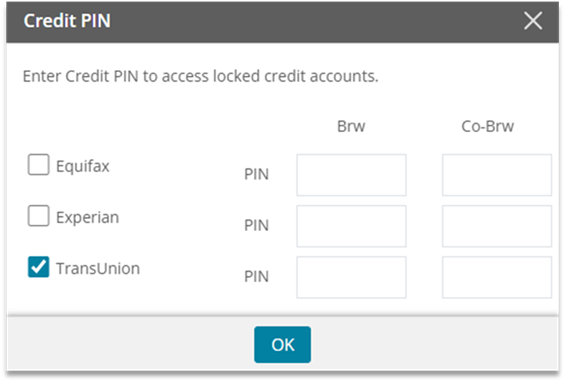
6. Click OK and Submit.

After the soft credit credentials are configured, users can select the soft credit agency option from the Services screen and submit the request without impacting the borrower’s credit score. Make sure both hard and soft credential types are set up correctly so the appropriate credit pull option is available when ordering credit.
